Recurring invoices
Recurring billing makes an invoice for a client every month, with the same lines, on the day you choose — for maintenance plans, retainers and rentals.
Set it up for a client
Open the client, go to the Accounting tab, and click Recurring.
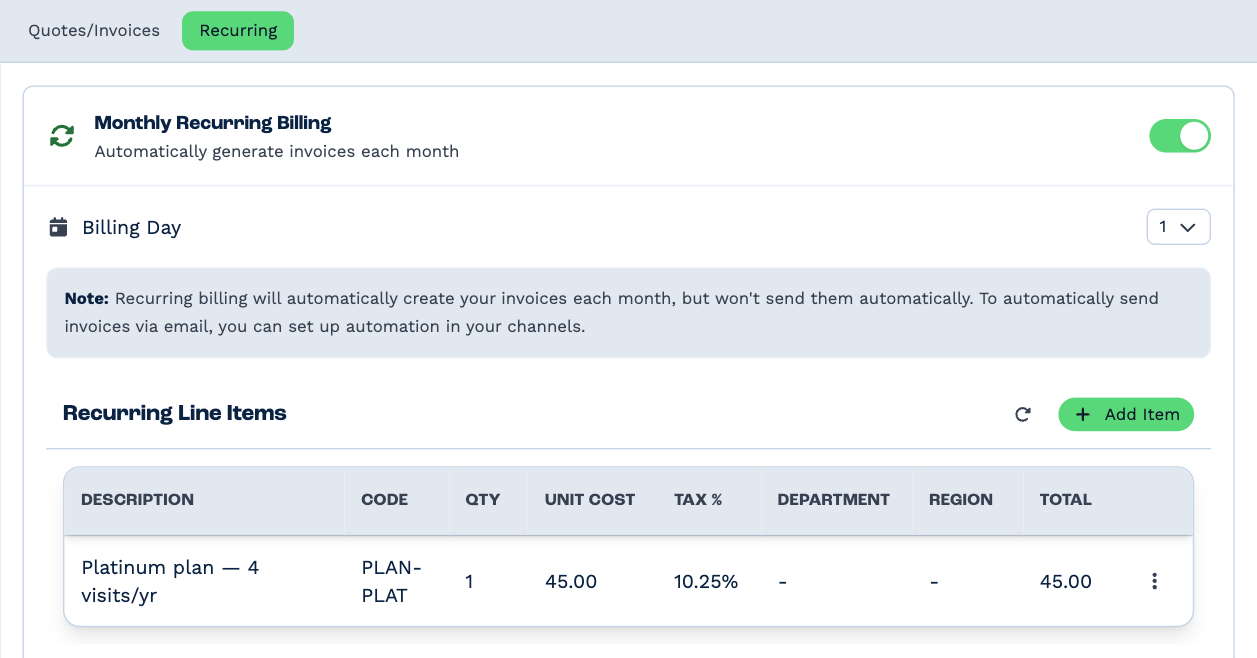
- Switch on Monthly Recurring Billing.
- Choose the Billing Day — any day from 1 to 28, so it exists in every month.
- Under Recurring Line Items, click Add Item. Pick one of your Standard Line Items, or Custom to type the line, then set the code, quantity, unit cost and tax. Add as many lines as you bill.
The ⋮ menu on a line changes or removes it. Changes apply from the next invoice.
What happens each month
On the billing day, BaseCloud makes an invoice for the client with those lines:
- It's an invoice, not a quote, and it's due a week later.
- It uses the account's first layout set and its "Invoice prices are" setting.
- Its PDF is made, ready to send.
It isn't sent. To send it by itself, build an automation on the CRM Trigger's Invoice Event → Quote/Invoice Created.
If billing is switched on but the client has no lines, no invoice is made; a high-priority note on the client says so instead.
Everyone billed monthly
The Recurring Setup tab on the Accounting page lists every client with recurring billing switched on, with their billing day and monthly total. Show lists a client's lines.
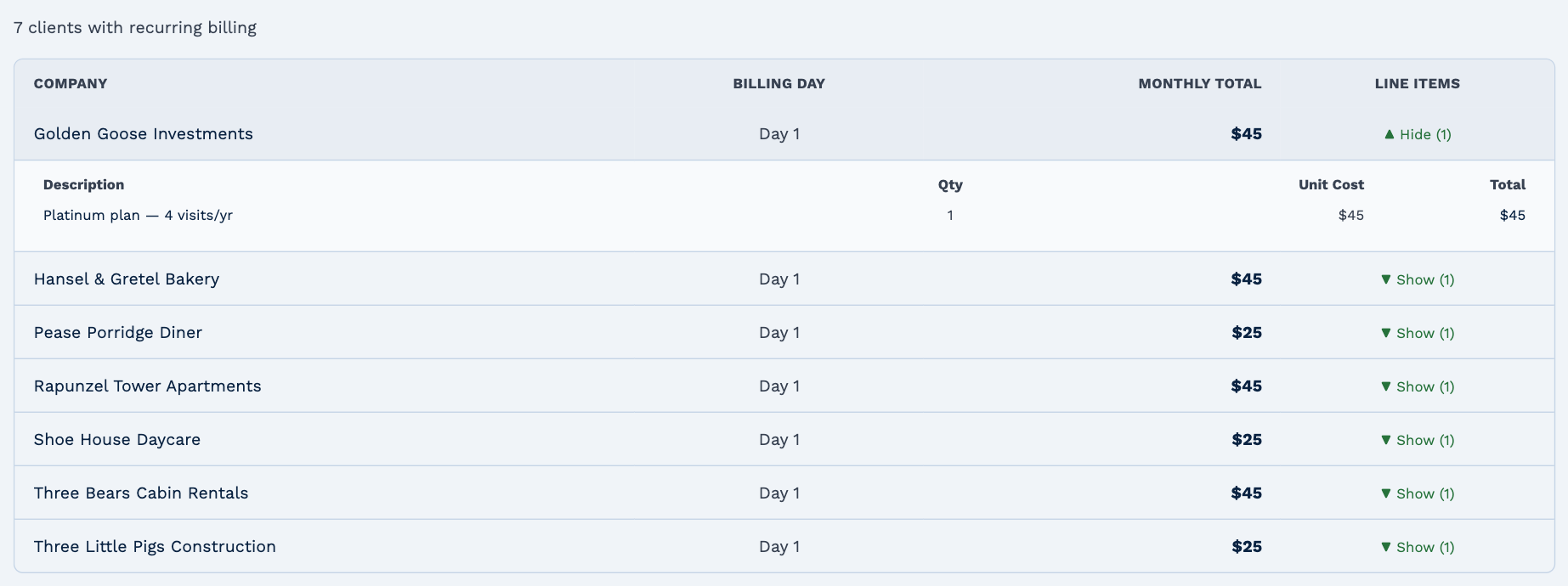
To change a client's billing, open the client and use their Recurring tab.