The client panel
Click a client on the Clients page — in the table or on the Kanban board — to open their panel on the right. The page address changes to include the client, so you can bookmark it or send it to a colleague.
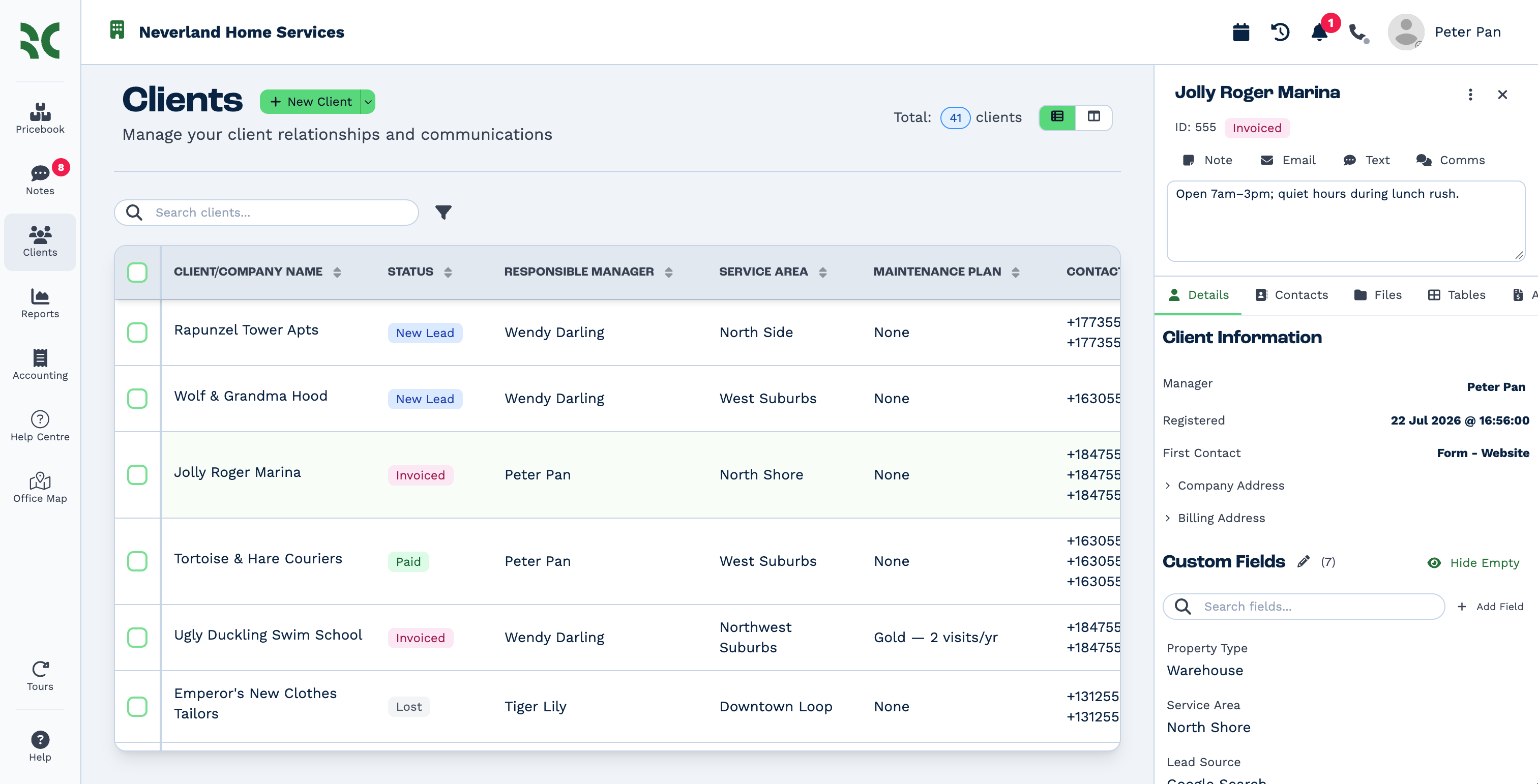
The top of the panel
- Name — click it to rename the client.
- ID — the client's short number, handy when you talk to colleagues or search.
- Status — click it to choose another status. The gear next to it, Manage statuses, opens the status settings.
- ⋮ More actions
- Show activity — everything that has happened to this client.
- New Meeting — book a meeting with this client in your calendar.
- Merge client and Delete client — see Merge or delete clients.
Get in touch
The buttons under the name start a conversation with the client: Note, Email, Text, and WhatsApp when your account has WhatsApp connected. Comms opens the client's full history of notes, emails, texts, chats and calls.
General notes
The box under the buttons, Add general notes about this client..., is for things everyone should know — gate codes, opening hours, how the client likes to be contacted. It saves when you click away from it, with a short green flash.
Tabs
| Tab | Holds | Needs |
|---|---|---|
| Details | Manager, dates, addresses and custom fields | — |
| Contacts | The people at this client — see Contacts | — |
| Files | Documents and photos, in folders | Files Access |
| Tables | Your custom tables for this client | — |
| Accounting | Quotes, invoices and recurring billing | View Invoices |
| Activity | A log of every change, with filters | — |
Tabs you don't have the right for are hidden.
Details
Client Information
- Manager — click to choose a different responsible manager. You need the Reassign Clients right.
- Registered — when the client was created.
- First Contact — the client's origin, such as Form - Website. It can't be changed.
Company Address and Billing Address — click a line (shown as — when it's empty) to type in it. Press Enter or click away to save, or Esc to cancel. The billing address has an extra Addressed To line for the name on quotes and invoices.
Custom fields
Custom Fields lists your business's own fields for this client, with how many are filled in.
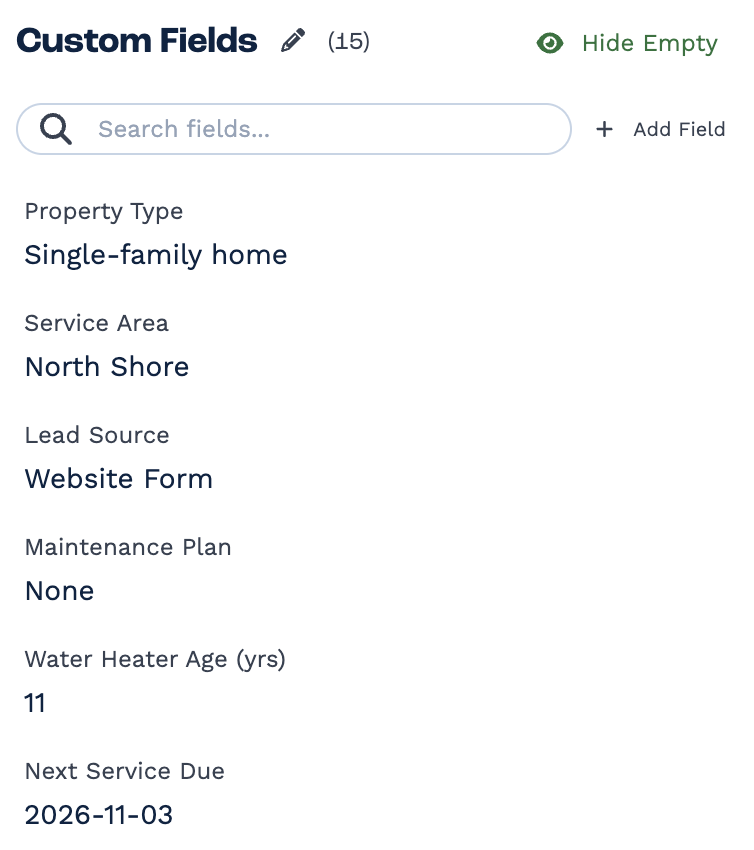
- Click a value to change it. Dropdowns, dates, users and checkboxes each open the right kind of picker.
- Search fields... finds a field by its name or value.
- Hide Empty shows only the fields that have a value; Show Empty brings the rest back.
Some fields may be missing or read-only for you. Each field has an access level from 1 to 10, and you see or edit it only when your Custom Field View Level or Custom Field Edit Level is at least that high.
With the Manage Custom Fields right you also see Add Field and a pencil that switches on edit mode, where you can add, rename, reorder and delete fields for the whole account. See Custom fields for every field type and how to manage them.
Deleting a field deletes it for every client
Deleting a custom field removes the field and all its values from every client. BaseCloud asks you to type the field's name to confirm.
Activity
The Activity tab lists every change to the client — who did what and when, including changes made by automations. Filter it by date, by person, or with Search..., and switch Automation on or off to show or hide automated changes.
When a client won't open
- You do not have access to this client — the client is managed by someone else and you can't see all clients. The panel shows who the responsible manager is, so you can ask them.
- Client Deleted — the client has been deleted or merged into another client.