Email rules
Who can do this
You can set your own rules. Anyone with Manage Users can set anyone's, and a team's.
BaseCloud works out which client each incoming email is about. An email rule decides for it: email from a supplier always goes to that supplier's client, delivery confirmations are marked done as they arrive, newsletters are ignored.
Open Settings → Users → your name → Email Rules.
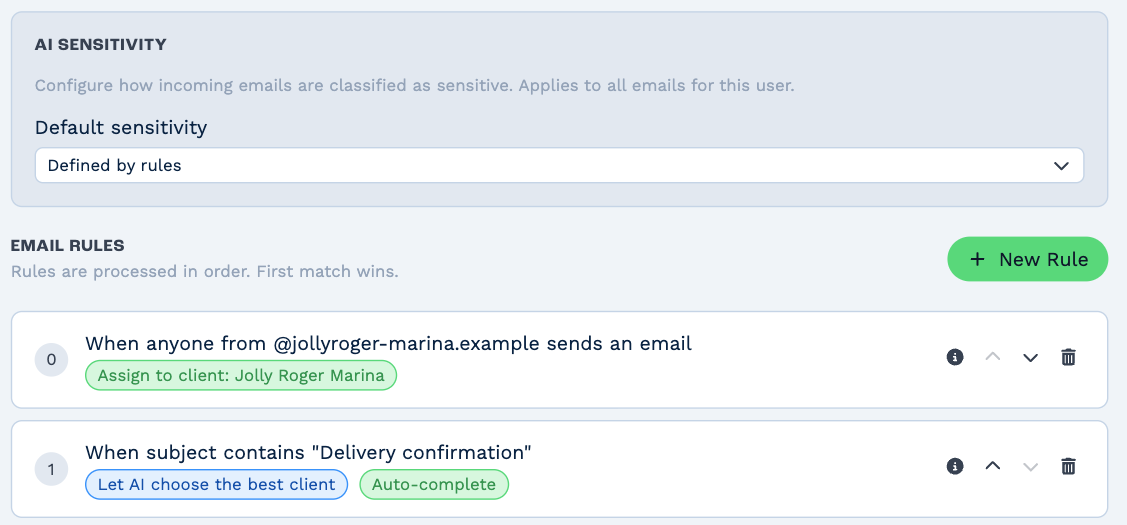
AI Sensitivity, at the top, sets which of your emails are marked sensitive; see Sensitive notes.
Add a rule
- Click New Rule.
- Under When..., choose what to look for, and type it in:
- Match sender email — one address, such as accounts@example.com
- Match sender domain — anyone at a domain, such as example.com
- Match exact subject
- Subject contains
- Body contains
- Under Then..., choose what happens:
- Let AI choose best client — BaseCloud picks the client, as it normally would.
- Assign to specific client... — search for the client it always goes to.
- Don't assign to any client — it waits as an unmatched email for you to file.
- Delete the email — it doesn't appear in BaseCloud at all.
- Under Assign to user, choose whose Inbox it goes to: no one in particular, the matched client's Responsible Manager, or a person you pick.
- Tick Mark as complete to file it already done, so it doesn't sit in anyone's Inbox, or Mark as sensitive to keep it private.
- Check the Preview, then click Create Rule.
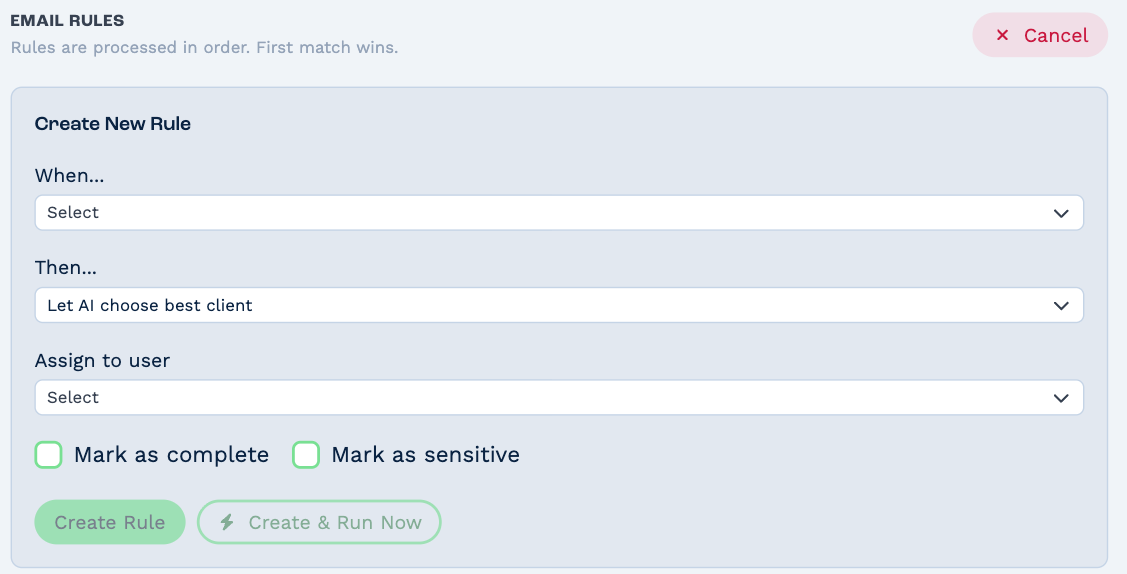
Create & Run Now creates the rule and also applies it to the emails you already have that aren't linked to a client yet.
Order matters
Rules are checked from the top, and the first one that matches wins — the rest are skipped. Put the most specific rules first. Use the arrows to move a rule up or down, the i to see its details, and the bin to delete it.
A team's rules
A team's rules sort email that arrives at its shared address. Find them under Settings → Teams → the team → Email Rules. Every member can see them; only someone with Manage Users can change them, because they act on everyone's email.
A team rule offers Give it to instead of Assign to user, where Leave it for the team to pick up keeps the email in the shared Inbox for whoever claims it.