Add and manage users
Who can do this
Manage Users to open another user and change them. Add/Remove Users as well to add or remove one.
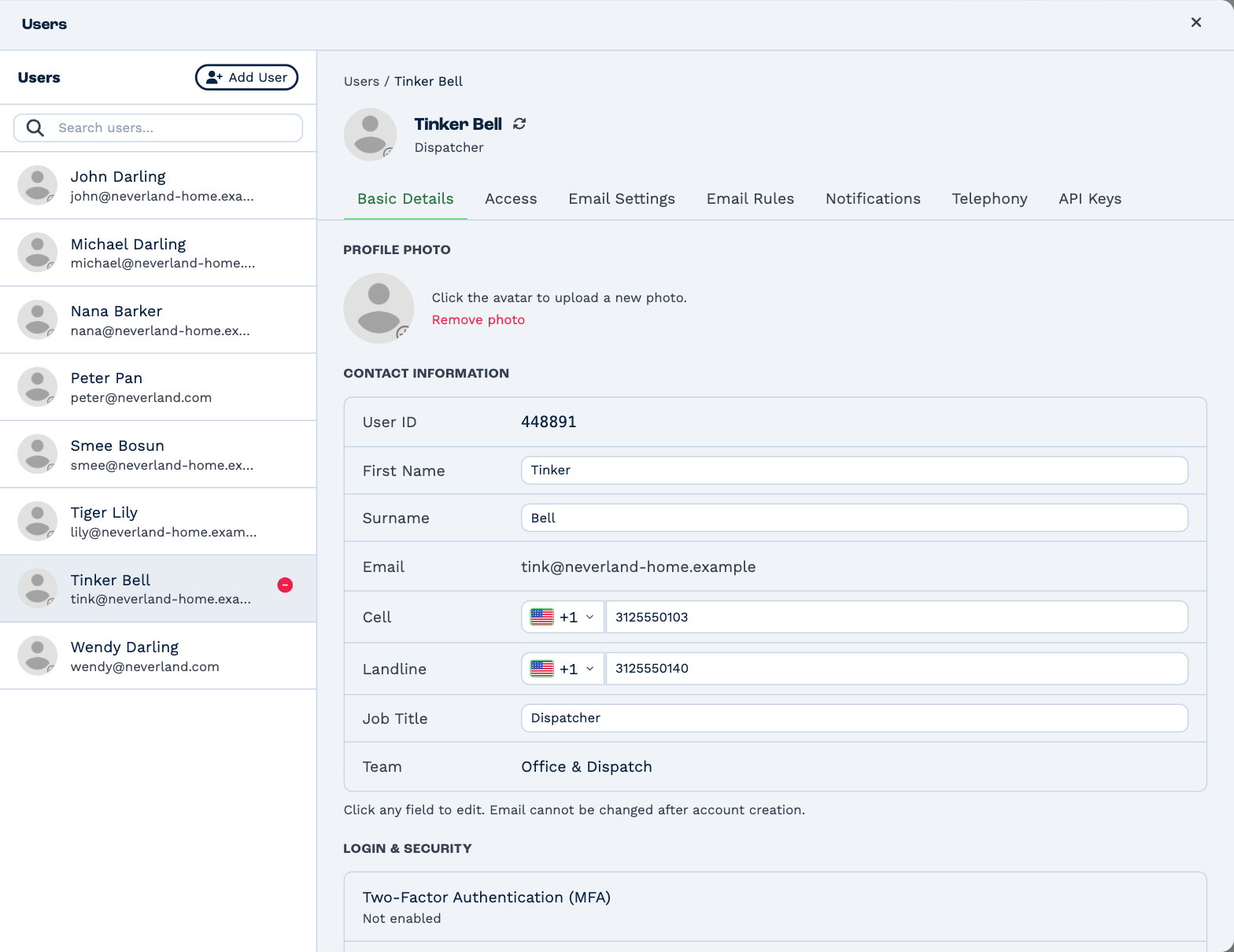
Open Settings → Users. Everyone in the account is listed, in name order — type in Search users… to find someone by name, email address or job title. Click a user to open them.
Add a user
- Click Add User.
- Type their First name and Email address. Surname, cell number and landline number are optional.
- Click Add User.
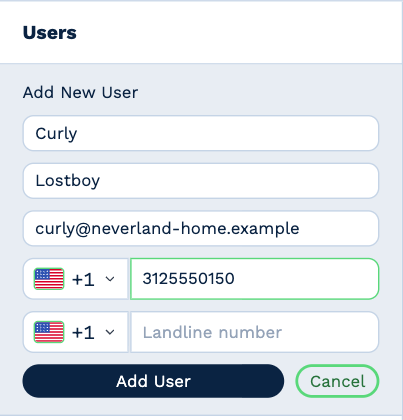
The new user opens straight away, so you can set them up before they sign in:
- Put them in a team, or set their own rights — see User rights.
- Send them a login link so they can choose a password.
Check the email address
It's how they sign in, and it can't be changed afterwards. If it's wrong, remove the user and add them again.
Someone who already uses BaseCloud — in another account, say — is added with the name and numbers they already have, not the ones you typed. They sign in as they always do and pick this account.
Someone you removed before comes back with the rights they had. Their teams and their work don't come back with them.
Change a user's details
On Basic Details, click a field, change it, and click away. It saves by itself.
- First Name, Surname, Cell, Landline and Job Title can be changed. Email can't.
- Click the photo to upload a new one, or Remove photo.
- Team shows the team they're working in. Change it under Teams.
These details belong to the person, so a change here shows in every BaseCloud account they use.
Send a login link
For someone who hasn't signed in yet, or who can't get in.
Under Login & Security, beside Login Link:
- Send emails them a link.
- Copy Link copies one, for you to send another way.
The link opens the sign-in page, where they choose a new password. It works once, and for 48 hours. It doesn't replace two-factor authentication — they still need their code.
Someone who signs in with Google or Microsoft doesn't need a password at all. See Sign in.
Reset two-factor authentication
For someone who has lost the phone with their authenticator app.
Under Login & Security, Two-Factor Authentication (MFA) says whether they've set it up. Click Reset MFA, then Reset MFA again to confirm.
Next time they sign in with their email address and password, they set up an authenticator app again. See Two-factor authentication.
Their two-factor authentication belongs to them, not to this account, so a reset applies everywhere they sign in.
Remove a user
- Point at the user in the list and click the red beside their name.
- Under Select fallback user…, choose who takes over their work.
- Click Confirm Remove.
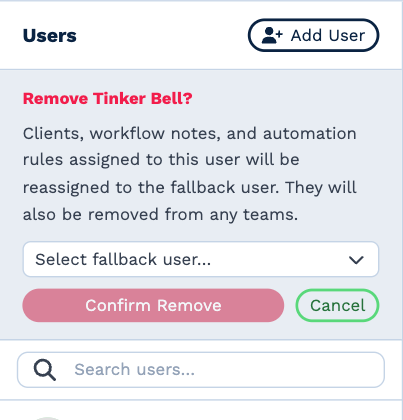
The fallback user gets:
- the clients they were responsible for;
- their open notes and conversations;
- their place wherever they were picked in a user-type custom field or table column.
The removed user is also taken out of every team, their connected mailbox is disconnected, their API keys stop working, and they lose access to this account straight away. What they did in the past stays in each client's history.
Removing someone only takes them out of this account. If they use another BaseCloud account, they keep it.
The other tabs
| Tab | What you can do for someone else |
|---|---|
| Access | Set their rights. See User rights. |
| Email Settings | Add an address they can send from, and connect its mailbox. See Sending addresses and Connect your mailbox. Only someone with Manage Users can add an address — even their own. |
| Email Rules | Decide what happens to their incoming email. See Email rules. |
| Notifications | Switch their notifications on and off. See Notifications. |
| Telephony | Set their Extension Number and the number people see when they call out. |
| API Keys | Make or revoke a key for them. A key made here is theirs: it works with their rights, and stops working if they're removed. |
Each user sees these tabs — all but Access — on their own profile. See Your profile.