Recurring notes
A recurring note comes round on a schedule — a weekly walk-round, a monthly report, an annual service. Each time, a new Repeat note lands in the Inbox of everyone it's assigned to.
Who can do this
Anyone with CRM Access who can see the client.
Set one up
- Start a new note for the client and tag the people it's for.
- Click the Recurring button (the repeat arrows) in the note editor.
- Choose how often under Repeats every:
- Day, Week, Month or Year, every 1 or more of them
- for weeks, the days under Repeat on
- for months, a date (On day) or a weekday (On the first Monday, for example)
- Choose when it ends under End Condition: Never (indefinite), On a date, or After a number of occurrences.
- Click Save, then Send.
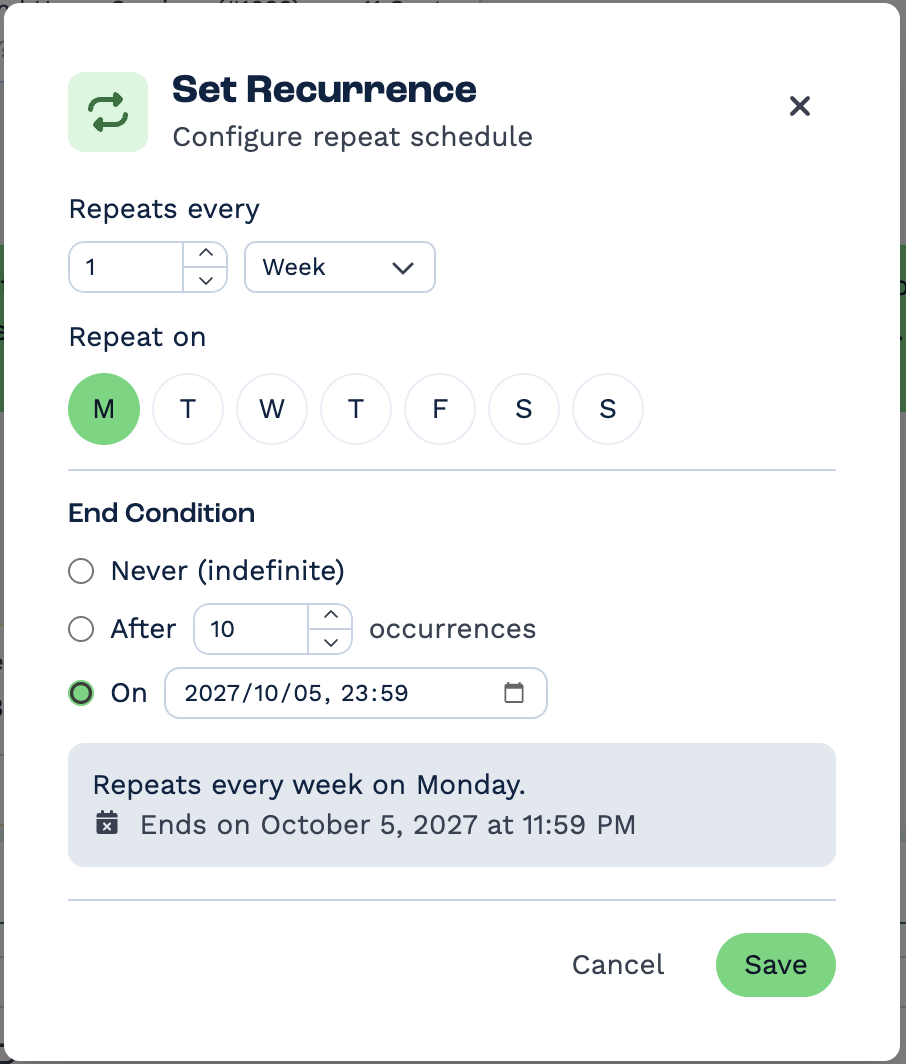
The first note is due at the date and time you set, and the next ones come round at the same time of day. With After, the schedule counts the first note too, and Repeat Notes shows the date of the last one as its end date.
See and stop recurring notes
Open the client, click Note to open their Communications panel, and click Repeat Notes at the top right. Repeat Note Configurations lists each recurring note with its schedule, start and end dates, who created it and who it's for.
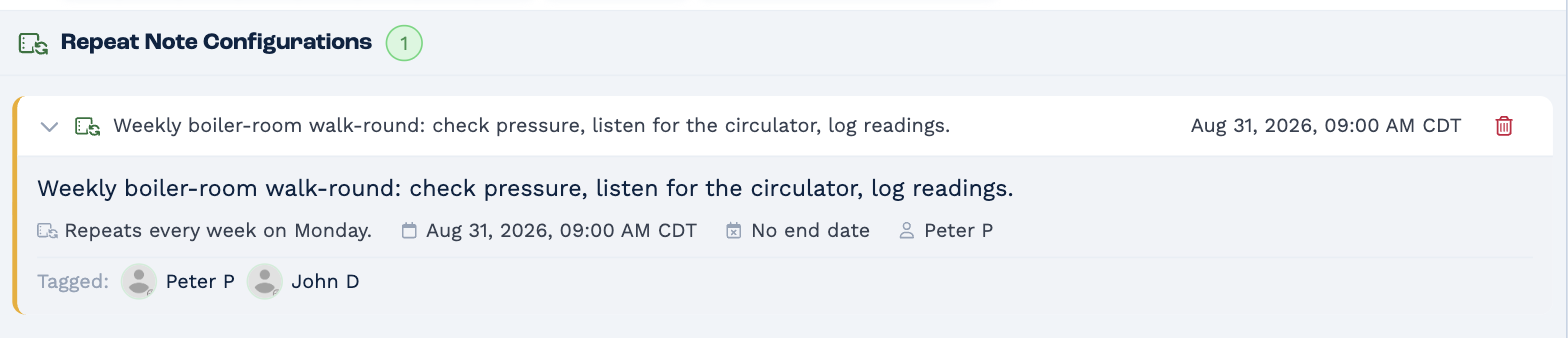
To stop one, click its bin and confirm Delete. Notes it already created stay where they are.
Recurring notes can't be changed once they're set up. To change the schedule or the wording, delete it and set up a new one.