Plaid Trigger
Overview
The Plaid Trigger starts a workflow each time a new transaction appears on a bank account you have connected through Plaid, the service BaseCloud uses to read bank accounts. Each transaction starts the workflow once, with its amount, date, description and who it was from or to available to the steps that follow.
Its main use is matching money coming in to the invoice it pays, so the invoice is marked as paid without anyone checking the bank statement.
When to use this trigger:
- Mark an invoice as paid when the payment arrives.
- Tell the account manager the moment a customer pays.
- Flag a payment nobody can match, so a person looks at it.
- Keep a log of money going out above a certain amount.
flowchart TD
    A[New transaction at the bank] --> B[Trigger starts the workflow]
    B --> C[Find the invoice it pays]
    C --> D{Invoice found?}
    D -->|Yes| E[Record the payment]
    D -->|No| F[Workflow note for a person to check]
Connecting your bank
The trigger reads your bank through a bank connection. Add one from the Bank field on the trigger by choosing + New Connection — it is selected for you once the bank is connected — or under Settings → App Connections. See App connections.
- Choose Plaid Bank Account and give the connection a name.
- Select Connect Bank. A secure window opens where you pick your bank and sign in to it.
- Choose which accounts to share.
BaseCloud never sees your bank password. It can read the transactions on the accounts you share and nothing else. It cannot move money.
Bank connections are available for banks in the United States.
If your bank asks you to sign in again, use Reconnect
Banks ask you to sign in again from time to time, for example after you change your password. The connection then shows as Not Authorised under Settings → App Connections, and as (Not Authorized) in the Bank list on the trigger. Click Reconnect on that same connection in Settings.
Do not delete the connection and add a new one. Reconnecting keeps the workflow's place, so every transaction that arrived while the connection was waiting still starts the workflow.
Configuration
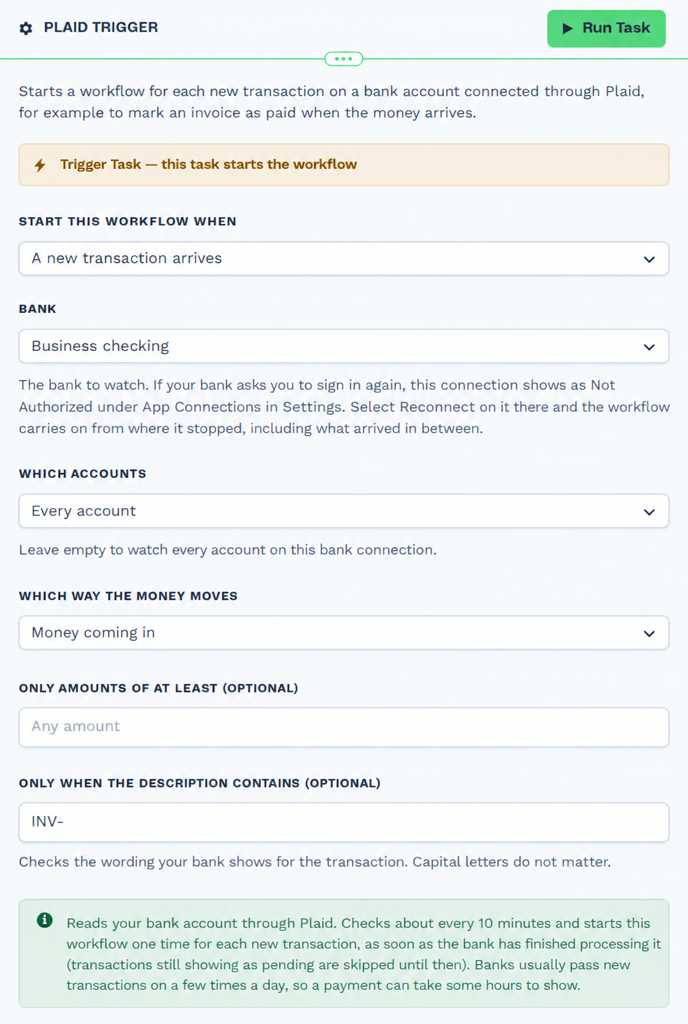
Builder fields
The Field column is the label as it appears in the task builder; Key is the name the value is stored under and referenced by.
| Field | Key | Type | Default | Notes |
|---|---|---|---|---|
| Start this workflow when | trigger_event |
select | new_transaction |
Options: A new transaction arrives |
| Bank | app_connection_id |
app-connection | – | |
| Which accounts | account_ids |
select | – | |
| Which way the money moves | direction |
select | in |
Options: Money coming in · Money going out · Both |
| Only amounts of at least (optional) | min_amount |
number | – | |
| Only when the description contains (optional) | description_contains |
text | – |
Choose the bank connection to watch under Bank. Which accounts is optional: leave it empty to watch every account on that connection, or pick the ones that receive your customers' payments. Only amounts of at least skips smaller transactions, and Only when the description contains checks the bank's own wording for the transaction; capital letters do not matter.
How it behaves
- It checks about every 10 minutes. Banks usually pass new transactions on a few times a day, so a payment can take some hours to start the workflow.
- Only cleared transactions start the workflow. A transaction your bank still shows as pending is left alone, because its amount can change and it can disappear. It starts the workflow when it clears.
- Each transaction starts the workflow once.
- Nothing from before the day you first switch it on is picked up.
- It catches up on what it missed. If the workflow is switched off for a while, or the bank is waiting for you to sign in again, the workflow runs for every transaction that arrived in the meantime as soon as it can read the bank again.
Output Fields
| Field | Description |
|---|---|
amount |
The amount, always a positive number, for example 1250.5. |
direction |
in for money coming in, out for money going out. |
direction_label |
Money in or Money out. |
signed_amount |
The amount as a positive number for money in and a negative number for money out. |
currency |
The currency code, for example USD. |
date |
The date the bank cleared the transaction, as YYYY-MM-DD. |
authorized_date |
The date the transaction was made, when the bank gives it. |
description |
The bank's own wording for the transaction. This is where a payer usually puts an invoice number. |
name |
A tidied version of the description. |
counterparty_name |
Who the money came from or went to, when the bank gives it. |
merchant_name |
The business name, for card payments. |
reference_number |
The payment reference, when the bank gives one. |
check_number |
The check number, for checks. |
payment_channel |
online, in store or other. |
category |
A broad category, for example INCOME or TRANSFER_IN. |
account_name |
The account's name, for example Business Checking. |
account_mask |
The last four digits of the account number. |
account_type |
The kind of account, for example checking. |
account_id |
The account's identifier. |
institution_name |
The bank's name. |
transaction_id |
The transaction's identifier. |
session_id |
The same identifier, as a stable key for each transaction. |
app_connection_id |
The bank connection the transaction came from. |
{{task_ID_run_text}} |
Plaid trigger executed successfully. |
Not every bank fills in every field
description and amount are always there. counterparty_name, reference_number and
merchant_name depend on your bank and on how the payment was made, so do not rely on them alone.
Testing
In the trigger's Input panel, select Load my transactions to bring in the latest transactions from the last 30 days that match the trigger's settings. Pick one and run the rest of the workflow on it.
Running later steps by hand does the real thing. If a step records a payment, test with an invoice you are happy to change.
Real-World Examples
Mark an invoice as paid from its invoice number
Plaid Trigger                       money coming in
  └─ Extract Pattern (Regex)       pull the invoice number out of description
      └─ BaseCloud Accounting      Fetch Quote / Invoice with that number
          └─ If Statement          invoice found and amount equals the invoice total
              ├─ true ─ BaseCloud Accounting   Mark Quote / Invoice Paid
              └─ false ─ Workflow Note         ask a person to check the payment
Only mark the invoice as paid automatically when both the invoice number and the amount match. Send everything else to a person. See BaseCloud Accounting and Extract Pattern (Regex).
Tell the account manager a customer has paid
Plaid Trigger                money coming in, at least 1000
  └─ Workflow Note          tag the account manager with the amount and description
Watch large payments going out
Plaid Trigger                money going out, at least 5000
  └─ Email                  send the amount, date and description to the owner
Best Practices
- Ask customers to put the invoice number in the payment reference. It is the most reliable way to match a payment to an invoice.
- Match on more than the amount. Two customers can pay the same amount on the same day.
- Send what you cannot match to a person. A payment recorded against the wrong invoice is worse than one that waits for someone to look at it.
- Check for part payments. Compare
amountwith the invoice total before marking an invoice as paid. - Pick the accounts you need. If only one account receives customer payments, choose it under Which accounts so transfers between your own accounts do not start the workflow.
Troubleshooting
| What you see | What to do |
|---|---|
| The connection shows Not Authorised | Your bank wants you to sign in again. Click Reconnect on that connection under Settings → App Connections. |
| A payment has not started the workflow yet | Check whether your bank still shows it as pending. It starts the workflow once it clears, which can take a day or two. |
| Nothing starts the workflow | Check Which way the money moves, Which accounts and the two optional filters. Also check the workflow is switched on. |
| Load my transactions finds nothing | No transaction in the last 30 days matches the trigger's settings. A newly connected bank can also take a few minutes to send its transactions. |
| "This bank account is already connected" | The account is on another connection already. Use that one. If it shows as Not Authorised, click Reconnect on it. |
| "This bank is not available to connect yet" | BaseCloud has not been approved for that bank yet. Contact support. |
| Which accounts says some saved choices are no longer in the list | An account you picked is no longer shared by the bank connection. Pick the accounts again, or remove the old choices to watch every account. |
| Which accounts says the list could not be loaded | Your choices are still saved and still in use. Close the step and open it again. |