Sending addresses
Who can do this
You can change your own addresses. Anyone with Manage Users can change anyone's, and only they can add addresses or set up a team's.
Open Settings → Users → your name → Email Settings. The page shows one address at a time; pick which one under Currently viewing.
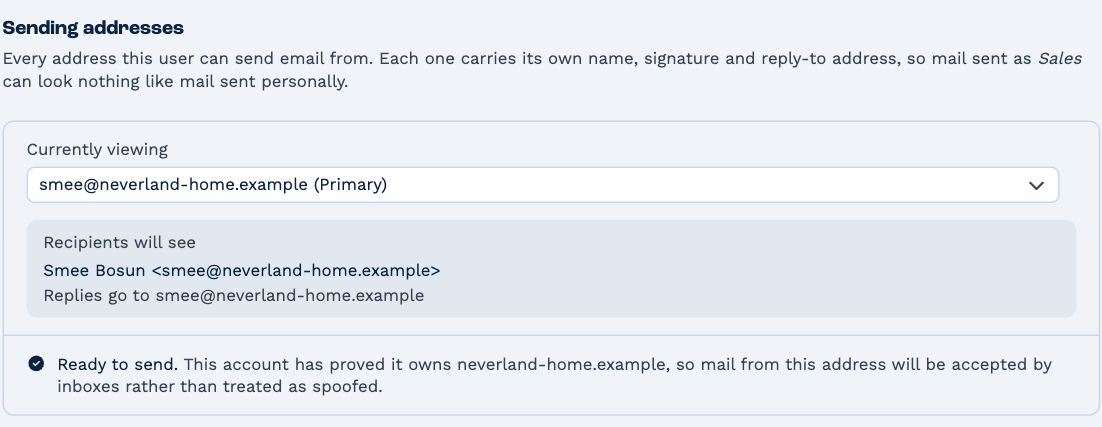
Everyone has a primary address — the one they sign in with. Each address has its own name, reply-to address and signature, so mail sent as, say, sales@ can look nothing like mail you send personally.
Recipients will see shows exactly what lands in the recipient's inbox: the name and address the email comes from, and where a reply goes.
Ready to send
Under each address, BaseCloud says whether it can be used:
- Ready to send — you can pick it when you send an email. Either your account has verified the address's domain, or the address sends through its own connected mailbox.
- Not usable yet — it won't appear under Send from. Connect its mailbox, or verify its domain for your account. It turns green on its own once either is done.
An address that is ready only because of its mailbox stops being usable if the mailbox is disconnected, until the domain is verified.
How the address appears
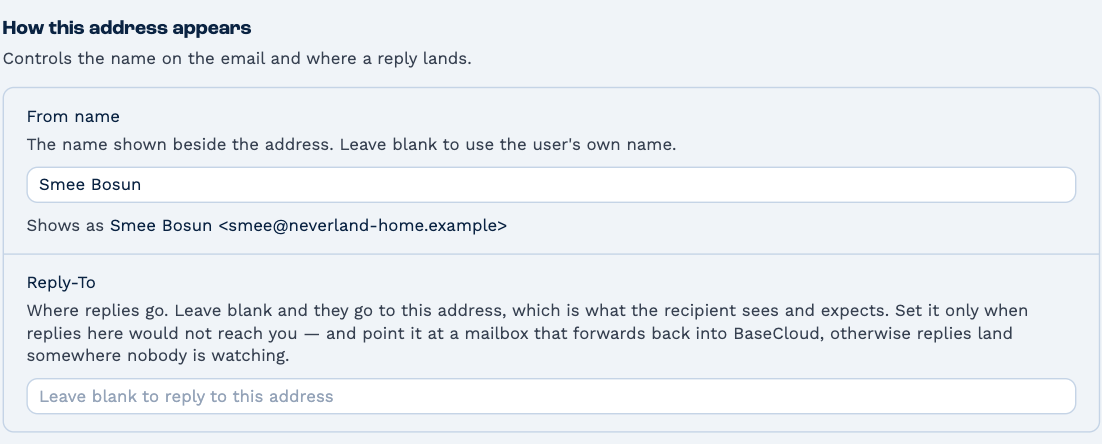
- From name — the name shown beside the address. Leave it blank to use your own name.
- Reply-To — where replies go. Leave it blank and they come back to this address, which is what recipients expect. Set it only when replies to this address wouldn't reach you, and point it at a mailbox that forwards back into BaseCloud — otherwise replies land where nobody is watching.
Your signature
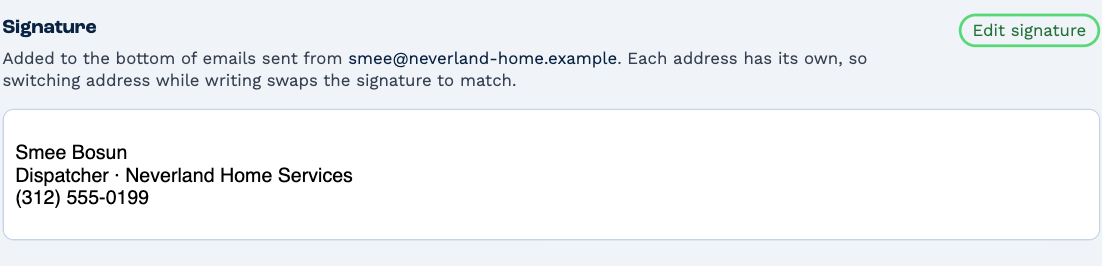
Click Edit signature to change it. It's added to the bottom of every email you send from this address. Because each address has its own, switching Send from while you write swaps the signature to match.
Add or remove an address
Someone with Manage Users can click Add address to give a user another address to send from. Remove takes an address away; a primary address can't be removed.
A team's shared addresses
A team can have addresses of its own, such as office@. Every member can send from them, and the mail they receive belongs to the team; see Shared mailboxes. They're set up under Settings → Teams → the team → Email Settings, the same way as a person's, by someone with Manage Users.