The Pricebook
The Pricebook is your catalogue of services, parts and packages, organised in categories. Quotes and invoices are built from it: pick an item and its description, price and tax fill in.
Who can do this
View Invoices to see the Pricebook, Edit Invoices to change it, Create Invoices to save a quote from it, and Export Invoices to export it. Without Edit Invoices, Settings → Pricebook is Read only.
Pricebook or Standard Line Items
An account uses either the Pricebook or a simpler list called Standard Line Items — whichever it uses is the one under Settings → Accounting. Upgrade to full Pricebook on the Standard Line Items page switches over; Switch back to Standard Line Items at the bottom of the Pricebook switches back, and your Pricebook is kept.
Categories and items
Go to Settings → Pricebook and click a category to see its items.
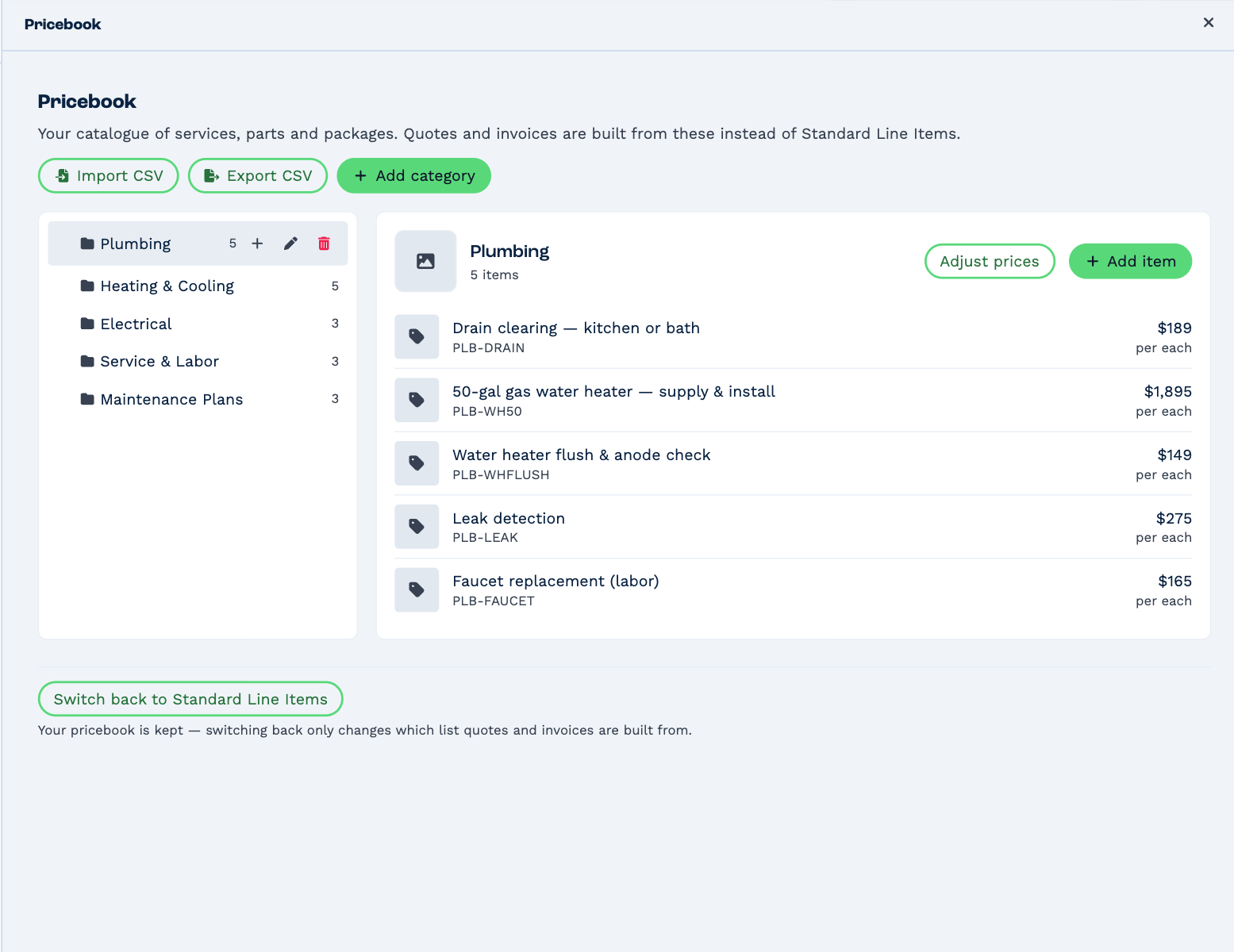
- Add category makes a top-level category. Hover over a category for + (a subcategory, up to four levels deep), the pencil (rename) and the bin (delete). Drag a category to move it.
- Add item adds an item to the open category. Click an item to change it.
- Adjust prices changes the price or cost of every item directly in the category, by a percentage or a fixed amount, with a preview before you apply it. Items in its subcategories are left alone.
An item
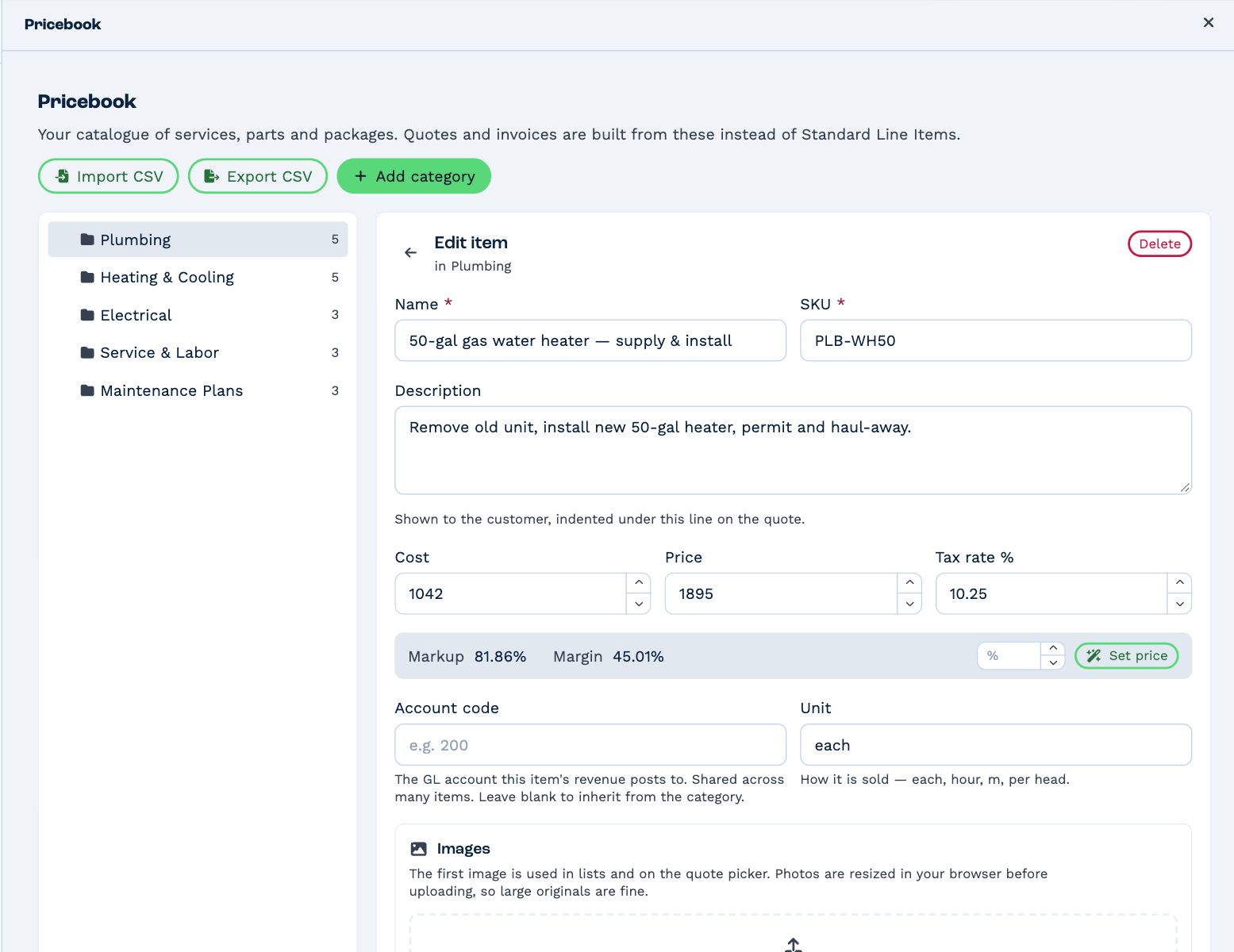
| Field | What it's for |
|---|---|
| Name, SKU | What the item is called, and your code for it. Both are required; the SKU must be unique. |
| Description | Shown to the customer, indented under the line on the quote. |
| Cost, Price, Tax rate % | What it costs you, what you charge, and its tax. |
| Markup, Margin | Worked out from cost and price. Type a markup % and click Set price to price from cost. |
| Account code | The ledger account its revenue goes to in your accounting software. Blank uses the category's. |
| Unit | How it's sold — each, hour, per head. |
| Supplier, Supplier part no. | Where you buy it. |
| Available on quotes | Switch off to keep an item in the Pricebook without offering it on quotes. |
Once an item is saved you can add Images — the first one shows on the quote picker — and, under What's included, other items that make it a package. A package sells at its own price as one line; the customer sees what's included under it, without prices.
Import and export
Export CSV saves the whole Pricebook to a CSV file. Import CSV reads one back: items are matched on SKU, so an existing SKU is updated and a new one is created, and categories it names are created for you. Download a template CSV shows the columns. You see a preview — what will be created, updated, and any rows that can't be imported — before anything is saved.
Build a quote in full screen
The full-screen view is made for quoting with the customer in front of you, on a laptop or tablet.
- Click Pricebook in the sidebar, then Enter Full Screen.
- Under Who is this quote for?, choose the client.
-
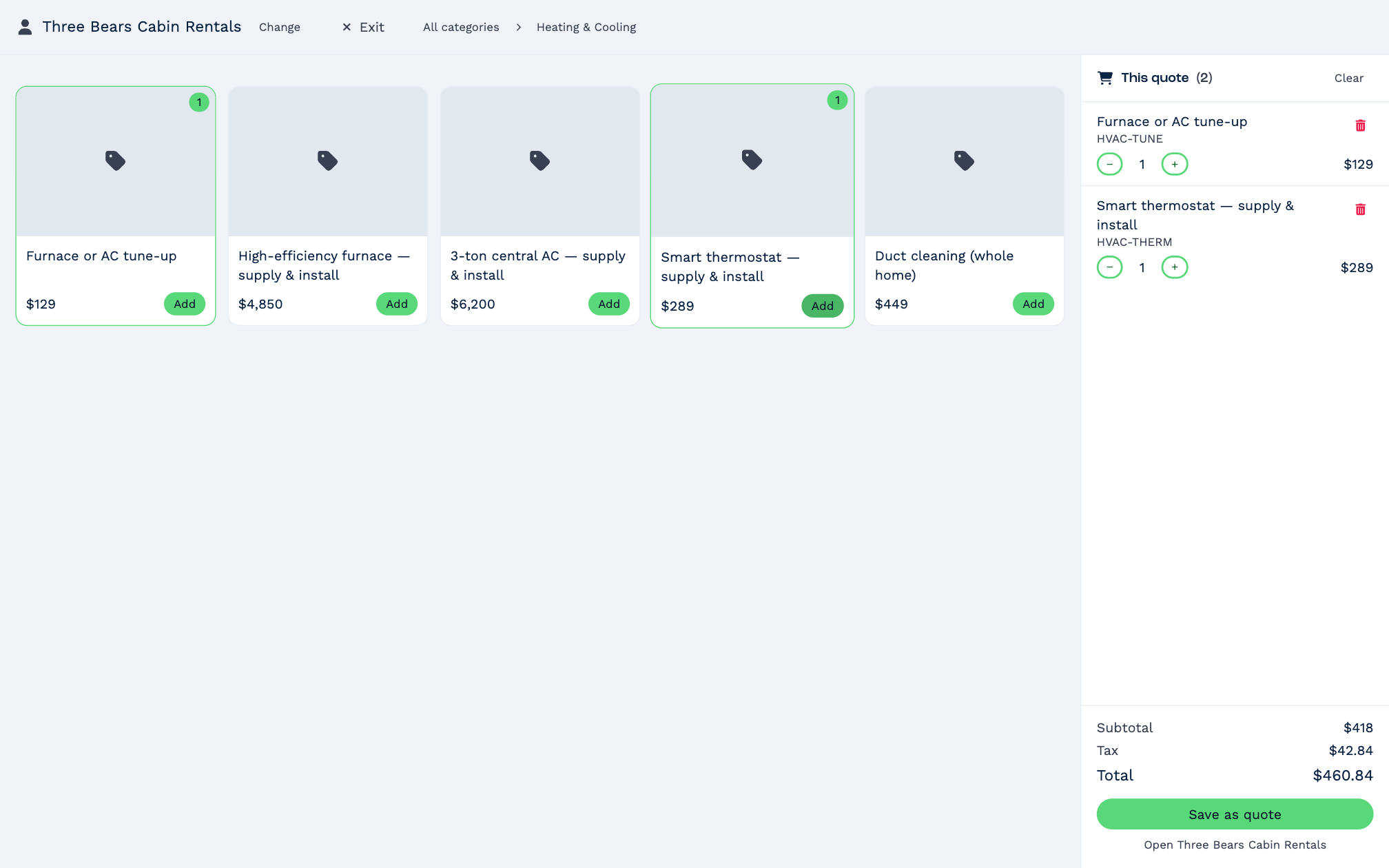
Tap a category, then Add on each item. The quote builds up on the right, with its total in your currency.
-
Change quantities with − and +, or remove a line with the bin.
- Click Save as quote. The quote is saved on the client; Open and the client's name takes you to them.
A quote you haven't saved is kept on this device, so you can come back to it. Exit leaves full screen.