Send an email
Who can do this
Anyone with CRM Access who can see the client, and who has an address that's ready to send.
- Open the client and click Email under their name. The client's Communications panel opens with the email editor at the bottom.
- Pick who it's to under Recipients. Start typing to search the client's contacts, or type any email address. Add people under CC; click BCC to add hidden recipients.
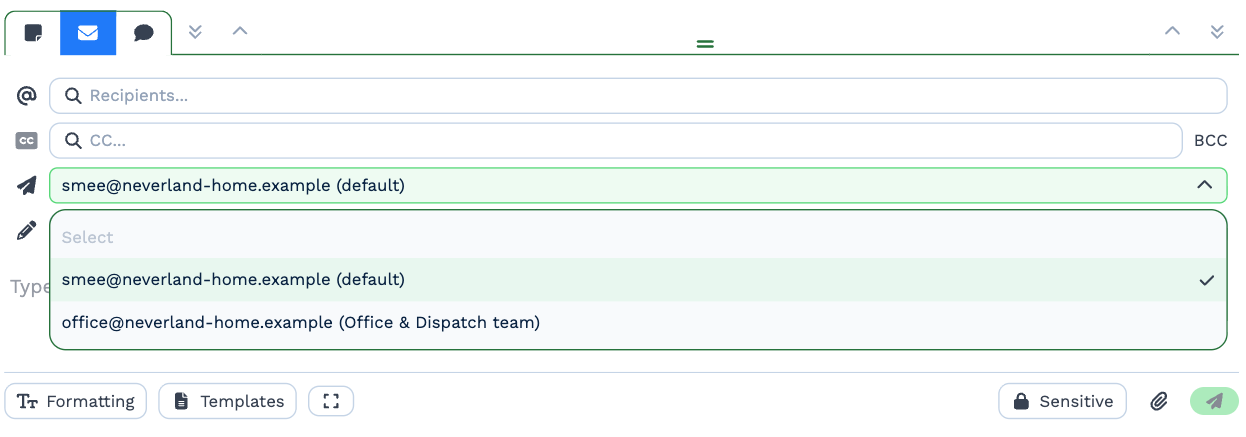
- If you send from more than one address, choose one under Send from (the paper plane). Your own address is marked (default), and a team's shared address shows the team's name.
- Type a Subject and your message — or choose a template.
- Click the green send button.
The email is saved with the client's notes straight away, and replies to it come back to the same client.
Which address to send from
The address decides what the recipient sees and where their reply goes:
- Your own address — the email comes from you, and replies come back to you.
- A team address, such as office@ — the email comes from the team, and replies land in the shared mailbox for the whole team.
Each address has its own name, reply-to address and signature; see Sending addresses. Your signature is added to the bottom of the email, and changing Send from while you write swaps it for that address's signature.
Send from only appears when you have more than one address to choose from. BaseCloud remembers your last choice on this computer.
Use a template
Click template in the empty message, or Templates at the bottom, and pick one. It replaces the message with
the template's, adds its attachments, and fills in the subject if you haven't typed one. Fields in double braces,
such as {{company_name}}, are replaced with the client's details when the email is sent.
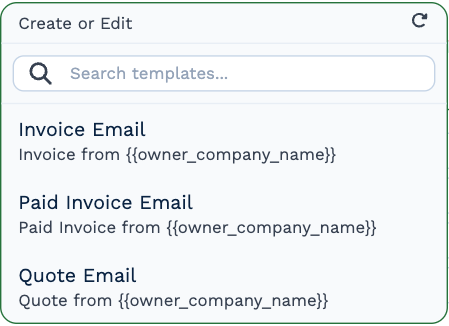
To add or change templates, see Email templates.
More options
- Attach files — the paperclip, or drag files onto the editor. Attachments can add up to 20MB in total.
- Sensitive — only you and the people the email is assigned to can read it in BaseCloud. See Sensitive notes.
- Formatting — style the text.
Your email is kept as a draft in this browser while you write, including who it's to and which address it's from. Close the panel and come back to carry on. Discard throws the draft away.
Was it delivered?
Each email you send shows a status in the client's history:
| Status | Means |
|---|---|
| Queued | It's waiting to go out. |
| Sent | It has gone out and is on its way. |
| Delivered | It reached the recipient's mailbox, but hasn't been opened yet. |
| Opened | The recipient opened it. Click it to see the full history. |
| Bounced | It couldn't be delivered. Click it for the reason the recipient's mail server gave. |
| Failed | It couldn't be sent. |
Email sent through a connected mailbox shows Sent once it has gone out; delivery and opens are tracked for email BaseCloud sends for you.
Email a quote or invoice
Send Email on a quote or invoice opens this editor with the PDF already attached. See Make a quote or invoice.