Merge or delete clients
Who can do this
You need the Delete Clients right for both. Without it, Merge client and Delete client don't appear in the client panel's menu.
Merge two clients
Use merge when the same client was added twice. Everything from one client moves onto the other, and the empty duplicate is removed.
- Open the client you want to remove — the duplicate.
- Click ⋮ More actions → Merge client.
- Search for and select the client you want to keep.
- Click Merge into Selected.
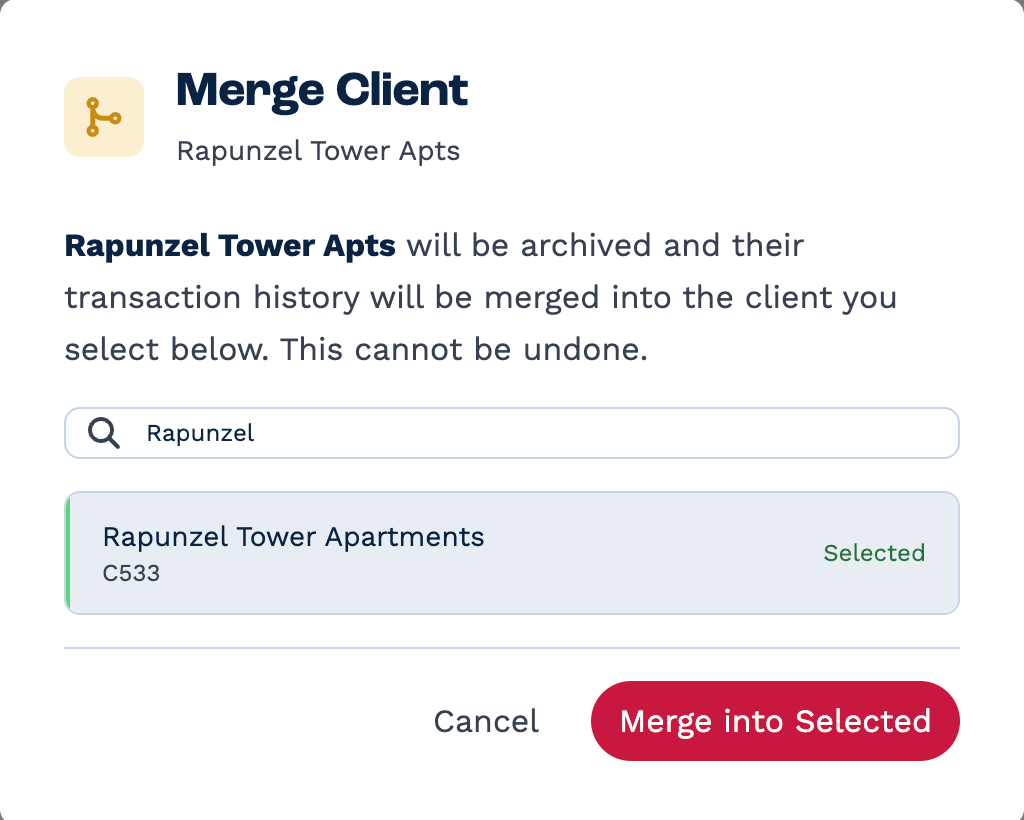
What happens:
- Everything moves to the client you keep — notes, emails, texts, chats, calls, quotes, invoices, recurring billing, files and folders, custom table rows, contacts and the activity history.
- The client you keep keeps its own name, status, manager and origin.
- Empty details are filled in. Custom fields and address lines that are blank on the client you keep take the duplicate's values. Values that are already filled in are never overwritten.
- General notes are combined — the duplicate's notes are added below the kept client's notes.
- A note on the kept client records who merged the clients and when.
Warning
A merge can't be undone. Check you've picked the right client to keep.
Delete a client
- Open the client and click ⋮ More actions → Delete client.
- Type the client's name to confirm, then click Delete.
To delete many clients at once, use Bulk actions.
A deleted client disappears from your lists and searches. Its contacts stay in your account.
Deleted clients can't be restored from the CRM
There is no undo for deleting a client. If you delete one by mistake, contact BaseCloud support.