WhatsApp Business
Who can do this
Anyone in the account.
Connect your business's WhatsApp number, and WhatsApp messages arrive in BaseCloud beside your emails and texts — filed under the client, and answered from the CRM. See Text and WhatsApp.
Open Settings → WhatsApp Business. It has four tabs: Connection, Message Templates, Business Profile and Message Settings.
Connect your number
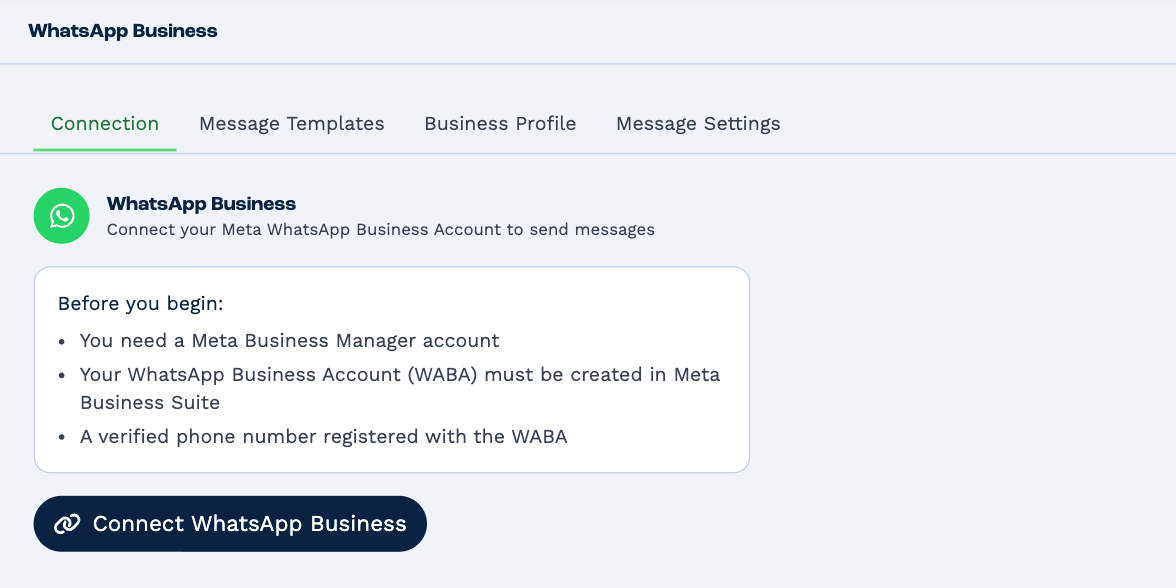
You need three things from Meta, the company behind WhatsApp and Facebook:
- a Meta Business Manager account;
- a WhatsApp Business Account inside it;
- a phone number registered to that account, and verified.
And one more, or nothing will send: a payment method in your Meta Business account, under Settings → Billing & Payments. Meta charges for WhatsApp conversations, and bills you directly.
Then:
- Click Connect WhatsApp Business. A Facebook window opens — allow pop-ups if your browser asks.
- Sign in to Facebook, choose your business, your WhatsApp Business Account and the number, and finish.
- If a second, smaller Facebook window asks you to continue, say yes.
BaseCloud confirms with WhatsApp Business activated!
A WhatsApp number can be connected to one BaseCloud account at a time.
Check the connection
Once connected, Connection shows your Business Account, your Phone Number, and a Connection Health card with what Meta says about the number:
| Row | What it tells you |
|---|---|
| Quality Rating | High, Medium or Low — how people are reacting to your messages. A low rating means too many are blocking or reporting you. |
| Messaging Limit | How many people you may start a conversation with each day. Meta raises it as your number proves itself. |
| Account Approval | Whether Meta has approved your WhatsApp Business Account. |
| Display Name | Whether Meta has approved the name people see. |
| Phone Status | Whether the number is connected. |
Click the refresh icon to fetch the latest.
If a yellow box says Phone number not yet registered with Meta, the number was linked but its last step didn't finish, and nothing will send or arrive. Click Register Phone Number to try that step again.
Disconnect
Disconnect, once you confirm, cuts BaseCloud off from the number. The number itself stays with your Meta account.
If you connect again later, open any workflow that sends WhatsApp messages and choose the connection again.
Message templates
WhatsApp lets you reply freely to someone who has messaged you in the last 24 hours. To write to someone first — or after those 24 hours — you must use a template that Meta has approved.
Go to Message Templates and click New Template.
| Field | What to put |
|---|---|
| Name | Lower-case words joined by underscores: appointment_reminder. |
| Category | UTILITY for messages about something the person asked for — a booking, an invoice. MARKETING for offers and news. AUTHENTICATION for sign-in codes. |
| Language | The language the message is written in. |
| Header | Optional: a line of text, or an image, video or document. |
| Body | The message. Use *bold*, _italic_ and ~strikethrough~. |
| Footer | Optional small print, such as how to stop the messages. |
| Buttons | Optional: up to three Quick Reply buttons, or up to two of Call Phone and Visit URL — not both kinds. |
Where a name or a date should go, write a variable in double curly brackets — Hi {{name}}, your appointment is on
{{date}}. Under Variable Examples, give Meta a sample for each one.
Click Submit for Review. The template shows as PENDING while Meta looks at it — usually within a day — and then APPROVED or REJECTED.
- Click the eye on a template to see how it will look on a phone.
- An approved template can't be edited. To change one, delete it and make it again.
- The bin deletes a template — and every language version that shares its name.
Business profile
Business Profile is what people see when they tap your name in WhatsApp: your Profile Picture, About, Address, Description, Email, Industry and up to two Websites.
A new picture is saved as soon as you choose it — a JPEG or PNG of up to 5MB. For the rest, click Save Changes.
Your display name and phone number are changed with Meta, not here.
Who gets new chats
Go to Message Settings.
Auto-Create Client — turn on Enable auto-create to make a new client when a message arrives from a number BaseCloud doesn't know. Choose the Default Responsible Manager and Default Status new clients get.
Thread Assignment — who a new conversation is given to:
| Choice | Means |
|---|---|
| Leave unassigned | Everyone can see it and pick it up. |
| Responsible Manager (on client) | It goes to whoever looks after that client. |
| Automation Trigger | It's handed to your workflows — see the WhatsApp trigger. |
| A person | It goes to them. |
There's one choice for a client you already have and — when auto-create is off — another for a number you don't know. A conversation that already belongs to someone stays with them.
Click Save Settings.