Custom fields
Custom fields hold the information your business keeps about every client that BaseCloud doesn't ask for itself — a property type, a service area, a gate code, the date the next service is due. Your account decides which fields there are, and every client has the same set.
Open a client and look under Custom Fields on the Details tab of the client panel.
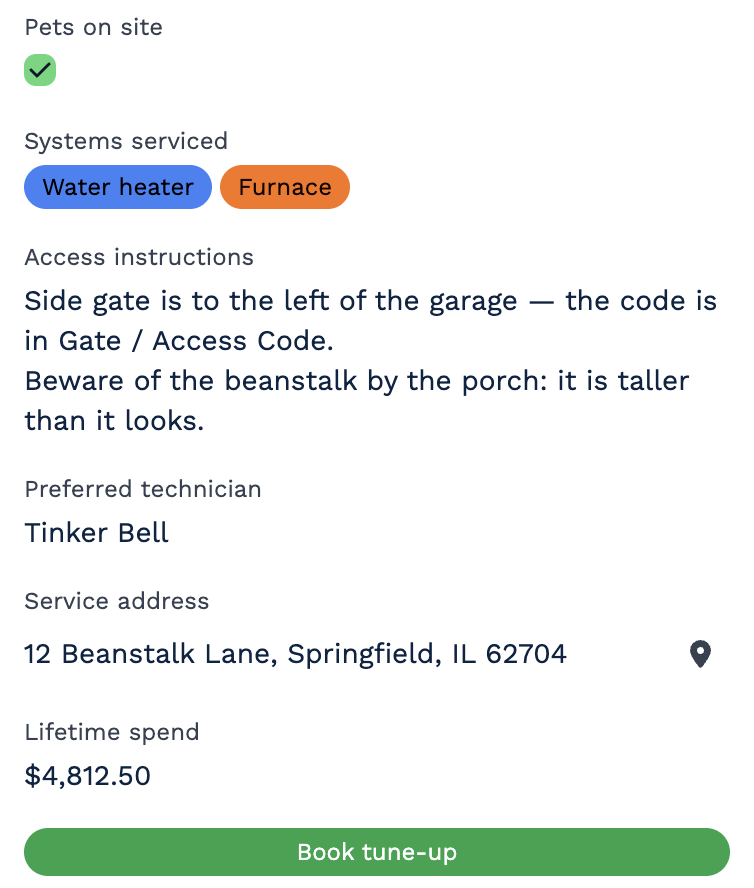
Where custom fields show up
- In the client panel, where you read and change them — see Fill in custom fields.
- As columns in the Clients table — see Table columns.
- In the Clients Filters, under Custom Fields — see Find clients.
- In bulk edit and export, and as columns in the import template.
- In automations — see Custom fields in automations.
Contacts have a separate set of fields of their own — see Contact custom fields.
Access levels
Each field has an access level from 1 to 10. Your administrator gives you two levels of your own:
- Custom Field View Level — you see a field only if your level is the same as the field's or higher.
- Custom Field Edit Level — you can change a field only if your level is the same as the field's or higher.
Level 1 is for everyone, so most fields stay at 1. A higher level keeps a field, such as what a client has spent, to the people who should see it. Fields above your view level are left out everywhere: in the client panel, the table, filters, exports and bulk edit.
Who can do what
- Reading and filling in fields: anyone with CRM Access, within their view and edit levels.
- Adding, changing, reordering and deleting fields: Manage Custom Fields — see Manage custom fields.
Custom fields in automations
- Start an automation from a field. A CRM Trigger can start a workflow when a field changes (Client Field Change, or Contact Field Change for contact fields) or when someone clicks a button field (Client Field Button Click). A Date field can start one on that date, and again at a set interval after it — see the Client Date Trigger.
- Fill fields in from an automation. The New Client and Edit Client tasks set a client's custom fields, and the Contact task sets a contact's.
- Use a field's value in a later step. A trigger's outputs carry the client's details, so an email or a message can quote them.
Automations refer to a field by its ID — hover over a field and you'll see it. Renaming a field is safe; deleting one that a workflow uses stops that step from working.
In this section
- Fill in custom fields — read, search and change a client's fields
- Field types — every kind of field and how it's filled in
- Manage custom fields — add, change, reorder and delete fields
- Contact custom fields — fields on contacts