Find clients
Who can do this
Anyone with CRM Access. You see every client with View All Clients, otherwise only the clients you manage — see Which clients you can see.
Search
Type in Search clients... at the top of the Clients page. The list updates as you type.
The search looks at:
- the client's name
- the client ID (the number shown as ID in the client panel)
- the names, email addresses and phone numbers of the client's contacts
- the values in any custom field that is a column in your table
So you can find a client by typing a contact's surname, part of their email address, or the last digits of a phone number.
Filter
- Click the Filters button (the funnel) next to the search box.
- Pick what to filter on. Use Search filters... to find a field quickly.
- Date Range — when the client was registered. Choose a preset such as This Month, or Custom for your own From and To dates.
- Status, Manager and Origin — choose one or more. A client matches if it has any of them.
- Custom Fields and Custom Tables — filter on your own fields. Text fields match part of a word, dropdowns match any option you tick, and checkboxes are Yes or No. Conditions on the same custom table must all be true of one row — see Custom tables.
- Close the window. The list shows only matching clients.
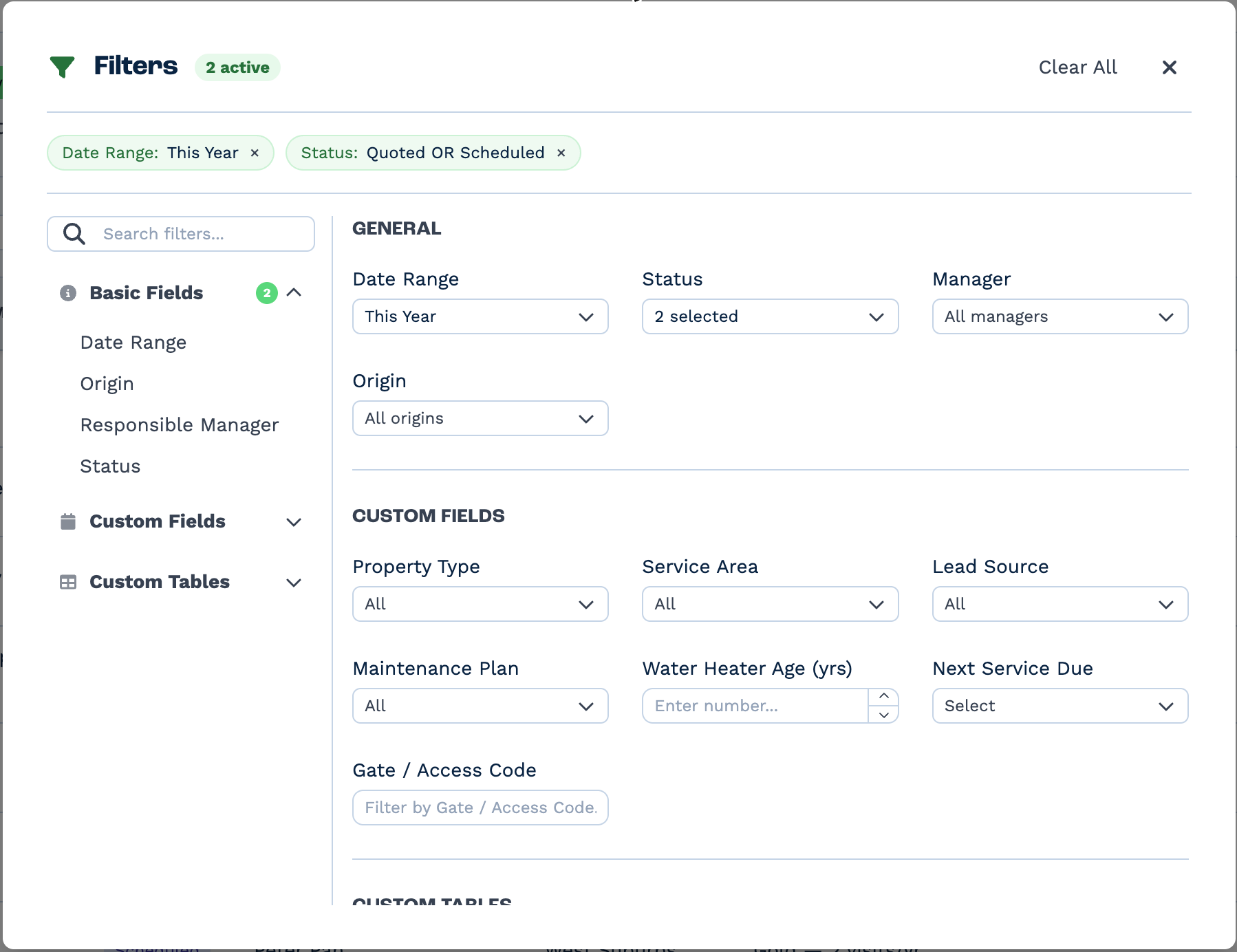
Each active filter appears as a badge under the search box, such as Status: Quoted OR Scheduled.
- Click a badge to change it.
- Click its × to remove it.
- Click Clear all to remove every filter.
Your filters and search stay in the page address, so you can bookmark a filtered list or send the link to a colleague. They are also remembered the next time you open Clients.
Filters you can't remove
A filter with a lock and Enforced by team was set by your team, and you can't change or remove it. A lock with Enforced by access on the manager filter means you only see the clients you manage. Clear all leaves these filters in place.
Sort
Click a column heading to sort by it. Click again to reverse the order, and a third time to go back to the default — newest clients first.
See clients on a Kanban board
Click Kanban view (next to the total at the top right). Clients are grouped into a column per status.
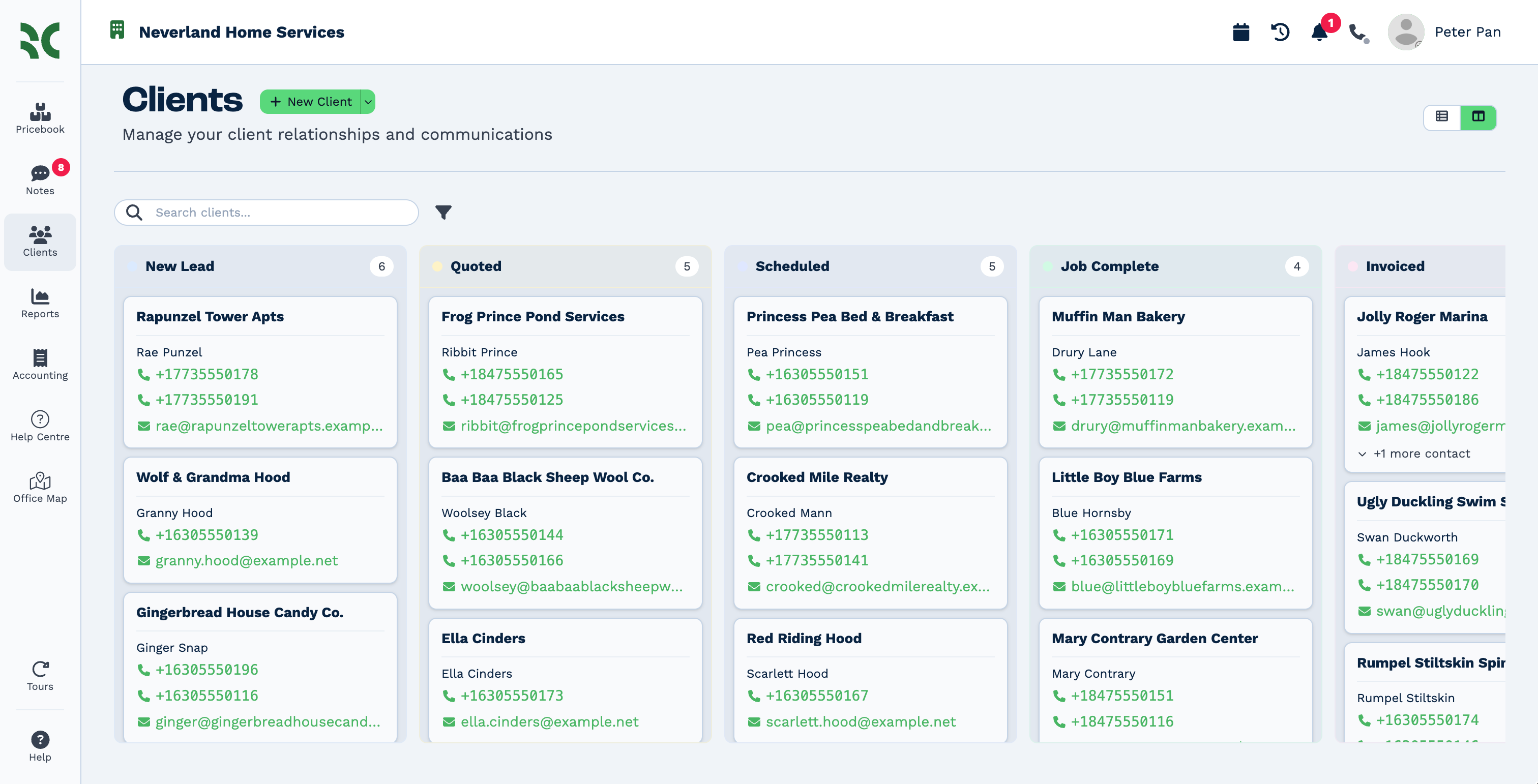
- Drag a card to another column to change that client's status. The change saves straight away.
- Click a card to open the client panel.
- Columns with no clients shrink to a slim strip. You can still drop a card on them.
Click Table view to go back to the table. BaseCloud remembers which view you used last.