Speech to Text Task
Overview
The Speech to Text task transcribes an audio recording into text. Point it at a recording's URL and it returns both a plain transcript and a speaker-labelled dialogue, so a call recording becomes something the rest of your workflow can read, search and act on.
The natural pairing is with an AI Prompt task: transcribe the call, then ask the AI to summarise it, judge its sentiment, or pull out the next action.
When to use this task:
- Summarise sales calls automatically and log the summary against the client.
- Transcribe voice notes customers send in.
- Flag calls that mention a competitor, a complaint or a cancellation.
This task consumes AI credits
Speech to Text is credit-gated. If the account has insufficient AI credit the task fails before transcribing and reports an insufficient-credit message. Billing is per second of audio, multiplied by the number of languages you ask it to consider — see Billing below.
What the task produces, and what it charges for. The language count is a multiplier, which is the part that catches people out:
flowchart LR
    A[Audio recording, 240s] --> B[Speech to Text]
    B --> C[Transcript and speaker dialogue]
B --> D["240s × 2 languages = 480 billable seconds"]Configuration
Builder fields
The Field column is the label as it appears in the task builder; Key is the name the value is stored under and referenced by.
| Field | Key | Type | Default | Notes |
|---|---|---|---|---|
| Audio URL | Audio URL |
textarea | – | |
| Possible Languages | possible_languages |
textarea | ["en-US"] |
| Field | Required | Default | Notes |
|---|---|---|---|
| Audio URL | Yes | – | A URL the platform can fetch the audio from. Usually a recording URL from an upstream task. |
| Possible languages | Yes | ["en-US"] |
A JSON array of language codes to consider, e.g. ["en-US","af-ZA"]. |
Possible languages
The transcriber tries the languages you list and picks the best fit. Listing more languages improves accuracy on mixed-language audio, but each additional language multiplies the billable seconds, so list only the languages that genuinely occur in your recordings.
An empty array ([]) is rejected: the task stops and reports No languages provided.
Output Fields
| Field | Description |
|---|---|
{{task_ID_dialogue_text}} |
The transcript as continuous text, one utterance per line. |
{{task_ID_dialogue_speakers}} |
The transcript with each line prefixed by its speaker label. |
{{task_ID_audio_duration}} |
Length of the audio in seconds. |
{{task_ID_billable_seconds}} |
Seconds billed — duration rounded up, times the number of languages. |
{{task_ID_run}} |
true on a successful transcription. |
{{task_ID_run_text}} |
Successfully converted speech to text., or the failure reason. |
{{task_ID_error}} |
On failure only — the underlying transcription error. |
dialogue_speakers is the field to use when who-said-what matters, for instance before asking an
AI to summarise "what the customer asked for". dialogue_text is better when you only need the
words.
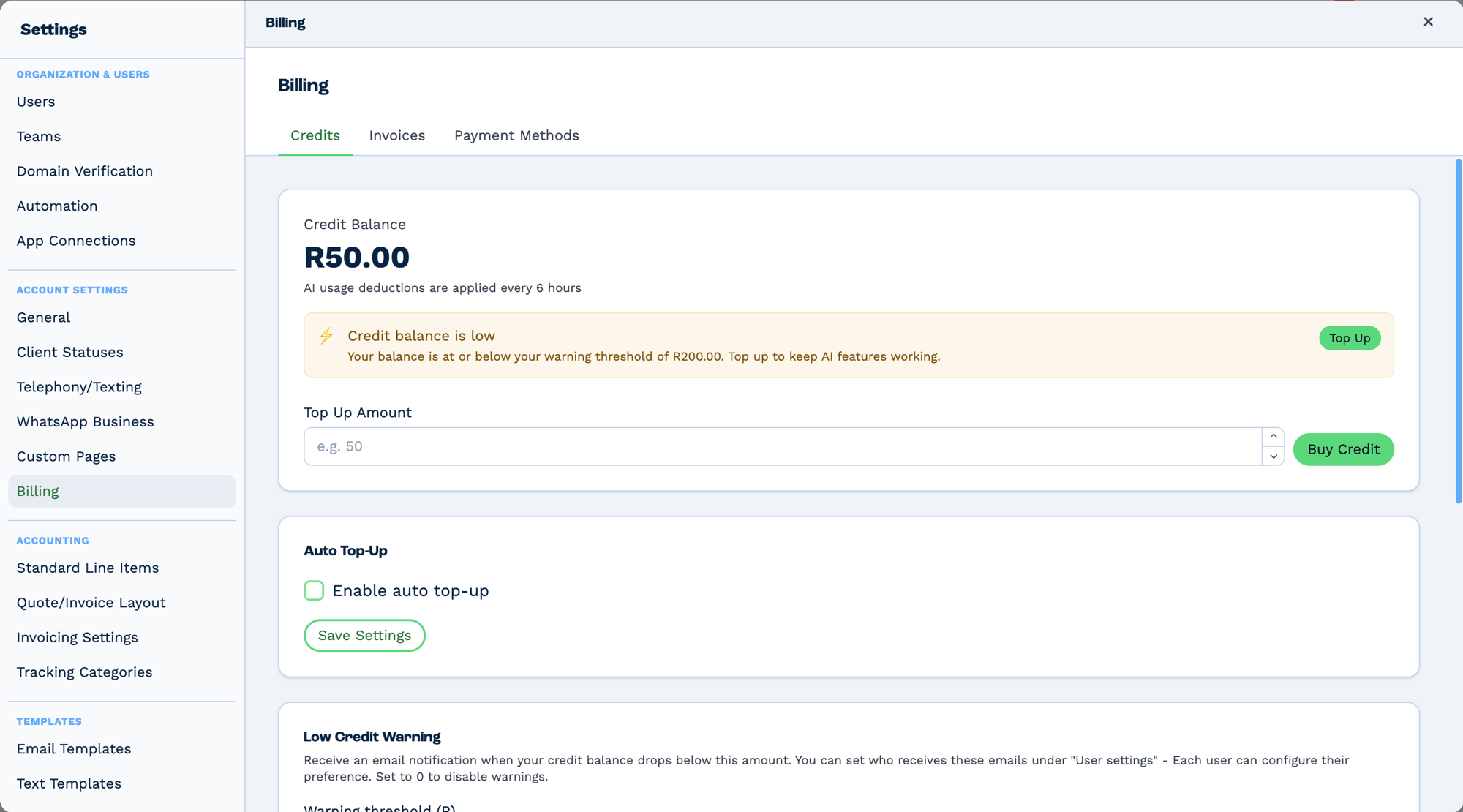
Credit is account-wide and shared. The same balance pays for AI usage, calls and SMS — running it down with one stops the others. It lives in Settings → Billing → Credits.
Two things worth knowing before you rely on it:
- The balance is not live. AI usage deductions are applied every 6 hours, so a burst of activity will not show up immediately and the figure on screen can lag real consumption.
- Low-credit warnings are opt-in per user. The threshold is set here, but who receives the email
is configured under each user's own settings. Setting the threshold to
0disables warnings entirely — including for everyone else.
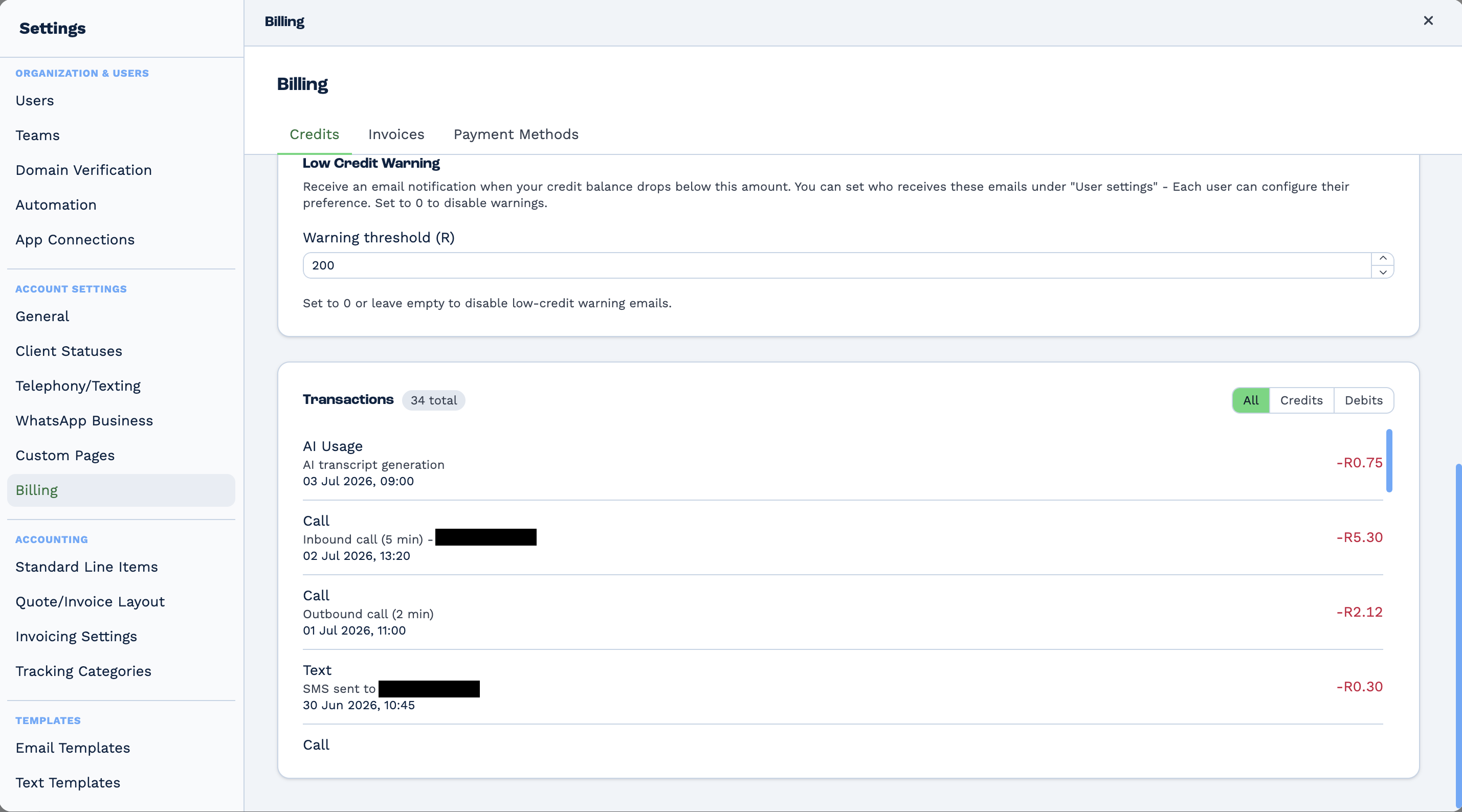
The transaction list is where the shared balance becomes obvious: AI usage, calls and SMS all appear in one ledger, drawing down the same credit.
Auto top-up is off by default. With it off and the balance exhausted, AI tasks stop rather than queue.
Billing
A four-minute call transcribed against one language bills 240 seconds. The same call against
["en-US","af-ZA"] bills 480. This is the single biggest lever on the cost of this task — keep
the language list tight.
Rate limits and retries
The task retries a rate-limited or dropped transcription request automatically. If the wait would
be long, the task is rescheduled rather than failed: it reports
Rate limited — rescheduled for retry., keeps run as true, and the queue re-runs it later.
No workflow change is needed.
Real-World Examples
Summarise a sales call onto the client record
Call Connect Trigger
  └─ Speech to Text        Audio URL from the call recording
      └─ AI Prompt         "Summarise this call and list any commitments made"
          └─ Workflow Note log the summary against the client
Flag calls that mention cancellation
Speech to Text
  └─ Pattern Regex         search dialogue_text for "cancel|refund"
      └─ If Statement      a match was found
          └─ Email         alert the account manager with the transcript
Best Practices
- List only the languages you actually get. Every extra language doubles, triples, quadruples the bill for no benefit if it never occurs.
- Check the audio URL is reachable. The transcriber fetches it directly; a signed URL that has expired will fail.
- Use
dialogue_speakersbefore an AI summary, so the model can tell the customer from the agent. - Guard long recordings. Branch on
audio_durationif you want to skip transcribing very long calls automatically. - Store the transcript. Write it to a Workflow Note so it survives beyond the workflow run.
Troubleshooting
| Message | Cause and fix |
|---|---|
| Insufficient credit | The account has run out of AI credit. The task stops before transcribing. |
No audio URL provided. |
The Audio URL mapping resolved to empty — usually a variable that did not exist on the upstream task. |
No languages provided. |
The language list is []. Add at least one language code. |
Failed to convert speech to text. |
The transcription failed; read {{task_ID_error}} for the reason. Most often an unreachable or unsupported audio file. |
No task mapping provided. |
The task has no saved configuration. Reopen it and fill the fields in. |
Rate limited — rescheduled for retry. |
Not an error. The task will run again automatically. |
| Transcript is poor quality | Check the recording's audio quality, and confirm the spoken language is in the list. |
Frequently Asked Questions
Which audio formats work? Anything the platform can fetch and decode from the URL. Standard call-recording formats are fine.
Does it identify speakers by name? No. It labels them (speaker 1, speaker 2). Map labels to people yourself if you need names.
Can I transcribe a file uploaded to the CRM? Yes — use a Files task to get the file's URL, then pass it in.
Is the audio stored? The task reads from the URL you supply and returns text. It does not create its own copy of the recording.
Related Tasks
- AI Prompt - Summarise or analyse the transcript
- Call Connect - Place the call that produces the recording
- Files - Get a URL for a stored recording
- Pattern Regex - Search the transcript for keywords
- Workflow Note - Store the transcript on the CRM record