Email Task
Overview
The Email Task sends customized emails to recipients with dynamic content, attachments, and full HTML formatting. It's the most versatile communication tool in BaseCloud automation.
When to use this task:
- Send confirmation emails after form submissions
- Deliver automated reports and notifications
- Send personalized follow-up sequences
- Notify team members of important events
- Send receipts, invoices, or documents
- Trigger transactional emails based on CRM activities
Key Features:
- Full HTML email support with templates
- Dynamic content using workflow variables
- Multiple recipients (To, CC, BCC)
- File attachments from previous tasks
- Custom sender name and reply-to address
- Email tracking and delivery status
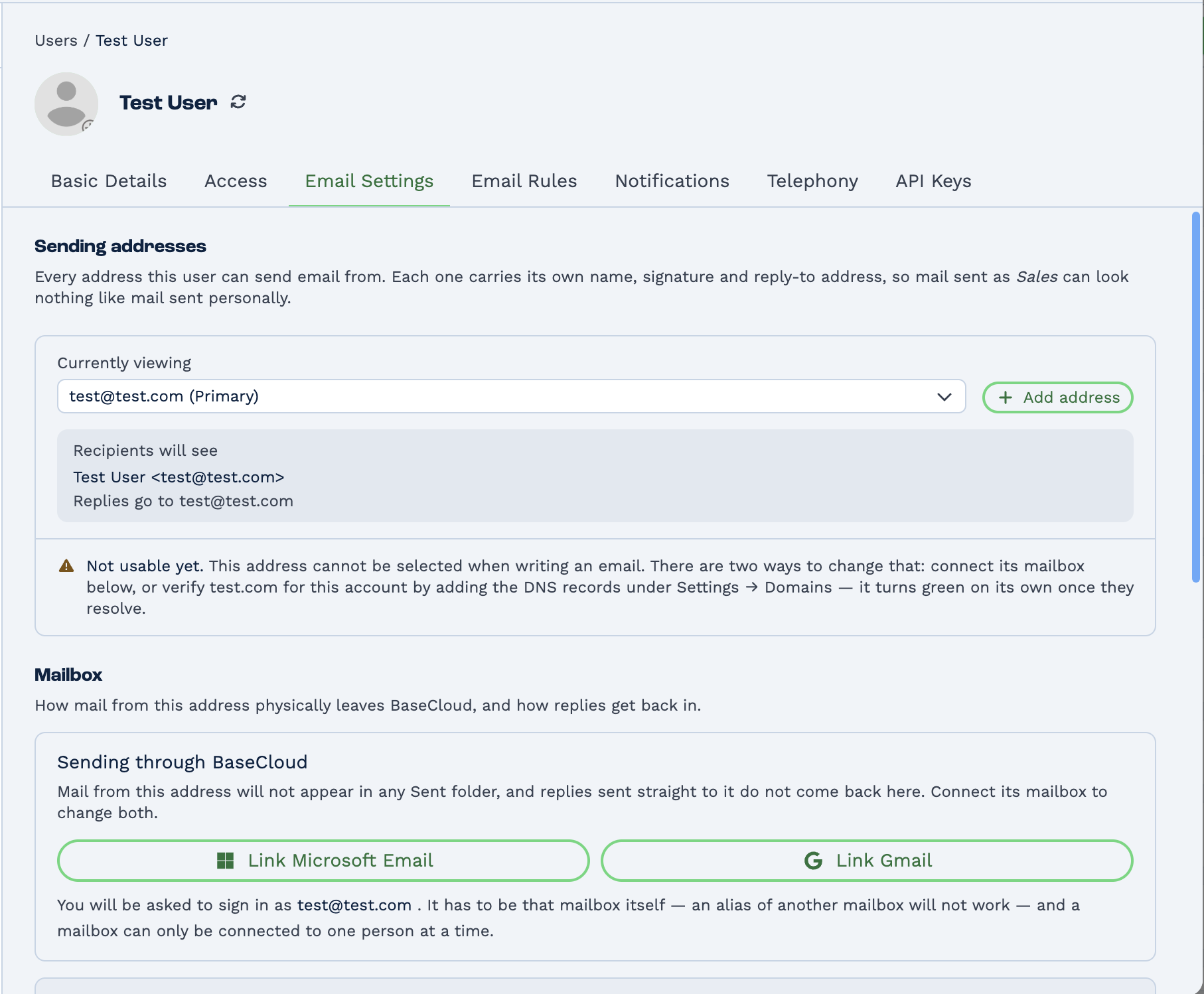
Sending addresses are configured per user, under Settings → Users → the user → Email Settings — not in a global admin screen. An address stays unusable until either its mailbox is connected or its domain is verified, so a new address will not appear in the Email task's Outgoing Email User list until one of those is done.
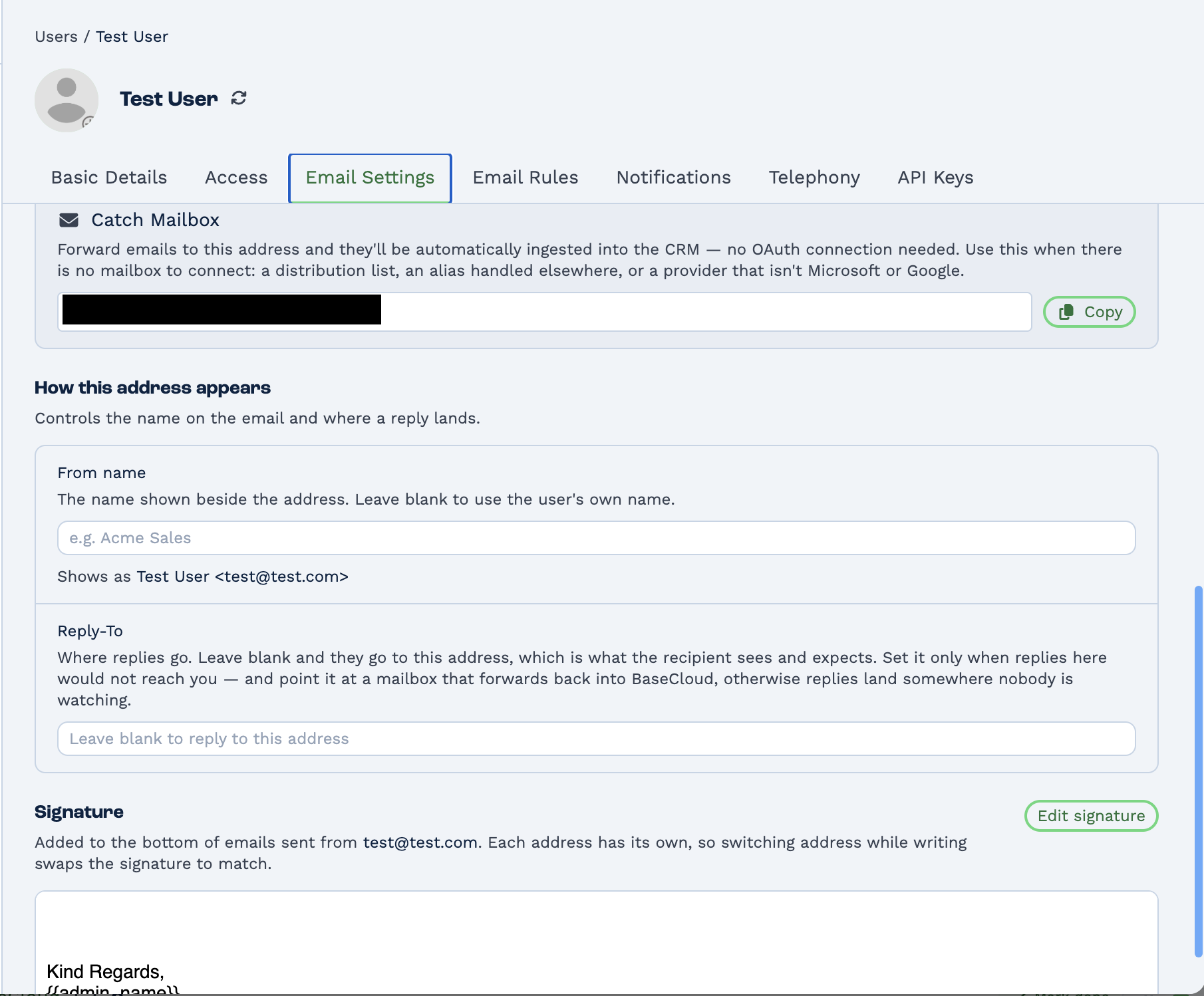
Three things are set per address, not per user: the From name, the Reply-To, and the signature — so switching address while writing swaps the signature to match. The Catch Mailbox is the fallback when there is no mailbox to connect: forward to that address and the mail is ingested without OAuth.
Quick Start
Builder fields
The Field column is the label as it appears in the task builder; Key is the name the value is stored under and referenced by.
| Field | Key | Type | Default | Notes |
|---|---|---|---|---|
| Outgoing Email User | outgoing_email_user |
outgoing-email-user | – | Options: BaseCloud |
| Use a custom From address | use_custom_from |
checkbox | 0 |
|
| From Address | From Email |
text | – | Only shown when use_custom_from is 1 |
| From Name | From Name |
text | – | Only shown when use_custom_from is 1 |
| Client | Client ID |
text | – | |
| Mark as Sensitive | sensitive |
select | no |
Options: No · Yes |
| To | To Emails(s) |
text | – | |
| CC | CC Emails(s) |
text | – | |
| BCC | BCC Emails(s) |
text | – | |
| Reply To | Reply To Email |
text | – | |
| Subject | Subject |
text | – | |
| Attachments (URL) | Attachments (URL) |
text | – | |
| Body | Body |
email-body | – |
- Add Email task to your workflow
- Configure sender (From Name and Email)
- Add recipient email address
- Write subject line
- Compose email body (HTML or plain text)
- Test and save
Simple Example:
From Name: Your Company
From Email: noreply@yourcompany.com
To: {{task_12345_email}}
Subject: Thank you for your inquiry
Body: Hi {{task_12345_first_name}}, thanks for contacting us!
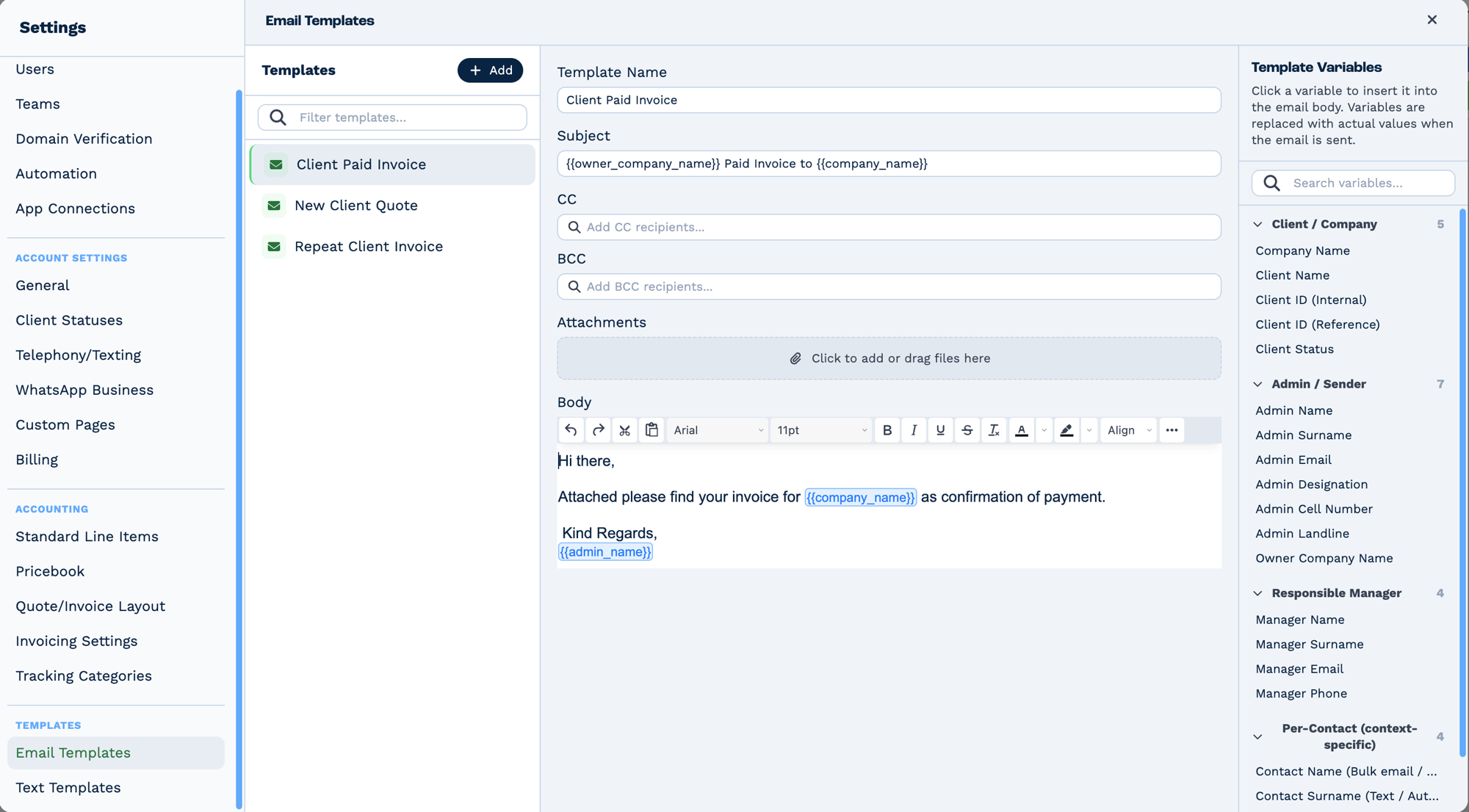
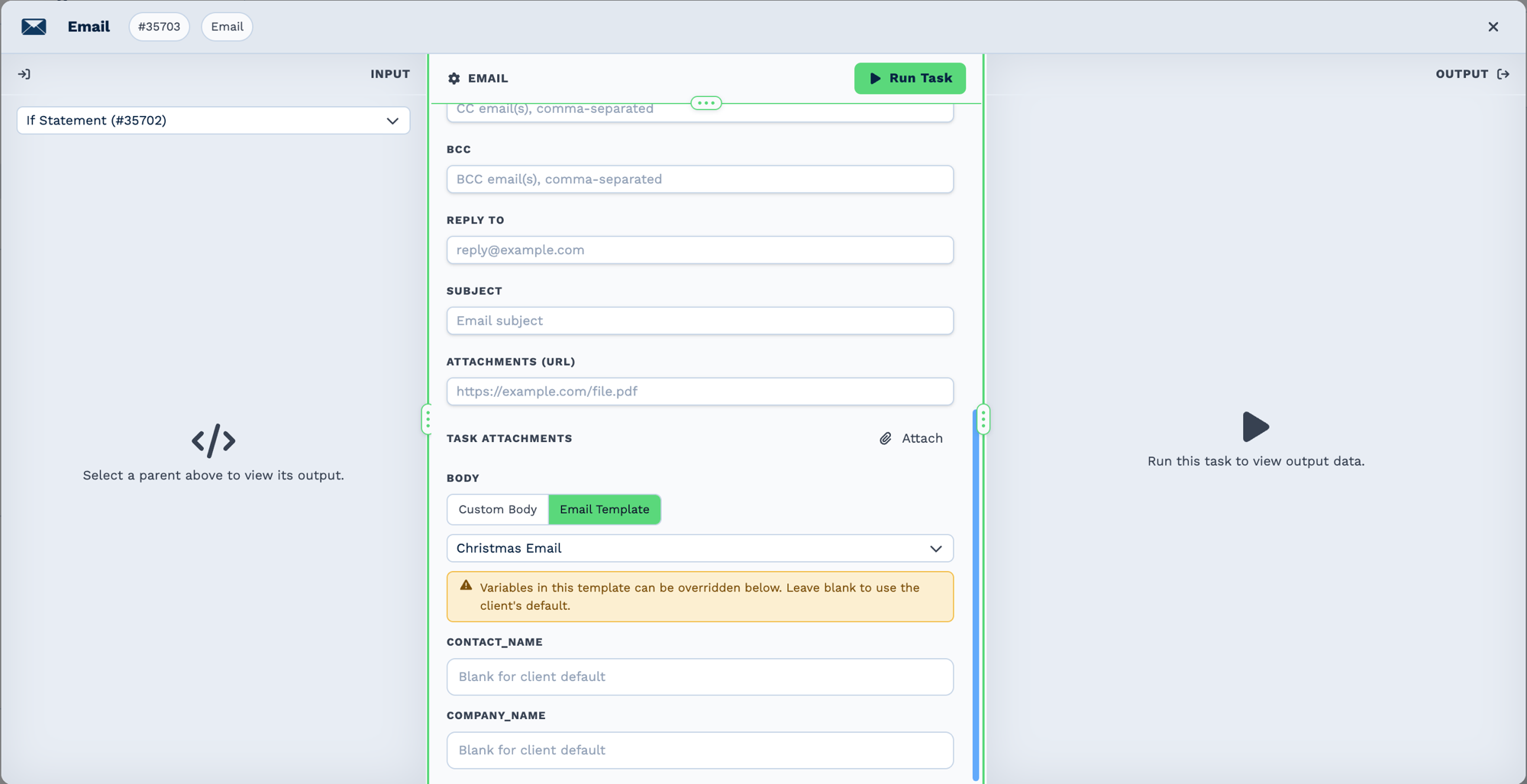
Templates live in Settings → Email Templates. Variables are inserted by clicking them in the right-hand panel and are replaced when the mail is sent. The same placeholder names are what the Email task exposes as overrides when you pick Email Template as the body.
Email Configuration
Every task opens in the same three-pane editor: Input on the left showing the output of whichever parent task you select, the task's own settings in the middle, and Output on the right once the task has run.
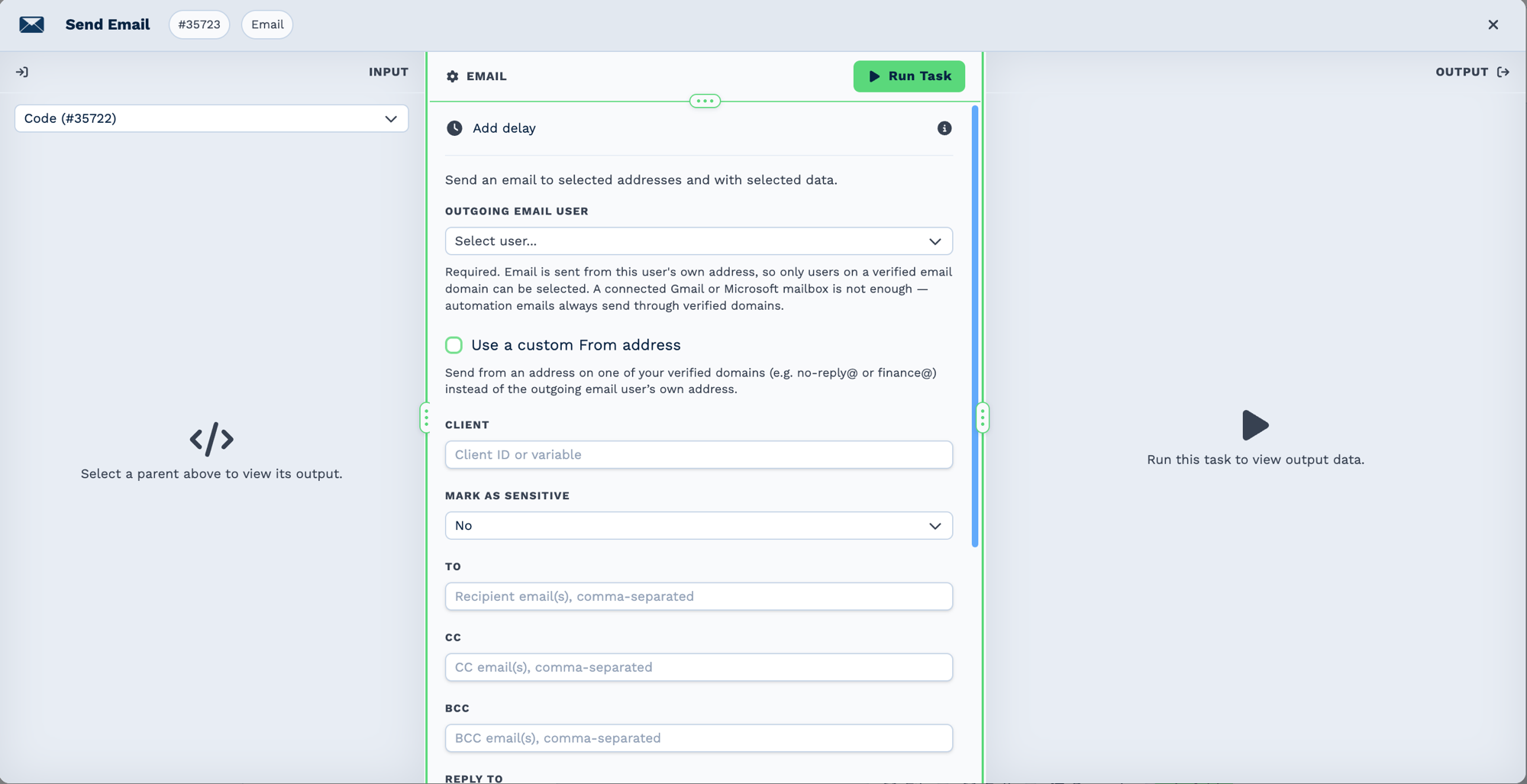
A connected mailbox is not the same as a verified domain. Linking Gmail or Microsoft lets a user send and receive their own mail; it does not make them selectable here. Automation email always goes out through a verified domain, so verify the domain under Settings → Domain Verification first.
Sender Information
From Name:
- The display name recipients see
- Can include variables:
{{task_12345_company}} Team - Best practice: Use consistent, recognizable names
From Email:
- Must be a verified domain email address
- Configure SMTP settings in BaseCloud admin
- Cannot use personal Gmail/Outlook addresses for production
Reply-To Email (Optional):
- Where replies should go
- Useful if sending from
noreply@address - Example:
support@yourcompany.com
Recipients
To Field:
- Primary recipient(s)
- Use workflow variables:
{{task_12345_email}} - Multiple recipients: Comma-separated
CC Field (Optional):
- Carbon copy recipients
- Visible to all recipients
- Example:
sales@company.com, support@company.com
BCC Field (Optional):
- Blind carbon copy
- Hidden from other recipients
- Useful for tracking or archiving
Subject Line
- Keep under 50 characters for best open rates
- Use dynamic content:
New lead: {{task_12345_first_name}} {{task_12345_last_name}} - Avoid spam trigger words (FREE, URGENT, !!!)
- Personalization improves engagement
Examples:
Welcome to {{task_12345_company}}!
Your invoice #{{task_12345_invoice_number}} is ready
Follow-up: {{task_12345_subject}}
Email Body
HTML Mode (Default):
- Full HTML formatting support
- Use template builder or custom HTML
- Supports CSS styling
- Include images with full URLs
Plain Text Mode:
- Simple text-only emails
- Better deliverability in some cases
- No formatting or images
Dynamic Content: Insert workflow variables anywhere:
<p>Hi {{task_12345_first_name}},</p>

<p>Thank you for your inquiry about {{task_12345_product}}.</p>

<p>Your reference number is: <strong>{{task_12345_reference}}</strong></p>
Attachments
Attach files from previous tasks in the workflow.
From File Upload Task:
From PDF Task:
Multiple Attachments:
Static Attachments:
- Upload to BaseCloud file storage
- Reference using full URL
SMTP Configuration
Configure sending in Settings → Users → the user → Email Settings.
Using BaseCloud SMTP (Recommended)
Built-in email service:
- Pre-configured and ready to use
- Reliable delivery
- Automatic retry on failures
- Delivery tracking included
From Email must use:
Custom SMTP Server
Requirements:
- SMTP host and port
- Username and password
- TLS/SSL support
Popular Providers:
| Provider | SMTP Host | Port | TLS |
|---|---|---|---|
| Gmail | smtp.gmail.com | 587 | Yes |
| SendGrid | smtp.sendgrid.net | 587 | Yes |
| Mailgun | smtp.mailgun.org | 587 | Yes |
| Office 365 | smtp.office365.com | 587 | Yes |
Configuration Steps:
- Go to Settings → Users, open the user, and choose Email Settings
- Enter SMTP credentials
- Test connection
- Verify sender domain (SPF/DKIM)
- Save configuration
Outputs
| Field | Type | Example | Notes |
|---|---|---|---|
email_id |
number | 99213 |
The stored email's ID. Use it to reference the sent message later. |
subject |
string | Your quote |
The subject as sent, after variables were resolved. |
run |
boolean | true |
false if the send failed. |
run_text |
string | Email sent successfully. |
Includes the failure reason when run is false. |
There is no delivery status here
The task reports that the message was accepted for sending, not that it arrived. There is no
delivery_status, sent_at or message_id field. For bounces and opens, use the email logs in
the CRM.
If the provider rate-limits the send, the task is rescheduled rather than failed and runs again automatically.
Real-World Examples
Welcome a new enquiry
Send an invoice
CRM Trigger  (status changed to "Won")
  └─ BaseCloud Accounting   create the invoice
      └─ Email              attach {{task_22001_document_url}}
Escalate an urgent review
Google Review Received
  └─ If Statement   {{task_63001_star_rating}} is 1 or 2
      └─ Email      alert the branch manager
Email Templates
Using Pre-Built Templates
- Go to Settings → Email Templates
- Create or select template
- Use template variables:
{first_name},{company}, etc. - Reference in workflow:
Template: Welcome Email
Dynamic Template Selection
Choose template based on workflow data:
HTML Best Practices
Structure:
<!DOCTYPE html>
<html>
  <head>
    <meta charset="UTF-8" />
    <meta name="viewport" content="width=device-width, initial-scale=1.0" />
  </head>
  <body style="font-family: Arial, sans-serif; max-width: 600px; margin: 0 auto;">
    <div style="padding: 20px;">
      <h1>Your Heading</h1>
      <p>Your content with {{dynamic_variable}}</p>
    </div>
  </body>
</html>
Inline CSS:
- Always use inline styles (not
<style>tags) - Many email clients strip
<head>sections - Use tables for layout (sad but true)
Images:
- Use full URLs:
https://yoursite.com/logo.png - Include alt text for accessibility
- Host on reliable CDN
Best Practices
Deliverability
- Verify sender domain - Set up SPF, DKIM, DMARC records
- Avoid spam triggers - No ALL CAPS, excessive punctuation!!!
- Clean recipient lists - Remove bounced addresses
- Warm up new domains - Start with low volume, increase gradually
- Include unsubscribe link - Required for compliance
Personalization
- Use recipient's name -
Hi {{first_name}}vs "Dear Customer" - Reference their activity - "Thanks for downloading {{resource}}"
- Segment by behavior - Different emails for different actions
- Time zone awareness - Send at appropriate local times
Content
- Clear subject lines - Set expectations accurately
- Mobile-friendly - 50%+ of emails opened on mobile
- Single call-to-action - Don't overwhelm with choices
- Test before sending - Use test workflows first
- Proofread - Typos destroy credibility
Technical
- Use Reply-To - Don't send from noreply@ if you want replies
- Handle failures gracefully - Add If task to check
email_sentstatus - Rate limiting - Don't send 1000s at once (use delays/loops)
- Track engagement - Monitor open rates and clicks
Troubleshooting
Email Not Sending
Check these:
- SMTP configuration - Verify credentials in Admin panel
- Sender email - Must be from verified domain
- Recipient email - Valid format required
- Workflow enabled - Check workflow status
- Task execution - View execution history for errors
View error details:
Emails Going to Spam
Common causes:
- No SPF/DKIM - Verify domain authentication
- Spam trigger words - Avoid "FREE", "CLICK HERE", "BUY NOW"
- Poor sender reputation - New domains need warm-up
- High complaint rate - Ensure proper unsubscribe
- Broken HTML - Validate your HTML structure
Dynamic Content Not Working
Ensure:
- Correct variable syntax -
{{task_ID_field}}not{task_ID_field} - Task ID matches - Use actual task ID from workflow
- Field exists - Check output fields from previous task
- Data available - Previous task completed successfully
Debug by viewing execution:
- Click task in history
- View "Output Data" tab
- Copy exact field names
Attachments Not Attaching
Verify:
- File path correct - Must be full URL or valid path
- File accessible - Check file URL in browser
- File size - Most email providers limit to 10-25 MB
- Multiple files - Use comma separation without spaces
Frequently Asked Questions
Can I send to multiple recipients?
Yes, comma-separate email addresses:
How do I add images?
Use full URLs in HTML:
Can I schedule emails for later?
Yes, add a Delay task before the Email task:
How do I track if someone opened the email?
BaseCloud includes automatic tracking pixels. View delivery status:
What if the email fails?
Add an If task to handle failures:
1. Email
2. If Task - Check {{task_52123_email_sent}} = false
   - True: Log error or retry
   - False: Continue normally
Can I use different SMTP for different workflows?
Currently, SMTP is configured globally. Contact support for multi-tenant setups.
How do I test emails without sending to real customers?
- Use the Test URL in webhook/trigger tasks
- Replace recipient with your test email
- Enable "Test Mode" in workflow settings
- Check execution history after testing
What's the rate limit for sending?
- BaseCloud SMTP: 100 emails per minute
- Custom SMTP: Depends on your provider
- Use Delay tasks in loops to control rate
Related Tasks
- SMS Task - Send text messages
- Webhook Out - Trigger external email services
- Delay Task - Schedule email timing
- If Task - Conditional email sending
- Loop Task - Send multiple emails