New customer onboarding
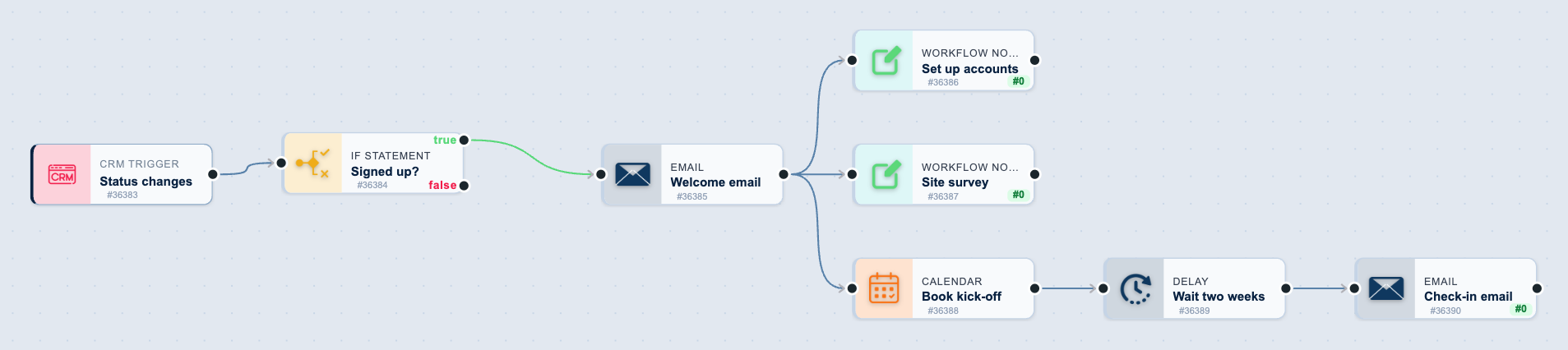
Onboarding a managed-services customer involves several people doing separate jobs in the same fortnight. This workflow starts them all from one status change, so nothing depends on a handover email.
Before you start
- A client status for a signed customer
- A connected calendar for the account manager
The workflow
| Step | Task | Type | What it does |
|---|---|---|---|
| 1 | Status changes | CRM Trigger | Starts whenever a client’s status changes |
| 2 | Signed up? | If Statement | Continues only for the status that means "signed" |
| 3 | Welcome email | Sends the welcome email with the first two weeks laid out | |
| 4 | Set up accounts | Workflow Note | Gives the service desk its set-up task |
| 5 | Site survey | Workflow Note | Gives the field engineer the site survey |
| 6 | Book kick-off | Calendar | Books the kick-off call in the account manager’s calendar |
| 7 | Wait two weeks | Delay | Waits two weeks |
| 8 | Check-in email | Asks how the first two weeks went |
About the variables
Values such as {{task_36383_…}} carry the number of the task they come from, so yours will
differ. Do not type them: click into a field and pick the value from an earlier task.
1. Status changes
Task: CRM Trigger. Starts whenever a client’s status changes.
| Field | Set it to |
|---|---|
| Trigger Type | Client Field Change |
| Target Field | client_status |
2. Signed up?
Task: If Statement. Continues only for the status that means "signed".
| Field | Set it to |
|---|---|
| Condition | {{task_36383_status_changed_to}} exactly matches Scheduled |
The example uses the status Scheduled. Choose your own.
3. Welcome email
Task: Email. Sends the welcome email with the first two weeks laid out.
| Field | Set it to |
|---|---|
| Outgoing Email User | Wendy Darling |
| Client | {{task_36383_client_id}} |
| To | {{all_contacts}} |
| Subject | Welcome to Neverland IT |
Body
Hi,
Welcome aboard. Here is what happens in your first two weeks:
- Kick-off call to meet your account manager
- Site survey of your network and devices
- Monitoring agents installed on every workstation
- Help desk access for your whole team
Your account manager will be in touch today to book the kick-off.
Neverland IT
4. Set up accounts
Task: Workflow Note. Gives the service desk its set-up task.
| Field | Set it to |
|---|---|
| Action | Create Note |
| Client ID | {{task_36383_client_id}} |
| Note Type | Note |
| Priority | Medium |
| Due Date | Tomorrow (8AM) |
| Tag Users | Tinker Bell |
Message
New customer. Create their help desk organisation, add the contacts as users and send the password manager invitations.
5. Site survey
Task: Workflow Note. Gives the field engineer the site survey.
| Field | Set it to |
|---|---|
| Action | Create Note |
| Client ID | {{task_36383_client_id}} |
| Note Type | Note |
| Priority | Medium |
| Due Date | In Two Days (8AM) |
| Tag Users | John Darling |
| Message | **New customer.** Book the site survey and bring the monitoring agent installer. |
6. Book kick-off
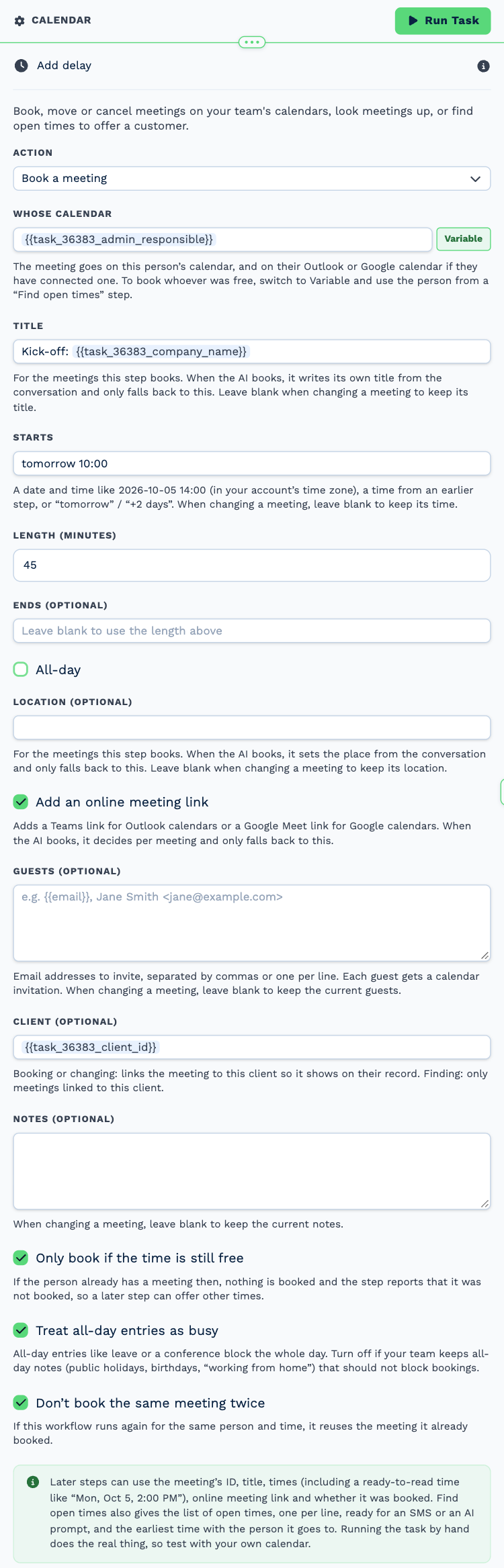
Task: Calendar. Books the kick-off call in the account manager’s calendar.
| Field | Set it to |
|---|---|
| Action | Book a meeting |
| Whose calendar | {{task_36383_admin_responsible}} |
| Title | Kick-off: {{task_36383_company_name}} |
| Starts | tomorrow 10:00 |
| Length (minutes) | 45 |
| Add an online meeting link | Ticked |
| Client (optional) | {{task_36383_client_id}} |
| Only book if the time is still free | Ticked |
| Don’t book the same meeting twice | Ticked |
7. Wait two weeks
Task: Delay. Waits two weeks.
| Field | Set it to |
|---|---|
| Delay Type | Specified Time |
| Weeks | 2 |
8. Check-in email
Task: Email. Asks how the first two weeks went.
| Field | Set it to |
|---|---|
| Outgoing Email User | Wendy Darling |
| Client | {{task_36383_client_id}} |
| To | {{all_contacts}} |
| Subject | How are your first two weeks going? |
Body
Hi,
You have been with us for two weeks. Is everything working the way you expected? Reply to this email with anything we should fix or do differently, and it goes straight to your account manager.
Neverland IT
Make it yours
- Three tasks run side by side after the welcome email. Add more branches for licences, backups or security training.
- Change Starts in Book kick-off to a time from a Find open times step.