Daily report by email
Someone opens a spreadsheet every morning, copies the numbers into an email and sends it to the team. This workflow does that on a timer: it reads the sheet, builds the HTML, and sends it, before anyone is at their desk.

The workflow
| Order | Task | Purpose |
|---|---|---|
| 1 | Timer Trigger | Runs the workflow on a schedule |
| 2 | Google Sheets | Reads the rows the report is built from |
| 3 | Code | Turns those rows into an HTML table |
| 4 | Sends the finished report |
1. Timer Trigger
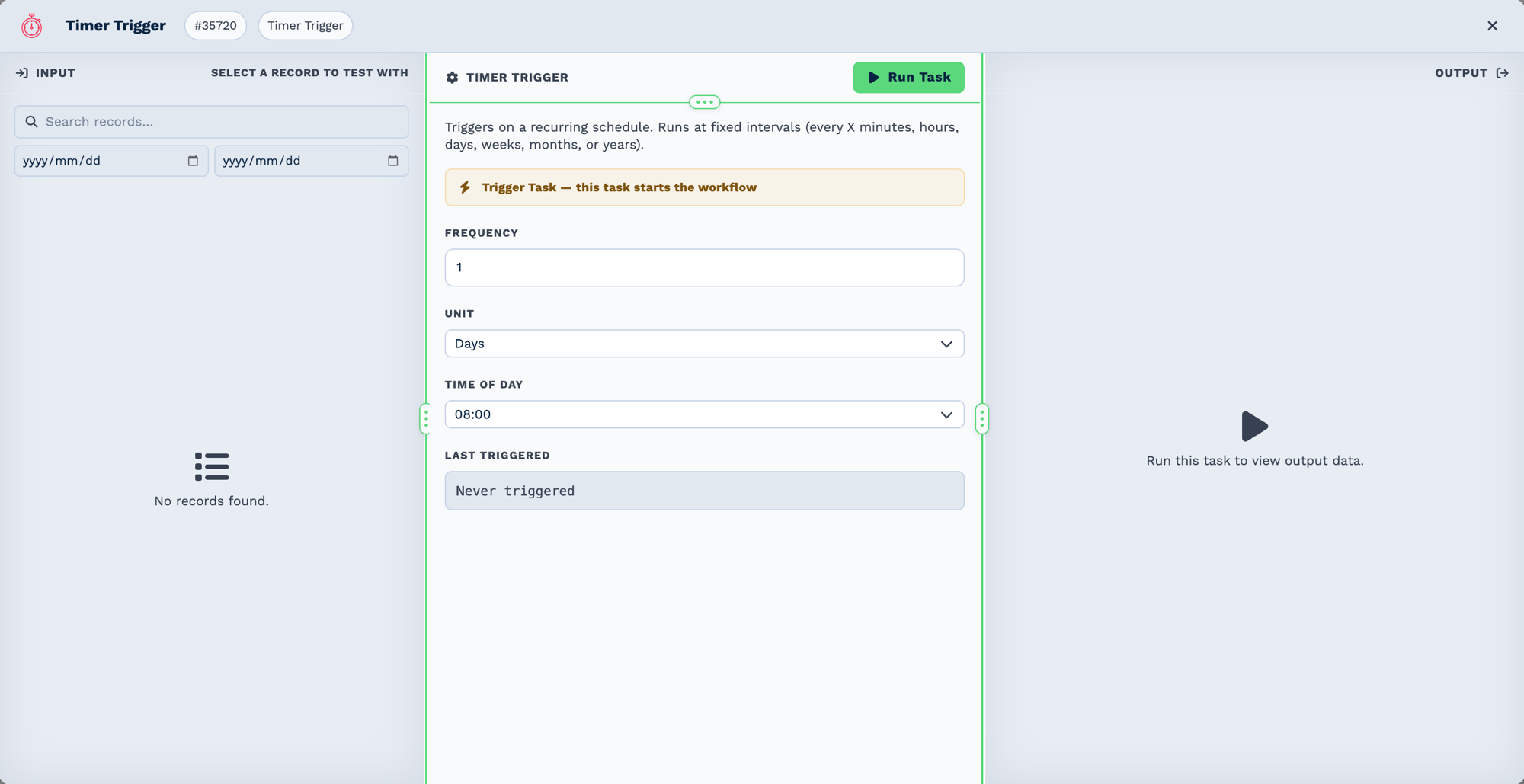
| Field | Set it to |
|---|---|
| Frequency | 1 |
| Unit | Days |
| Time of Day | 08:00 |
Time of Day is UTC
There is no timezone setting on this task. 08:00 means 08:00 UTC, which is 10:00 in
Johannesburg. Set the time you actually want in UTC.
Last Triggered is the quickest way to tell whether a schedule is live. A workflow that looks right but reads Never triggered has never fired.
2. Google Sheets
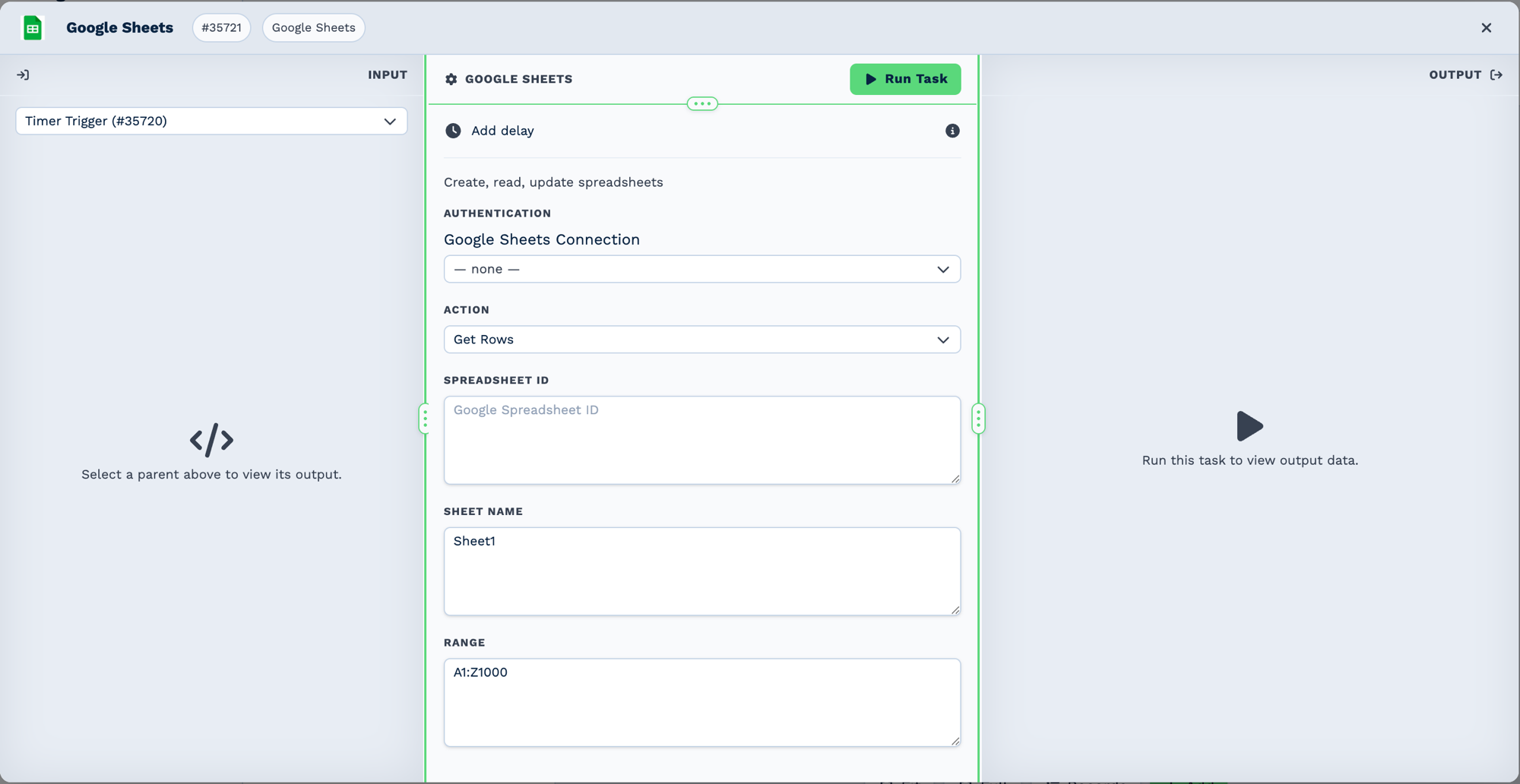
| Field | Set it to |
|---|---|
| Authentication | The connected Google account |
| Action | Get Rows |
| Spreadsheet ID | The long id from the sheet URL, between /d/ and /edit |
| Sheet Name | Sheet1, or whichever tab holds the data |
| Range | A1:Z1000 — this field only appears for Get Rows |
The rows come back as {{task_35721_rows}}, with {{task_35721_row_count}} alongside. To
hand the whole array to the next task, use the JSON form: {{task_35721.JSON.rows}}.
3. Code
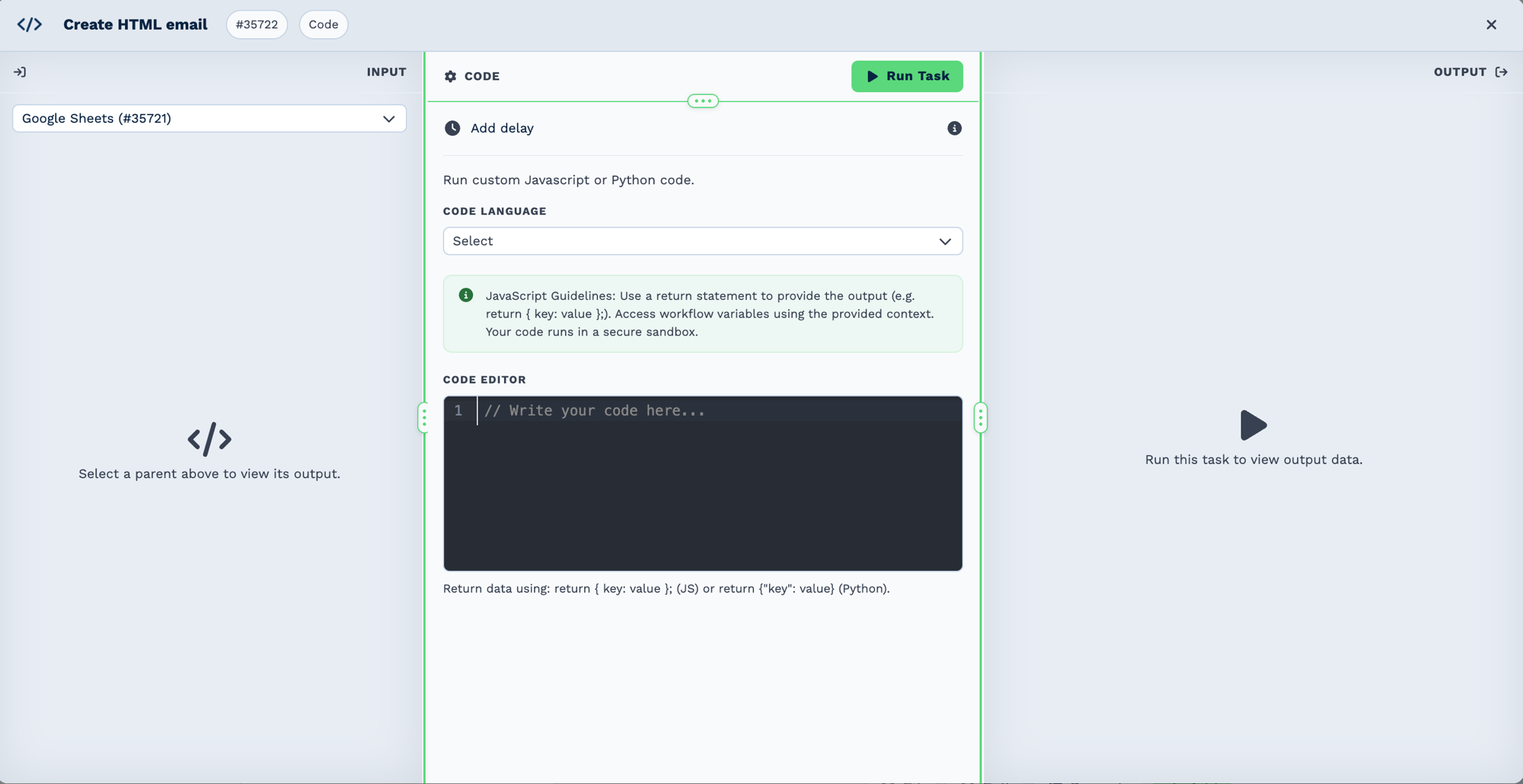
| Field | Set it to |
|---|---|
| Code Language | JavaScript |
| Code Editor | A script that returns the HTML |
Whatever your script returns becomes fields on the task, so returning { html: "..." } gives you
{{task_35722_html}} for the Email task.
const rows = input.task_35721_rows || [];
const body = rows
  .slice(1)
  .map(r => `<tr><td>${r[0]}</td><td>${r[1]}</td></tr>`)
  .join('');

return {
  html: `<table><tr><th>Name</th><th>Value</th></tr>${body}</table>`,
  row_count: rows.length - 1,
};
The Email task waits for the code to finish
Code runs in a sandbox outside the workflow, so the task parks at executing and the tasks beneath it are held until the result comes back. You do not need to add a delay to make the email wait.
4. Email
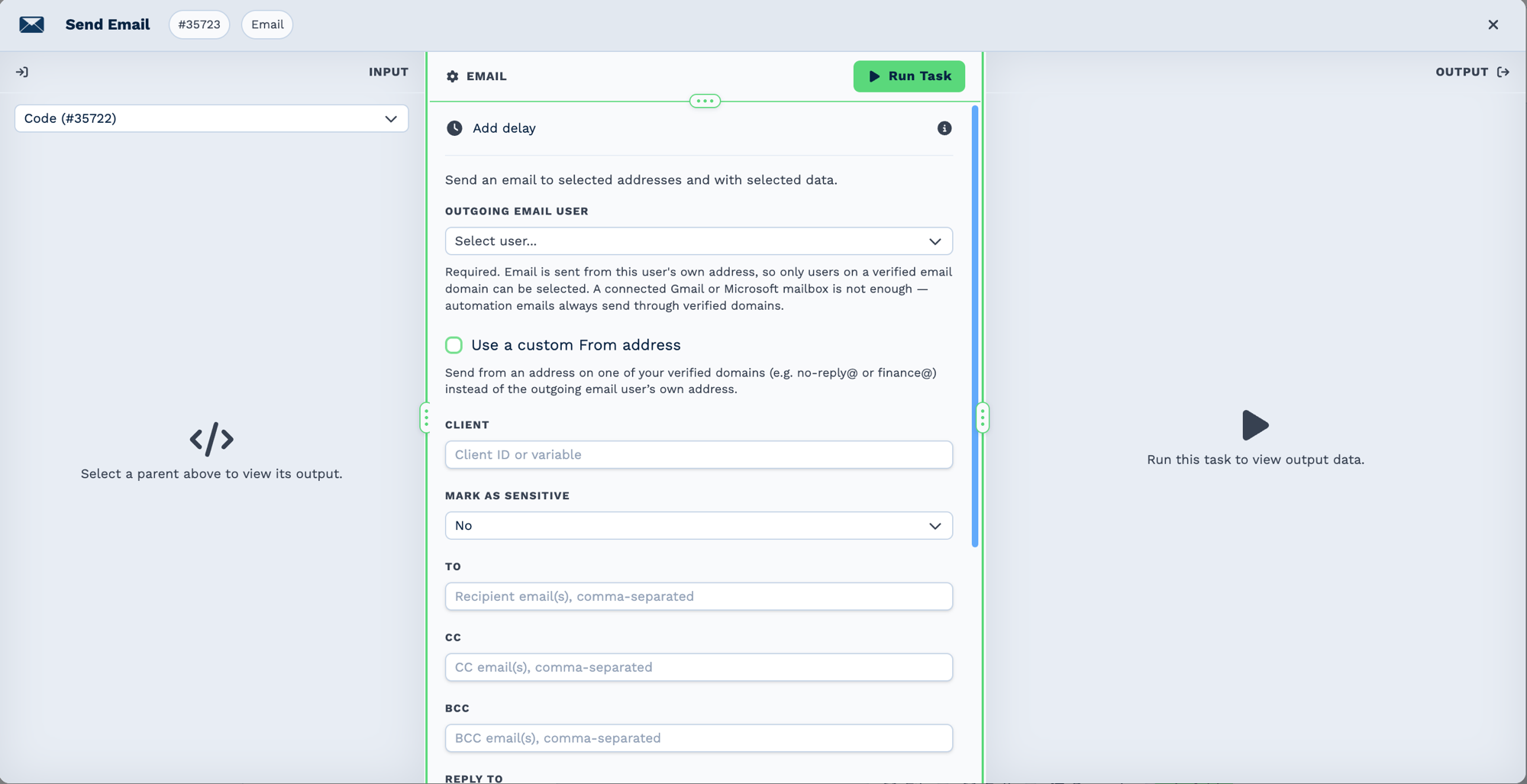
| Field | Set it to |
|---|---|
| Outgoing Email User | A user on a verified email domain |
| To | The team address |
| Subject | Daily report |
| Body | {{task_35722_html}} |
Only users on a verified domain can send
Automation email always sends through a verified domain. A connected Gmail or Microsoft mailbox on its own is not enough, and the user picker will not offer that user.
Test it
- Set Frequency to
5and Unit toMinutesso you are not waiting until tomorrow. - Put your own address in To.
- Enable the workflow and wait for one run.
- Check the Code task's OUTPUT panel to see the HTML it produced before trusting the email.
- Set the real schedule and the real recipients.
What can go wrong
| Symptom | Cause |
|---|---|
| The email arrives empty | The script returned nothing under the key the Body references. Check the Code task's output. |
| The report is an hour or two out | Time of Day is UTC. |
Retrieved 0 rows from sheet |
Wrong Sheet Name, or a Range that misses the data. |
| The workflow never fires | Last Triggered reads Never triggered — the workflow is not enabled. |
| The Email task has no user to pick | No user is on a verified email domain yet. |