Sign in
Go to crm.basecloudglobal.com. There are three ways in:
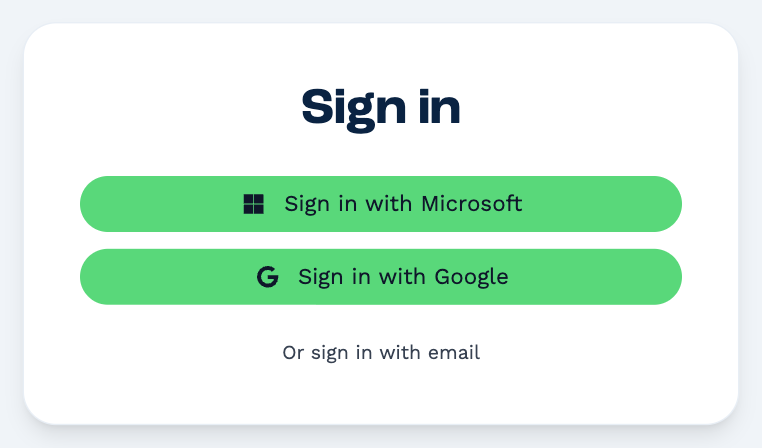
| Way in | Use it when |
|---|---|
| Sign in with Microsoft | Your work email is a Microsoft 365 or Outlook account. |
| Sign in with Google | Your work email is a Google Workspace or Gmail account. |
| Or sign in with email | You were given a password for BaseCloud. |
Use the same email address your administrator added you with — BaseCloud finds your user by it.
With Microsoft or Google
Click the button and sign in on the Microsoft or Google page that opens. You come straight back to BaseCloud.
BaseCloud doesn't ask for its own two-factor code when you sign in this way: Microsoft and Google apply their own security checks to your account.
With your email and password
- Click Or sign in with email.
- Enter your Email and Password. The eye icon shows the password as you type.
- Click Sign in.
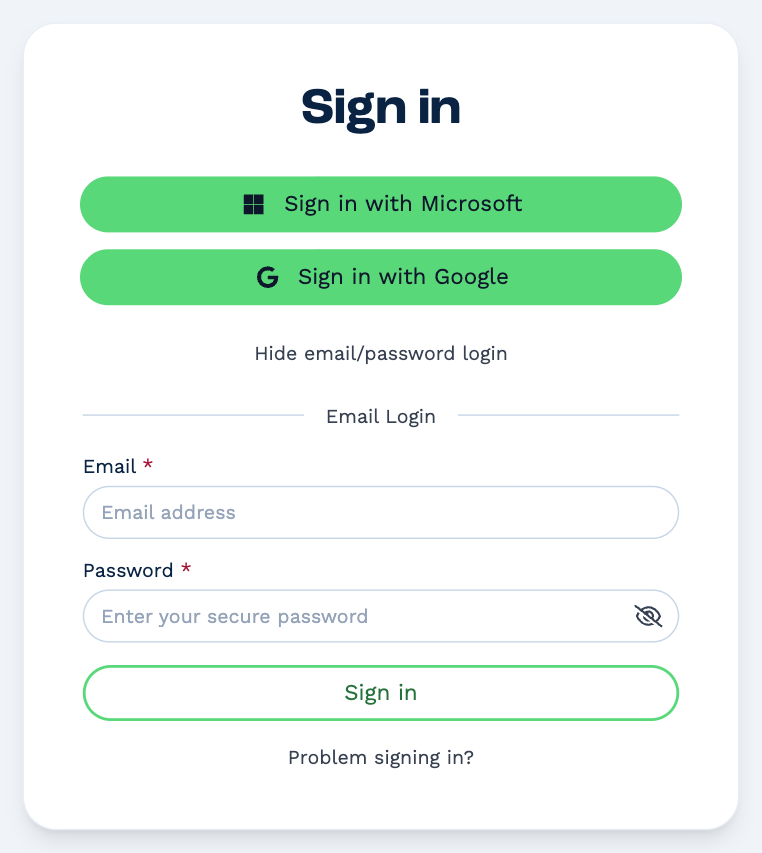
Next, BaseCloud asks for the code from your authenticator app — or, the first time, asks you to set one up. See Two-factor authentication.
If you were sent an invitation
An invitation link opens the sign-in page with your name on it — Hi, Smee — and who invited you. Sign in the same way as above.
Signed out partway through?
If your session ends while you're working, sign in again and BaseCloud takes you back to the page you were on.
Problem signing in?
Click Problem signing in? under the Sign in button.
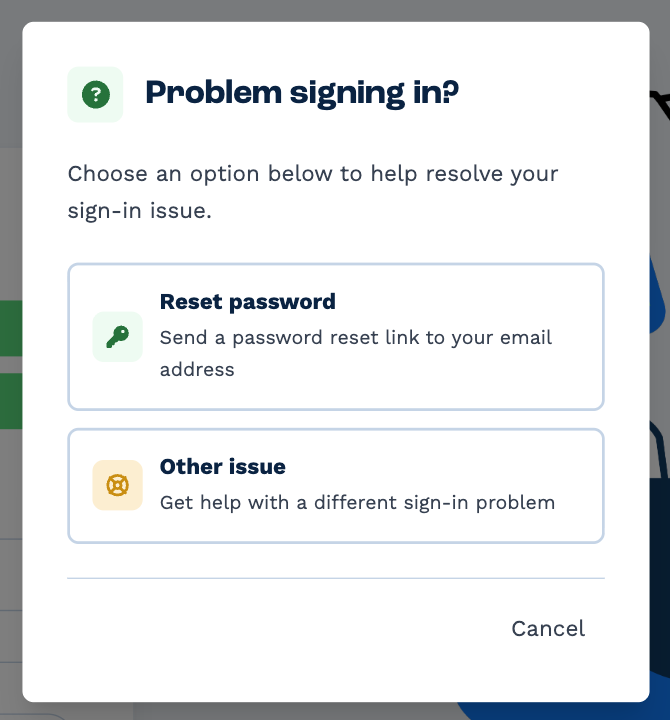
- Reset password
- Enter your email address and click Send Reset Email. The email holds a link to set a new password; the link works for 10 minutes. If nothing arrives, check your spam folder and that you typed the address you were added with. For your security, BaseCloud confirms the request the same way whether or not the address has a user.
- Other issue
- Shows the support team's email address. Say what happened and which email address you sign in with.
An administrator can send you a sign-in link
Anyone with Manage Users can open Settings → Users, pick your name and click Send next to Login Link. The link is valid for 10 minutes and lets you set a new password.