Two-factor authentication
When you sign in with your email and password, BaseCloud also asks for a six-digit code from an authenticator app on your phone. Someone who learns your password still can't get in without your phone.
Signing in with Microsoft or Google doesn't use BaseCloud's code: Microsoft and Google apply their own checks.
You have seven days to set it up
For your first seven days after your user is created, BaseCloud asks each time you sign in:
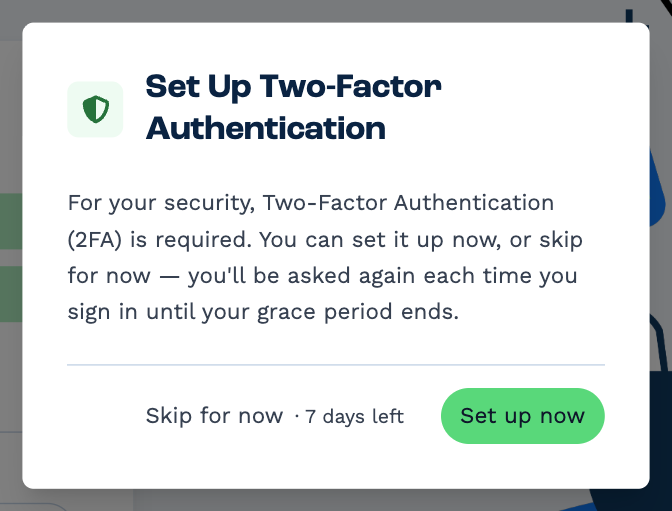
- Set up now starts the steps below.
- Skip for now signs you in this once. The days left are shown next to it.
After seven days there's no skipping: you set it up the next time you sign in. Being signed in already doesn't end when the seven days do — it matters the next time you sign in.
The BaseCloud phone app can't set it up. During those seven days it signs you in without asking; after them, set it up in a web browser first.
Set up your authenticator app
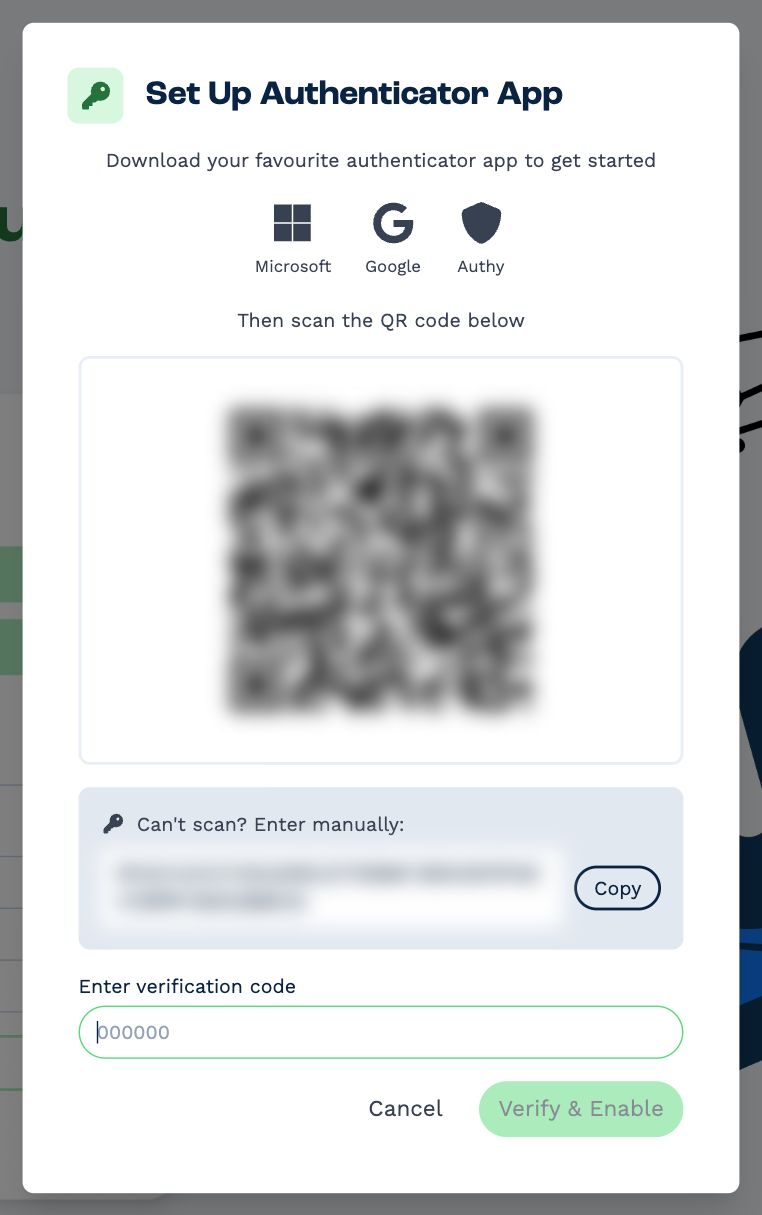
You need an authenticator app on your phone — Microsoft Authenticator, Google Authenticator or Authy all work.
- Click Set up now.
- In your authenticator app, add an account and scan the QR code. If you can't scan it, click Copy next to Can't scan? Enter manually and type the key into the app instead.
- The app now shows a six-digit code for BaseCloud that changes every 30 seconds. Type the current one into Enter verification code and click Verify & Enable.
Save your backup codes
Next, BaseCloud shows ten backup codes. Each one signs you in once, in place of the code from your app — for the day your phone is lost, broken or flat.
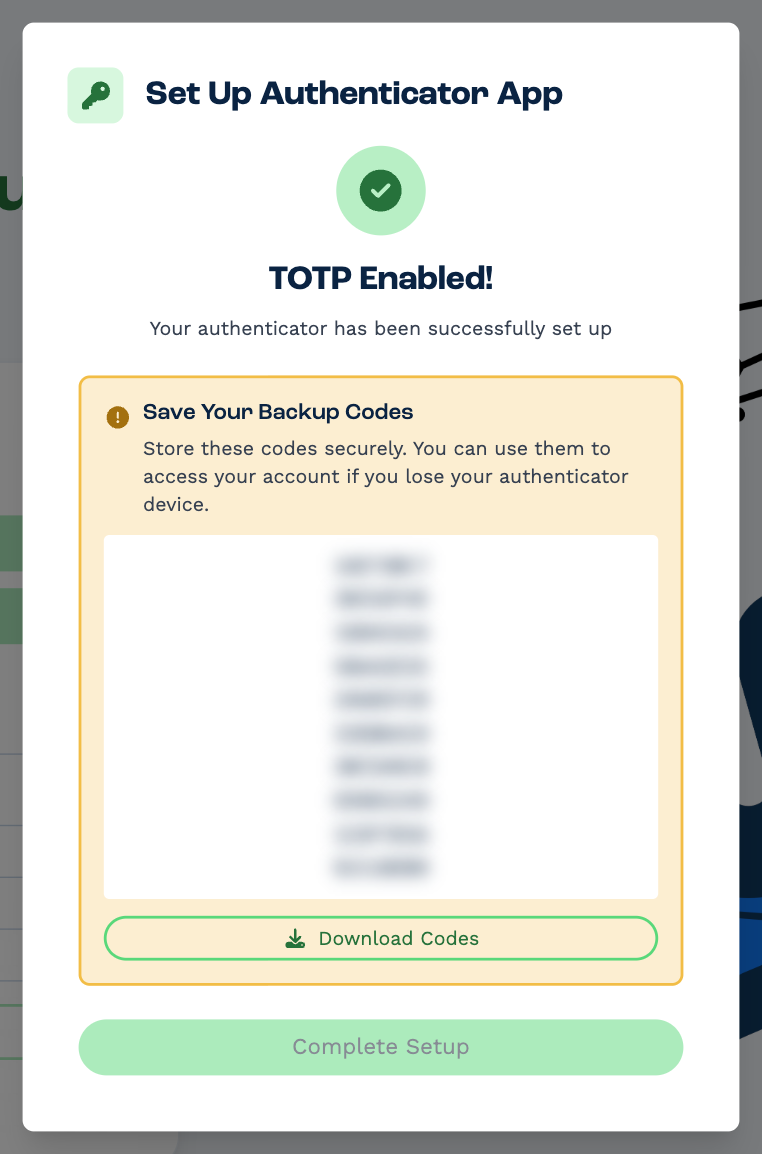
- Click Download Codes and keep the file somewhere safe that isn't your phone — a password manager is ideal.
- Click Complete Setup. It stays greyed out until you've downloaded the codes.
You only see the codes once
BaseCloud doesn't show them again. If you lose both your phone and the codes, ask an administrator to reset your two-factor authentication.
Sign in with a code
After your email and password, enter the current code from your app and click Verify.
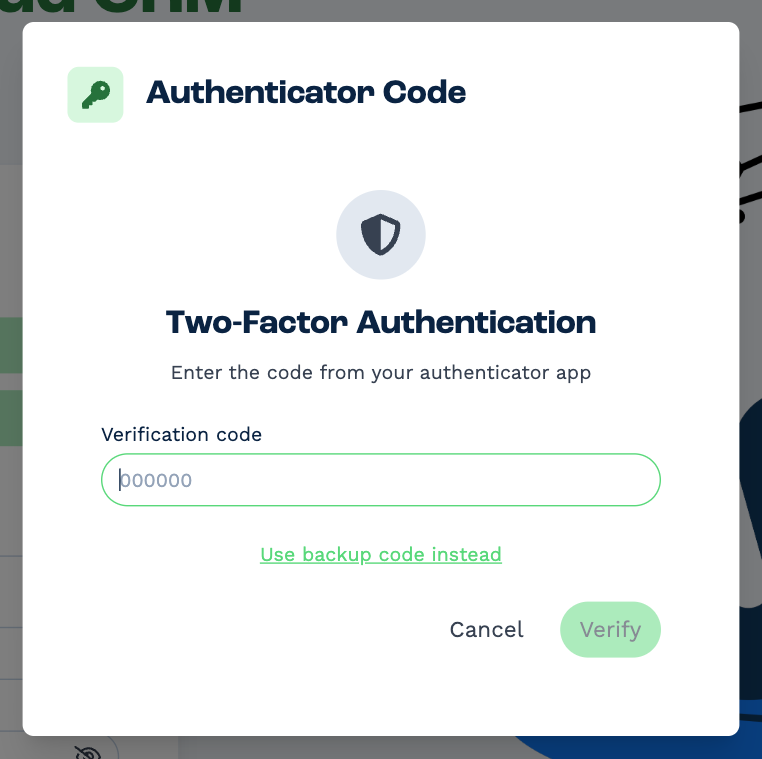
No phone? Click Use backup code instead and type one of your backup codes. That code is then used up.
Lost your phone?
Use a backup code to sign in. If you have none left, ask someone with Manage Users to open Settings → Users, pick your name and click Reset MFA under Login & Security. The next time you sign in, BaseCloud asks you to set up your authenticator app again. A reset doesn't start the seven days again.