Files
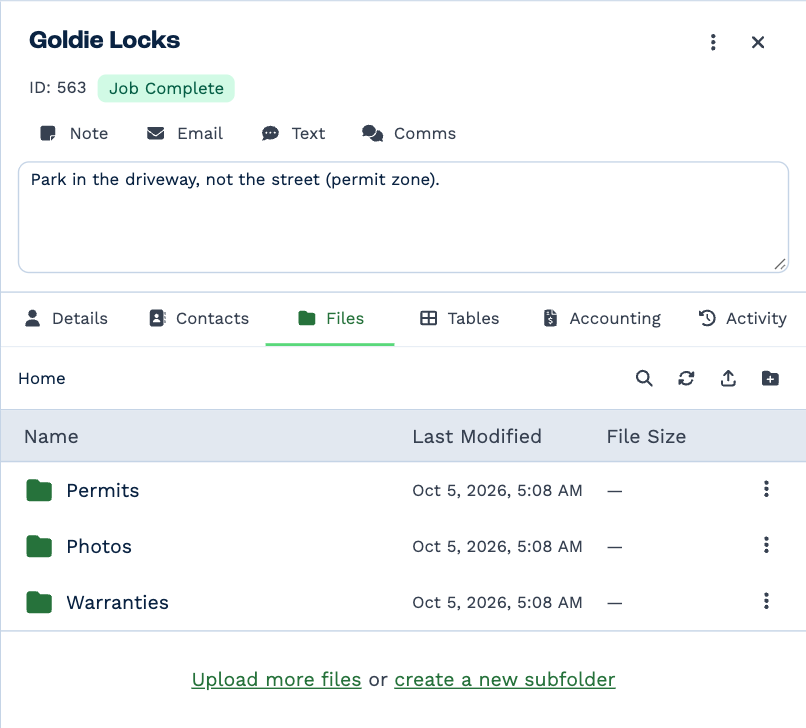
Every client has a Files tab for their documents and photos — contracts, warranties, permits, site photos. Open the client and click Files.
-
Find and organise files
Folders, sorting, searching every folder at once, and moving things around.
-
Add files
Upload from your computer, or save an email's attachments to the client.
-
Open and share files
Preview, download, copy a link, attach to an email or note, rename and delete.
-
PDF tools
Put a password on a PDF, take it off, or combine several PDFs into one.
-
Send for signature
Ask a client — or several people in turn — to sign a PDF electronically.
-
Track signatures
See who has signed, send a reminder, read the audit trail, or void a request.
Who can do this
Everything on the Files tab needs Files Access. Without it the tab isn't shown. See Why can't I see something?
What's in Files — and what isn't
The Files tab holds what you put there. Files that arrive another way stay where they arrived:
| These | Are kept |
|---|---|
| Attachments on emails, notes and WhatsApp messages | With the message, in the client's history. Save them to Files to keep a copy here. |
| Files in a custom field | On the field |
| Files on a custom table row | On the row |