Download, share and show
Who can do this
Anyone with Reports Access. Exporting a client list also needs Export Clients.
Download a card
Click the card's ⋮ menu.
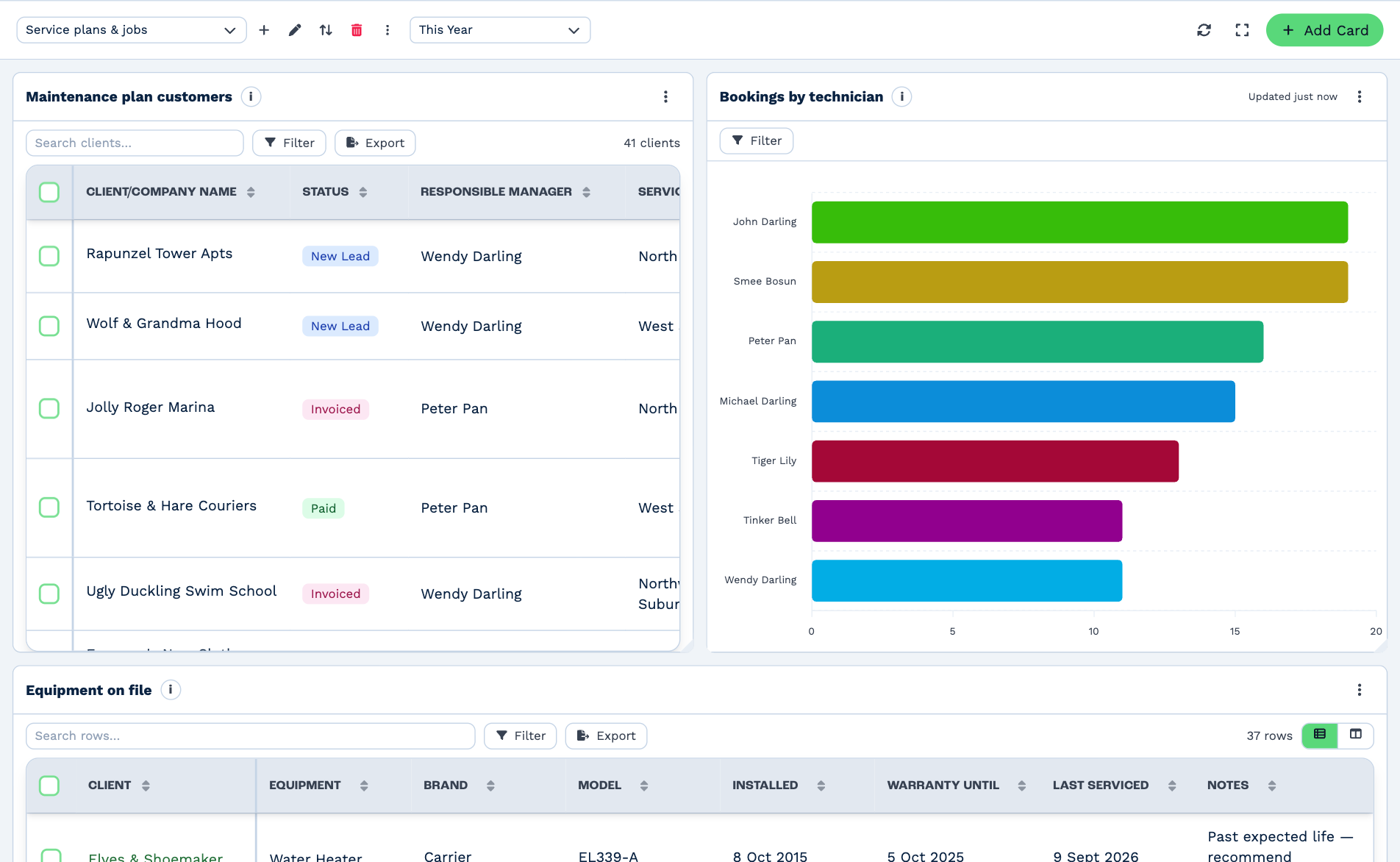
- Download as CSV — the card's figures as a file you can open in Excel, Numbers or Google Sheets.
- Download as image — a picture of the chart, as a PNG, for a slide or an email.
The file is named after the card and the date range. Which of the two a card offers depends on what it shows: charts have both, tables and totals have CSV.
If there's nothing in the date range, BaseCloud says There is nothing to download for these dates.
Export a list of clients
A Client list card has its own Export button above the list. It downloads the clients in the list as a CSV.
Lists show the first 300 rows; click Show all to see the rest.
Share a dashboard
Click the dashboard's ⋮ menu, then Copy link, and paste the link to a colleague. They need to be signed in to the same account and have Reports Access. The link opens the dashboard, with whatever date range they last used.
Show a dashboard on a screen
For a wall display in the office:
- Click ⋮, then Show full screen (or the full-screen button at the top right).
- To rotate through your dashboards, set Next dashboard every to 1 min, 5 min or 10 min. Off stays on one.
- Press Esc to leave full screen.