Phone numbers and call routing
Who can do this
Anyone in the account. Adding a number can cost credit — see Billing.
BaseCloud has a phone system built in. Your team makes and takes calls from the CRM or the BaseCloud Phone app, and every call lands in the client's history.
Open Settings → Telephony/Texting. Overview shows where you stand: your numbers, your call flows, and a checklist of what's still to do.
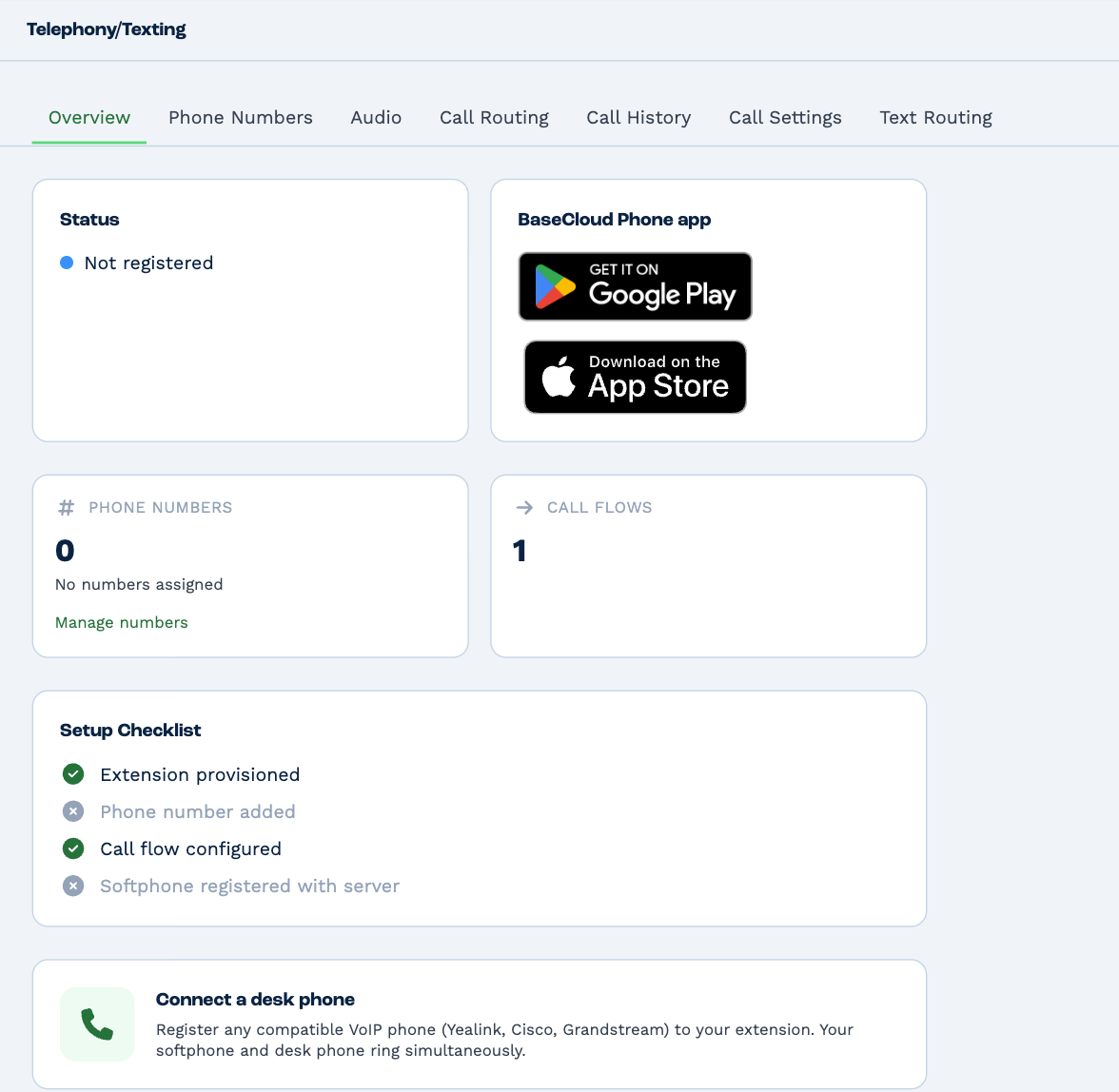
Setting up takes three steps: get a number, build a call flow, and point the number at the flow.
1. Get a phone number
Go to Phone Numbers.
Choose your country — once
The first time you click Add Number, BaseCloud asks which country your phone system is in.
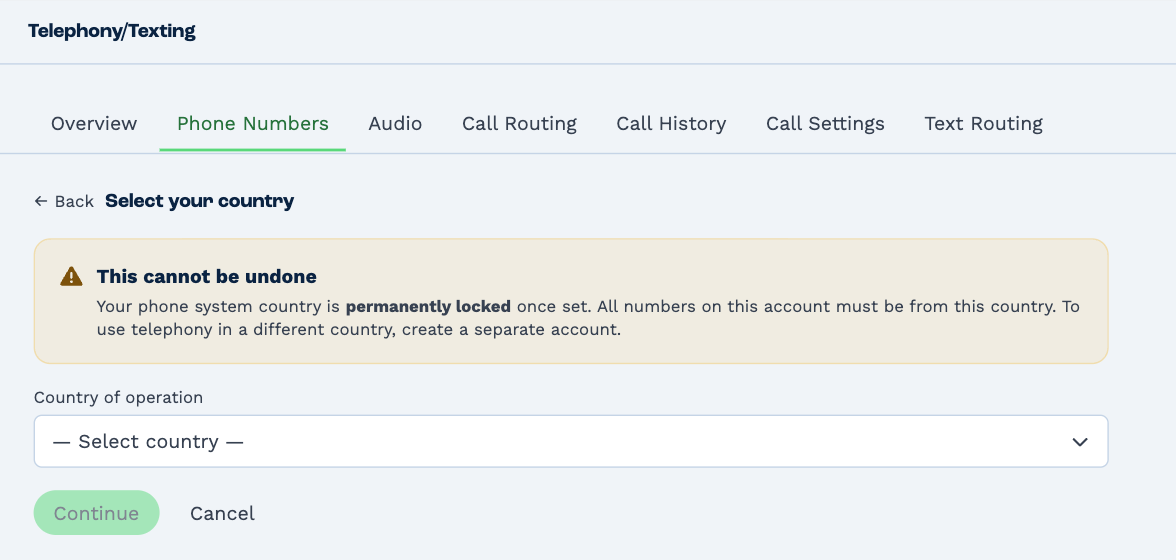
This can't be changed
Every number on the account must be from this country, for good. Check with whoever runs the account before you choose.
Add a number
- Click Add Number.
- Read the note at the top: it says whether this number is included in your subscription or what it costs each month.
- Under Number, pick one. Type to search — an area code, a two-letter state, or a city.
- Give it a Label — Sales Line, Support — so your team knows which number a call came in on. Set it now: it can't be changed afterwards.
- Click Get this number.
Bring a number you already have
To move a number from another phone company, click Port a number and fill in the number, your Account number and Billing name with that company — exactly as they appear on its bill — and the PIN if the account has one. Click Submit port request.
Porting takes 5–15 business days. The number carries on working with your old company until it's done. When it's ready, it appears at the top of the Add Number list, reserved for you.
Release a number
Click the bin on a number, then confirm. The number is given up, and you may not be able to get it back.
The number people see when you call
Set as default on a number makes it the one shown when you call out. It's your own choice — each person sets theirs, here or under Telephony on their profile.
2. Record your greetings
Go to Audio. A clip is a recording your call flows can play: a welcome, the options of a menu, a voicemail greeting.
Click Add Clip, name it, and either:
- Upload file — a recording you've made, as a WAV file of up to 20MB; or
- Text-to-speech — type what should be said and pick a Voice. There are American, British, Australian and other English voices to choose from.
Click the play button beside a clip to hear it.
3. Build a call flow
Go to Call Routing. A call flow is the list of steps a call goes through, top to bottom, until someone answers.
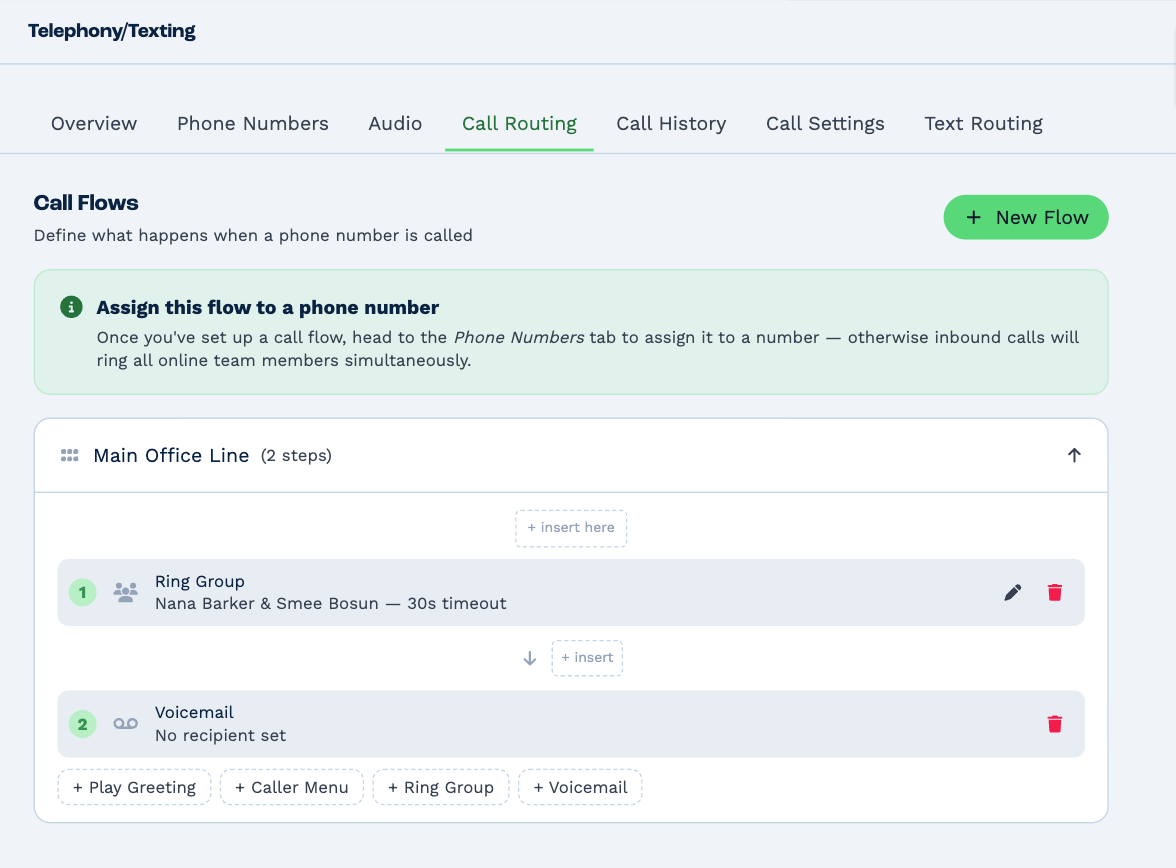
- Click New Flow, name it, and click Create.
- Click the flow to open it, and add its steps with the buttons at the bottom. + insert puts a step between two others.
| Step | What it does |
|---|---|
| Play Greeting | Plays one of your clips, then carries on. |
| Ring Group | Rings some of your people. If nobody answers in time, the call carries on to the next step. |
| Caller Menu | "Press 1 for sales, 2 for support." Plays a clip, then sends the caller to another call flow for the key they press. |
| Voicemail | Asks the caller to leave a message, after a greeting of yours if you choose one. |
A caller is never left with nothing: a flow that runs out of steps ends in voicemail.
Ring Group
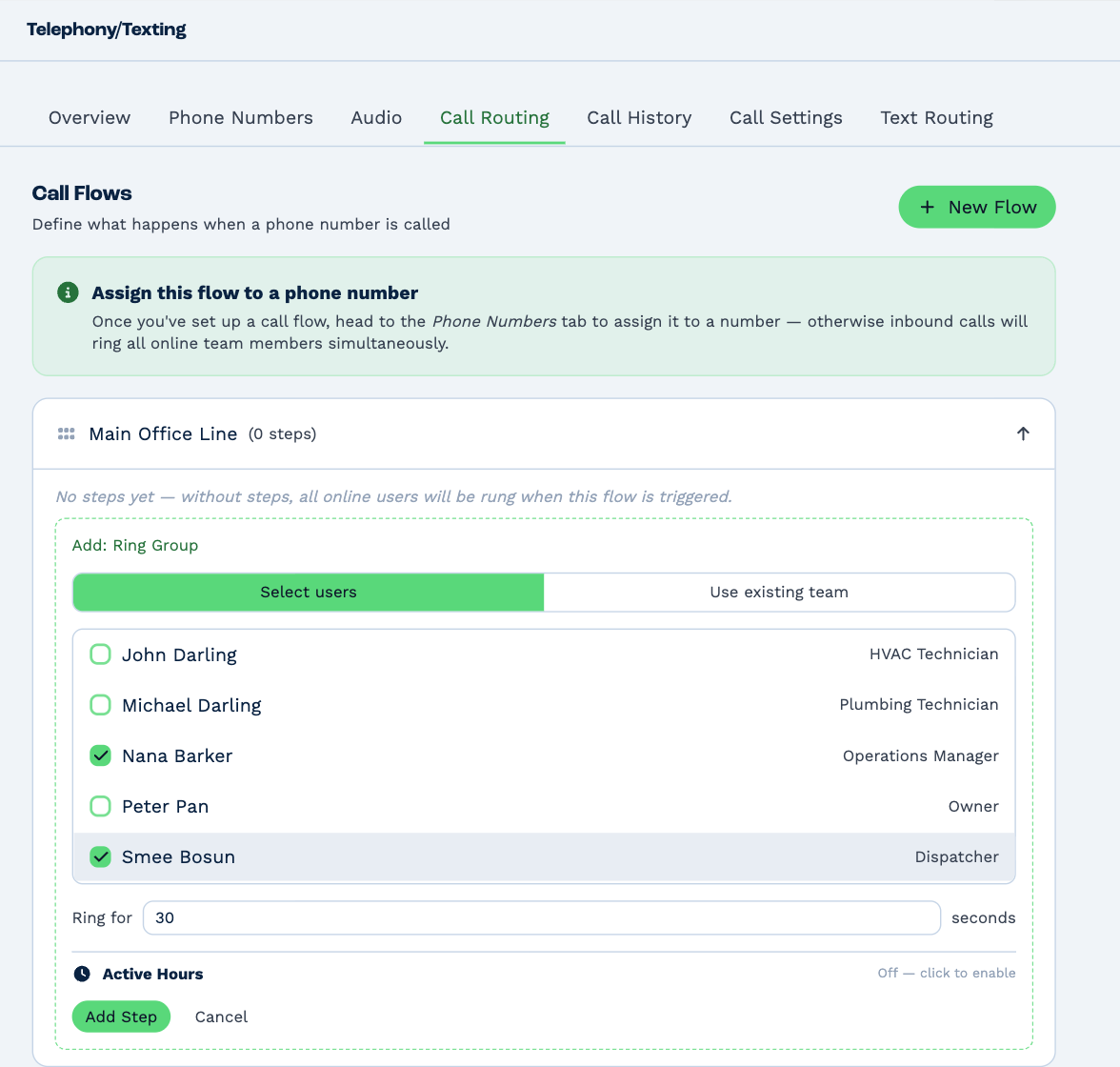
- Select users and tick the people to ring — or Use existing team to ring everyone in a team who's online.
- Ring for is how long they ring before the call moves on.
- Click Add Step.
Then click the pencil on the step for more:
- Strategy — Simultaneous rings everyone at once; Sequential rings one person after another.
- For each person, Ring their Extension only, their Extension + cellphone, or their Cellphone only. A call sent to a cellphone asks the person to press 1 to take it, so their mobile voicemail can't answer for them.
Opening hours
On a Ring Group, turn on Active Hours and tick the days and times the group should ring. Outside those hours the step is skipped — or, if you choose a flow under If outside active hours, redirect to, the call goes there instead: an after-hours flow with its own greeting, say.
The hours are read on your Business Timezone. Check it under General settings.
Caller Menu
A menu needs two things first: a clip that reads out the options, and a separate call flow for each option to lead to. Then choose the Menu prompt, and for each option the key to Press and the flow it goes to.
The prompt plays up to three times. A caller who presses nothing carries on to the next step.
4. Point the number at the flow
Back on Phone Numbers, click the link beside a number — it reads Rings all online users until you change it — choose the call flow, and click the tick.
A number with no flow rings everyone who's online, then goes to voicemail.
Recording and transcripts
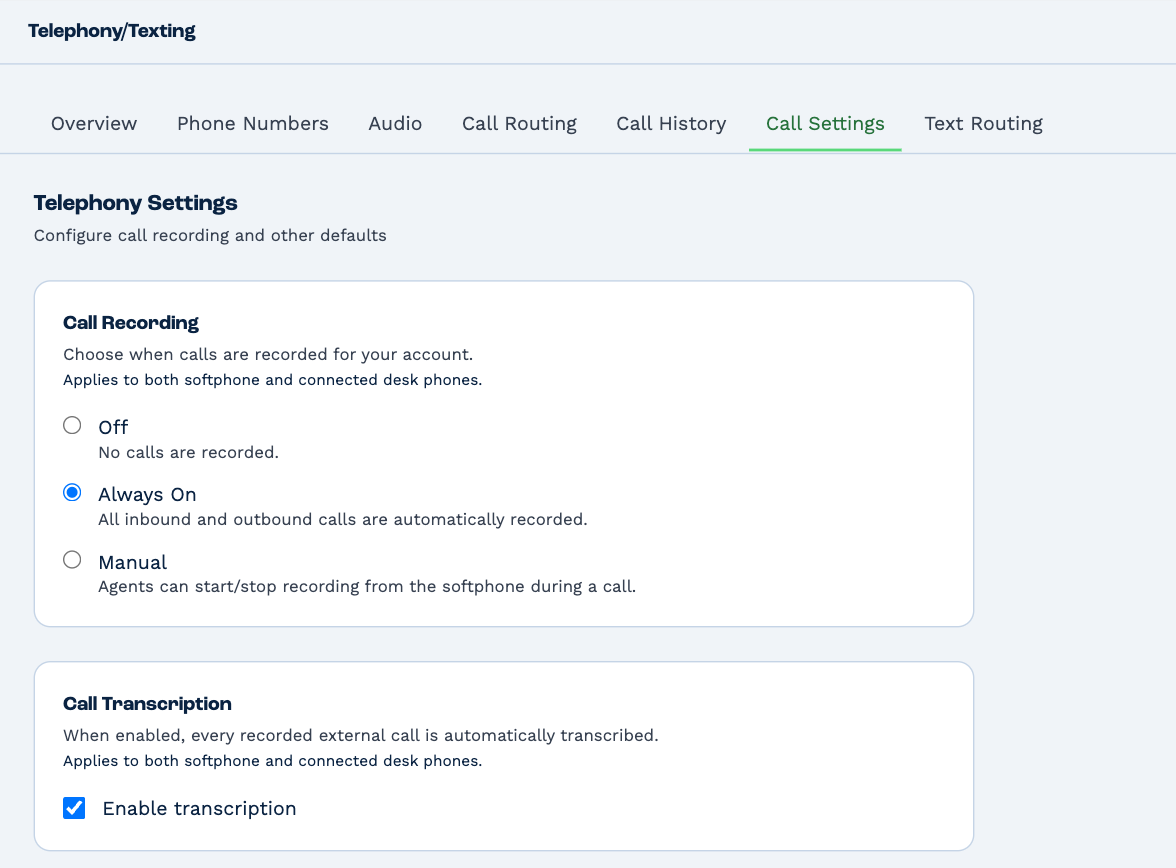
On Call Settings:
| Setting | Choices |
|---|---|
| Call Recording | Off; Always On, which records every call; or Manual, where the person on the call starts and stops the recording. |
| Call Transcription | With Enable transcription ticked, each recorded call is also written out as text. |
Click Save Settings. Both apply to the whole account, on the softphone and on desk phones.
Tell callers they're being recorded
In many places the law says you must. A Play Greeting step at the top of your call flow is the place to do it.
Each person's phone
Extension numbers and the details for connecting a desk phone are set per person, under Settings → Users → the person → Telephony. See Add and manage users.