Send reports automatically
A card on your Reports page can do more than sit on a dashboard. A workflow can read it on a schedule and send its numbers wherever they're needed: a Monday email to the team, a warning to a manager, a message to each salesperson with their own figure.
Who can do this
Anyone who can build workflows. The card is read for your whole account, so the workflow sees every client and every person on the card, whatever the person who built it may see in Reports.
How it works
- Make the card in Reports, with the filters you want. See Add and change cards.
- Add a Report Card step to a workflow and pick that card. See the Report Card task.
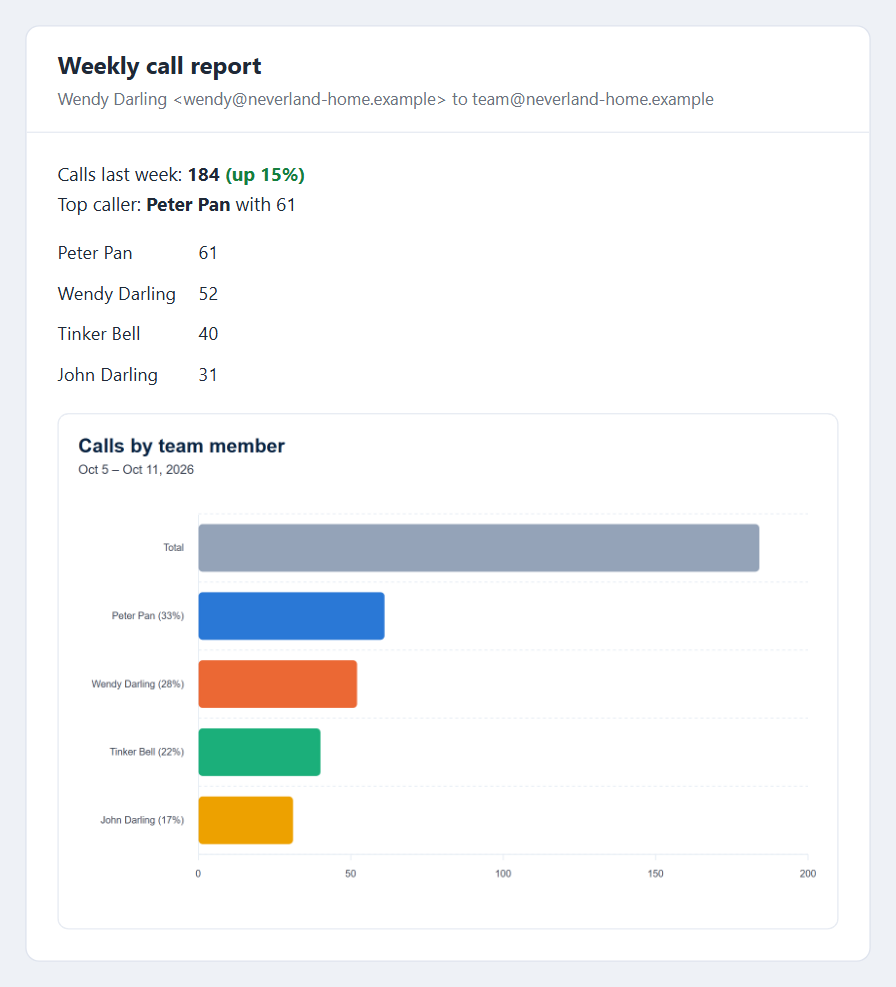
- Use what it gives you in the steps after it: the total, the list behind it, a spreadsheet file and a picture of the chart.
The workflow gets the same number the card shows, because it reads the card itself. To change what is counted, change the card.
What you can do with it
| You want to | Build it with |
|---|---|
| Email the team a summary every week | Timer Trigger, Report Card, Email. Worked through in Weekly team report by email. |
| Warn a manager when a number is too high | Timer Trigger, Report Card, If Statement on the total, then an email or a Workflow Note. |
| Send each person their own number | Timer Trigger, Report Card on a per-person card, then a Loop over the list. |
| See whether things are getting better or worse | Set Compare with to The period before. The step also gives the earlier number, the change and whether it went up or down. |
| Keep a history of a number | Timer Trigger, Report Card, then add a row to a custom table with the Table task. |
Set the card up well
- Give the card a clear name. The workflow shows cards by name, grouped by dashboard, and the name is the title on the chart picture.
- Show it as a bar or pie chart for a total. A card shown as a chart gives its total and a picture. A card shown as a table gives how many rows it has, and no picture.
- Filter on the card. The workflow uses the card's own filters. For a number about one team or one status, make a card for it.
- Keep a dashboard for workflow cards if you'd rather they didn't crowd the ones people look at. Call it something like For workflows.
Changing or deleting the card changes the workflow
A workflow reads the card as it is when it runs. Change the card's filters and the workflow's number changes with it. Delete the card and the step stops with a message saying so, until you pick another card.
The period
The workflow chooses its own dates in the Report Card step: Yesterday, Last week, Last month and so on. It does not use whatever date range you last had open on the dashboard.
Cards that show how things stand right now ignore the period, as they do on the dashboard: open workflow notes, table rows, unpaid invoices by age, outstanding balance and open quotes.
The chart picture and the spreadsheet file
Each run makes a spreadsheet file (CSV) of the card's list and, for a card shown as a chart, a picture of it. Both come as links you can place in an email or a message.
- The links open without signing in, so they work for people outside your account. Anyone the message is forwarded to can open them.
- They show the numbers as they were when the workflow ran.
- The picture is drawn like the card, in the same colours, on a white background.
- They are kept in your account's storage and count toward it. They are not listed on the Files page.
Related
- Report Card task: every setting and everything the step gives you
- Read the numbers: what each total counts
- Download, share and show: get a card out by hand