Call Connect Trigger
Overview
The Call Connect Trigger automatically starts workflows when phone calls are connected through your call tracking system. This enables real-time call-based automation like logging calls to your CRM, sending notifications, triggering follow-ups, and analyzing call data.
When to use this trigger:
- Log incoming calls to CRM automatically
- Notify team members when VIP customers call
- Send follow-up SMS or email after calls
- Track call analytics and metrics
- Route calls based on caller information
- Create support tickets from calls
Where this sits in the life of a call — it fires once, at the moment the two legs are bridged, not when the phone starts ringing and not when the call ends:
flowchart LR
    A[Ringing] --> B[Answered]
    B --> C[Completed]
    B -.->|fires here| D[Call Connect Trigger]
For a trigger that reacts to the other states as well, use Call Tracking.
Quick Start
- Connect your call tracking system to BaseCloud
- Create a new workflow
- Add a Call Connect Trigger as the first task
- Configure call matching rules (optional)
- Save and enable the workflow
- When calls connect, the workflow runs automatically
Connecting Call Systems
Supported Call Systems
- CloudTalk
- Aircall
- Twilio
- Custom SIP/VoIP via Webhook
CloudTalk Integration
- Log in to your CloudTalk account
- Go to Settings → Integrations → Webhooks
- Create a new webhook for "Call Connected" event
- Copy your BaseCloud webhook URL from the Call Connect Trigger
- Paste into CloudTalk webhook URL field
- Save and test
Aircall Integration
- Log in to Aircall dashboard
- Go to Company Settings → API & Integrations
- Create new webhook for "call.answered" event
- Enter your BaseCloud webhook URL
- Save and verify connection
Twilio Integration
- Access Twilio console
- Go to Phone Numbers → Active Numbers
- Select your number
- Under "Voice & Fax", configure webhook:
- When a call comes in: Webhook URL (from BaseCloud)
- HTTP POST method
- Save configuration
Custom Integration
For other systems, use webhooks to POST call data to BaseCloud:
Required Data:
{
  "caller_number": "+27123456789",
  "called_number": "+27111111111",
  "call_status": "connected",
  "call_id": "unique-call-id",
  "timestamp": "2024-02-08T14:30:00Z"
}
Call Matching Rules
Filter which calls trigger your workflow.
Match by Caller Number
Only trigger for specific incoming numbers:
Or use wildcards:
Match by Called Number (Your Number)
Trigger only for calls to specific business numbers:
Useful when you have multiple tracking numbers for different campaigns.
Match by Call Duration
Only trigger for calls longer than X seconds:
This filters out quick hang-ups and spam calls.
Match by Time of Day
Trigger only during business hours:
Combine Multiple Rules
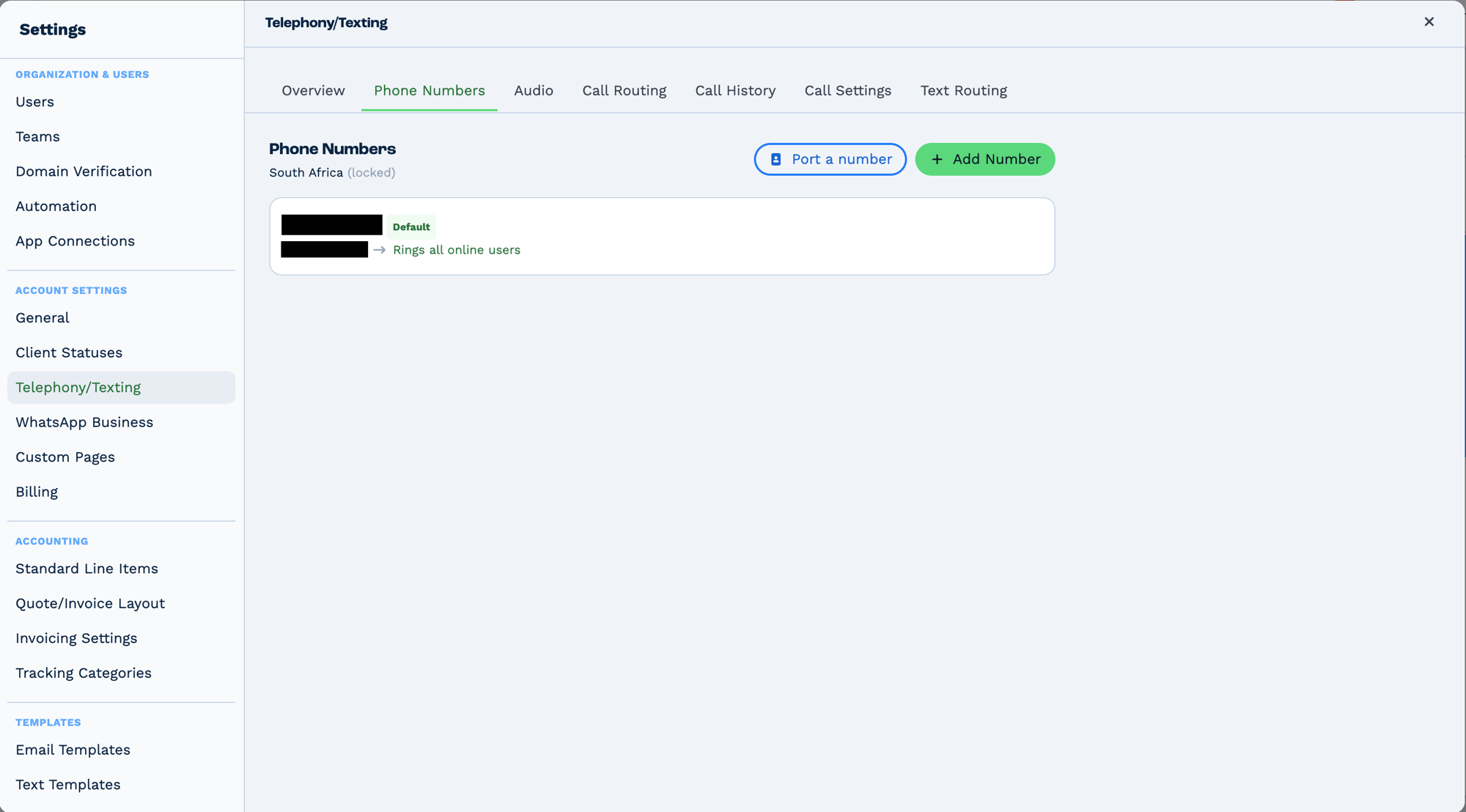
Numbers live in Settings → Telephony/Texting → Phone Numbers, not on the task. Each carries its own routing — the one above rings every online user — and one is tagged Default, which is the number used when nothing more specific applies.
The country is locked once numbers exist on the account, so it is worth getting right at the start. Port a number brings an existing number across; Add Number provisions a new one.
Outputs
Built from the call-connect log for this call.
| Field | Type | Example | Notes |
|---|---|---|---|
call_connect_log_id |
number | 88213 |
The call's log ID. |
uuid |
string | a1b2c3-… |
The provider's call identifier. |
reference |
string | lead-4471 |
The reference passed when the call was placed. |
leg_a_number |
string | +27115550100 |
The first party dialled. |
leg_a_confirmed |
boolean | true |
Whether leg A answered and confirmed. |
leg_b_number |
string | +27115550199 |
The second party. |
leg_b_confirmed |
boolean | true |
Whether leg B answered and confirmed. |
answered |
boolean | true |
Mirrors leg_b_confirmed — the call counts as answered when the second leg connects. |
leadconnect_whisper |
string | New lead from website |
The whisper message played to leg A. |
ring_duration |
number | 12 |
Seconds spent ringing. |
talk_duration |
number | 184 |
Seconds connected. |
total_duration |
number | 196 |
Seconds in total. |
recording_url |
string | https://… |
Recording, when one exists. |
lead_connect_state_name |
string | Completed |
The call's final state. |
lead_connect_state_description |
string | Both legs connected |
Longer description of that state. |
owner_id |
number | 555 |
Account ID. |
run |
boolean | true |
|
run_text |
string | Call Connect trigger executed successfully. |
No caller identity is included
The trigger gives you numbers, not people. To find who the number belongs to, follow it with
Match to Client using contact_cell_number.
Real-World Examples
Log the connected call against the client
Call Connect Trigger
  └─ Match to Client     contact_cell_number: {{task_50001_leg_b_number}}
      └─ Workflow Note   log the call and {{task_50001_talk_duration}}
Notify the manager when a call completes
Follow up by text afterwards
Call Connect Trigger
  └─ If Statement   {{task_50001_answered}} is true
      └─ SMS        "Thanks for your time today"
Call Recording Processing
If your system provides call recordings:
Transcribe Calls with AI
- Call Connect Trigger
- Webhook Out - Download recording from
recording_url - Speech to Text - Transcribe recording
- AI Prompt - Summarize call and extract key points
- Edit Client - Add summary to contact notes
Sentiment Analysis
- Call Connect Trigger
- Speech to Text - Transcribe
- AI Prompt - Analyze sentiment
- If Task - Check if negative sentiment
- Negative: Alert manager for follow-up
- Positive: Send thank you email
Contact Matching Logic
The system automatically tries to match incoming calls to existing contacts:
- Exact phone match: Matches
caller_numberto contact phone fields - Normalized match: Handles different formats (+27123456789 vs 0123456789)
- Multiple phone fields: Checks mobile, work, home phone fields
If no match found:
- Use Match to Client task to find existing contact
- Or log as unknown caller
Best Practices
✅ Do's
- Match calls to contacts: Always use Match to Client task to link calls to CRM
- Filter short calls: Set minimum duration to avoid spam
- Log all calls: Keep comprehensive call history
- Use call tracking numbers: Track marketing campaign effectiveness
- Add source attribution: Tag contacts with call source
- Enable recordings (with consent): Process and analyze call content
- Test with real calls: Make test calls before going live
❌ Don'ts
- Don't ignore privacy laws: Ensure call recording complies with local regulations
- Don't skip caller identification: Always try to match to existing contacts
- Don't log irrelevant calls: Filter spam and wrong numbers
- Don't forget timezone: Log calls with correct timezone
- Don't skip follow-up: Always close the loop after important calls
Troubleshooting
Calls Not Triggering Workflow
Possible Causes:
- Webhook not configured in call system
- Workflow is disabled
- Call matching rules too restrictive
- Webhook URL incorrect
Solutions:
- Verify webhook URL in your call system settings
- Check workflow toggle is ON
- Test with broader matching rules temporarily
- Check call system webhook logs for errors
Duplicate Workflow Runs for Same Call
Possible Causes:
- Call system sending multiple webhooks per call
- Retry logic triggering duplicates
Solutions:
- Add deduplication logic using call_id:
// Check if this call_id was already processed
const callId = results['task_50123_call_id'];
// Store in database or variable and check before processing
- Contact your call system support about webhook configuration
Contact Not Being Matched
Possible Causes:
- Phone format mismatch
- Contact phone not in CRM
- Multiple phone formats (international vs local)
Solutions:
- Use Phone Formatter task to normalize numbers
- Store phone numbers in consistent format (E.164 recommended: +27123456789)
- Check Match to Client task is configured correctly
Recording URL Not Working
Possible Causes:
- Recording not yet ready (processing takes time)
- URL expired
- Recording disabled
Solutions:
- Add delay (30-60 seconds) before accessing recording
- Process recordings immediately or within 24 hours
- Verify recording is enabled in your call system
Advanced Features
Call Queue Analysis
Track call volume and response times:
- Call Connect Trigger
- Workflow Note - log the call start against the client
- [After call ends, use Call Ended webhook]
- Math Formula - work out the wait time from the call timestamps
- Google Sheets - Log metrics for analysis
Multi-Number Campaign Tracking
Different tracking numbers for different campaigns:
Workflow 1: Google Ads calls (number ending 001) Workflow 2: Facebook Ads calls (number ending 002) Workflow 3: Organic calls (main number)
Each workflow tags contacts with appropriate campaign source.
Intelligent Call Routing
Route follow-up actions based on caller:
- Call Connect Trigger
- Match to Client
- If Task - Check account manager field
- Has manager: Notify specific manager
- No manager: Round-robin assignment
Call Outcome Prediction
Use AI to predict call outcome:
- Call Connect Trigger
- Match to Client
- Code Task - Get contact's call history and purchase history
- AI Prompt - Predict likelihood of conversion
- If high likelihood: Alert sales manager to prioritize follow-up
Frequently Asked Questions
Do I need special hardware to use Call Connect Trigger?
No, you just need a compatible cloud-based phone system (CloudTalk, Aircall, Twilio, etc.).
Can I trigger on outbound calls too?
Depending on your phone system, yes. Configure webhooks for outbound call events in your system.
What if the caller's number is private/blocked?
The workflow will trigger with "Unknown" or empty caller_number. Add an If task to handle these cases.
Can I trigger on missed calls?
This trigger is for connected calls. For missed calls, you'd need a separate webhook configuration in your phone system and a different workflow (using Webhook In trigger).
How quickly does the workflow trigger after call connects?
Usually within 1-2 seconds of connection, depending on your phone system's webhook speed.
Can I use this with a traditional landline?
Not directly. You need a VoIP/cloud phone system that supports webhooks. Consider migrating to a cloud system like Twilio.
What's the difference between Call Connect and Call Tracking triggers?
- Call Connect: Triggers when call is answered/connected
- Call Tracking: More comprehensive call lifecycle tracking (ringing, connected, ended, etc.)
Use Call Tracking if you need more detailed call state information.
Can I prevent workflow from running during calls to specific agents?
Yes, add conditions based on called_number (if agents have different numbers) or use additional metadata from your phone system.
How do I handle international number formats?
Use Phone Formatter task to normalize all numbers to E.164 format (+country code + number).
Next Steps:
- Call Tracking Trigger - Advanced call lifecycle tracking
- Match to Client Task - Find/update contact records
- Phone Formatter Task - Normalize phone numbers