Make a quote or invoice
Who can do this
Create Invoices to make or duplicate one, Edit Invoices to change its lines or convert a quote. Seeing them needs View Invoices.
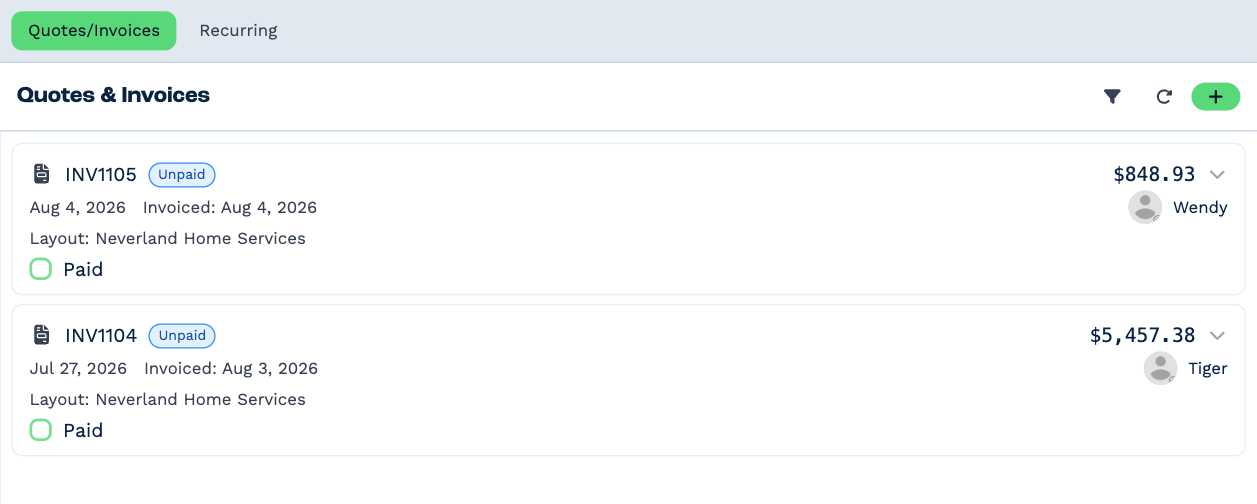
Quotes and invoices are made on the client. Open the client, go to the Accounting tab and stay on Quotes/Invoices. The expand icon opens the tab in a wider panel, which is easier for long documents.
Make one
- Click the green +.
-
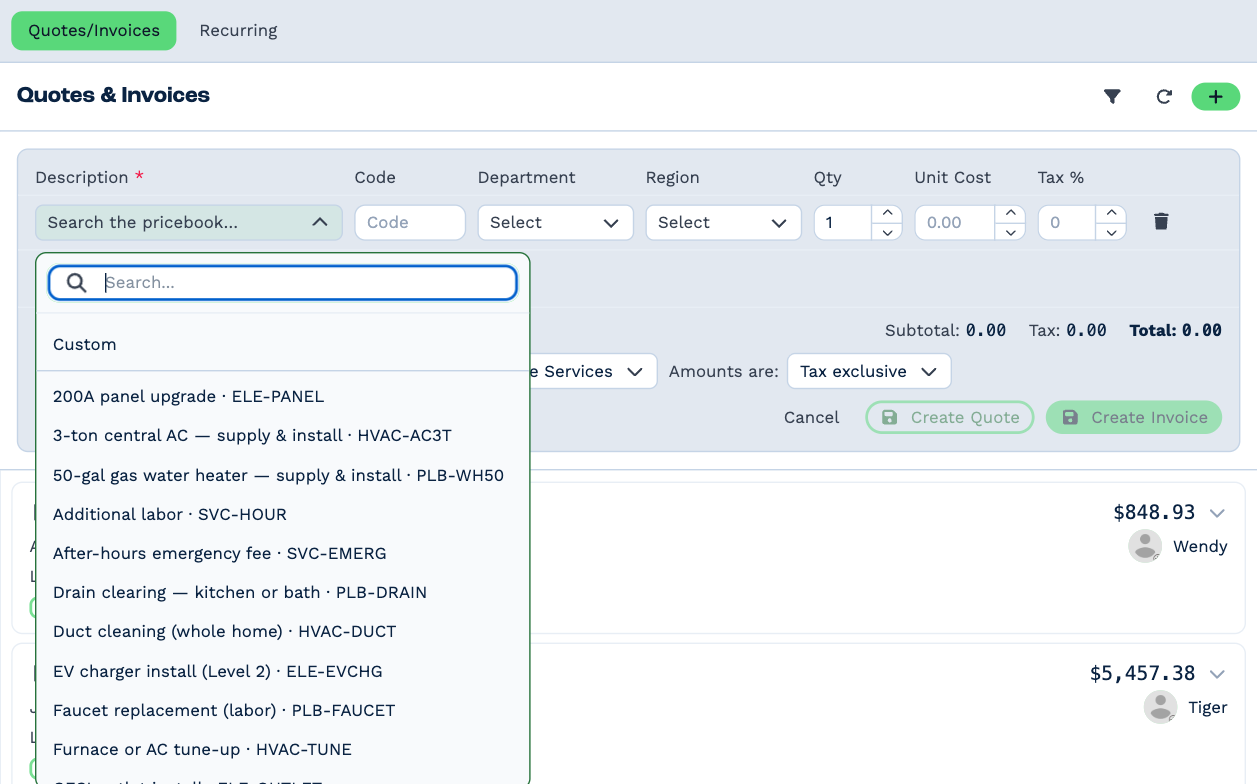
For each line, pick what you're selling in Description. Start typing to search; each item shows its name and SKU. Picking one fills in its price and tax. Custom at the top of the list lets you type a line of your own.
-
Adjust Qty, Unit Cost and Tax % if you need to, and pick the tracking options (here Department and Region) if your account uses them. Add Row adds another line; the bin removes one.
- Check the details under the lines:
- Expiry — a week from today unless you change it.
- Layout — which layout set it's printed with.
- Amounts are — Tax exclusive, Tax inclusive or No tax. It starts at the account's setting.
- Click Create Quote or Create Invoice.
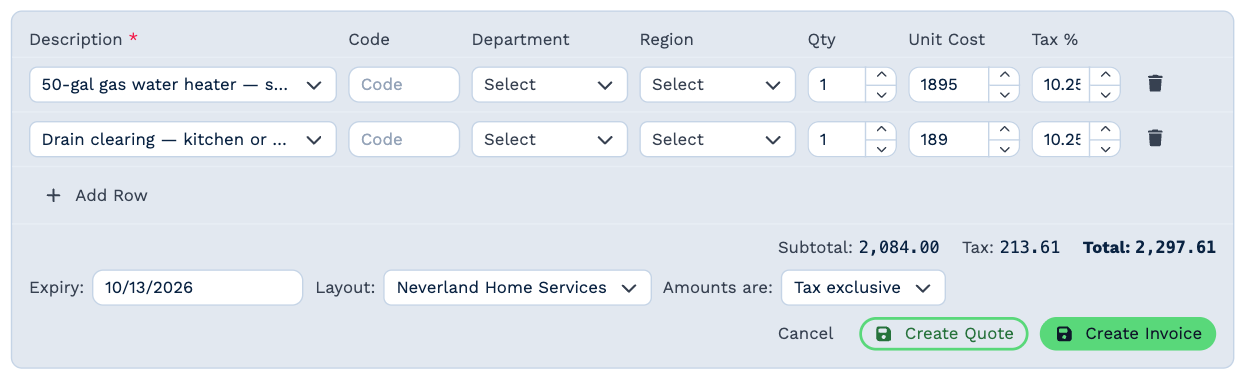
It's saved straight away with the account's next number. Nothing is sent to the client until you send it.
If your account doesn't use the Pricebook, Description lists your Standard Line Items instead. You can also build a quote from the Pricebook's full-screen view.
What you can do with one
Click the arrow on a quote or invoice to see its lines and the buttons for it.
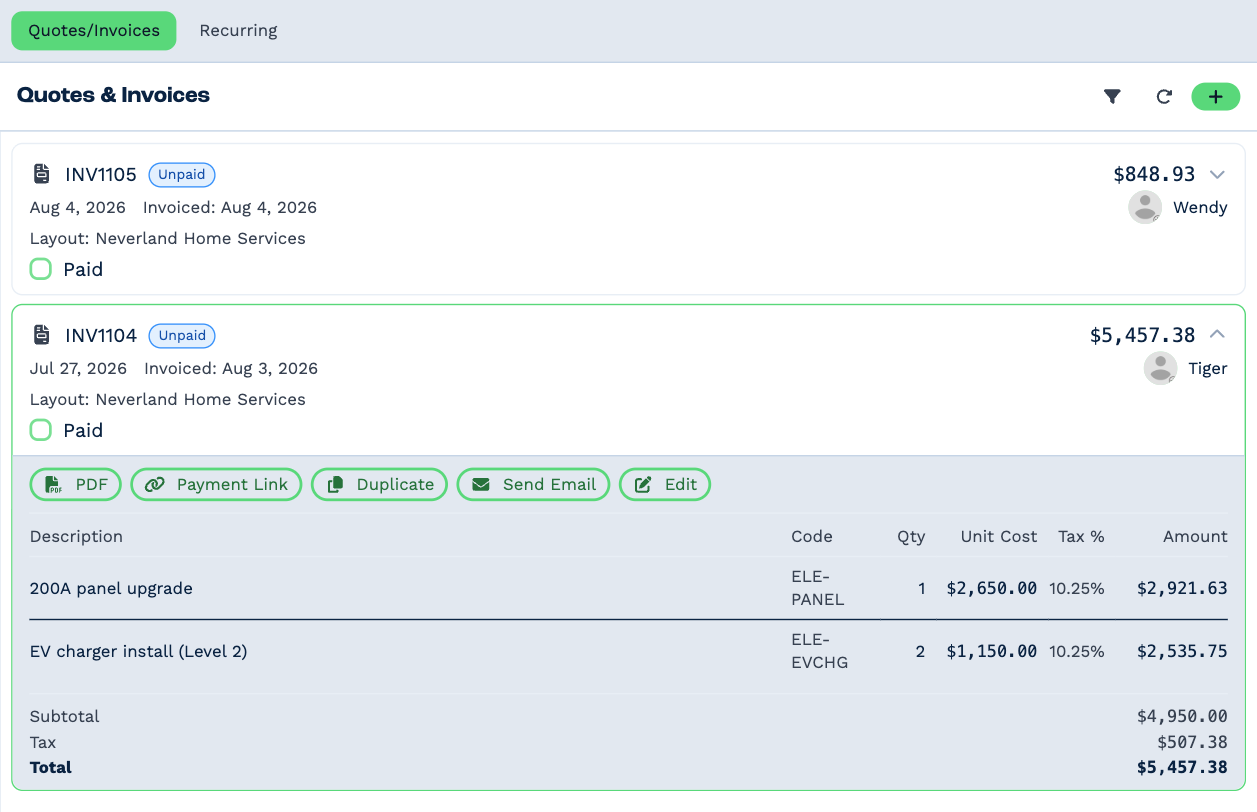
| Button | What it does |
|---|---|
| Opens the PDF, as the client gets it. | |
| Payment Link | Copies the link where the client can pay online. See Payments. |
| Duplicate | Starts a new document with the same lines. |
| Send Email | Opens an email to the client with the PDF attached. |
| Convert to Invoice | On a quote: turns it into an invoice. |
| Edit | Changes the lines, layout, expiry or tax. Click Save when done. |
| Void | Cancels it. See Void an invoice. |
Click a document's number to copy it.
Send it by email
Send Email opens the email composer on the client, with the PDF attached and the subject filled in. Pick the recipients, write your message — or choose a template — and send.
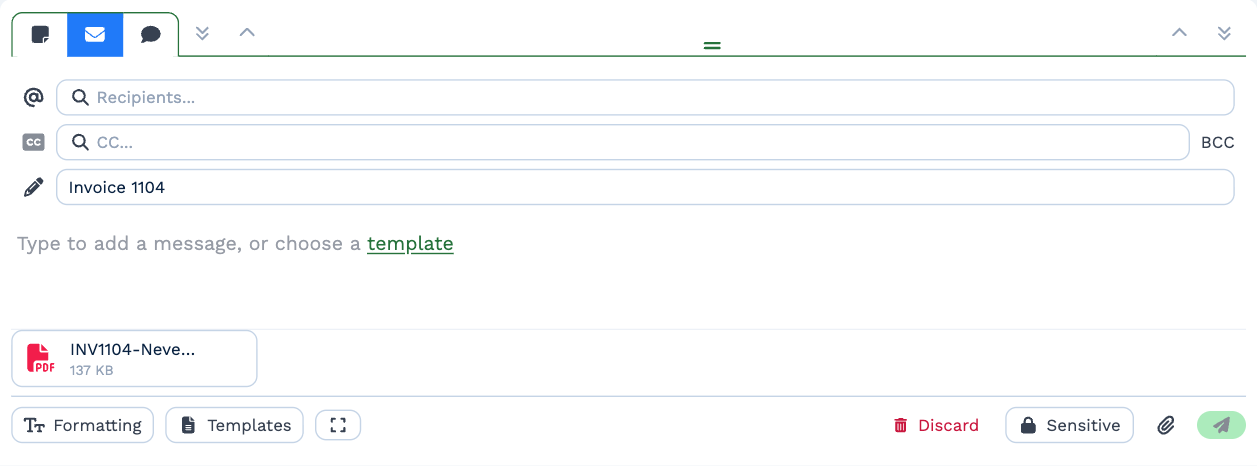
The email is kept with the client's other notes. To send documents without anyone pressing a button — for example, every new invoice — use an automation; see Accounting software.
Change one
Click Edit, change the lines and the details under them, and click Save. Every change is written to the client's notes — which lines changed, from what to what, and who changed it.
A void document can't be edited.
Turn a quote into an invoice
When the client accepts, click Convert to Invoice on the quote — in its client's Accounting tab, or under its number on the Accounting page. It keeps its lines and its number — QU1101 becomes INV1101 — and automations that react to a converted quote run, such as one that creates the invoice in Xero.
Marking a quote paid converts it too.