Add a client
Who can do this
Anyone with CRM Access.
- Open Clients in the left panel.
- Click New Client at the top of the page.
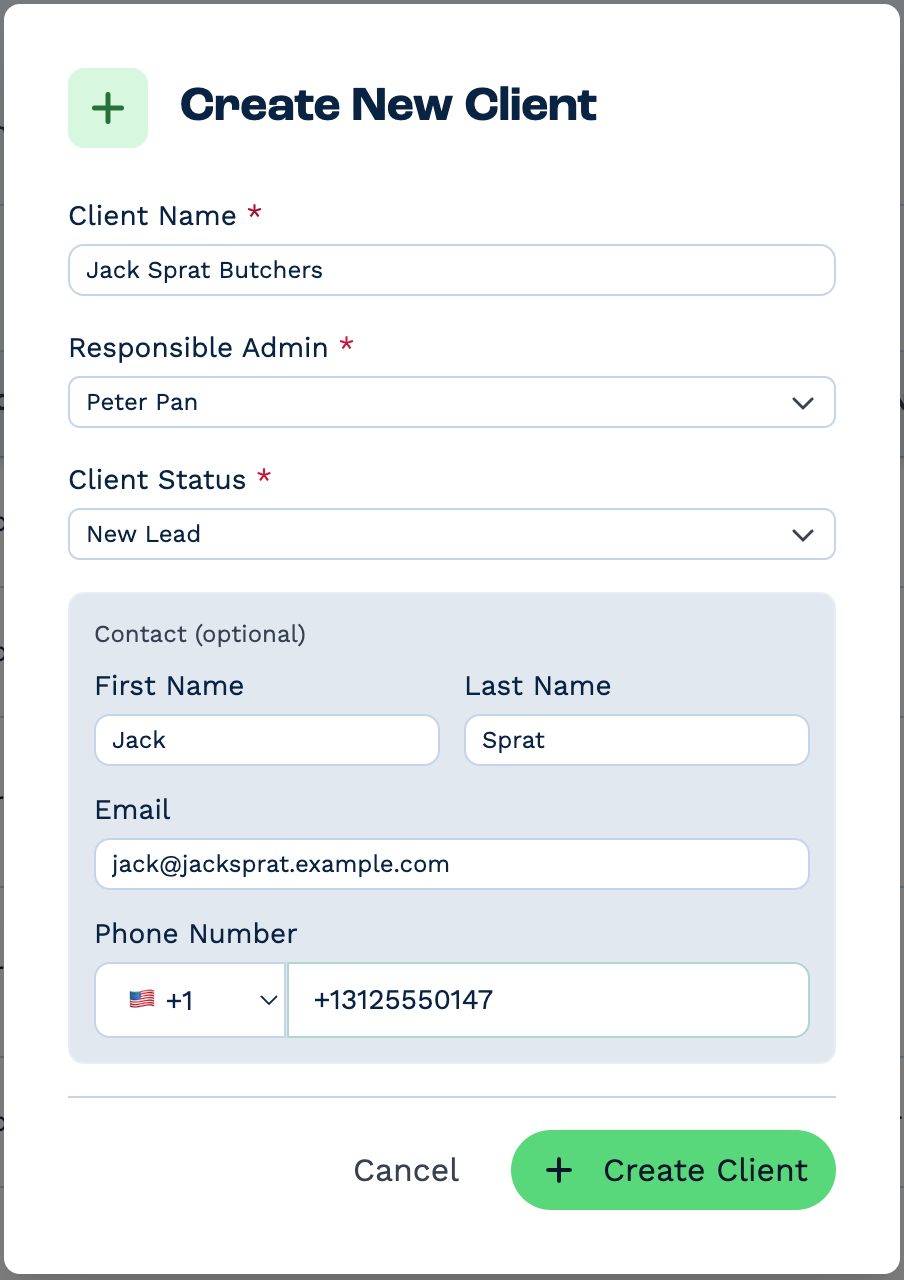
- Fill in the client's details:
- Client Name — the company or household name.
- Responsible Admin — the person who looks after this client. It starts as you.
- Client Status — where the client is in your process.
- Optionally, add their first contact under Contact (optional) — First Name, Last Name, Email and Phone Number.
- Click Create Client.
The new client's panel opens, so you can carry on adding details, notes or more contacts.
Next steps
- Fill in the address and custom fields in the client panel.
- Add more people on the Contacts tab.
- Adding many clients at once? Import them from a spreadsheet.