Report Card Task
Overview
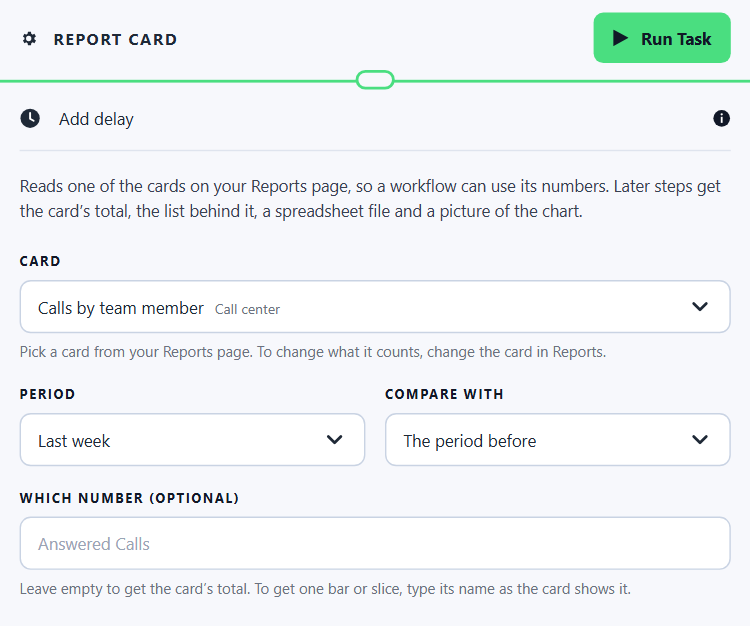
The Report Card Task reads one of the cards on your Reports page and gives the workflow its numbers. Later steps can use the card's total, the list behind it, a spreadsheet file, a picture of the chart, and how the total moved against the period before.
When to use this task:
- Email the team a weekly summary: calls made, notes completed, payments received
- Warn a manager when overdue workflow notes go over a number
- Send each person their own number with a Loop
- Post a chart of the week's results in a message
The number is the one the card shows, because the task reads the card itself, with the filters saved on it. To change what is counted, change the card in Reports.
Outputs
Reference fields as {{task_<ID>_<field>}}.
The number
| Field | Type | Notes |
|---|---|---|
value |
number | The card's total, or the one number Which number names — the field you use most. |
value_text |
string | The same number written out, such as 12,400 or $12,400.50. |
value_label |
string | What the number is, such as Total or Answered Calls. |
top_label |
string | The name with the biggest number on the card, such as the person who made most calls. |
top_value |
number | That biggest number. |
The list behind it
| Field | Type | Notes |
|---|---|---|
rows |
list | Every bar, slice, point or table row of the card. Give it to a Loop or a List Formatter. |
rows_text |
string | The list as plain text, one row per line — for a text message or WhatsApp. |
rows_html |
string | The list as a table — for an email or a workflow note. |
row_count |
number | How many rows the card has. |
truncated |
boolean | true when the card had more rows than fit. rows holds up to 200; the spreadsheet file holds every row the card returned. |
csv_url |
string | A link to the list as a spreadsheet file (CSV). |
chart_url |
string | A link to a picture of the chart. Empty for a card shown as a table or as numbers. |
Compared with the period before
Filled when Compare with is set to The period before.
| Field | Type | Notes |
|---|---|---|
previous_value |
number | The same number for the earlier period. |
change |
number | value minus previous_value. |
change_percent |
number | The change as a percentage. Empty when the earlier number was 0. |
trend |
string | up, down or same. |
previous_period_start |
string | First day of the earlier period. |
previous_period_end |
string | Last day of the earlier period. |
About the card
| Field | Type | Notes |
|---|---|---|
card_name |
string | The card's name. |
dashboard_name |
string | The dashboard the card is on. |
card_url |
string | A link that opens that dashboard in BaseCloud. |
period_start |
string | First day counted, as year-month-day. |
period_end |
string | Last day counted. |
period_label |
string | The period written out, such as Oct 5 – Oct 11, 2026. |
currency_code |
string | Your currency, on sales and accounting cards. |
Always emitted
| Field | Type | Notes |
|---|---|---|
run |
boolean | Whether the task succeeded. |
run_text |
string | What happened, including the reason on failure. |
Quick Start
Builder fields
The Field column is the label as it appears in the task builder; Key is the name the value is stored under and referenced by.
| Field | Key | Type | Default | Notes |
|---|---|---|---|---|
| Card | card_id |
select | – | |
| Period | period |
select | last_7_days |
Options: Today · Yesterday · This week · Last week · Last 7 days · Last 30 days · This month · Last month · This quarter · Last quarter · This year · Last year · A number of days back · Between two dates |
| How many days back | period_days |
number | – | Only shown when period is last_n_days |
| From | date_start |
date | – | Only shown when period is custom |
| To | date_end |
date | – | Only shown when period is custom |
| Compare with | compare |
select | none |
Options: Nothing · The period before |
| Which number (optional) | which_number |
text | – |
- Add the Report Card task
- Choose the Card
- Choose the Period
- Use
{{task_<ID>_value}}in a later step
Simple Example:
Card:          Calls by team member   (dashboard: Call center)
Period:        Last week
Compare with:  The period before

value:           184
top_label:       Anna Smith
top_value:       61
previous_value:  160
change:          24
change_percent:  15
trend:           up
An email step can then read:
Calls last week: {{task_75001_value_text}} ({{task_75001_trend}} {{task_75001_change_percent}}%)
Top caller: {{task_75001_top_label}} with {{task_75001_top_value}}

{{task_75001_rows_html}}

<img src="../{{task_75001_chart_url}}" width="600">
The team receives:
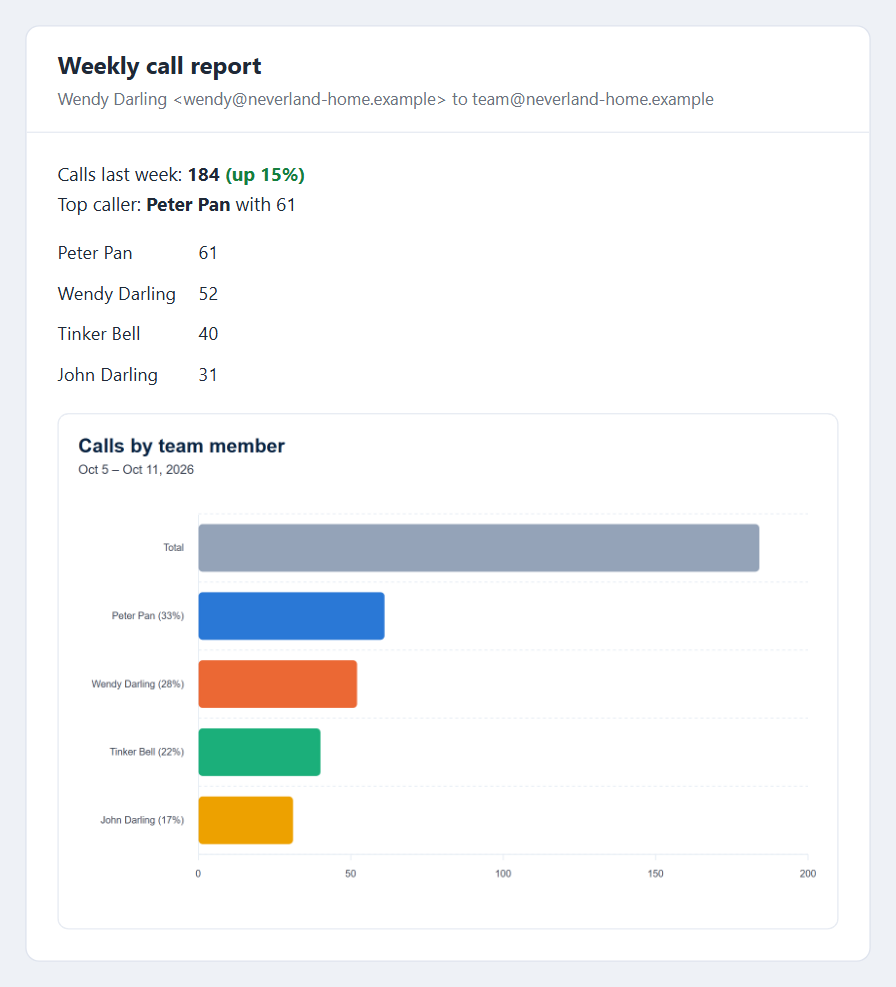
Weekly team report by email builds this workflow step by step.
Choosing the Period
Periods use your account's timezone, the same as the Reports page. Weeks start on Monday.
Some cards show how things stand right now and ignore the period: open workflow notes, table rows, unpaid
invoices by age, outstanding balance and open quotes. For these, period_label is Right now and there is
no earlier number to compare with.
Comparing with the Period Before
| Period | Compared with |
|---|---|
| This week, This month, This quarter, This year | The same days of the one before. On a Wednesday, this week is compared with Monday to Wednesday of last week. |
| Last week, Last month, Last quarter, Last year | The whole one before it. |
| Anything else | The same number of days, ending the day before the period starts. |
Getting One Number Out of a Card
Leave Which number empty to get the card's total. To get one bar or slice, type its name as the card shows it:
| Card | Which number | value |
|---|---|---|
| Calls | Answered Calls |
Calls that were answered |
| Calls by team member | Anna Smith |
Anna's calls |
| Client status changes | Won |
Clients moved into Won |
| Text messages (shown as lines) | Received |
Messages received over the whole period |
Capital letters do not matter. A name that is not on the card this time counts as 0, so a person who made
no calls gives 0 rather than stopping the workflow. run_text says when that happened.
What Each Kind of Card Gives
| The card is shown as | value |
rows |
chart_url |
|---|---|---|---|
| Bar or pie | The total | One row per bar or slice: label, value, and user_id when it is a person |
Yes |
| Line | The total over the period | One row per point, with a value per line and a value total |
Yes |
| Numbers | The first number | One row per number | No |
| Table | How many rows | The table's rows | No |
A card of overdue workflow notes shown as a line gives the latest point as value, not the sum.
A card shown as a table gives how many rows it has, not a sum of a column. To get a total, such as all workflow notes created, save the card as a bar or pie chart. Filters typed into a table card's columns in Reports, and saved with the card, apply here too.
The Chart Picture and the Spreadsheet File
- Both links open without logging in, so they work in an email or a message. Anyone the message is forwarded to can open them.
- They show the numbers as they were when the workflow ran, and keep working afterwards.
- Both are kept in your account's storage and count toward it. They are not listed on the Files page.
- The picture is made while the step runs, which adds a second or two for a card shown as a chart.
- The picture is drawn like the card: the same bars, slices or lines, in the same colours. Each person keeps their own colour, statuses use the colours from Settings, and answered and missed are green and red. It is always the light version on a white background, so it reads well in an email.
Common Problems
run_text says |
What to do |
|---|---|
| The report card this step reads was deleted. | Choose another card, or add the card to Reports again. |
| …is a kind of card an automation cannot read yet. | The Client list and Quotes and invoices list cards cannot be read. Choose a different card. |
| Say how many days to look back, for example 14. | Fill in How many days back. |
| "…" is not on the card this time, so it counts as 0. | Check the name in Which number matches the card. |
Good to Know
-
Setting up the card itself is covered in Send reports automatically.
-
The card is read for your whole account, whatever the person who built the workflow may see in Reports. The text of private workflow notes is not included.
- Changing a card in Reports changes what this step returns the next time it runs.
- A test run reads the card for real.