Teams
A team is a group of people in an account who work the same way — at Neverland Home Services, Office & Dispatch, Sales and Field Technicians. Your administrator decides who is in each team and what it can do.
While you work in a team, the team decides:
- Your rights — what you can see and change. Anything the team leaves unset falls back to your own rights.
- Your landing page — where you start when you open the account.
- Which clients you see — a team can be limited to certain clients, or start with a filter already applied.
- Your custom field levels — which custom fields you can see and change.
If you're not in a team, your own rights apply.
See your team
Your team's name is in the top bar, next to the account's name. It's also on your profile, under Settings → Users — see Your profile.
Switch team
If you're in more than one team, click the team's name in the top bar and pick another. Type in Search to find a team in a long list.
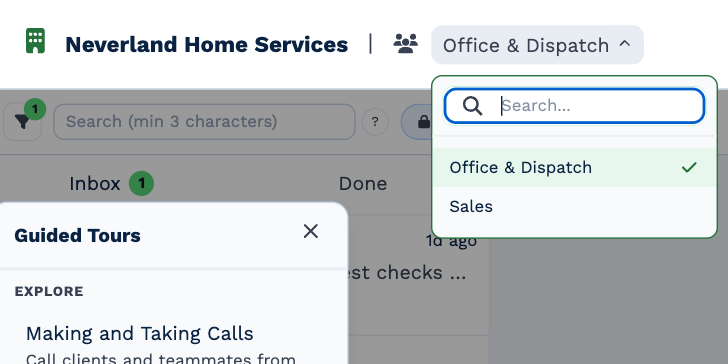
The page reloads with the new team's rights, landing page and clients. BaseCloud remembers the team you picked for next time.
If you can't switch — for example, you were just taken out of that team — a message says why, and you stay in the team you were in.
Set up teams
Who can do this
Anyone with Manage Users. Everyone else can look at Settings → Teams, but can't change it.
Open Settings → Teams. For each team you can add and remove members and set its rights, landing page, custom field levels and Client Filter Rules: Restricted rules limit which clients its members can see, and Default rules apply a filter they can change.
Adding someone to their first team makes it their active team straight away.