Edit clients
You can change most client details right in the Clients table, without opening the client. To change many clients to the same value at once, use Bulk actions.
Who can do this
Anyone with CRM Access. Changing a client's manager also needs Reassign Clients, and each custom field needs your Custom Field Edit Level to be at least the field's level.
Change a value in the table
- Click the cell you want to change.
- Type the new value, or pick it from the list.
- Press Enter or click away to save. Press Esc to cancel.
Press Tab to save and move to the next cell. In a multi-line field, Enter starts a new line — click away to save. Checkboxes change as soon as you click them.
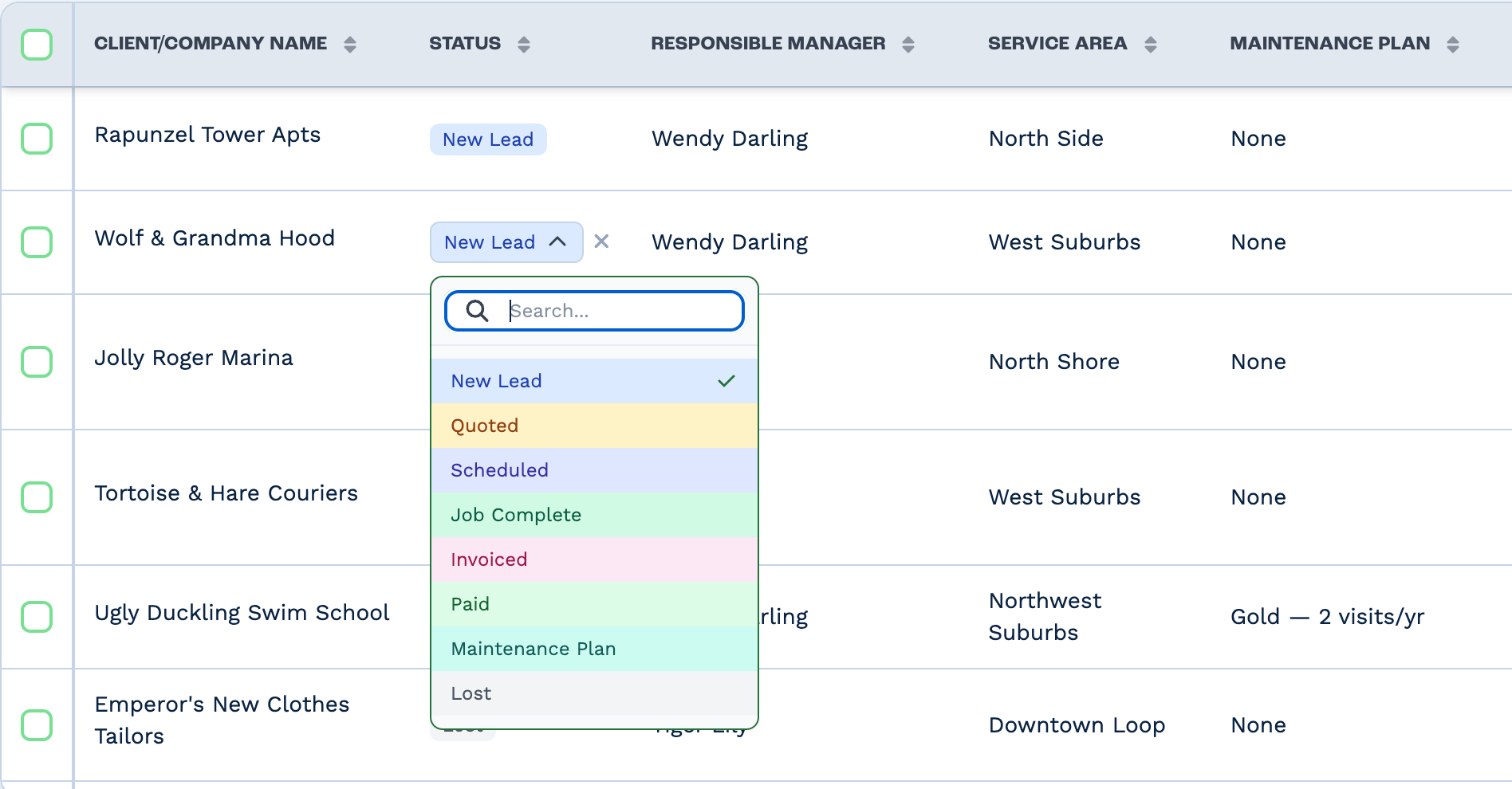
You can change:
- Client/Company Name
- Status and Responsible Manager
- custom fields — text, numbers, amounts, dates, dropdowns, users, clients and locations
Client ID, Date Registered, Origin and the contact columns can't be changed here. To change a contact, use the Contacts tab.
Change a client's status
Besides the table, you can change a status:
- in the client panel, by clicking the status under the client's name
- on the Kanban board, by dragging the card to another column
Give a client to someone else
Change the Responsible Manager in the table or in the client panel's Details tab. You need the Reassign Clients right — without it, the change shows Failed to update and the old manager stays.
Someone loses sight of the client
People who can't see every client only see the clients they manage. Moving a client to another manager hides it from the old manager in that case.