Getting Started
Welcome to BaseCloud! This guide will help you understand the platform and get started with both CRM management and automation workflows.
What is BaseCloud?
BaseCloud is a complete CRM system for managing leads, clients, quotes, invoices, and customer relationships—enhanced with a powerful workflow automation platform that connects your applications and automates business processes.
Core Features
- 📊 CRM Management - Track leads, manage clients, create quotes and invoices
- 👥 Contact Management - Store and organize customer information
- 💼 Sales Pipeline - Manage deals and opportunities
- 🤖 Workflow Automation - Connect applications and automate processes
- 📧 Multi-Channel Communication - Email, SMS, WhatsApp integration
- 📈 Reporting & Analytics - Track performance and insights
Automation Platform
The automation layer acts as a bridge between your CRM and other tools, automatically moving data and triggering actions based on events. This means you can:
- Automatically create CRM records from form submissions
- Send follow-up emails when deals are won
- Sync data between BaseCloud and external systems
- Trigger actions based on customer dates (birthdays, renewals, etc.)
Key Concepts
Workflows
A workflow is a series of connected tasks that execute in sequence. Each workflow starts with a trigger task and can include multiple action tasks and logic tasks.
graph LR
    A[Trigger<br/>Webhook In] --> B[Action<br/>Create Customer]
    B --> C[Action<br/>Send Email]
C --> D[Action<br/>Update CRM]Tasks
Tasks are the building blocks of workflows. There are four types:
| Type | Purpose | Examples |
|---|---|---|
| Trigger | Starts the workflow | Webhook In, Timer Trigger, Website Form |
| Action | Performs an operation | Send Email, Webhook Out, SMS |
| Logic | Controls flow | If Statement, Delay, Loop |
| Data | Transforms data | Text Formatter, Regex, Coalesce |
Channels
Channels are your workflow containers. Think of them as projects or folders that organize related workflows.
Your First Workflow
Let's build a simple workflow that receives webhook data and sends an email.
Step 1: Create a Workflow
- Navigate to Workflows in the sidebar
- Click Create New Workflow
- Give it a name: "My First Workflow"
- Select or create a channel
Step 2: Add Webhook Trigger
- Click Add Task
- Select Webhook In from Trigger Tasks
- Give it a name: "Receive Data"
- Copy the Test URL (we'll use this later)
Step 3: Add Email Task
- Click Add Task below the Webhook In task
- Select Email from Action Tasks
- Configure the email:
- To:
your.email@example.com - Subject:
New webhook received - Body:
Received data: {{task_WEBHOOK_customer_name}}
Step 4: Test Your Workflow
- Click Save Workflow
- Open Postman or use cURL
- Send a test request:
curl -X POST \
  YOUR_TEST_URL_HERE \
  -H 'Content-Type: application/json' \
  -d '{
    "customer_name": "John Doe",
    "email": "john@example.com"
  }'
- Check your email inbox!
Understanding Variables
Variables let you pass data between tasks. They use this format:
Examples:
{{task_46055_customer_name}}- Access the customer_name field{{task_46055_run}}- Check if task ran successfully{{$now}}- Current timestamp
Common Patterns
Pattern 1: Webhook → Email
Receive data via webhook and send an email notification.
Pattern 2: Webhook → Process → Notify
Receive data, process it, then notify multiple people.
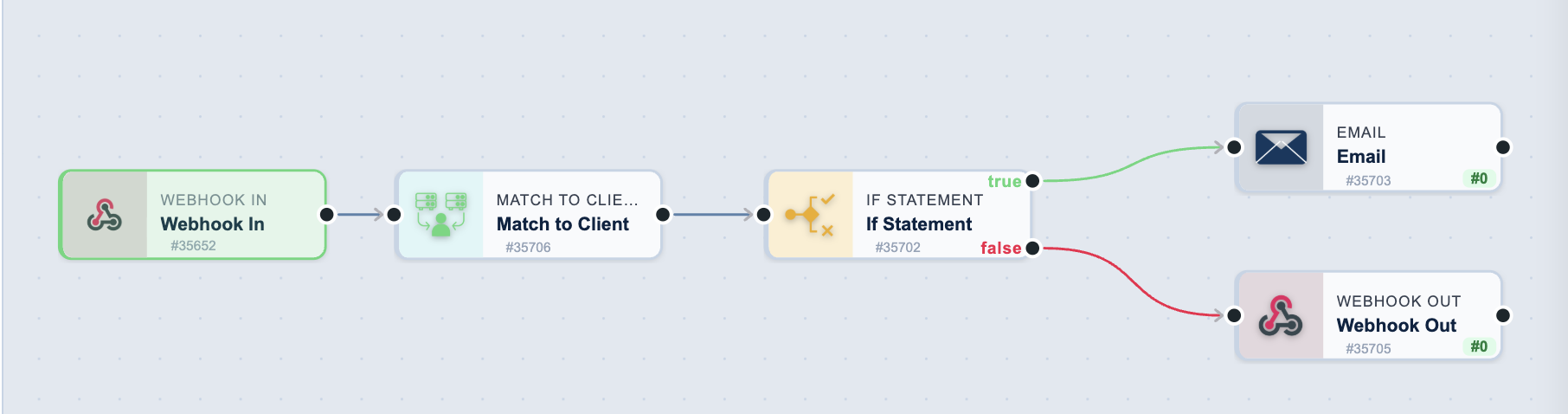
Pattern 3: Conditional Logic
Take different actions based on data.
Next Steps
Now that you understand the basics:
- Explore Tasks - Learn about all available tasks
- View Examples - See real-world workflows
Need Help?
- Contact Support - Get personalized help
- Browse All Tasks - Complete task reference
- View More Examples - Additional workflow examples
Ready to build?
You now have the knowledge to create your first automation workflow. Start building and explore the platform!