Custom tables
A custom table keeps a list of things on a client, one row each — the equipment installed at a home, every service visit, the sites a business has. Where a custom field holds one value, a table holds as many rows as the client needs.
Your account decides which tables there are and what their columns are. Every client has the same tables, each with rows of its own.
Who can do this
Anyone with CRM Access who can see the client. Changing many rows at once also needs Bulk Edit.
The Tables tab
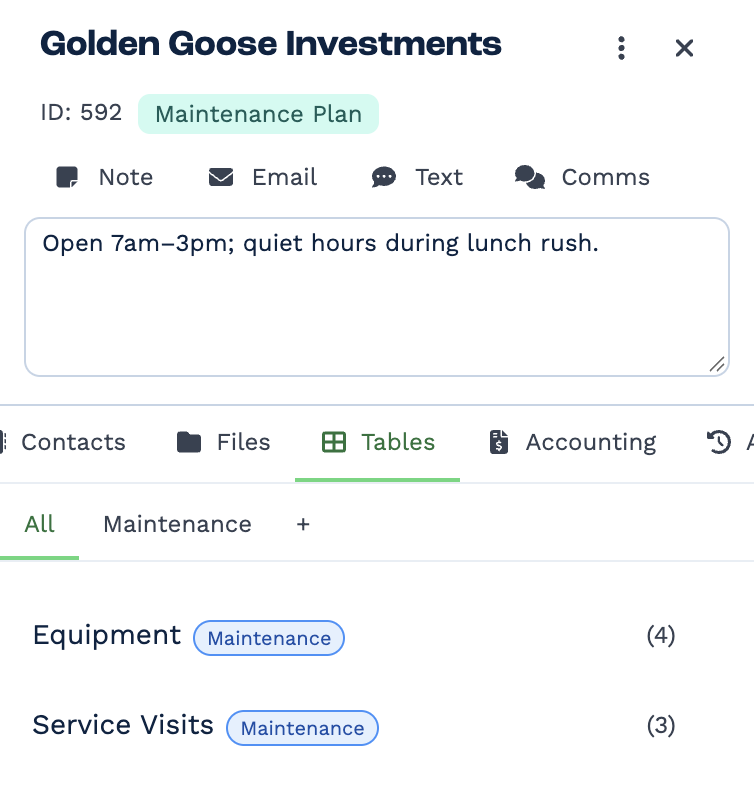
Open a client and click the Tables tab in the client panel. Each table shows the groups it's in and, once the client has rows in it, how many. Click a table to open it.
Groups
Groups sort tables into tabs along the top — All shows every table.
- Add a group — click +, enter a Group Name and click Create.
- Put a table in a group — drag it onto the group's tab, or choose its Groups when you edit the table. A table can be in more than one group.
- Rename or delete a group — right-click its tab (or press and hold on a phone). Deleting a group keeps its tables; they stay under All.
Custom tables in automations
Tables are where automations keep and find structured information about a client, so the two work together:
- Start an automation from a table. A CRM Trigger can start a workflow when a row is added to a table (Custom Table: Row Added), when a column changes in any row (Custom Table: Cell Change), or when someone clicks a button column (Custom Table: Cell Button Click).
- Read and write rows from an automation. The Table task finds a client's row, lists every matching row (to work through them with a Loop), adds a row or edits one.
- The rows people see are the rows automations use. A row a workflow adds shows on the client's Tables tab straight away, and a row someone adds by hand can start a workflow.
For example, a Service Visits table can start a workflow each time a visit is added, which emails the client a summary and updates Next Service Due.
Changing a table that automations use
Automations refer to tables and columns by their ID, not their name or position, so renaming or reordering them is safe. Deleting a table or column that a workflow uses stops that step from working — check your automations first.
Elsewhere
- Filter clients by their rows — Filters → Custom Tables on the Clients page. Conditions on the same table must all be true of one row: Equipment is Boiler and Brand is Carrier finds clients with a Carrier boiler, not any client with a boiler and something else made by Carrier.
- Export rows — up to 20 tables with the clients, choosing the columns for each — see Bulk actions.
- See every client's rows at once — a Table rows card on a Reports dashboard lists a table's rows across all clients, with a search, per-column filters, CSV export and a board view grouped by a choice column.
In this section
- Work with table rows — add, change, find, select and delete rows
- Set up tables and columns — add tables and columns, and change or delete them