Texting setup and call history
Who can do this
Anyone in the account. Registering to send texts in the US costs credit — see Billing.
Texts are sent and received on your BaseCloud phone numbers. Open Settings → Telephony/Texting.
Who gets an incoming text
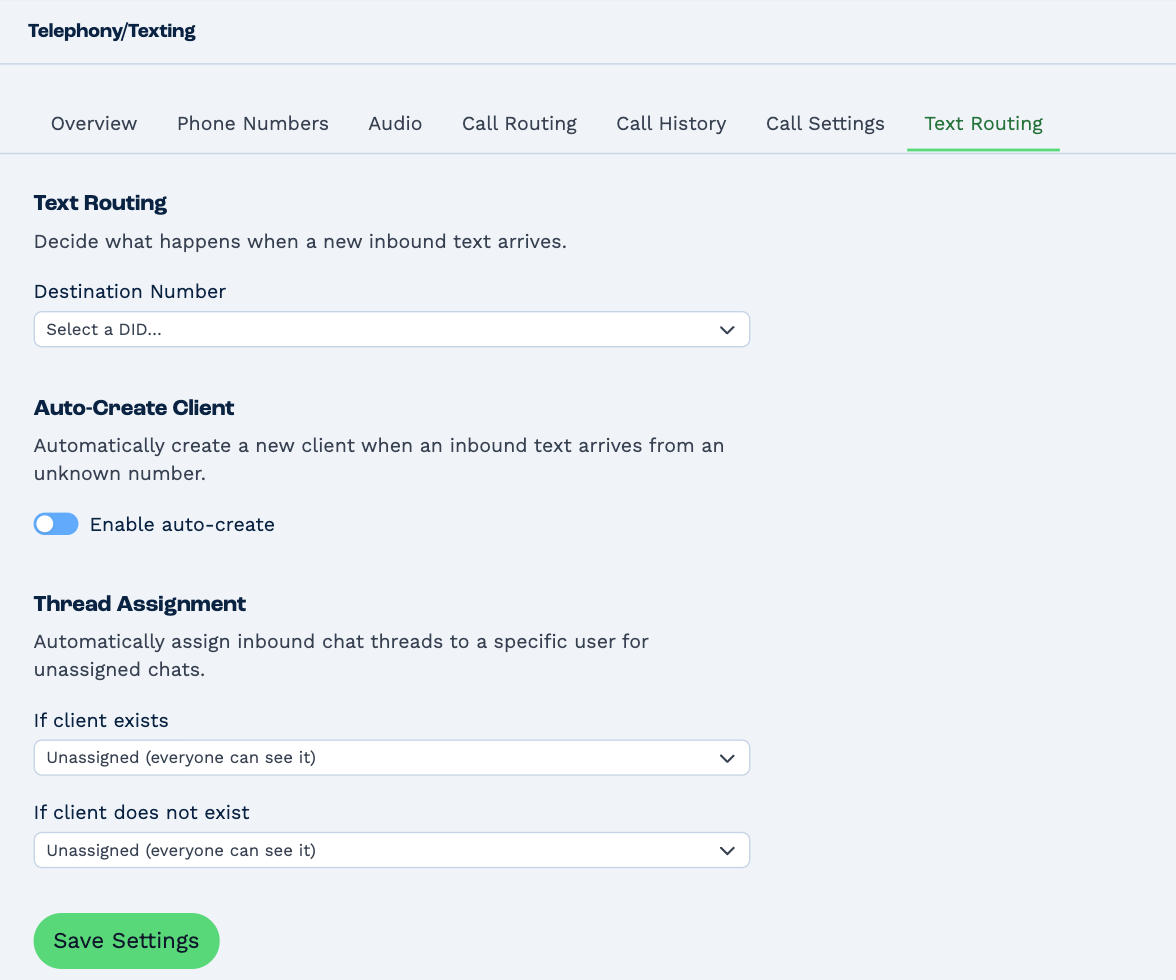
Go to Text Routing. If you have more than one number, choose it under Destination Number first — each number has its own rules.
A text from someone new
Turn on Enable auto-create to make a new client whenever a text arrives from a number BaseCloud doesn't know. Choose the Default Responsible Manager and Default Status the new client gets.
Leave it off, and a text from an unknown number arrives without a client.
Who the conversation belongs to
Under Thread Assignment, choose who a new conversation is given to:
| Choice | Means |
|---|---|
| Leave unassigned | Everyone can see it and pick it up. |
| Responsible Manager (on client) | It goes to whoever looks after that client. |
| Automation Trigger | It's handed to your workflows, to deal with by themselves. |
| A person | It goes to them. |
There's one choice for a client you already have, and — when auto-create is off — another for a number you don't know.
A conversation that already belongs to someone stays with them. Click Save Settings when you're done.
To read and answer texts, see Text and WhatsApp.
Register to send texts in the United States
US mobile networks only deliver business texts from businesses they've approved. It's their rule, and it applies to sending — you can receive texts as soon as you have a number.
On a US account there's a Text Messages tab for this. Approval comes in two stages:
- Your brand — free, usually 1–2 business days. Fill in your business's legal name, EIN / Tax ID, type and address, and the person responsible. They must match your business registration exactly. Click Submit Brand Registration.
- Your campaign — a $30 review fee, taken from your credit each time you submit it. Once your brand is approved, describe what you text people about, how they agreed to it, and give two example messages. Click Submit Campaign.
Come back every day or two and click Check Status. If a stage is rejected, the reason is shown — put it right and submit again.
What gets a campaign approved
- Say exactly how and where people give you their number and agree to be texted: a form on your website, in person, over the phone.
- Put "Reply STOP to unsubscribe" in both example messages.
- Link to a privacy policy that says you don't sell or share mobile numbers for marketing. The form gives you wording to use.
BaseCloud sets up the replies the networks require — to STOP, START and HELP — for you.
Call history
Go to Call History for every call on the account.
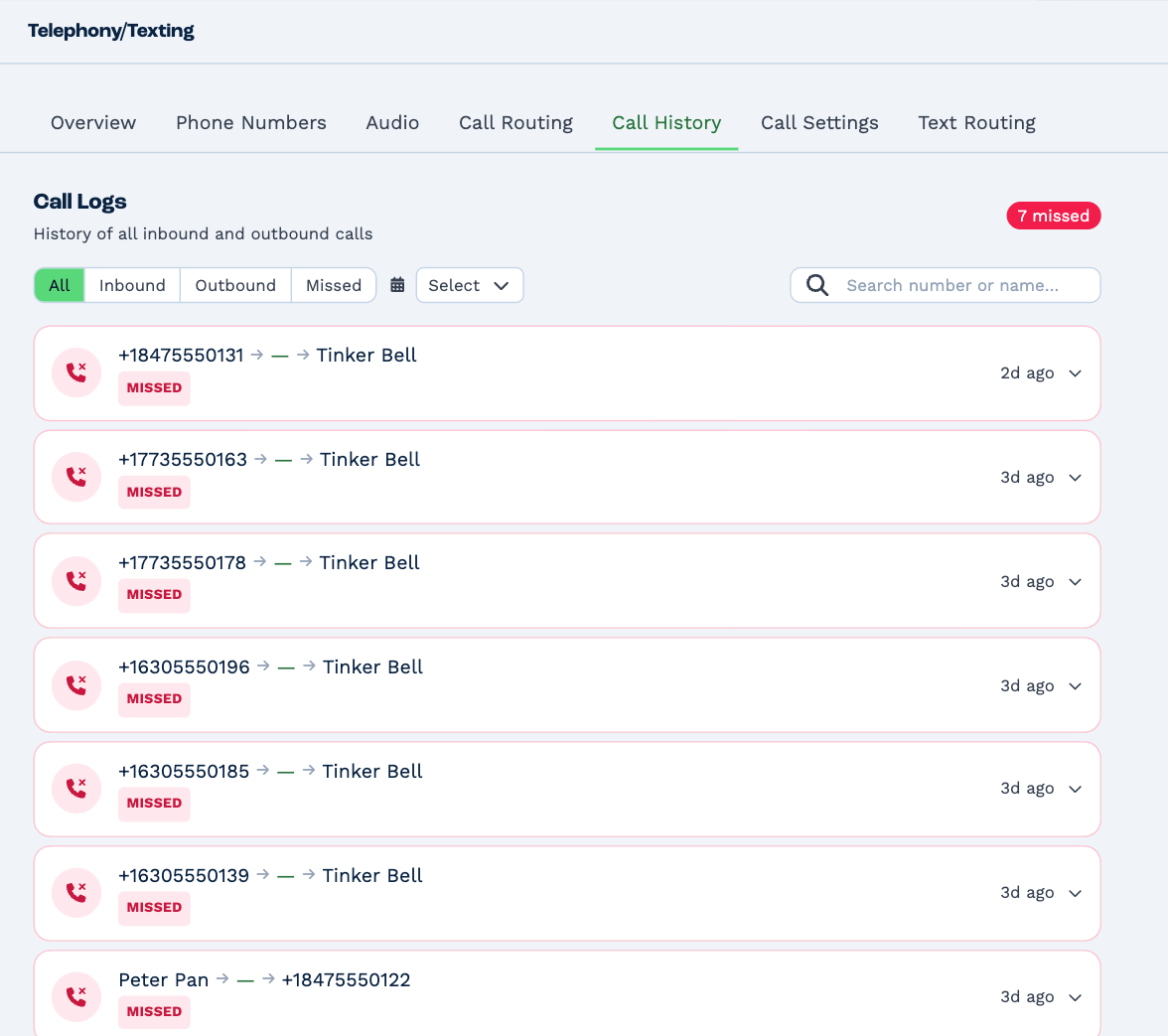
- Use All, Inbound, Outbound and Missed, the date range, and the search box to find a call. Search by a phone number, or by the first name of the person on your side.
- Click a call to open it: who called and who answered, how long it lasted, and — if it was recorded — a player for the recording and the transcript.
- Load more at the bottom fetches earlier calls.
You see your own calls, and calls for clients you're allowed to see. A call for one client is also in that client's history — see The client panel.