Support email triage
A support mailbox treats a forgotten password and a server outage the same way: next in the queue. This workflow reads each email, rates it, logs it against the right customer, replies with honest response times, and pages the on-call engineer when it is urgent.

Before you start
- An inbound email address in BaseCloud for support
- Credit for the AI Prompt task
The workflow
| Step | Task | Type | What it does |
|---|---|---|---|
| 1 | Support email | Inbound Email | Starts when a support email arrives |
| 2 | Find customer | Match to Client(s) | Finds the customer by the sender’s email address |
| 3 | Rate urgency | AI Prompt | Answers URGENT or NORMAL for the request |
| 4 | Log the ticket | Workflow Note | Logs the request on the customer as a note for the engineers |
| 5 | Acknowledge | Tells the sender it was logged and when to expect an answer | |
| 6 | Is it urgent? | If Statement | Continues only for urgent requests |
| 7 | Page on-call | SMS | Texts the on-call engineer |
About the variables
Values such as {{task_36376_…}} carry the number of the task they come from, so yours will
differ. Do not type them: click into a field and pick the value from an earlier task.
1. Support email
Task: Inbound Email. Starts when a support email arrives.
This task has no settings to fill in.
2. Find customer
Task: Match to Client(s). Finds the customer by the sender’s email address.
| Field | Set it to |
|---|---|
| Action | Match to Client |
| Find the client by | Contact email = {{task_36376_from_email}} |
3. Rate urgency
Task: AI Prompt. Answers URGENT or NORMAL for the request.
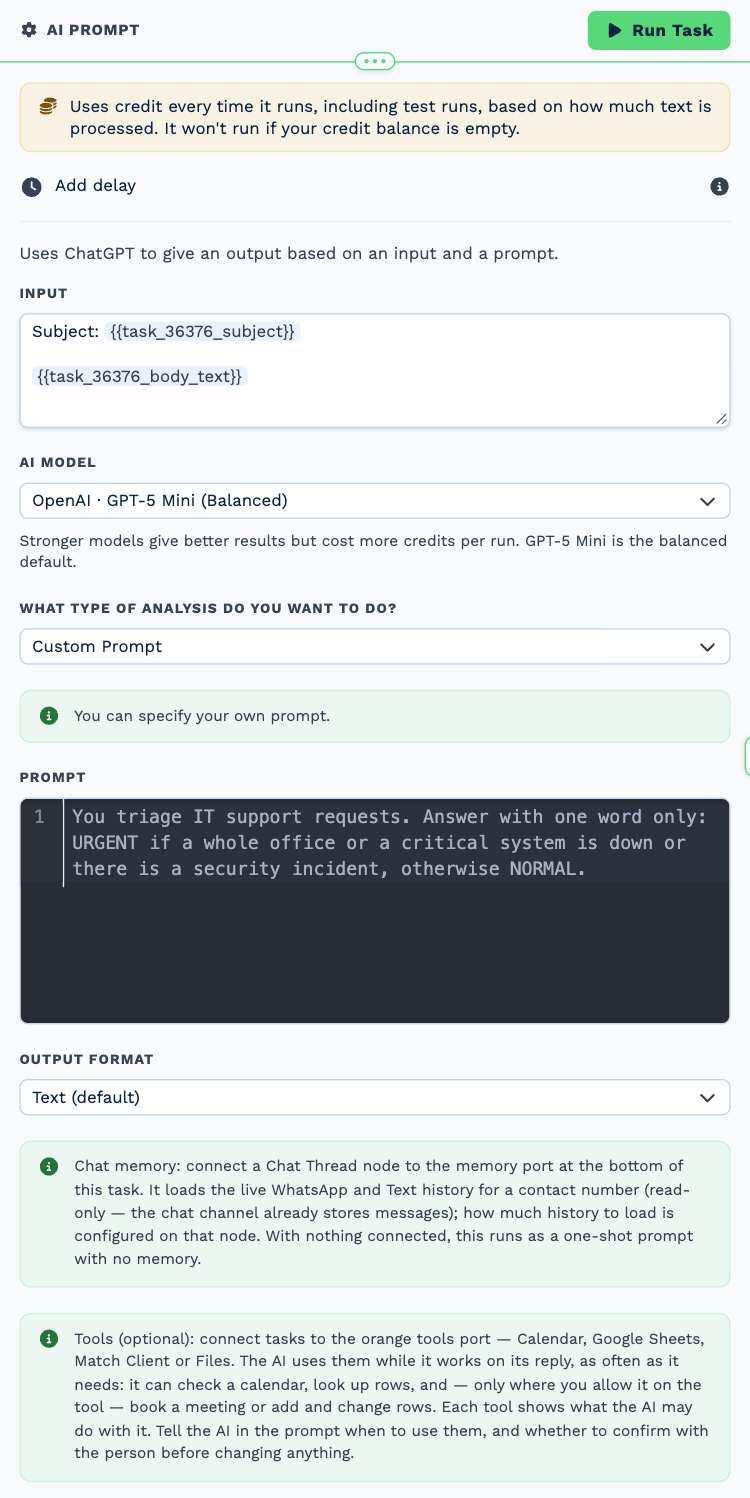
| Field | Set it to |
|---|---|
| AI model | OpenAI · GPT-5 Mini (Balanced) |
| What type of analysis do you want to do? | Custom Prompt |
| Output Format | Text (default) |
Input
Subject: {{task_36376_subject}}
{{task_36376_body_text}}
Prompt
You triage IT support requests. Answer with one word only: URGENT if a whole office or a critical system is down or there is a security incident, otherwise NORMAL.
4. Log the ticket
Task: Workflow Note. Logs the request on the customer as a note for the engineers.
| Field | Set it to |
|---|---|
| Action | Create Note |
| Client ID | {{task_36377_match_client_id}} |
| Note Type | Note |
| Priority | High |
| Due Date | Now |
| Tag Users | Tinker Bell, John Darling |
Message
{{task_36376_subject}}
From: {{task_36376_from_name}} ({{task_36376_from_email}})
Urgency: {{task_36378_output}}{{task_36376_body_text}}
5. Acknowledge
Task: Email. Tells the sender it was logged and when to expect an answer.
| Field | Set it to |
|---|---|
| Outgoing Email User | Wendy Darling |
| Client | {{task_36377_match_client_id}} |
| To | {{task_36376_from_email}} |
| Subject | Re: {{task_36376_subject}} |
Body
Hi {{task_36376_from_name}},
We have logged your request and an engineer is looking at it.
- Urgent issues: we respond within 30 minutes
- Everything else: within four working hours
Reply to this email to add detail or screenshots.
Neverland IT Support
6. Is it urgent?
Task: If Statement. Continues only for urgent requests.
| Field | Set it to |
|---|---|
| Condition | {{task_36378_output}} contains URGENT |
7. Page on-call
Task: SMS. Texts the on-call engineer.
| Field | Set it to |
|---|---|
| Client | {{task_36377_match_client_id}} |
| To (phone number) | +13125550142 |
| Message | URGENT ticket from {{task_36377_match_client_name}}: {{task_36376_subject}}. Open your Inbox for the details. |
Make it yours
- Put your on-call number in Page on-call.
- Match by
contact_email_domainin Find customer to catch staff who are not contacts yet. - Extend the prompt in Rate urgency with your own definition of urgent.