Manage teams
Who can do this
Manage Users to change a team. Add/Remove Users as well to add a team, or to add and remove its members. Everyone else can open Settings → Teams, but can't change anything.
A team gives a group of people the same rights, the same starting page and the same view of your clients. For what a team means to the people in it, and how they switch between teams, see Teams.
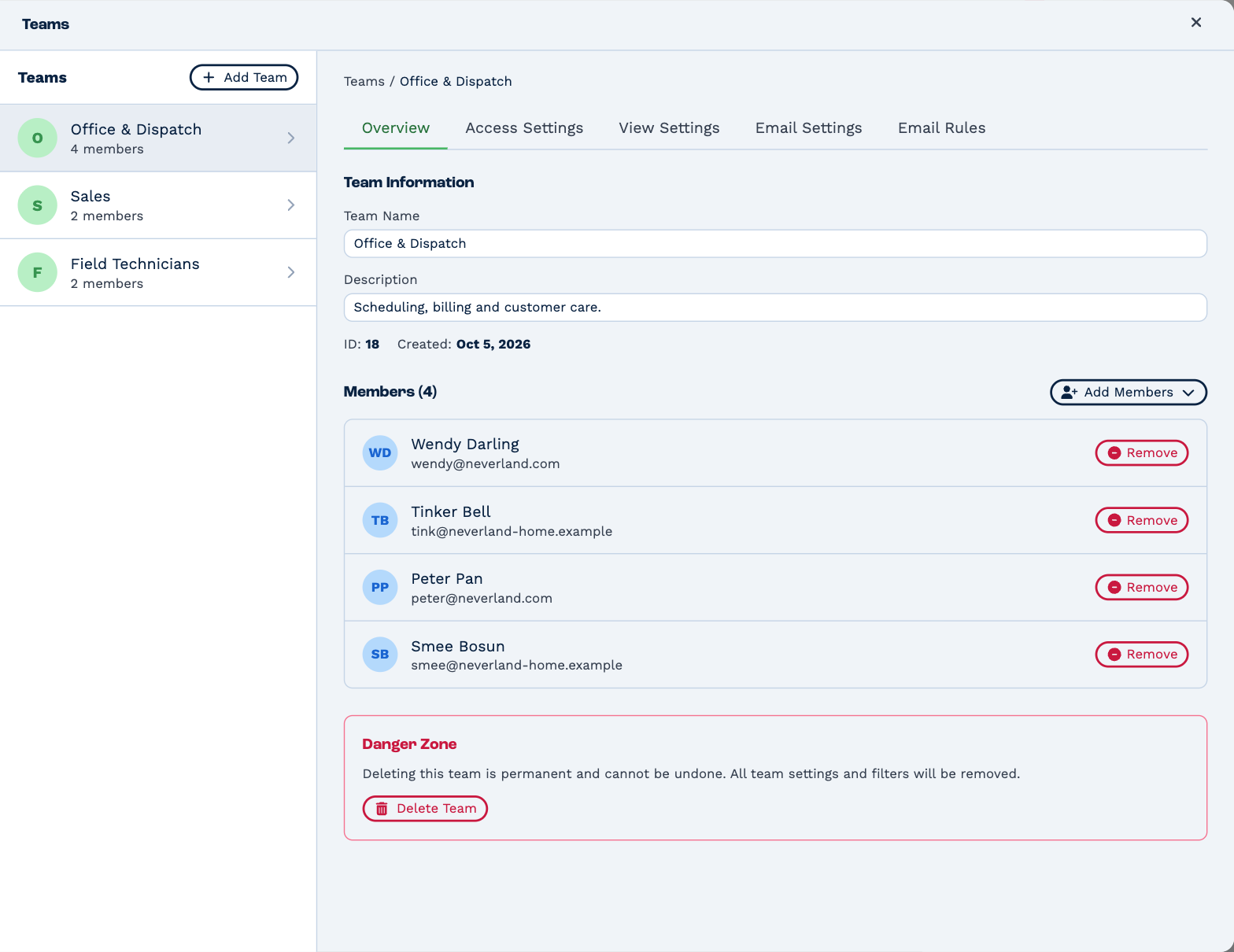
Open Settings → Teams and click a team.
Add a team
- Click Add Team.
- Type a Team name and, if you like, a description.
- Click Create, then click the new team in the list to set it up.
To rename a team or change its description, type over it on Overview and click away.
Add and remove members
On Overview:
- Add Members — tick the people to add, then click Add Members. Type in Search users… to find someone.
- Remove — takes that person out of the team, once you confirm.
Someone can be in several teams, and works in one at a time.
- Adding a person to their first team puts them to work in it at once.
- Removing a person from the team they're working in moves them to another of their teams. If they have no other, their own rights apply again.
Set what a team can do
Go to Access Settings. Each change saves at once, and applies to the team's members straight away.
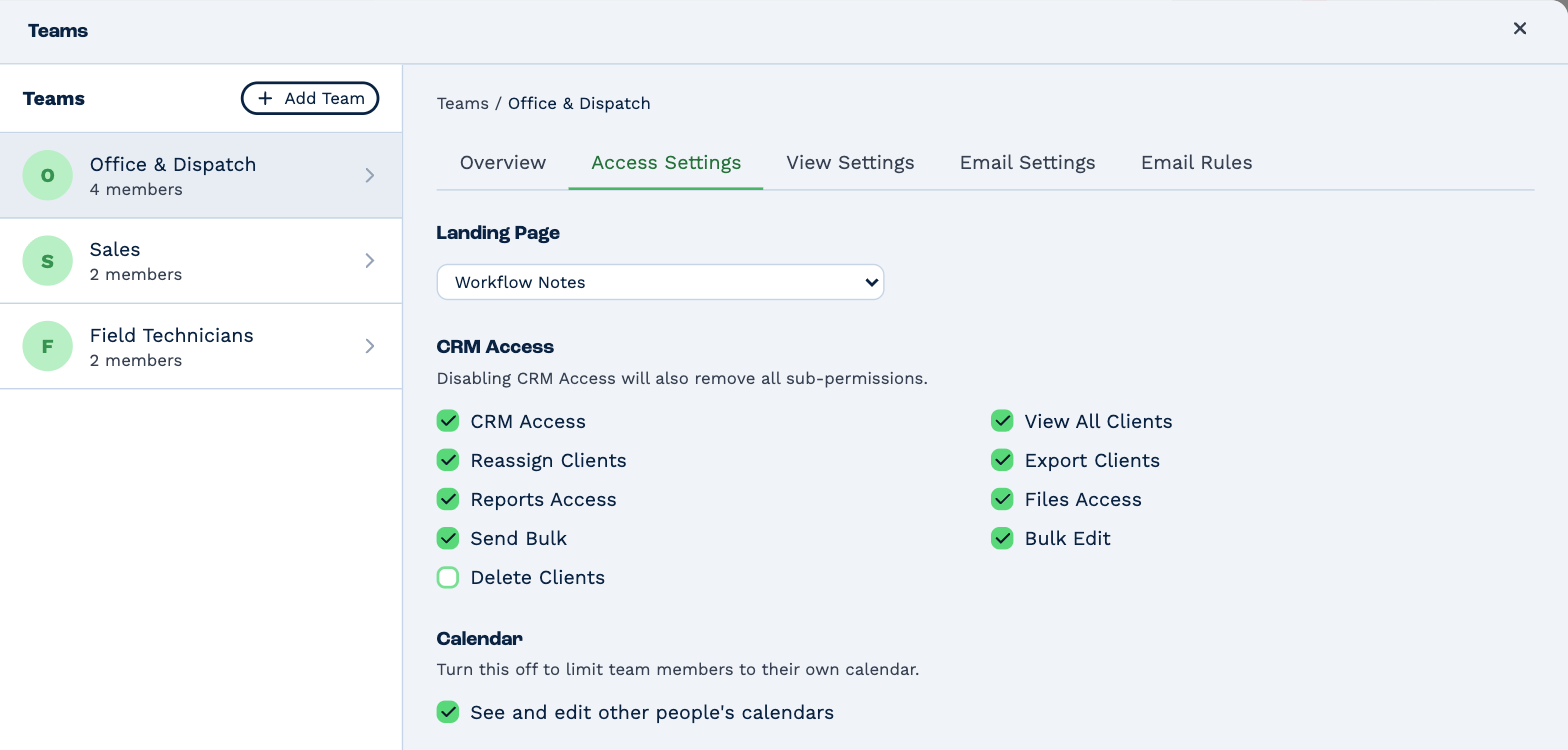
These are the same rights a user has — see the list of rights — with a Landing Page and the two custom field levels, explained under User rights.
Set up a new team's rights before you rely on it
A new team changes nothing about its members' rights until you set something on this tab. From that moment the team's rights replace each member's own — all of them, including every box you haven't ticked yet. So go down the whole tab and tick what the team should have, Manage Users included if you're in it yourself.
Turning off CRM Access or View Invoices greys out the rights beneath it. Their ticks are kept for when you turn it back on.
Limit which clients a team sees
Go to View Settings. A Client Filter Rule picks out clients by a field — their status, their Responsible Manager, where they first came from, when they were registered, or one of your custom fields.
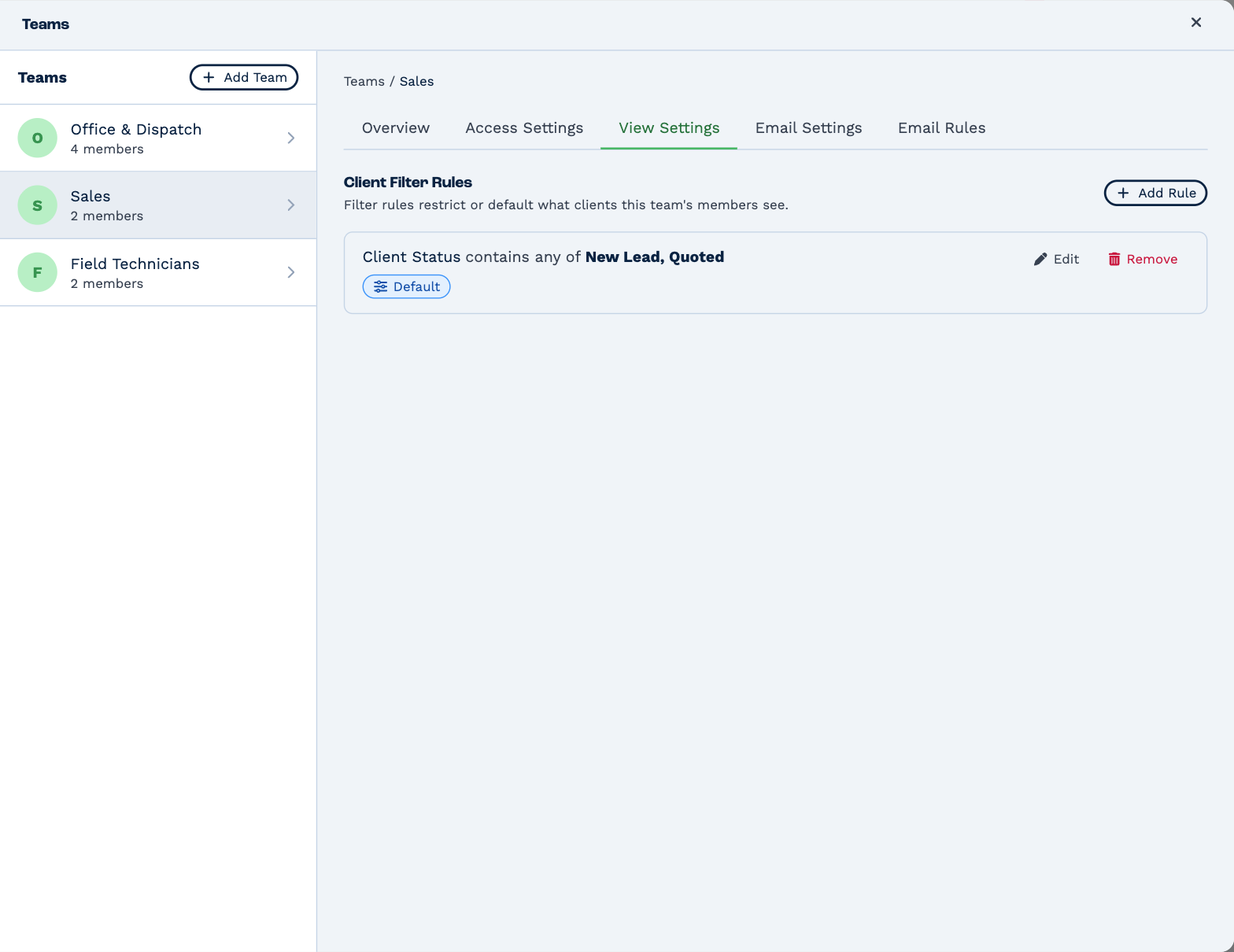
- Click Add Rule.
- Choose the Field, the Operator — is, is not, greater than, between, starts with, and so on, depending on the kind of field — and the Value.
-
Choose the Enforcement Level:
Level What the team's members get Default The Clients page opens with this filter already applied. They can change it or clear it. Restricted They only ever see clients that match. They can narrow the list further, but not widen it. -
Click Add Rule.
A team can have one rule for each field. To change a rule, click Edit; to drop it, click Remove.
On the Clients page, a rule shows as a filter that says what it does — Water Heater Age: greater than 8. A Restricted rule's filter has a lock and can't be removed; a Default one can.
Each person sees their own clients
For Responsible Manager, pick Current User (dynamic). The rule then means "whoever is signed in", so one rule gives every member their own clients.
A Restricted rule on Responsible Manager also limits whose work the team sees in reports.
A team's shared mailbox
Email Settings gives the team an address every member can send from, and Email Rules decide what happens to mail that arrives there. See Shared mailboxes.
Delete a team
On Overview, under Danger Zone, click Delete Team, then Yes, Delete. BaseCloud first lists any sending addresses the team has, because they go with it — and a connected mailbox stops bringing mail in.
Deleting a team removes its rights, its filter rules and its addresses. It can't be undone. The people in it stay in your account: anyone who was working in that team goes back to their own rights until they pick another team.