Google Docs
Overview
The Google Docs task integrates BaseCloud CRM with Google Docs API v1, enabling automated document creation, content retrieval, and dynamic updates for proposal generation, contract management, and report automation.
Key Features:
- 3 Actions: Create documents, retrieve content, update documents
- OAuth 2.0 Authentication: Secure Google integration with automatic token refresh
- Folder Organization: Create documents in specific Google Drive folders
- Content Modes: Append, prepend, or replace document content
- Plain Text Extraction: Extract readable text from structured Docs format
- Template System: Dynamic document generation with variable replacement
Use Cases:
- Automated proposal generation from CRM data
- Contract creation with client information
- Daily/weekly report compilation
- Meeting notes automation
- Document template processing
- Content aggregation from multiple sources
Prerequisites
1. Google Cloud Project
Setup Google Cloud:
- Go to https://console.cloud.google.com
- Create new project or select existing
- Enable Google Docs API
- Enable Google Drive API (required for folder management)
- Create OAuth 2.0 credentials:
- Application type: Web application
- Authorized redirect URIs:
https://yourapp.basecloudglobal.com/oauth/callback - Note Client ID and Client Secret
2. OAuth Configuration in BaseCloud
Create App Connection:
- Navigate to BaseCloud CRM → Settings → App Connections
- Click + New App Connection
- Select Google Docs from dropdown
- Enter credentials:
- Client ID: From Google Cloud Console
- Client Secret: From Google Cloud Console
- Click Authorize with Google
- Authorize scopes:
https://www.googleapis.com/auth/documents- Read/write documentshttps://www.googleapis.com/auth/drive.file- Manage created files- Grant access to Google account
- Save connection
OAuth Scopes Required:
Note: drive.file scope only accesses files created/opened by the app, not entire Drive.
3. Google Drive Folder IDs (Optional)
Get Folder ID:
- Open Google Drive: https://drive.google.com
- Navigate to folder
- Check URL:
https://drive.google.com/drive/folders/{FOLDER_ID} - Copy folder ID after
/folders/ - Or right-click folder → Share → Copy link → Extract ID
Example Folder ID:
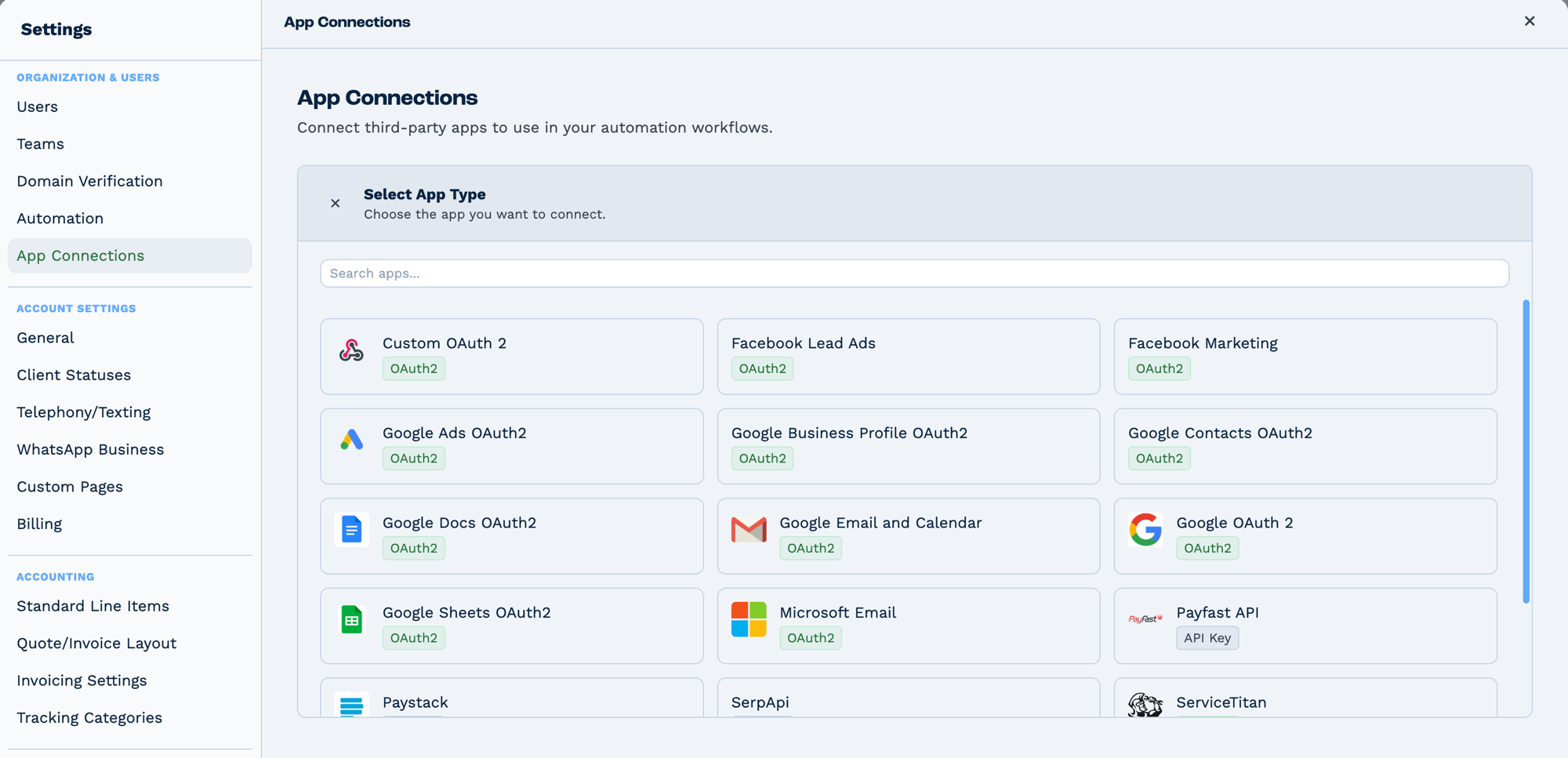
Connections live in Settings → App Connections, not on the task. Connect the app once and every task that needs it can use it. The badge on each tile says how it authenticates — OAuth2 sends you to the provider to sign in, API Key expects a key you paste in.
Outputs
Which fields appear depends on the action.
Reference fields as {{task_<ID>_<field>}}.
| Field | Type | Notes |
|---|---|---|
document_id |
string | Present only on some actions. |
document_url |
string | Present only on some actions. |
title |
string | Present only on some actions. |
folder_id |
string | Present only on some actions. |
plain_text |
string | Present only on some actions. |
content |
string | Present only on some actions. |
error |
object |
Always emitted
| Field | Type | Notes |
|---|---|---|
run |
boolean | Whether the task succeeded. |
run_text |
string | What happened, including the reason on failure. |
Fields marked as action-dependent may be absent
This task does several different things depending on its action setting, and only the fields relevant to that action are emitted. Check a real run in the OUTPUT panel before referencing one downstream.
Configuration
Builder fields
The Field column is the label as it appears in the task builder; Key is the name the value is stored under and referenced by.
| Field | Key | Type | Default | Notes |
|---|---|---|---|---|
| Google Account | app_connection_id |
app-connection | – | |
| Action | docs_action |
select | get_document |
Options: Create Document · Get Document · Update Document |
| Document ID | document_id |
textarea | – | |
| Document Title | document_title |
textarea | – | Only shown when docs_action is create_document |
| Document Content | document_content |
richtext | – | |
| Content Format | content_format |
select | auto |
Options: Automatic (recommended) · Force HTML · Force plain text (tags inserted literally) |
| Folder ID (optional) | folder_id |
text | – | Only shown when docs_action is create_document |
| Update Mode | update_mode |
select | append |
Options: Append (add to end) · Prepend (add to beginning) · Replace (overwrite all). Only shown when docs_action is update_document |
Action 1: create_document
Create new Google Document with optional initial content and folder placement.
| Field | Required | Description | Example |
|---|---|---|---|
| action | Yes | Must be "create_document" | create_document |
| app_connection_id | Yes | OAuth connection ID | Select from dropdown |
| document_title | Yes | Title for new document | Q1 Sales Proposal - {{client_name}} |
| document_content | No | Initial content, rich text or HTML | <h1>Invoice</h1><table>...</table> |
| content_format | No | auto (default), html or text |
auto |
| folder_id | No | Google Drive folder ID (default: root) | 1a2b3c4d5e6f7g8h9i0j |
Output Variables:
task_45001_run; // true/false
task_45001_run_text; // "Document \"Q1 Sales Proposal\" created successfully."
task_45001_document_id; // Google Docs document ID
task_45001_document_url; // Direct edit URL
task_45001_title; // Document title
task_45001_folder_id; // Parent folder ID (if specified)
How It Works:
- Decides how to treat
document_content(see Content Format below) - HTML content — uploads the markup to Drive as a converted document, so headings, tables, bold text, colours and inline styles become real formatting
- Plain text content — creates a blank document via the Docs API, sets the title and inserts the text at index 1
- If
folder_idprovided: - Moves document from root to specified folder via Drive API
- Returns document ID and edit URL
The Document Content field is a rich-text editor in the automation builder — headings, tables, colours and variable chips are edited visually and saved as HTML. Pasting raw HTML still works; it renders in the editor rather than staying as visible tags.
Content Format:
| Value | Behaviour |
|---|---|
auto (default) |
Detects HTML tags in the content and imports as HTML, otherwise plain text |
html |
Always import as HTML |
text |
Always insert verbatim, tags included |
The Docs API insertText request has no markup support — it writes the string exactly as
given. HTML therefore goes through Drive's importer instead, which converts <h1>, <table>,
<strong>, inline style attributes, colours and font sizes into document formatting.
Script tags, external CSS files and JavaScript are dropped by the converter.
API Endpoints:
POST https://docs.googleapis.com/v1/documents
POST https://docs.googleapis.com/v1/documents/{documentId}:batchUpdate
POST https://www.googleapis.com/upload/drive/v3/files?uploadType=multipart  (HTML content)
PATCH https://www.googleapis.com/drive/v3/files/{documentId}
Document URL Format:
Use Cases:
- Create proposal from template text
- Generate contract with client details
- Initialize daily report document
- Create meeting notes with agenda
Action 2: get_document
Retrieve document content and metadata, with plain text extraction.
| Field | Required | Description | Example |
|---|---|---|---|
| action | Yes | Must be "get_document" | get_document |
| app_connection_id | Yes | OAuth connection ID | Select from dropdown |
| document_id | Yes | Google Docs document ID | 1a2b3c4d5e6f7g8h9i0j |
Output Variables:
task_45001_run; // true/false
task_45001_run_text; // "Document retrieved successfully."
task_45001_document_id; // Document ID
task_45001_document_url; // Edit URL
task_45001_title; // Document title
task_45001_plain_text; // Extracted plain text content
task_45001_content; // Raw Google Docs structure array
Plain Text Extraction:
- Recursively extracts text from document structure
- Handles paragraphs, headings, lists
- Extracts text from tables (preserves table structure with newlines)
- Removes formatting (bold, italic, links)
- Preserves paragraph breaks
- Suitable for AI analysis or text processing
How It Works:
- Fetches complete document via Docs API
- Extracts title and document ID
- Recursively processes content structure:
- Paragraphs → Extract text from elements
- Tables → Extract from rows/cells
- Nested structures → Recursive extraction
- Returns both plain text and raw structure
API Endpoint:
Use Cases:
- Extract document for AI analysis
- Parse document for workflow decisions
- Copy content to other systems
- Archive document text
- Search document content
Action 3: update_document
Modify document content with three update modes: append, prepend, or replace.
| Field | Required | Description | Example |
|---|---|---|---|
| action | Yes | Must be "update_document" | update_document |
| app_connection_id | Yes | OAuth connection ID | Select from dropdown |
| document_id | Yes | Document to update | 1a2b3c4d5e6f7g8h9i0j |
| document_content | Yes | Text to add/insert | \n\nUpdate: {{new_info}} |
| content_format | No | auto (default), html, text |
auto |
| update_mode | No | How to update (default: append) | append, prepend, replace |
Update Modes:
| Mode | Description | Use Case |
|---|---|---|
| append | Add content to end of document | Add daily log entry, append section |
| prepend | Add content to beginning | Add header, insert summary at top |
| replace | Delete all content and insert new | Template refresh, complete rewrite |
Output Variables:
task_45001_run; // true/false
task_45001_run_text; // "Document updated successfully (append)."
task_45001_document_id; // Document ID
task_45001_document_url; // Edit URL
How It Works:
Append Mode:
- Fetches current document to get end index
- Inserts text at end index
- Prepends newline for separation
Prepend Mode:
- Inserts text at index 1 (beginning)
- Appends newline after inserted text
Replace Mode:
- Fetches current document for indices
- Deletes all content (index 1 to end-1)
- Inserts new content at index 1
- Completely overwrites document
API Endpoint:
Batch Update Request (Replace Example):
{
  requests: [
    {
      deleteContentRange: {
        range: {
          startIndex: 1,
          endIndex: 1249, // Current document end - 1
        },
      },
    },
    {
      insertText: {
        location: { index: 1 },
        text: 'Completely new content...',
      },
    },
  ];
}
Document Index Structure:
- Index 0: Reserved (document start)
- Index 1: First insertable position (mandatory newline)
- Index N-1: Last character
- Index N: End of document (mandatory trailing newline)
Use Cases:
- Append: Daily logs, incremental reports, adding sections
- Prepend: Executive summaries, document headers, priority updates
- Replace: Template processing, report regeneration, complete refresh
Real-World Examples
Generate a proposal from a template
CRM Trigger  (status changed to "Proposal")
  └─ Match to Client   look the client up
      └─ Google Docs   create the document from a template
          └─ Email     send the link
Keep a shared document up to date
Capture meeting notes against a client
Form Submission
  └─ Match to Client   look the client up
      └─ Google Docs   append the notes to the client's document
Troubleshooting
Error: "No app connection selected"
Cause: OAuth connection not configured
Solutions:
- Go to Settings → App Connections
- Create Google Docs connection
- Enter Client ID and Client Secret
- Complete OAuth authorization
- Grant both Docs and Drive scopes
Error: "Invalid OAuth 2.0 Access Token"
Cause: Access token expired (refresh failed)
Solutions:
- BaseCloud automatically refreshes tokens
- If error persists, re-authorize connection:
- Settings → App Connections → Edit
- Click Re-authorize with Google
- Verify OAuth scopes are correct:
https://www.googleapis.com/auth/documentshttps://www.googleapis.com/auth/drive.file
Error: "Document not found" (404)
Cause: Invalid document ID or no access
Solutions:
- Verify document ID format (no spaces, special chars)
- Check document hasn't been deleted
- Ensure OAuth account has access to document
- Only works with documents created by app or explicitly shared
- Test with known working document ID
Error: "Insufficient permissions"
Cause: Missing OAuth scopes or Drive permissions
Solutions:
- Verify OAuth scopes granted:
- Documents scope for read/write
- Drive scope for folder management
- Re-authorize with all scopes
- Check document sharing settings
- Ensure account has edit access to document
Folder Move Failed
Cause: Invalid folder ID or permission issue
Solutions:
- Verify folder ID format (long alphanumeric string)
- Check folder exists in Google Drive
- Ensure OAuth account has access to folder
- Test folder ID in Drive URL:
drive.google.com/drive/folders/{ID} - Omit folder_id to keep in root Drive
Document Content Empty or Malformed
Cause: Content formatting or structure issue
Solutions:
- Content must be plain text (no HTML)
- Use
\nfor line breaks (double backslash in JSON) - Escape special characters in variables
- Check variable substitution completed
- Test with simple static text first
Update Mode Not Working as Expected
Cause: Misunderstanding mode behavior
Solutions:
- Append: Adds to end (doesn't create new paragraph automatically - add
\n\n) - Prepend: Adds to beginning (add
\n\nafter for spacing) - Replace: Deletes everything and inserts new content
- Document always has mandatory newlines at start/end
- Test with simple document first
Rate Limiting / Quota Exceeded
Cause: Exceeded Google API quotas
Solutions:
- Default Quotas:
- 300 requests per minute per user
-
60 requests per minute per project
-
Immediate Actions:
- Add delays in document creation loops (1-2 seconds)
- Reduce frequency of updates
-
Batch content updates instead of multiple small updates
-
Long-term:
- Request quota increase in Google Cloud Console
- Implement exponential backoff
- Cache document content locally
- Use batch update requests
Plain Text Extraction Incomplete
Cause: Complex document structure
Solutions:
- Extraction handles paragraphs and tables
- Some elements may not extract (images, drawings)
- Tables preserve basic structure with newlines
- Formatting removed (bold, italic, colors)
- For rich content, use raw
contentstructure instead
Best Practices
Document Organization
- Folder Structure:
- Create dedicated folders per document type
- Store folder IDs in variables for reuse
- Use client-specific folders:
/Clients/{{client_name}}/ -
Maintain folder ID mapping in database
-
Naming Conventions:
- Include date:
Report - 2024-02-08 - Include client:
Proposal - ABC Corp - Be descriptive:
Q1 Sales Report - EMEA Region -
Use consistent formatting across documents
-
Access Management:
- Documents created by app connection
- Share documents via Drive API or manually
- Store document URLs in CRM for easy access
- Use service account for organization-wide access
Content Strategy
- Template Design:
- Create master templates in Drive
- Use clear placeholder names:
{{CLIENT_NAME}} - Test templates with sample data
-
Store template IDs in configuration
-
Variable Replacement:
- Validate variables exist before using
- Provide default values for optional fields
- Format dates/currency consistently
-
Escape special characters if needed
-
Content Updates:
- Use append for logs and incremental content
- Use prepend for summaries and headers
- Use replace for complete refreshes
- Include separators (newlines) for readability
Automation Patterns
- Document Generation:
- Build content in Variable task first
- Test content formatting before creation
- Store document URL in CRM record
-
Send notification with document link
-
Scheduled Reports:
- Use Timer triggers for regular reports
- Compile data from multiple sources
- Append to running document or create new
-
Email stakeholders with document link
-
Template Processing:
- Get template content
- Replace placeholders with CRM data
- Create new document with processed content
- Original template remains unchanged
Performance Optimization
- API Calls:
- Minimize get_document calls (cache if possible)
- Batch content updates (don't update line by line)
- Use variables to build complete content before inserting
-
Avoid unnecessary document fetches
-
Content Size:
- Keep individual updates reasonable (<10KB)
- For large content, split into logical sections
- Consider using multiple documents for very long reports
-
Monitor document file sizes
-
Error Handling:
- Wrap document operations in If Conditions
- Log document IDs for troubleshooting
- Provide fallback workflows for failures
- Keep a copy with the Files task if the content is critical
Compliance and Security
- Data Protection:
- Be aware of data sensitivity in documents
- Use appropriate Drive sharing settings
- Consider encryption for highly sensitive data
-
Follow data retention policies
-
Access Control:
- Limit OAuth connection to specific accounts
- Use service accounts for organization documents
- Regular audit of created documents
-
Remove access when no longer needed
-
Audit Trail:
- Log all document operations in workflow notes
- Store document IDs in database
- Track document creation dates
- Maintain history of content updates
FAQ
Q: Can I format text (bold, italic, colors)?
A: Not with current actions. API supports formatting via insertText requests with textStyle, but requires additional implementation. Use Google Docs UI for formatting after creation.
Q: How do I add images to documents?
A: Images require additional API calls not currently implemented. Create document, then manually add images, or implement custom insertInlineImage request.
Q: Can I create documents from existing templates?
A: Yes, use Example 3 pattern: Get template content, replace placeholders, create new document. Original template remains unchanged.
Q: What's the maximum document size?
A: Google Docs supports up to 1.02 million characters. For larger content, split into multiple documents.
Q: Can I collaborate with others on created documents?
A: Yes, share documents via Google Drive. Documents created by app can be shared normally through Drive sharing settings.
Q: How do I handle tables in content?
A: Plain text extraction preserves table content with newlines. For complex tables, work with raw content structure or create tables via API (requires additional implementation).
Q: Can I export documents to PDF?
A: Use Google Drive export API (separate implementation) or use Drive export URL: https://docs.google.com/document/d/{docId}/export?format=pdf
Q: How often can I update a document?
A: Respect API quotas (300 requests/min). For frequent updates (e.g., every minute), consider batching updates or increasing interval.
Q: Can I search document content?
A: Use get_document to retrieve plain text, then search with If Condition or Code task. Drive API also supports content search.
Q: What happens if two automations update same document simultaneously?
A: Google Docs handles concurrent edits. Last write wins for conflicts. Use queue mechanisms for critical documents.
Q: Can I restore deleted documents?
A: Documents moved to Drive trash can be restored via Drive UI. Permanently deleted documents cannot be recovered.
Q: How do I share documents with specific people?
A: Use Google Drive API permissions (separate implementation) or share manually via Drive UI after creation.
Related Tasks
- Variable - Build document content
- Google Sheets - Spreadsheet automation
- PDF - PDF generation
- Email - Send document links
- If Statement - Conditional document creation
- Loop - Batch document generation
Technical Details
- Type ID: 45
- Function:
taskGoogleDocs()in automationService.js (lines 9571-9670) - Service:
googleDocsService.js(384 lines) - API Version: Google Docs API v1, Google Drive API v3
- Authentication: OAuth 2.0 with automatic token refresh
- Scopes:
https://www.googleapis.com/auth/documents,https://www.googleapis.com/auth/drive.file - Output Prefix:
task_45001_* - Rate Limits: 300 requests/minute/user, 60 requests/minute/project
- Timeout: 30 seconds per request
- Docs API Documentation: https://developers.google.com/docs/api
- Drive API Documentation: https://developers.google.com/drive/api/v3