WhatsApp Message Received
Overview
The WhatsApp Message Received trigger starts a workflow the instant an inbound WhatsApp message arrives on one of your connected numbers. The sender, the message content and — where BaseCloud can match the number — the CRM contact and client are handed straight to the tasks that follow.
This is the trigger behind auto-replies, AI chat agents, keyword routing and "notify the account manager when a customer messages us".
When to use this trigger:
- Answer common questions automatically with an AI Prompt task.
- Route a conversation to the right agent with Assign Chat Thread.
- Log every inbound message as a CRM activity with Workflow Note.
- Escalate by Email or SMS when a keyword appears.
This trigger listens; it does not send
Replying is a separate step. Add a WhatsApp Business or WATI task to send a message back.
The pattern most workflows built on this trigger follow, and the reason session_id matters —
it is the same value for every message from that customer, so the AI keeps one continuous
memory per conversation:
flowchart LR
    A[Customer sends WhatsApp] --> B[Trigger fires]
    B --> C[Chat Thread reads history]
    C --> D["AI Prompt (memory key = session_id)"]
    D --> E[WhatsApp Business sends reply]
    E --> A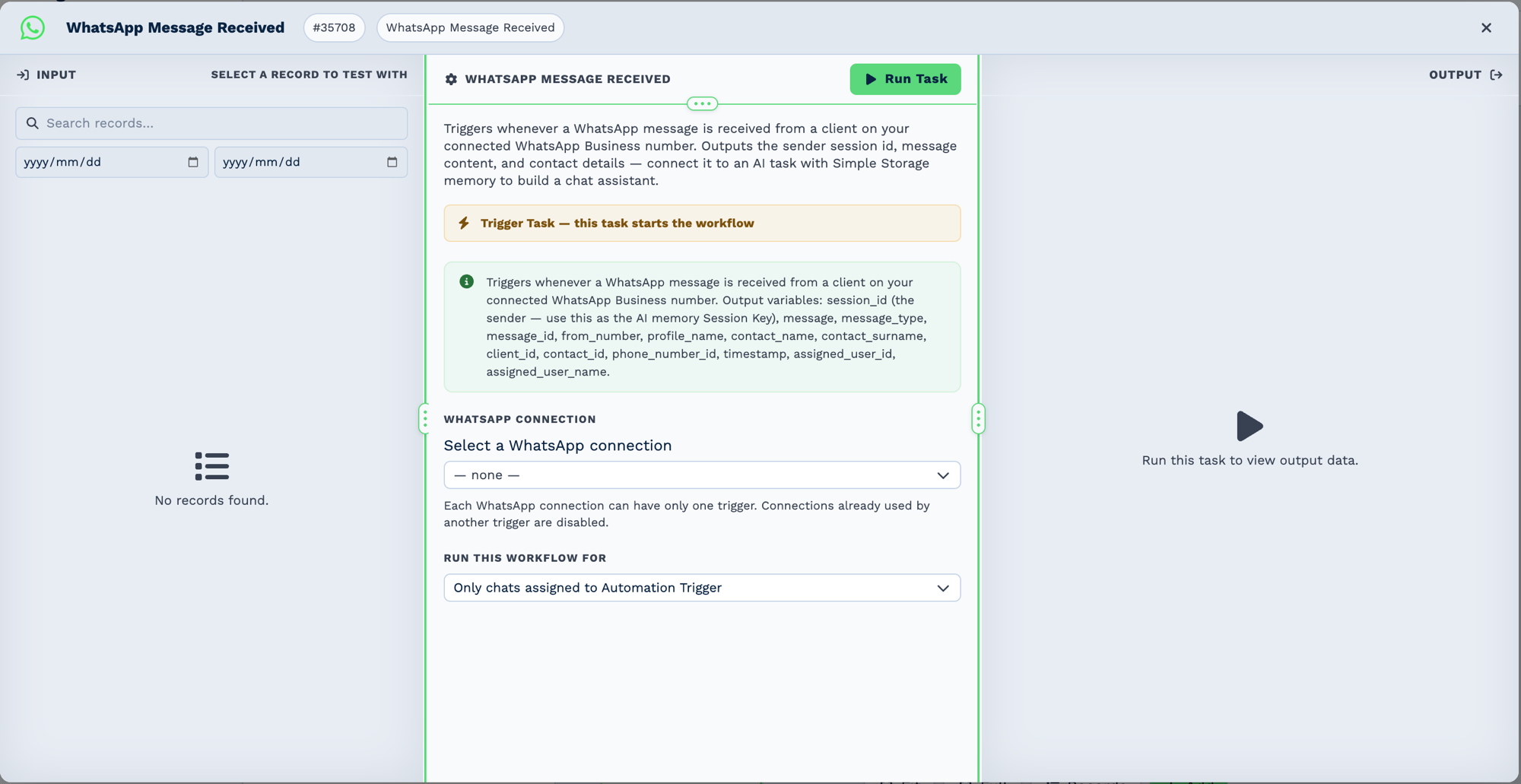
One trigger per connection. A WhatsApp connection already used by another trigger is disabled in the list. Run this workflow for scopes which chats reach the workflow at all.
Configuration
Builder fields
The Field column is the label as it appears in the task builder; Key is the name the value is stored under and referenced by.
| Field | Key | Type | Default | Notes |
|---|---|---|---|---|
| WhatsApp Connection | app_connection_id |
app-connection | – | |
| Run this workflow for | assignment_filter |
select | automation_only |
Options: Only chats assigned to Automation Trigger · Every incoming message |
| Field | Required | Default | Notes |
|---|---|---|---|
| WhatsApp connection | No | blank | Leave blank to fire for messages to any of the account's WhatsApp numbers. Set it to scope the trigger to one specific number. |
That is the entire configuration. Leaving the connection blank is the common case; scope it only when you run several WhatsApp numbers and want a different workflow per number.
Output Fields
Every field below is available to child tasks as {{task_ID_fieldname}}.
| Field | Description |
|---|---|
session_id |
The sender's WhatsApp number. A stable per-conversation key — use this as the memory key for an AI chat agent. |
from_number |
The sender's number, normalised. |
message |
The message text. For an image, video or document this is the caption, which may be empty. |
message_id |
WhatsApp's own message identifier. |
message_type |
text, image, video, document, or another WhatsApp message type. |
profile_name |
The sender's WhatsApp profile name. |
contact_name |
Matched CRM contact's first name, falling back to the WhatsApp profile name. |
contact_surname |
Matched CRM contact's surname, falling back to the profile name's remainder. |
client_id |
Matched client ID, or empty when the number is not in the CRM. |
contact_id |
Matched contact ID, or empty when unmatched. |
phone_number_id |
The WhatsApp number that received the message. |
timestamp |
When WhatsApp recorded the message. |
assigned_user_id |
The agent the chat thread is assigned to, or empty when unassigned. |
assigned_user_name |
That agent's name, or empty. |
{{task_ID_run}} |
Always true — the trigger fired. |
{{task_ID_run_text}} |
WhatsApp Message Received trigger executed successfully. |
Unmatched senders still fire the workflow
A message from a number that is not in your CRM still starts the workflow — client_id and
contact_id are simply empty. Branch on that with an If Statement
to create the contact with New Client before continuing.
session_id and AI memory
session_id is the sender's number, so it is the same value for every message in a conversation.
Feeding it as the memory key to an AI Prompt task gives the AI a
continuous memory of that one customer's conversation without mixing it with anyone else's.
Real-World Examples
AI auto-reply with conversation memory
WhatsApp Message Received
  └─ Chat Thread            pull the full conversation so far
      └─ AI Prompt          answer, using session_id as the memory key
          └─ WhatsApp Business   send the reply
The Chat Thread task supplies history, the AI answers in context, and the WhatsApp Business task sends the response.
Route by keyword and assign
WhatsApp Message Received
  └─ If Statement           message contains "invoice"
      ├─ true ─ Assign Chat Thread   to the accounts user
      └─ false ─ Assign Chat Thread  to the support user
Log every message against the client
WhatsApp Message Received
  └─ If Statement           client_id is not empty
      └─ Workflow Note      log the message on the client record
Best Practices
- Leave the connection blank unless you need scoping. One workflow covering all numbers is simpler than one per number, and it cannot silently miss a new number you add later.
- Handle the unmatched case. Always branch on whether
client_idis empty before using contact fields. - Use
session_idfor AI memory, notcontact_id— an unmatched sender has no contact ID, but always has a session. - Check
message_typebefore readingmessage. For media messagesmessageholds the caption and can legitimately be empty. - Keep the reply fast. Long chains of tasks before the reply are visible to the customer as silence. Send an acknowledgement first, then do the slow work.
Troubleshooting
| Symptom | Cause and fix |
|---|---|
| Workflow never fires | The task or its workflow is disabled, or the connection is scoped to a different number than the one receiving messages. |
| Fires for the wrong number | The WhatsApp connection field is blank, so it fires for every number. Scope it. |
message is empty |
Expected for a media message with no caption — check message_type. |
client_id and contact_id empty |
The sender's number is not in the CRM, or is stored in a different format. |
assigned_user_id is empty |
The thread is unassigned. Assign it with Assign Chat Thread. |
Frequently Asked Questions
Does this fire for messages my team sends? No. It fires on inbound messages only.
Do I get the image itself for a media message? The trigger gives you the caption, type and message ID. Handle the media itself with a WhatsApp Business or Files task.
Can two workflows listen to the same number? Yes. Every matching trigger task fires independently.
What if the same customer sends three messages quickly? Each message fires the workflow separately. If that is not what you want, use a Delay plus Chat Thread so the workflow reads the whole burst at once.
Related Tasks
- WhatsApp Business - Send the reply
- Chat Thread - Read the conversation so far
- Assign Chat Thread - Hand the conversation to an agent
- Text Message Received - The SMS equivalent of this trigger
- AI Prompt - Generate a contextual reply