Clients & contacts
A client is anyone you do business with — a company or a household. Everything you do for them hangs off the client: notes, emails, texts, calls, meetings, quotes, invoices, files and custom tables.
A contact is a person at that client — the people you actually email, text and call. A client can have many contacts, and one contact can belong to more than one client.
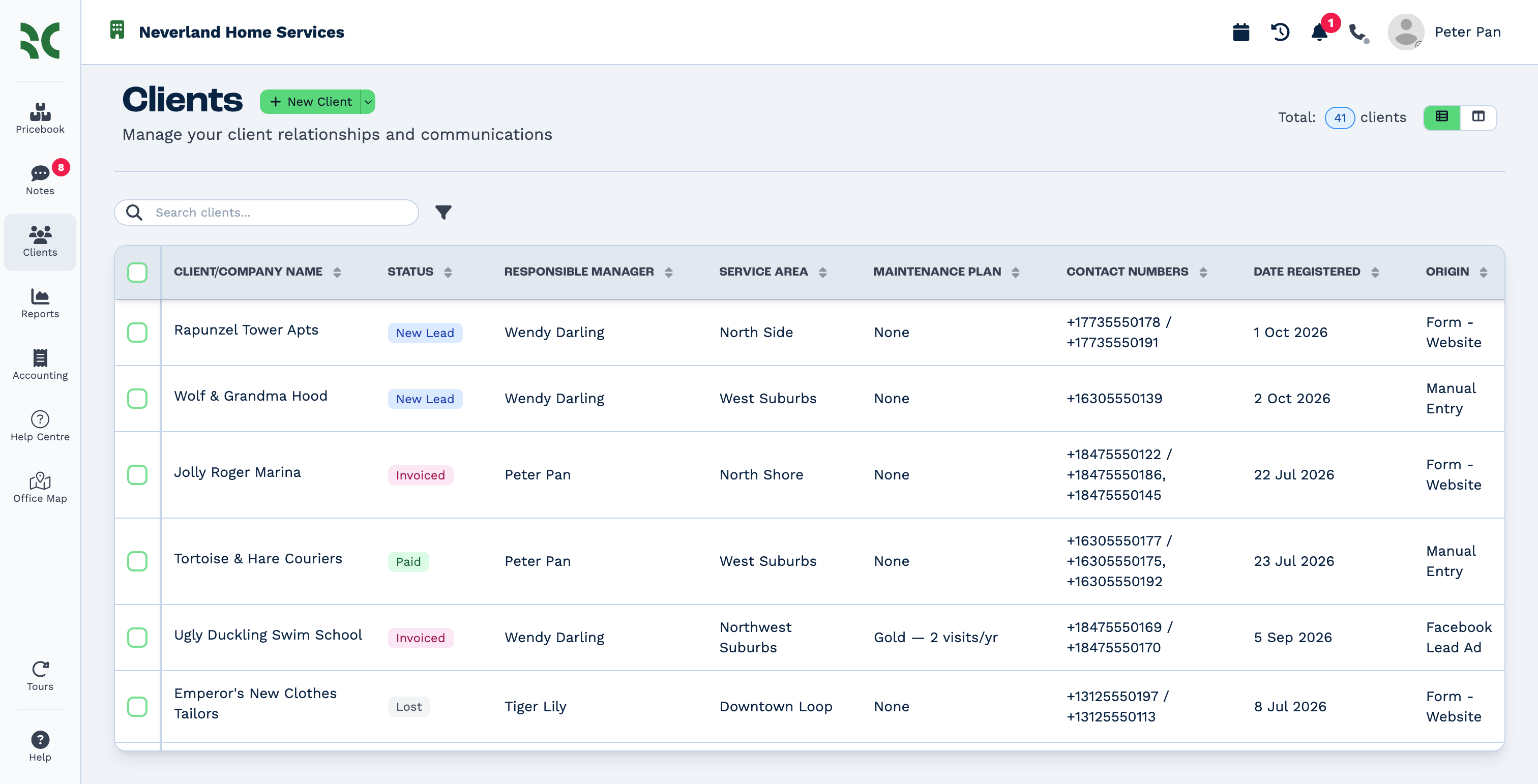
What every client has
| Status | Where the client is in your process, such as New Lead, Quoted or Paid. Your administrator sets up the list of statuses. |
| Responsible manager | The person in your team who looks after the client. People who can't see every client only see the clients they manage. |
| Origin | How the client first reached you, such as Form - Website or Import. It is set when the client is created. |
| Client ID | A short number for the client, shown as ID in the client panel. |
| Custom fields | Extra details your business tracks, such as Property Type or Lead Source. |
Where you work with clients
- The Clients page — open Clients in the left panel. Search, filter, sort and edit many clients at once, in a table or on a Kanban board.
- The client panel — click a client to open their panel on the right. It holds everything about that one client: details, contacts, files, tables, accounting and activity.
Which clients you can see
- With the View All Clients right, you see every client in the account.
- Without it, you see only the clients where you are the responsible manager.
- Your team can also limit which clients you see, for example only clients with certain statuses. Those filters show a lock and Enforced by team, and you can't remove them.
In this section
- Find clients — search, filter, sort and switch to the Kanban board
- Add a client
- Import clients from a spreadsheet
- The client panel — details, addresses, custom fields and activity
- Edit clients — change details straight from the table
- Choose the table's columns
- Bulk actions — edit, message, note, delete or export many clients at once
- Contacts — add, edit, link and unsubscribe contacts
- Merge or delete clients