Book a meeting
Who can do this
Anyone, on their own calendar. Booking on someone else's calendar needs See and edit other people's calendars.
- Open the calendar and click Create. You can also double-click an empty time, or drag across the times you want.
- Type a title in Event Title.
- Under To, add who you're inviting. Start typing to search your contacts and colleagues, or type any email address. Click Optional to add people whose attendance is optional.
- Set the dates and times, or tick All day.
- Add a Location, and any Notes for the guests — Use template fills them from an email template.
- Click Create Event.
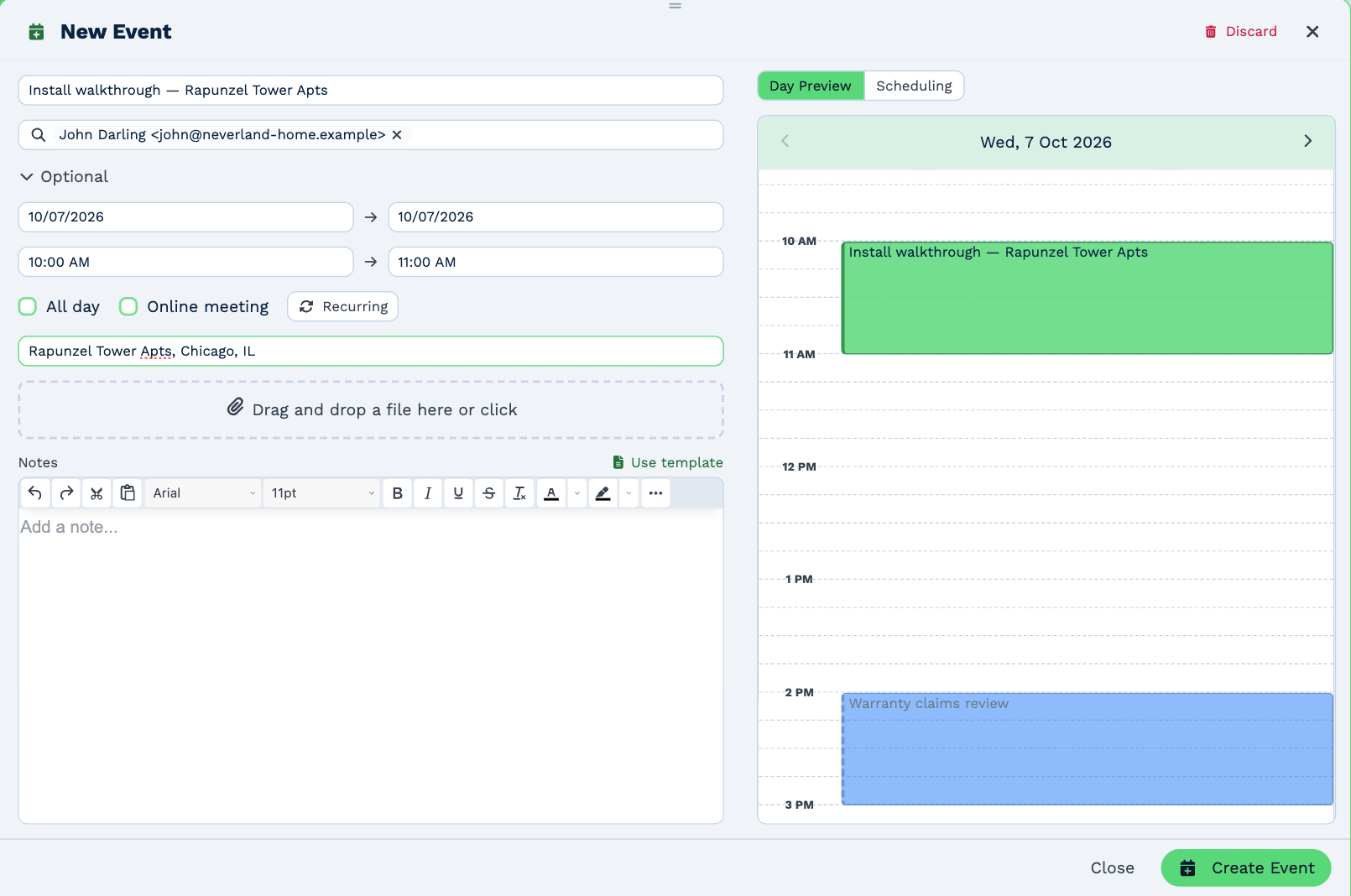
The meeting appears straight away and is saved in the background; you'll see Event created. If saving fails, BaseCloud says so and offers Reopen, with what you entered still there.
Invitations
Everyone under To and Optional is invited by email.
- If your calendar is connected to Outlook or Google, the meeting is made there and Outlook or Google sends the invitations, as if you'd booked it there yourself.
- If it isn't, BaseCloud emails the invitations, with a calendar file guests can add to their own calendar.
Answers come back to you: each guest's name in the meeting shows whether they've accepted, declined or not answered yet.
Check when people are free
Day Preview, on the right, shows the day you're booking, with your other meetings. Scheduling shows when each guest is busy, so you can find a time that suits everyone.
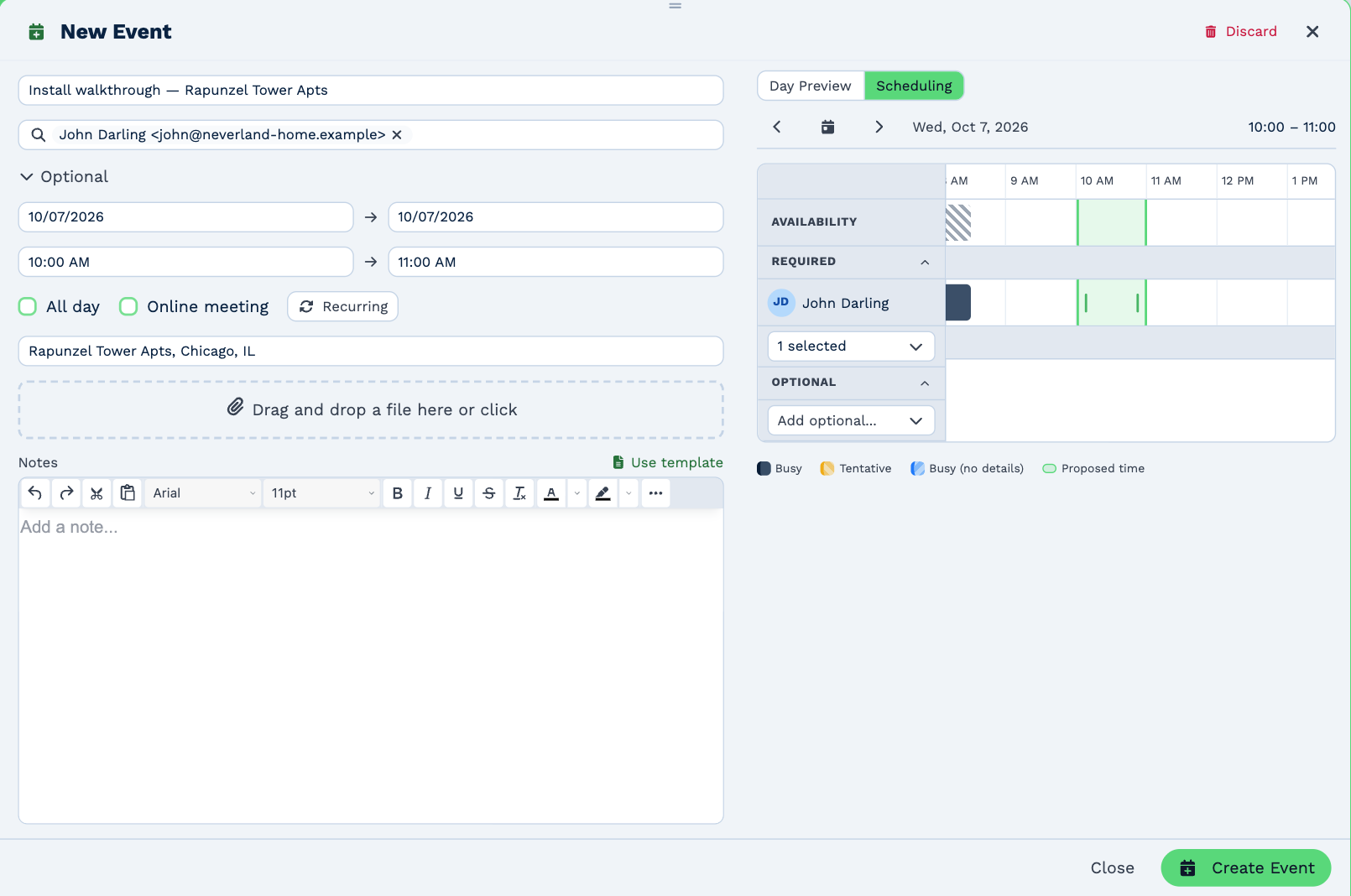
- The hour you've chosen is outlined in green. Working hours (8 AM to 6 PM) are shaded.
- Busy (no details) means the person is busy but you can't see what with.
- If the time clashes with someone's meeting, a red conflict count appears under the times. Click it to jump here.
- You can add guests here too, under Required and Optional.
Online meetings
Tick Online meeting to add a video link: Microsoft Teams if your calendar is connected to Outlook, Google Meet if it's connected to Google. The link goes in the invitation, and Join Meeting appears on the meeting in the calendar. It needs a connected calendar.
BaseCloud remembers whether you ticked it last time.
Make it repeat
Click Recurring, then choose how often. It starts from the meeting's own day — a Wednesday meeting repeats on Wednesdays, the 14th on the 14th — and follows the date if you move the meeting, until you pick a day yourself.
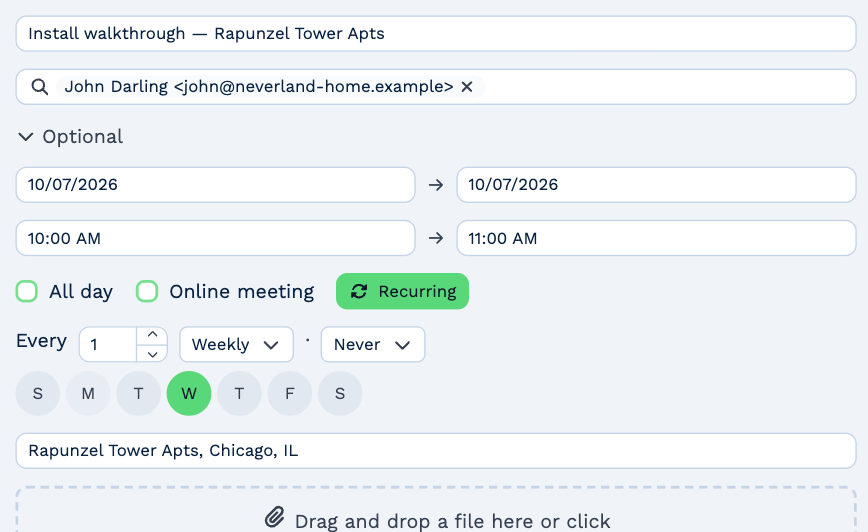
- Every — a number, then Daily, Weekly, Monthly or Yearly.
- Weekly — tick any other days it repeats on.
- Monthly — on a date (By day of month) or, say, the second Tuesday (By nth weekday).
- Yearly — on a date, or, say, the last Friday in March.
- When it ends — Never, After a number of meetings, or on an End date.
Attach files
Drag files onto the box under Location. Guests get them with the invitation.
Book on someone else's calendar
When you're looking at other people's calendars, On at the top of the panel chooses whose calendar the meeting goes on.
Book a meeting with a client
Open the client and choose New Meeting from the ⋯ menu. The calendar opens with the client's contacts at the top of the To list, ready to invite.
Drafts
A meeting you haven't created yet is kept as a draft in this browser — close the panel and it waits for you, with everything you'd entered. Discard throws it away.