Sage One Accounting
Overview
The Sage One Accounting task integrates BaseCloud CRM with Sage One (Sage Business Cloud Accounting), enabling automated creation and retrieval of quotes, tax invoices, and customer records in your Sage accounting system.
Key Features:
- 6 Actions: Create quotes/invoices, manage customers, fetch documents
- Basic Authentication: Username/password + company ID
- Document Number Management: Manual control with automatic sequence reset
- Item-Based Line Items: Links to Sage inventory items
- Tax Type Support: Configurable tax rates per line item
- South African Focus: Optimized for ZAR and SA tax regulations
Use Cases:
- Sync CRM deals to Sage quotes and invoices
- Automated customer creation from CRM contacts
- Invoice generation on service completion
- Quote workflows with Sage document management
- Item-based billing with Sage inventory tracking
Prerequisites
1. Sage One Account
- Active Sage One subscription (South Africa)
- Account with API access enabled
- Username and password for authentication
- Company ID (available in Sage account settings)
2. Sage API Configuration
BaseCloud Server Configuration:
- API Key must be configured server-side in
config/sage.js - Contact BaseCloud support to enable Sage integration
- API Base URL:
https://accounting.sageone.co.za/api/2.0.0/
3. Sage Inventory Setup
For Invoice/Quote Creation:
- Items must exist in Sage inventory with item codes
- Note exact item codes for use in line items
- Configure tax types in Sage (note numeric IDs)
4. Customer Records
For Invoice Creation:
- Customers must exist in Sage with customer IDs
- Use
find_customerorcreate_customeractions first - Note customer IDs for quote/invoice creation
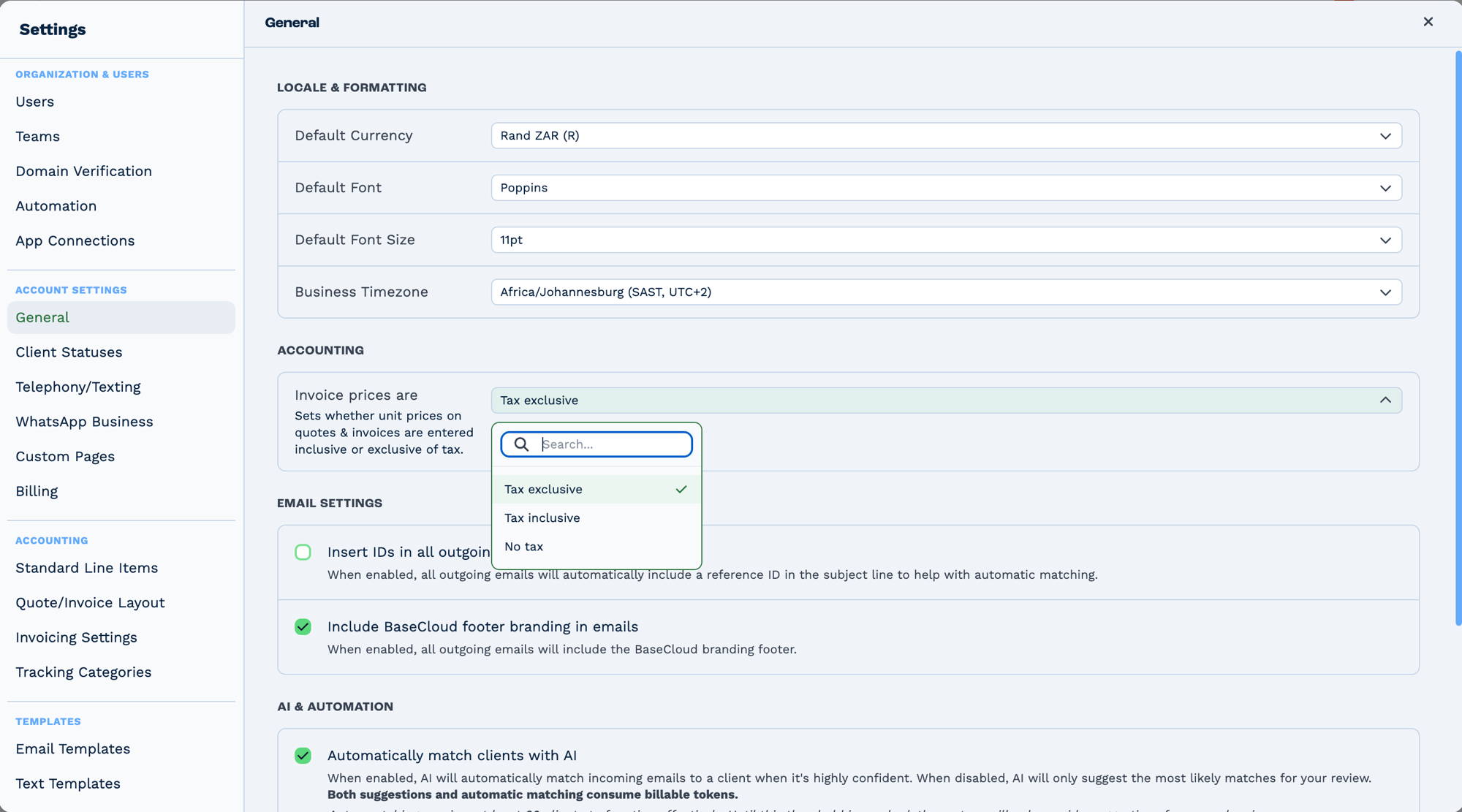
Tax handling is an account-wide setting, not a per-invoice one. Settings → General → Accounting
decides whether unit prices are entered Tax exclusive, Tax inclusive, or No tax — and it
governs how figures a task writes are interpreted. Sending a tax-exclusive amount into an account set
to tax-inclusive does not fail; it produces a quietly wrong total.
Outputs
Which fields appear depends on the action. Customer and invoice lookups populate their own groups.
Reference fields as {{task_<ID>_<field>}}.
| Field | Type | Notes |
|---|---|---|
output |
string | The Sage response body for the main call. Present only on some actions. |
response |
string | The Sage response body for an invoice call. Present only on some actions. |
customer_matched |
boolean | true when an existing customer was found. Present only on some actions. |
customer_matched_id |
string | The matched customer's Sage ID. Present only on some actions. |
customer_matched_name |
string | The matched customer's name. Present only on some actions. |
customer_matched_email |
string | The matched customer's email. Present only on some actions. |
invoice_matched |
boolean | true when an existing invoice was found. Present only on some actions. |
invoice |
string | The matched invoice record. Present only on some actions. |
Always emitted
| Field | Type | Notes |
|---|---|---|
run |
boolean | Whether the task succeeded. |
run_text |
string | What happened, including the reason on failure. |
Fields marked as action-dependent may be absent
This task does several different things depending on its action setting, and only the fields relevant to that action are emitted. Check a real run in the OUTPUT panel before referencing one downstream.
Configuration
Builder fields
The Field column is the label as it appears in the task builder; Key is the name the value is stored under and referenced by.
| Field | Key | Type | Default | Notes |
|---|---|---|---|---|
| Action | sage_action |
select | create_quote |
Options: Create Customer · Find Customer · Create Quote · Create Tax Invoice · Fetch Quote · Fetch Tax Invoice |
| Username | Username |
text | – | |
| Password | Password |
text | – | |
| Company ID | companyid |
text | – | |
| Customer Name | Customer Name |
text | – | Only shown when sage_action is create_customer |
| Customer Email | Customer Email |
text | – | Only shown when sage_action is create_customer |
| Customer Name | Customer Name |
text | – | Only shown when sage_action is find_customer |
| Customer ID | Customer Id |
text | – | |
| Document Number | Document Number |
text | – | |
| Customer Reference | Customer Reference |
text | – | |
| Expiry Date | Expiry Date |
text | – | Only shown when sage_action is create_quote |
| Due Date | Due Date |
text | – | Only shown when sage_action is create_tax_invoice |
| Tax Inclusive | Tax Inclusive |
select | false |
Options: No · Yes |
| Item Code(s) | Item Code |
text | – | |
| Tax Type ID(s) | Item TaxTypeId |
text | – | |
| Item Description(s) | Item Description |
text | – | |
| Item Comments (optional) | Item Comments |
text | – | |
| Item Quantity(ies) | Item Quantity |
text | – | |
| Unit Price(s) | Item Unit Price |
text | – | |
| Quote ID | Quote ID |
text | – | Only shown when sage_action is fetch_quote |
| Invoice ID | Invoice ID |
text | – | Only shown when sage_action is fetch_tax_invoice |
Action 1: create_quote
Create a quote in Sage One with line items.
| Field | Required | Description | Example |
|---|---|---|---|
| sage_action | Yes | Must be "create_quote" | create_quote |
| Username | Yes | Sage One username | accounting@company.com |
| Password | Yes | Sage One password | {{sage_password}} (use Variable) |
| Company ID | Yes | Sage company ID | 123456 |
| Expiry Date | Yes | Quote expiry (DD/MM/YYYY HH:mm) | 30/03/2024 17:00 |
| Customer ID | Yes | Sage customer ID (numeric) | 78901 |
| Document Number | Yes | Custom or sequential number | QU{{quote_number}} |
| Reference | Yes | Reference text | CRM Deal #{{deal_id}} |
| Tax Inclusive | Yes | "true" or "false" | true |
| Item Code | Yes | Pipe-delimited Sage item codes | CONSULT\|DESIGN\|DEV |
| Tax Type | Yes | Pipe-delimited tax type IDs | 2\|2\|2 |
| Item Description | Yes | Pipe-delimited descriptions | Consulting\|Design\|Development |
| Item Comment | No | Pipe-delimited comments (can be empty) | Phase 1\|\|Phase 2 |
| Item Quantity | Yes | Pipe-delimited quantities | 10\|5\|20 |
| Item Unit Price | Yes | Pipe-delimited prices (incl/excl based on Tax Inclusive) | 150.00\|200.00\|100.00 |
Output Variables:
task_21001_response  // Full Sage API response object
  {
    QuoteID: 123456,
    CustomerId: 78901,
    DocumentNumber: "QU001",
    Reference: "CRM Deal #4567",
    Total: 3750.00,
    TotalIncl: 4312.50,
    Lines: [...],
    Date: "2024-01-15T00:00:00",
    ExpiryDate: "2024-03-30T17:00:00"
  }
How It Works:
- Get Current Document Number:
- Calls
/SystemSettings/GetDocumentNumber?documentTypeId=1(Quotes) - Stores original
DocumentNumberandNextNumberfor reset - Lookup Item Selection IDs:
- For each Item Code: GET
/Item/Get?code={code}&companyid={companyId} - Extracts
SelectionId(internal Sage item ID) - Fails if any item code not found
- Validate Line Items:
- All pipe-delimited arrays must be same length
- Exception: Item Comment can be shorter (auto-filled with empty strings)
- Build Quote Object:
{ ID: 0, // 0 for new quotes Date: today, ExpiryDate: provided expiry date (ISO format), CustomerId: numeric customer ID, DocumentNumber: provided document number, Reference: reference text, Inclusive: true/false, Lines: [ { ID: 0, SelectionId: from item lookup, TaxTypeId: numeric tax type, Description: item description, Comments: item comment (or empty), Quantity: decimal, UnitPriceInclusive: price (if Inclusive=true), UnitPriceExclusive: price (if Inclusive=false) } ] } - Create Quote:
- POST to
/Quote/savewith Authorization header (Basic Auth) - Returns full quote object with
QuoteID - Reset Document Number:
- POST
/SystemSettings/SetDocumentNumberback to original - Prevents Sage auto-incrementing its own sequence
Error Scenarios:
- "Failed to get current document number" - Sage API access issue or invalid credentials
- "Failed to get Item Code {code}" - Item doesn't exist in Sage inventory
- "Sage line items length mismatch" - Array lengths don't match
- "Failed to create quote" - Sage API error (check
responsefor details)
Action 2: create_tax_invoice
Create a tax invoice in Sage One. Configuration and process identical to create_quote with these differences:
| Field | Value/Difference |
|---|---|
| sage_action | create_tax_invoice |
| Document Type ID | 2 (Tax Invoices instead of 1 for Quotes) |
| API Endpoint | /TaxInvoice/save |
| Due Date | Uses today's date (not ExpiryDate) |
Output Variables:
task_21001_response  // Full Sage API response
  {
    TaxInvoiceID: 234567,
    CustomerId: 78901,
    DocumentNumber: "INV001",
    Reference: "CRM Deal #4567",
    Total: 3750.00,
    TotalIncl: 4312.50,
    Lines: [...],
    Date: "2024-01-15T00:00:00",
    DueDate: "2024-01-15T00:00:00"
  }
All other fields, validation, and processes same as create_quote.
Action 3: create_customer
Create a new customer in Sage One.
| Field | Required | Description | Example |
|---|---|---|---|
| sage_action | Yes | Must be "create_customer" | create_customer |
| Username | Yes | Sage One username | accounting@company.com |
| Password | Yes | Sage One password | {{sage_password}} |
| Company ID | Yes | Sage company ID | 123456 |
| Customer Name | Yes | Customer name | {{client_company_name}} |
| Customer Email | Yes | Customer email address | {{client_email}} |
Output Variables:
task_21001_response  // Full Sage customer object
  {
    CustomerID: 78901,
    Name: "Acme Corporation",
    Email: "billing@acme.com",
    Created: "2024-01-15T10:30:00",
    CompanyId: 123456
  }
How It Works:
- POST to
/customer/save - Body:
{ Name: "...", Email: "..." } - Returns complete customer object including
CustomerID
Best Practice:
- Use
find_customerfirst to avoid duplicates - Store
{{task_21001_response.CustomerID}}in CRM for future use
Action 4: find_customer
Search for existing customer in Sage One by name.
| Field | Required | Description | Example |
|---|---|---|---|
| sage_action | Yes | Must be "find_customer" | find_customer |
| Username | Yes | Sage One username | accounting@company.com |
| Password | Yes | Sage One password | {{sage_password}} |
| Company ID | Yes | Sage company ID | 123456 |
| Customer Name | Yes | Exact customer name | {{client_company_name}} |
Output Variables:
task_21001_found; // true or false
task_21001_customer_id; // Sage customer ID (if found)
task_21001_customer_name; // Customer name (if found)
task_21001_customer_email; // Customer email (if found)
How It Works:
- GET
/Customer/Get?name={name}&companyid={companyId} - URL-encodes special characters:
&→%26- Space →
%20 - Other special chars encoded
- Returns customer object if exact match found
Search Behavior:
- Exact match only (case-insensitive)
- Special characters properly encoded
- Returns first match if multiple exist
Action 5: fetch_quote
Retrieve existing quote from Sage One by document number.
| Field | Required | Description | Example |
|---|---|---|---|
| sage_action | Yes | Must be "fetch_quote" | fetch_quote |
| Username | Yes | Sage One username | accounting@company.com |
| Password | Yes | Sage One password | {{sage_password}} |
| Company ID | Yes | Sage company ID | 123456 |
| Document Number | Yes | Quote document number | QU001 |
Output Variables:
task_21001_found      // true or false
task_21001_response   // Full Sage quote object (if found)
  {
    QuoteID: 123456,
    DocumentNumber: "QU001",
    CustomerId: 78901,
    Total: 3750.00,
    Lines: [...],
    // ... complete quote details
  }
How It Works:
- GET
/Quote/Get?documentNumber={number}&companyid={companyId} - Returns full quote object if found
- Sets
task_21001_found=falseif not found
Action 6: fetch_tax_invoice
Retrieve existing tax invoice from Sage One by document number.
| Field | Required | Description | Example |
|---|---|---|---|
| sage_action | Yes | Must be "fetch_tax_invoice" | fetch_tax_invoice |
| Username | Yes | Sage One username | accounting@company.com |
| Password | Yes | Sage One password | {{sage_password}} |
| Company ID | Yes | Sage company ID | 123456 |
| Document Number | Yes | Invoice document number | INV001 |
Output Variables:
task_21001_found      // true or false
task_21001_response   // Full Sage tax invoice object (if found)
  {
    TaxInvoiceID: 234567,
    DocumentNumber: "INV001",
    CustomerId: 78901,
    Total: 4312.50,
    Lines: [...],
    // ... complete invoice details
  }
How It Works:
- GET
/TaxInvoice/Get?documentNumber={number}&companyid={companyId} - Returns full invoice object if found
- Sets
task_21001_found=falseif not found
Real-World Examples
Raise an invoice when a deal is won
CRM Trigger  (status changed to "Won")
  └─ Match to Client   look the client up
      └─ Sage          create a tax invoice for {{task_15001_match_client_name}}
Store the Sage customer ID on the client as a custom field so this step can map it straight in.
Create the Sage customer the first time you invoice them
CRM Trigger
  └─ Sage              customer lookup by email
      └─ If Statement  {{task_21001_customer_matched}} is false
          └─ Sage      create the customer
customer_matched, customer_matched_id and customer_matched_name tell you whether the
customer already exists, so you only create when you need to.
Email the invoice once Sage has it
Troubleshooting
Error: "Failed to get current document number"
Cause: Cannot retrieve document number sequence from Sage API
Solutions:
-
Verify credentials (Username, Password, Company ID) are correct
-
Check Sage API access is enabled for account
-
Test credentials manually: Visit
https://accounting.sageone.co.za/api/2.0.0/SystemSettings/GetDocumentNumber?documentTypeId=1&companyid={companyId}with Basic Auth -
Contact Sage support if API access issues persist
-
Ensure BaseCloud server has Sage API key configured
Error: "Failed to get Item Code {code}"
Cause: Item code doesn't exist in Sage inventory
Solutions:
-
Verify item code exists: Log into Sage → Inventory → Items → Search for code
-
Check exact spelling and case (usually case-insensitive but whitespace matters)
-
Create missing items in Sage first
-
Use standardized item codes stored in CRM or database
-
Validate item codes before invoice creation:
Error: "Sage line items length mismatch"
Cause: Pipe-delimited arrays have different numbers of items
Solutions:
- Count pipes in each field - must be equal:
Item Code: "A|B|C"        // 3 items
Item Quantity: "1|2|3"    // 3 items
Item Unit Price: "10|20"  // 2 items ✗ MISMATCH
-
Use Formatter task to validate array lengths before Sage task
-
Exception: Item Comment can be shorter (auto-filled with empty strings)
-
Debug: Output arrays to Workflow Note to check lengths
-
Build every line-item list from the same source so the arrays stay the same length
Error: "Failed to create quote/invoice"
Cause: Sage API rejected document creation
Solutions:
-
Check
{{task_21001_response}}for Sage error details -
Common issues:
- Customer ID doesn't exist (use find_customer first)
- Tax Type ID invalid (check Sage tax type configuration)
- Document number already exists (use unique numbers)
- Date format incorrect (must be DD/MM/YYYY HH:mm)
- Negative quantities or prices
-
Validate all required fields are populated
-
Test with minimal invoice (1 line item) first
-
Ensure Tax Inclusive matches price format (inclusive vs exclusive)
Customer Not Found with find_customer
Cause: Exact name match not found in Sage
Solutions:
-
Check for typos or extra spaces in customer name
-
Sage search is exact match - "Acme Corp" ≠ "Acme Corporation"
-
Use standardized naming in CRM to match Sage
-
Create customer first if not found:
- Check special characters are properly handled (&, commas, etc.)
Document Number Sequence Issues
Cause: Manual document number conflicts with Sage auto-increment
Solutions:
- Use unique prefixes for CRM-generated documents:
- CRM quotes:
CRM-QU-001 - CRM invoices:
CRM-INV-001 -
Sage internal:
QU001,INV001 -
Query max document number before creation:
-
Document number reset may fail - check Sage permissions
-
Consider using Sage's auto-numbering (pass empty string or omit)
Authentication Failures
Cause: Invalid Basic Auth credentials
Solutions:
-
Verify Username and Password are correct (test in Sage web UI)
-
Check Company ID is numeric and correct
-
Use Variable task to securely store credentials (don't hardcode password)
-
Ensure Sage API key configured on BaseCloud server
-
Check account has API access enabled (may require premium Sage plan)
-
Test with curl:
Tax Type ID Confusion
Cause: Incorrect or unknown tax type IDs
Solutions:
-
Tax Type IDs are numeric (e.g., 1, 2, 3) and company-specific
-
Standard South African VAT: Usually ID 2 (15%)
-
Find your tax type IDs:
- Log into Sage One
- Navigate to Settings → General → Accounting
-
Note numeric IDs (may need Sage support for API IDs)
-
Create reference table in CRM:
- Use consistent tax types across all line items for simplicity
Best Practices
Credential Management
- Secure Storage:
- Store Sage password in CRM Variables (encrypted)
- Use
{{sage_password}}reference in tasks -
Never hardcode credentials in automation
-
Access Control:
- Use dedicated Sage user for API access
- Limit permissions to necessary operations
-
Rotate password regularly
-
Company ID:
- Store as CRM setting or owner-level variable
- Use
{{owner_sage_company_id}}for multi-tenant setups
Item Code Standardization
- CRM Item Master:
- Maintain item code lookup table in CRM database
- Map CRM product IDs to Sage item codes
-
Include descriptions, prices, tax types
-
Validation:
- Pre-validate item codes exist in Sage before invoice creation
-
Alert users to missing items early in workflow
-
Naming Convention:
- Use uppercase, short codes (e.g., CONSULT, DESIGN, DEV)
- Avoid special characters
- Keep codes consistent across CRM and Sage
Customer Synchronization
- Proactive Sync:
- Create Sage customer when CRM client created (if applicable)
-
Store
sage_customer_idin CRM client record immediately -
Duplicate Prevention:
- Always use
find_customerbeforecreate_customer -
Check CRM for existing
sage_customer_idfirst -
Name Standardization:
- Use consistent naming format (e.g., always "Company Name (Pty) Ltd")
- Strip special characters that may cause search issues
Document Numbering
- Unique Prefixes:
- Distinguish CRM-generated docs from Sage internal docs
-
Example:
CRM-INV-{{client_id}}-{{timestamp}} -
Sequential Safety:
- Don't rely on Sage auto-increment for CRM workflows
-
Generate unique numbers in CRM (timestamp, UUID, client ID combo)
-
Reference Field:
- Always populate Reference field with CRM context
- Example:
Deal #{{deal_id}} - {{deal_name}} - Enables easy cross-referencing between systems
Error Handling
- Validation Before Creation:
- Check customer exists in Sage
- Validate all item codes
- Verify array lengths match
-
Test date format
-
If Conditions:
- Wrap Sage actions in error-checking conditions
- Provide fallback workflows for failures
-
Alert users to errors with actionable details
-
Logging:
- Always create Workflow Notes for Sage actions
- Include Sage IDs, document numbers, amounts
- Log errors with full context for debugging
Performance Optimization
- Batch Operations:
- Group multiple services into single invoice (see Example 4)
-
Avoid creating separate invoice per line item
-
Caching:
- Cache item lookups in CRM to reduce Sage API calls
-
Store frequently-used item Selection IDs
-
Off-Peak Scheduling:
- Schedule bulk operations (monthly billing) during off-peak hours
- Avoid simultaneous Sage API calls (use delays in loops)
FAQ
Q: Can I edit Sage quotes/invoices from BaseCloud?
A: No, Sage API doesn't support document updates. Options:
- Create new document with revised details
- Manually edit in Sage One web UI
- Void and recreate via Sage
Q: How do I handle quotes that are never accepted?
A: Sage quotes don't auto-expire:
- Set up CRM reminder workflow at expiry date
- Manually void old quotes in Sage
- Or leave open (doesn't affect accounting until invoiced)
Q: Can I get Sage quote/invoice PDF from BaseCloud?
A: No, Sage API doesn't return PDFs. Workarounds:
- Access Sage One web UI to download PDF
- Use Sage's email functionality to send to client
- Generate parallel PDF in BaseCloud (Type 22 BaseCloud Accounting)
Q: What tax types are available?
A: Tax types are company-specific in Sage. Common South African setup:
- Type 1: Tax Exempt (0%)
- Type 2: Standard VAT (15%)
- Type 3: Zero-Rated (0% but VAT-registered)
Contact Sage support for your specific tax type IDs.
Q: Can I use Sage with currencies other than ZAR?
A: Sage One SA is optimized for ZAR. Multi-currency support limited:
- Check your Sage plan for multi-currency features
- May require manual currency handling in Sage
- Consider currency conversion in CRM before passing to Sage
Q: How do I handle discounts?
A: Sage API doesn't have dedicated discount field. Options:
- Discount Line Item: Add negative price line item
- Pre-calculate: Subtract discount from unit price before creation
- Manual: Apply discount in Sage UI after creation
Q: Can I delete Sage documents from BaseCloud?
A: No, Sage API doesn't support document deletion. Solutions:
- Void documents in Sage web UI
- Contact Sage support for deletion assistance
- Use naming convention to mark obsolete (e.g., "VOID - ")
Q: What happens if document number already exists?
A: Sage API returns error. Solutions:
- Use unique numbering scheme (timestamp, UUID)
- Implement collision detection with retry logic
- Use Sage auto-numbering (but loses CRM reference tracking)
Q: How do I sync Sage invoices back to CRM?
A: Use fetch_tax_invoice or fetch_quote actions:
- Timer Trigger: Periodically fetch invoices by document number
- Store Sage data in CRM (status, amounts, dates)
- Update client records or dashboards
For real-time sync, consider Sage webhooks (if available in your plan).
Q: Can I create credit notes?
A: Sage API doesn't support credit notes via BaseCloud. Options:
- Create manually in Sage One web UI
- Create negative invoice as workaround (not ideal)
- Request credit note API support from Sage
Q: How do I handle partial payments?
A: Sage tracks payment status internally. From BaseCloud:
- Use
fetch_tax_invoiceto check payment status - Update CRM client record based on Sage status
- Payment recording happens in Sage (not via API)
Q: What's the API rate limit?
A: Sage One API has rate limits (varies by plan). Best practices:
- Add delays between bulk operations (use Delay task)
- Avoid parallel API calls to same Sage account
- Implement retry logic for rate limit errors (429 status)
Q: Can I create recurring invoices?
A: Not directly via API. Workarounds:
- CRM Recurring Workflow:
- Timer Trigger: Monthly/weekly
- Create invoice via Sage task
-
Store in CRM for tracking
-
Sage Internal Recurring:
- Set up recurring invoices in Sage One UI
- Fetch via API for CRM sync
Q: How do I troubleshoot API errors?
A: Check {{task_21001_response}} for error details:
Response structure:
{
  StatusCode: 400,
  Message: "Descriptive error message",
  ModelState: {
    "Field": ["Validation error details"]
  }
}
Common status codes:
- 400: Bad request (validation error)
- 401: Authentication failed
- 404: Resource not found
- 500: Sage server error
Related Tasks
- BaseCloud Accounting - Internal alternative to Sage
- Xero - Alternative accounting integration
- Email - Send invoice notifications
- Loop - Bulk invoice creation
- If Statement - Handle customer creation logic
- Workflow Note - Log Sage actions
- Timer Trigger - Schedule recurring billing
- CRM Trigger - Trigger on deal/client changes
Technical Details
- Type ID: 21
- Function:
taskSage()in automationService.js (lines 4446-5028) - API: Sage One Accounting API v2.0.0
- Authentication: HTTP Basic Auth (Username:Password)
- Base URL:
https://accounting.sageone.co.za/api/2.0.0/ - Output Prefix:
task_21001_* - Document Types: 1=Quote, 2=Tax Invoice
- Geographic Focus: South Africa (ZAR, VAT compliance)