Contacts
Contacts are the people at a client. Open a client and choose the Contacts tab.
Who can do this
Anyone with CRM Access who can see the client.
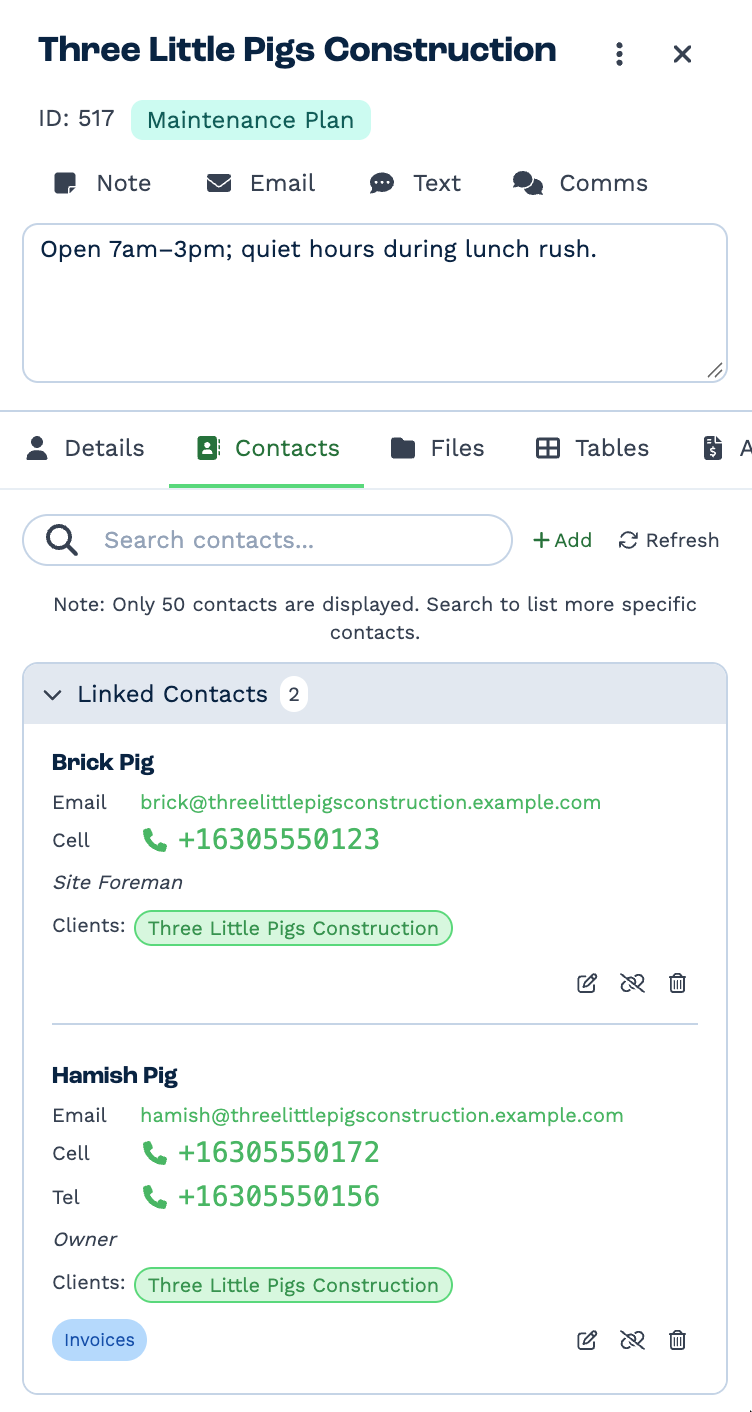
The tab has two lists:
- Linked Contacts — the people at this client.
- Other Contacts — people in your account who aren't linked to this client yet. Use Search contacts... to find someone, then link them here.
Only 50 contacts are shown at a time — search to narrow the list.
Badges on a contact:
| Badge | Means |
|---|---|
| Invoices | The contact is marked to receive quotes and invoices. |
| No Email | Unsubscribed from bulk emails. |
| No Text | Unsubscribed from bulk texts. |
| Linked User | The contact is also a user of your BaseCloud account. |
A contact's Clients: line shows every client they belong to. Click another client's name to open it.
Add a contact
- Click Add.
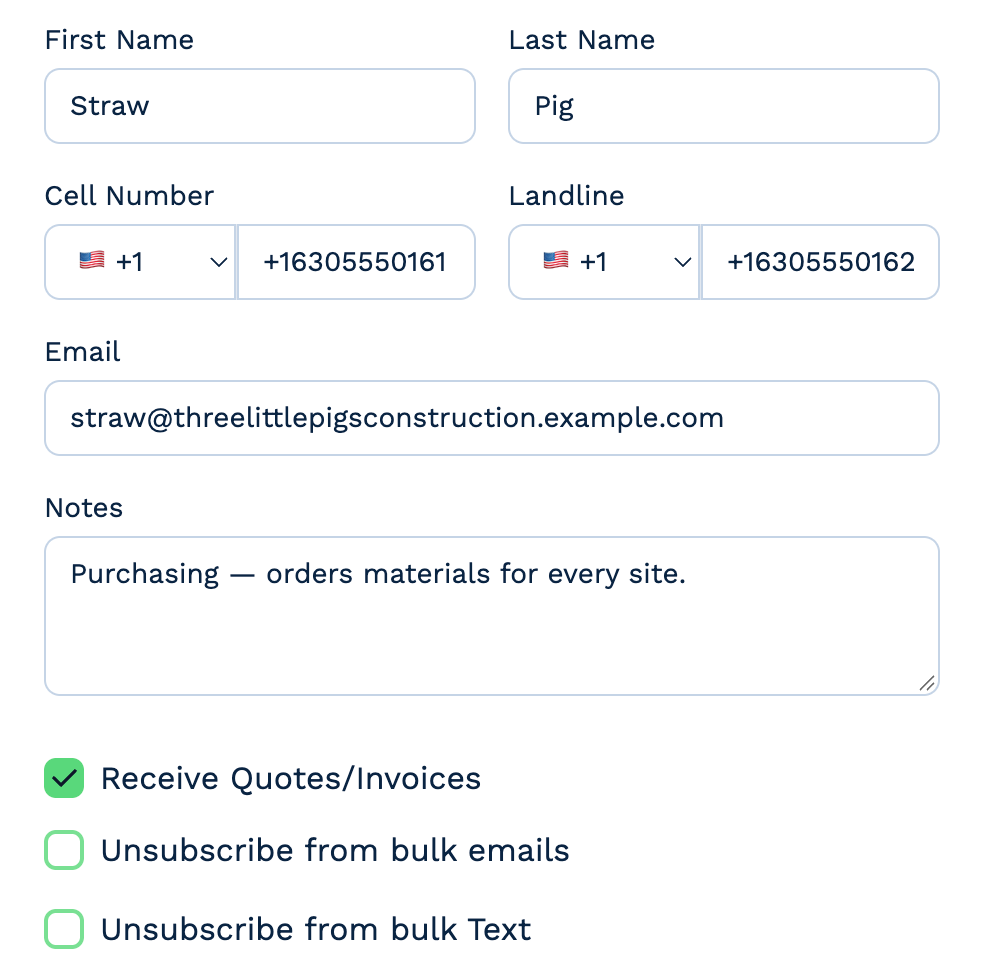
- Fill in what you know: First Name, Last Name, Cell Number, Landline, Email and Notes. Pick the country for phone numbers — BaseCloud checks the number is valid.
- Choose their preferences:
- Receive Quotes/Invoices
- Unsubscribe from bulk emails
- Unsubscribe from bulk Text
- Click Add Contact.
Edit a contact
Click the pencil (Edit) on the contact's card, change the details, and click Save Changes. A contact can belong to several clients — your change shows on all of them.
Linked users
A Linked User contact mirrors someone who uses your BaseCloud account. Their name, email and phone come from their user profile and can't be changed here, but you can still change notes, preferences and custom fields.
Unsubscribe a contact
Edit the contact and tick Unsubscribe from bulk emails or Unsubscribe from bulk Text. They are left out of bulk sends from then on. You can still email or text them one to one.
Link a contact to another client
Someone who works for two of your clients only needs to be added once.
- Find them under Other Contacts on the client you want to add them to.
- Click Link to this client, choose the client, and click Link to Client.
Unlink or delete a contact
Both are icons on the contact's card:
- Unlink (the broken link) removes the contact from this client only. They stay in your account and can be linked again later.
- Delete (the bin) removes the contact for good, from every client they belong to.
Linked users can't be unlinked or deleted here — remove the user first.