Notes & Inbox
A workflow note is a piece of work about a client that's assigned to one or more people — "call Goldie back about the quote", "send the invoice", "check the boiler room". It has a priority and a due date, and it stays open until the people it's assigned to mark it done.
The Inbox brings together everything that needs you: your notes once they're due, and the emails, texts, WhatsApp messages and calls that arrive for your clients. Open Notes in the left panel to see it.
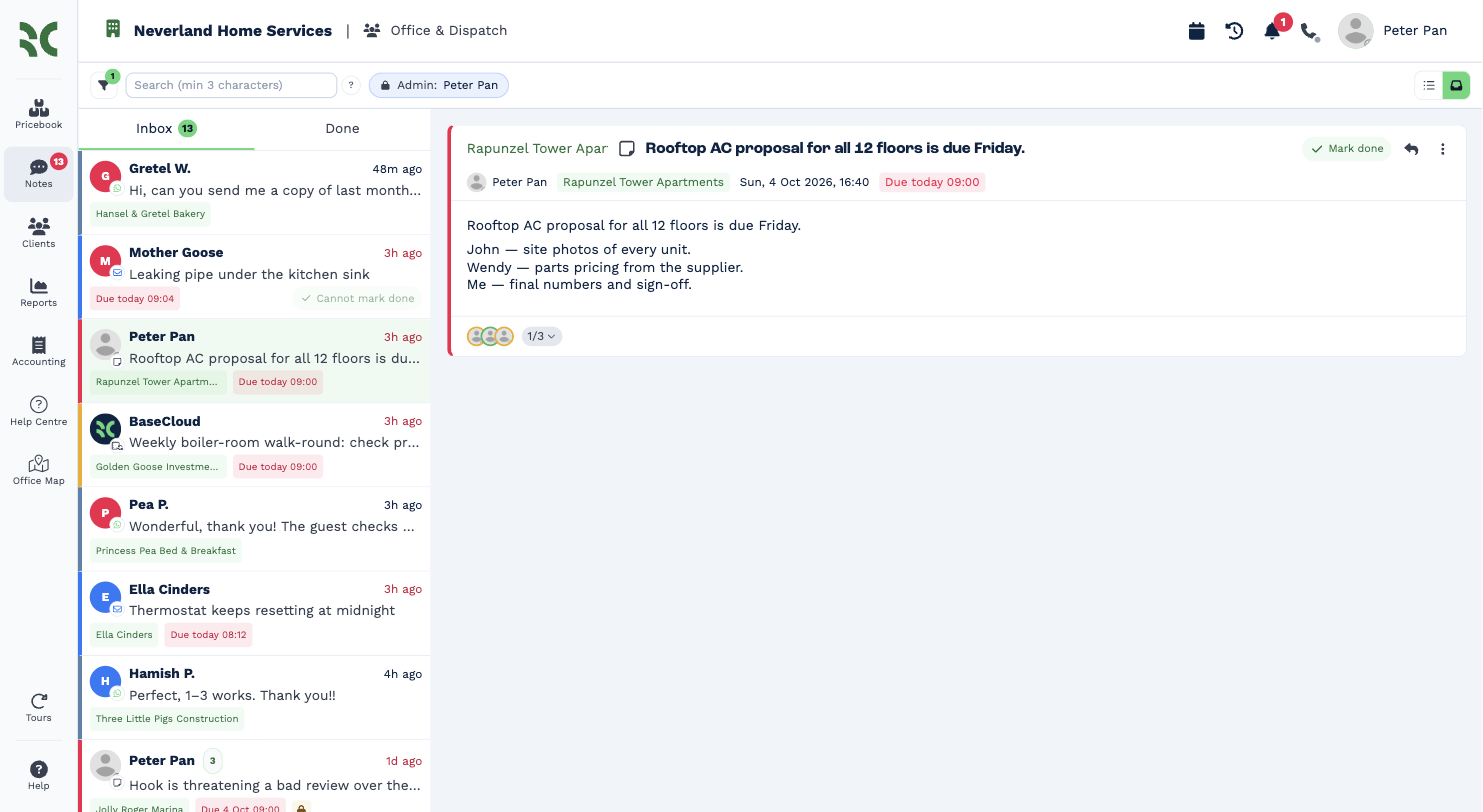
What turns up in your Inbox
| Item | When it appears |
|---|---|
| A note assigned to you | From its due date and time until you mark it done |
| An email from a client | When it arrives, assigned to the client's responsible manager |
| A text or WhatsApp conversation | While it's open — assigned to you, or to nobody yet |
| A call | Missed calls and voicemails, assigned to whoever the call was for |
| A repeat note | Each time a recurring note comes round |
Notes due in the future stay out of the way until they're due. The red number on Notes in the left panel is how many of your items are overdue — it's also shown in your browser tab.
Who can do this
You need CRM Access to open Notes. Without View All Clients, you only see items about the clients you manage, plus items that don't belong to a client yet.
In this section
- The Inbox — the list, the Done tab, filters and search
- Add a note — assign work, set a priority and a due date
- Mark notes done — on your own, with several people, or many at once
- Note actions — move, forward, link, delete and restore
- Sensitive notes — keep notes private to the people involved
- Unmatched emails and calls — link them to the right client
- Shared mailboxes — claim email sent to a team address
- Text and WhatsApp conversations — assign and close chats
- Recurring notes — work that comes round every week, month or year