Set up invoicing
The settings for quotes and invoices are under Settings → Accounting.
How documents look
Settings → Quote/Invoice Layout holds your layout sets. A layout set is a design for the PDF, plus the online payment settings that go with it. Most accounts need one; add more for different brands or kinds of work. Each quote and invoice is printed with the layout set chosen on it.
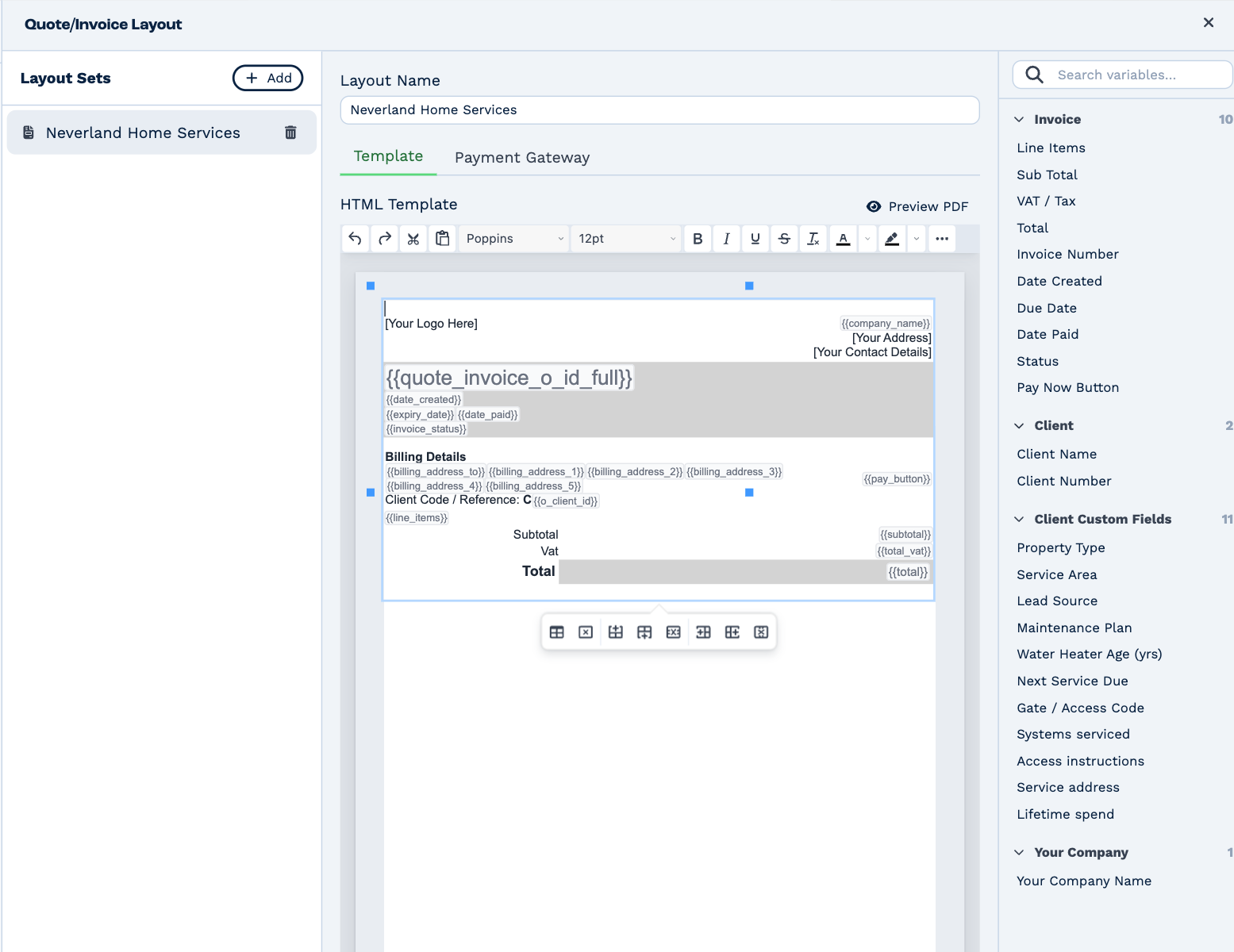
- Add makes a new layout set from the standard design. Adding one needs Create Invoices.
- Layout Name is how the set appears in the Layout list on a document.
- Template is the design itself. Click a variable on the right to put it in — Line Items, Total, Invoice Number, Pay Now Button, the client's name and number, any of your client custom fields, and your company name. Changes save as you type.
- Preview PDF shows the design filled in with sample values.
Online payments
Let clients pay invoices by card through Stripe or Paystack.
- Connect your Stripe or Paystack account under Settings → App Connections, and authorise it.
- In Settings → Quote/Invoice Layout, open the layout set and its Payment Gateway tab, and choose the connection.
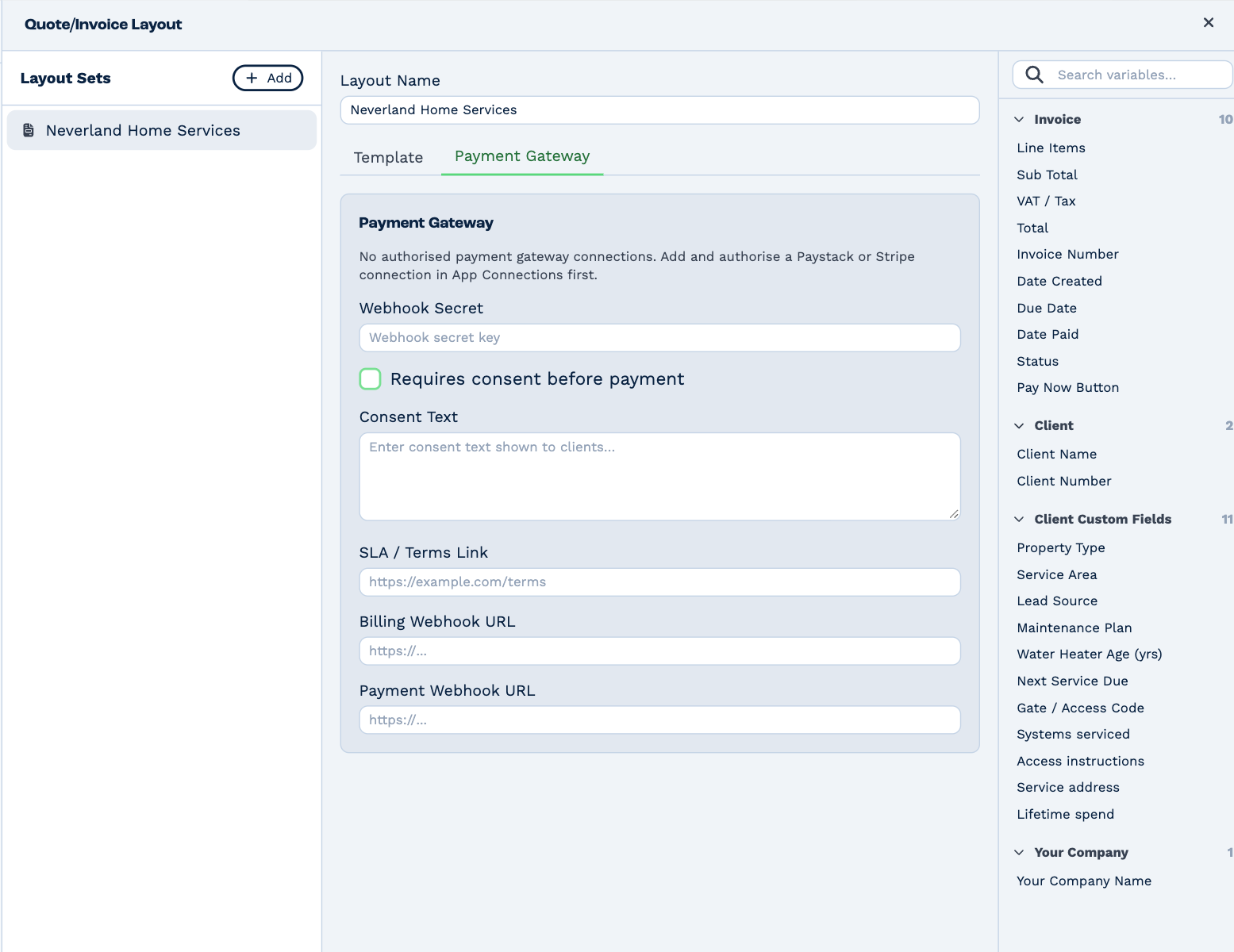
| Setting | What it does |
|---|---|
| Webhook Secret | The secret your payment provider gives you, so BaseCloud can trust its payment messages. |
| Requires consent before payment | The client must agree to your Consent Text before paying. |
| SLA / Terms Link | A link to your terms, shown on the payment page. |
| Billing Webhook URL | Called when a client saves a new card. |
| Payment Webhook URL | Called when an invoice is paid online. |
Clients then pay from the invoice's payment link or its Pay Now button.
Settings → Invoicing Settings shows the same payment settings on one page, for your newest layout set.
Tax and currency
Under Settings → General:
- Invoice prices are — whether the prices you type include tax: Tax exclusive, Tax inclusive or No tax. New documents and recurring invoices start with this; you can change it on each document.
- Default Currency — the currency amounts are shown in.
Tracking categories
Tracking categories sort invoice lines for reporting — by department, region or job type — and carry through to Xero. Settings → Tracking Categories holds up to two, each with as many options as you need.
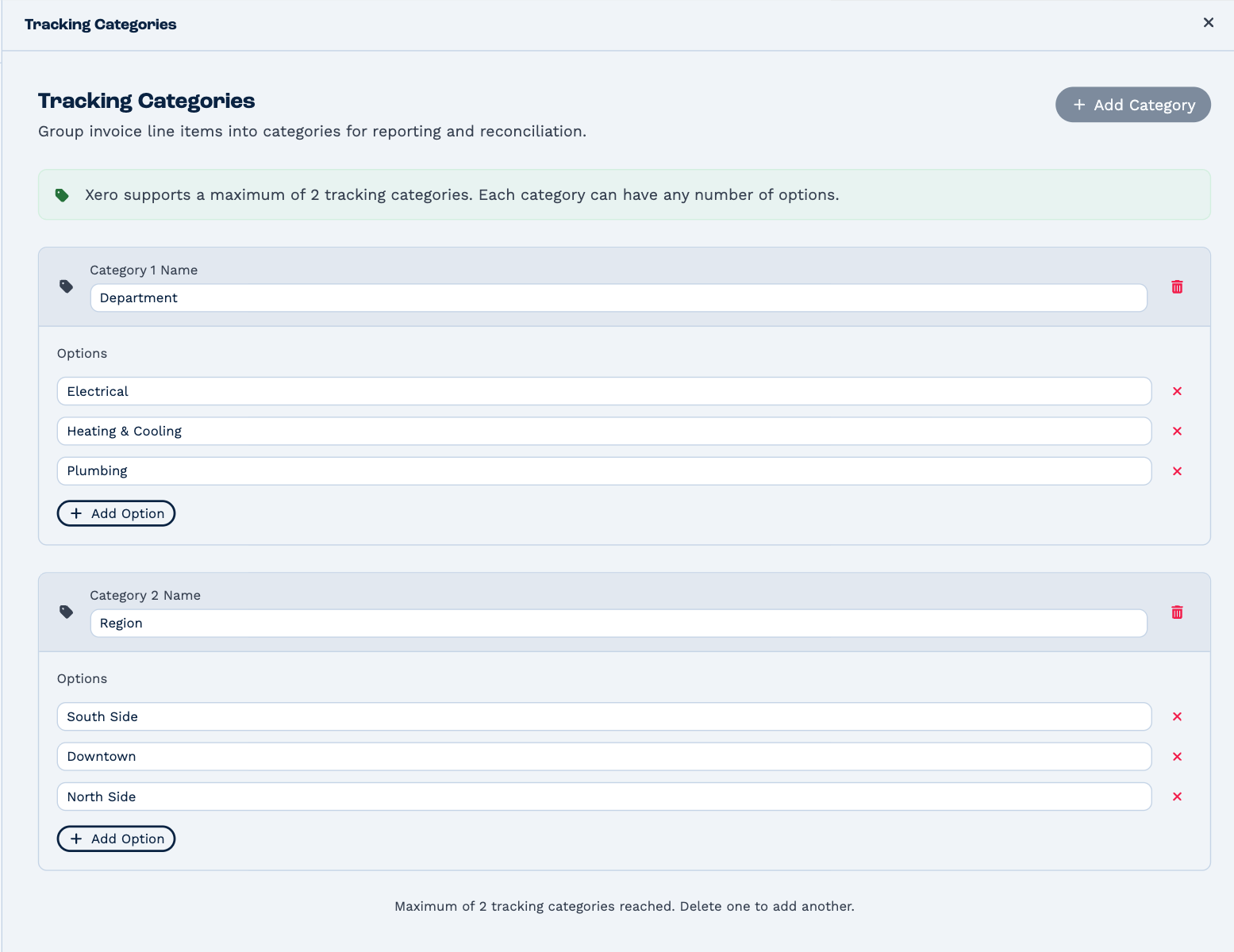
Click Add Category, name it, and add its options. Once you have one, each line on a quote or invoice gets a column for it.