CRM Trigger
Overview
The CRM Trigger automatically starts workflows when specific events occur in your BaseCloud CRM. This creates powerful automation based on contact behavior, data changes, and CRM activities without any manual intervention.
When to use this trigger:
- Send welcome emails when new contacts are created
- Notify team members when contact data changes
- Trigger follow-ups based on contact status changes
- Start workflows when tags are added or removed
- Automate actions when custom field values change
- React to deal stage changes
Quick Start
Builder fields
The Field column is the label as it appears in the task builder; Key is the name the value is stored under and referenced by.
| Field | Key | Type | Default | Notes |
|---|---|---|---|---|
| Trigger Type | trigger_type |
select | 1 |
Options: Client Created · Client Field Change · Client Field Button Click · Contact Field Change · Quote / Invoice Change · Workflow Note Change · Custom Table: Row Added · Custom Table: Cell Change · Custom Table: Cell Button Click |
| Target Field | var_id |
select | – | Options: Client/Company Name · Client Status · Responsible Manager · Company Address: Line 1 · Company Address: Line 2 · Company Address: Line 3 · Company Address: Line 4 · Company Address: Line 5 · Billing Address: Addressed To · Billing Address: Line 1 · Billing Address: Line 2 · Billing Address: Line 3 · Billing Address: Line 4 · Billing Address: Line 5. Only shown when trigger_type is 1 |
| Target Column | var_id |
select | – | Only shown when trigger_type is 2 |
| Invoice Event | var_id |
select | – | Options: Quote/Invoice Created · Quote/Invoice Edited · Quote/Invoice Deleted · Quote/Invoice Marked as paid · Quote/Invoice Marked as unpaid. Only shown when trigger_type is 3 |
| Target Contact Field | var_id |
select | – | Only shown when trigger_type is 5 |
| Target Table | var_id |
select | – | Only shown when trigger_type is 6 |
| Note Event | var_id |
select | – | Options: Workflow Note Created · Workflow Note Marked as done. Only shown when trigger_type is 7 |
| Button Field | var_id |
select | – | Only shown when trigger_type is 8 |
| Button Column | var_id |
select | – | Only shown when trigger_type is 9 |
- Create a new workflow
- Add a CRM Trigger as the first task
- Select the trigger event type (contact created, updated, etc.)
- Configure event conditions (optional filters)
- Save and enable the workflow
- The workflow runs automatically when the event occurs
Trigger Event Types
Contact Created
Triggers when a new contact is added to your CRM.
Example Use Cases:
- Send welcome email to new contacts
- Assign to sales rep
- Add to email marketing list
- Create follow-up task
Contact Updated
Triggers when any contact field is modified.
Optional Filters:
- Specific field changed (e.g., only when phone number changes)
- Field changed to specific value (e.g., status changed to "Customer")
- Any field changed on specific contact
Example Use Cases:
- Notify team when deal value changes
- Update external systems when contact details change
- Send re-engagement email when status changes
Tag Added
Triggers when a specific tag is added to a contact.
Configuration:
- Select which tag(s) to monitor
- Trigger on any tag or specific tags only
Example Use Cases:
- Start nurture sequence when "Lead" tag added
- Notify manager when "VIP" tag added
- Send onboarding email when "New Customer" tag added
Tag Removed
Triggers when a tag is removed from a contact.
Example Use Cases:
- Remove from email list when "Subscribed" tag removed
- Alert team when "Active" tag removed
- Update external systems
Field Value Changed
Triggers when a specific custom field reaches a certain value.
Configuration:
- Select the field to monitor
- Define the condition (equals, contains, greater than, etc.)
- Set the target value
Example:
- Trigger when
lifetime_value > 10000 - Trigger when
lead_score >= 80 - Trigger when
status = "Hot Lead"
Deal Stage Changed
Triggers when a deal moves to a specific pipeline stage.
Configuration:
- Select which pipeline
- Select which stage(s) to monitor
Example Use Cases:
- Send proposal when deal reaches "Proposal" stage
- Notify team when deal closes (moves to "Won")
- Update accounting system when deal is won
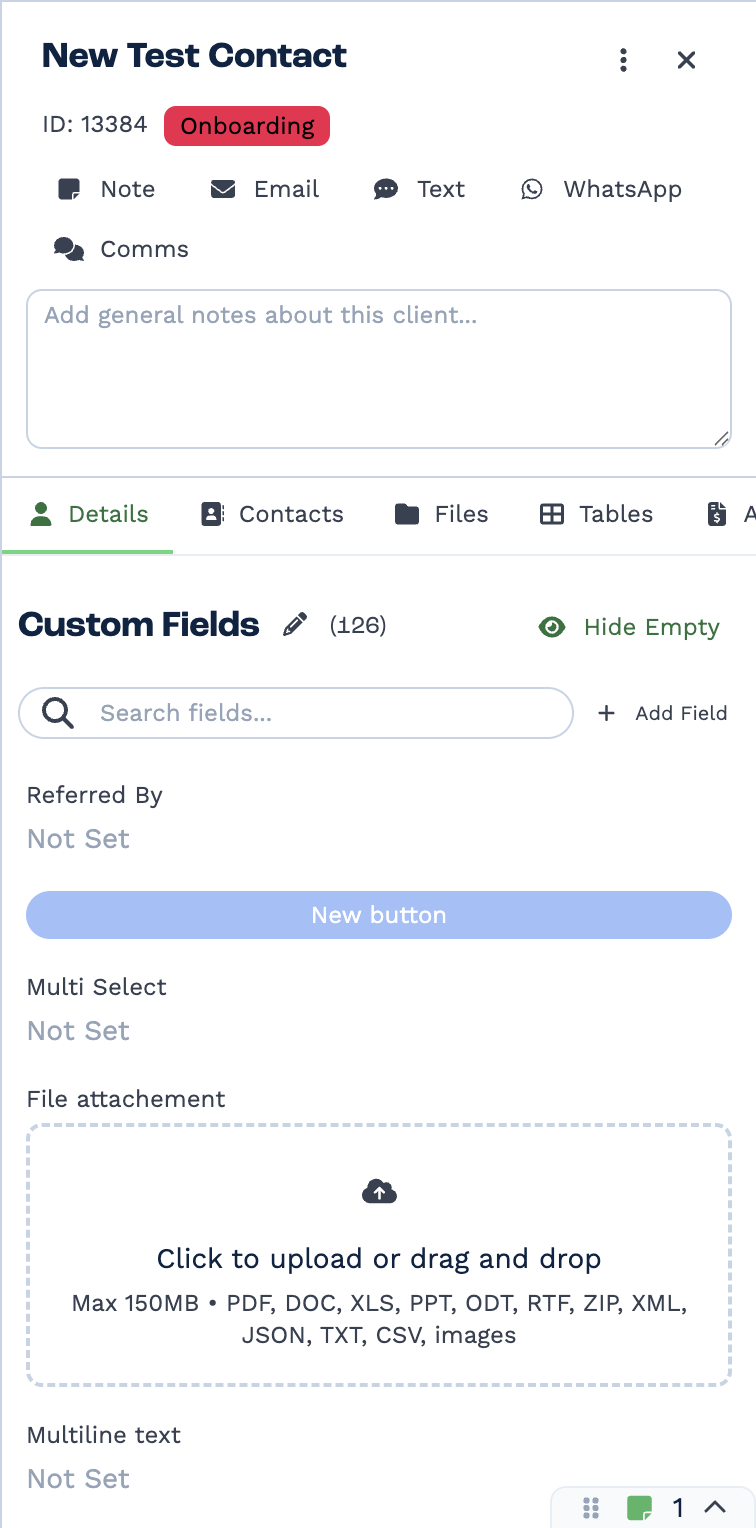
Custom fields are defined per tenant on the client record itself — the pencil edits the set, Add Field creates one. The name you give a field here is the name you reference from a task.
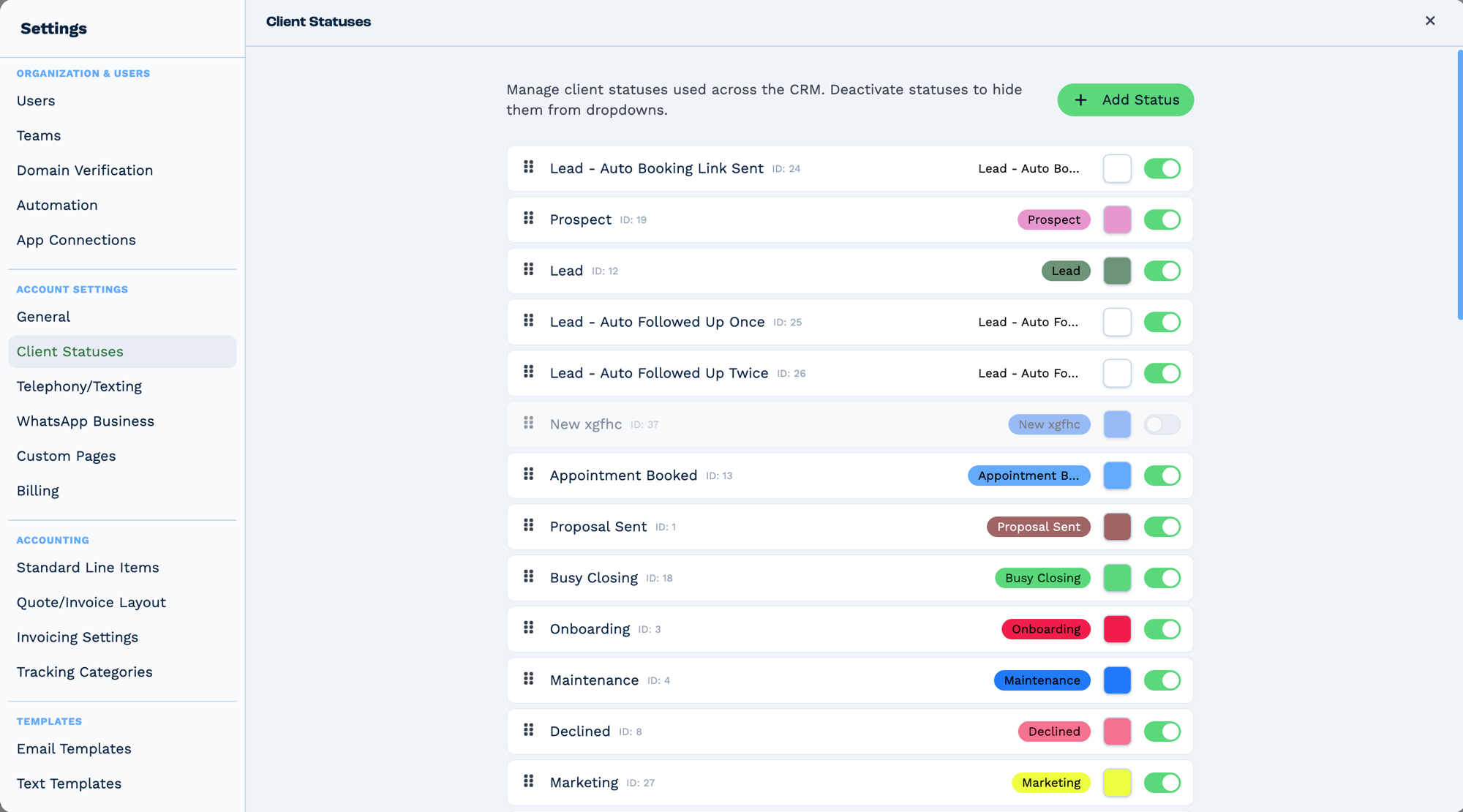
Statuses are defined per tenant in Settings → Client Statuses, so the list differs between accounts — a status that exists in one tenant may not exist in another. Each carries a numeric ID, and that ID is what a task reads and writes; the label is only what people see. Deactivating a status hides it from dropdowns without removing it from records that already hold it.
Outputs
The CRM Trigger outputs the change-log entry that fired it, joined to the client and the users
involved. Reference fields as {{task_<ID>_<field>}}.
The change
| Field | Type | Notes |
|---|---|---|
id |
number | The change-log entry's ID. |
var_id |
string | Which field changed — e.g. client_status, client_field_updated, contact_created. |
var_val |
string | The new value. |
var_val_from |
string | The previous value. |
date_created |
string | When the change happened, DD/MM/YYYY HH:mm. |
custom_field_id |
number | Set when the change was to a custom field. |
table_id, row_id, column_id |
number | Set for table-row changes. |
wfn_id |
number | Set for workflow-note changes. |
inv_id |
number | Set for quote/invoice changes. |
channel_id, task_id |
number | The workflow and task that fired. |
The client
| Field | Type | Notes |
|---|---|---|
client_id |
number | The client the change belongs to. |
company_name |
string | The client's name. |
origin |
string | The client's origin (first_contact). |
owner_id |
number | Account ID. |
user_created |
number | Who created the client. |
contact_id |
number | Set when the change concerns a contact. |
Who made the change, and who owns the client
| Field | Type | Notes |
|---|---|---|
user_actioned |
number | ID of the user who made the change. |
user_actioned_name, user_actioned_surname |
string | Their name. |
user_actioned_email, user_actioned_number |
string | Their contact details. |
admin_responsible |
number | ID of the client's responsible user. |
admin_responsible_name, admin_responsible_surname |
string | Their name. |
admin_responsible_email, admin_responsible_number |
string | Their contact details. |
Resolved labels, on field-change triggers
| Field | Type | Notes |
|---|---|---|
status_changed_to |
string | Status label, when var_id is client_status. |
status_changed_from |
string | The previous status label. |
custom_field_changed_to |
string | Readable new value, when a custom field changed. Falls back to the raw value if the field has since been deleted. |
custom_field_changed_from |
string | Readable previous value. |
Always
| Field | Type | Notes |
|---|---|---|
run |
boolean | Whether the task succeeded. |
run_text |
string | A human-readable account of what happened, including any reason it failed. |
Real-World Examples
Welcome a newly created client
Act on a status change
CRM Trigger  (field change, client_status)
  └─ If Statement   {{task_47001_status_changed_to}} equals "Won"
      └─ BaseCloud Accounting   raise the invoice
status_changed_to and status_changed_from give you the readable labels, so you can branch on
the change itself rather than on the raw ID.
Tell the new owner when a client is reassigned
CRM Trigger  (field change, admin_responsible)
  └─ Email   notify {{task_47001_admin_responsible_email}}
Keep another system in step
Conditional Filtering
Add conditions to your CRM Trigger to be more selective about which events trigger workflows.
Filter by Contact Type
Only trigger for contacts with specific status:
Filter by Tag Presence
Only trigger if contact has specific tag:
Filter by Custom Field
Only trigger if custom field meets criteria:
Combine Multiple Conditions
Use AND/OR logic:
Preventing Workflow Loops
The Loop Problem
If your workflow updates a contact's data, and your CRM Trigger monitors "Contact Updated", you'll create an infinite loop.
Example of a problematic workflow:
- CRM Trigger - Contact Updated
- Edit Client - Update a field
- This triggers the workflow again → Loop!
Solution 1: Check Who Triggered
Add an If task to check if the change was made by the system (not a human):
Solution 2: Monitor Specific Fields Only
Instead of "Any field updated", monitor specific fields:
Solution 3: Use Changed Field Check
Add an If task at the start:
Solution 4: Add a "Processing" Flag
- At workflow start: Add temporary tag "Processing"
- Check if tag exists, if yes → stop workflow
- Do your processing
- Remove "Processing" tag at end
Best Practices
✅ Do's
- Be specific with triggers: Use filters to avoid unnecessary executions
- Add If tasks for validation: Double-check conditions even if trigger has filters
- Test thoroughly: Test with real CRM data before enabling
- Add error notifications: Alert yourself when critical workflows fail
- Document your workflows: Add clear descriptions of what each workflow does
- Use tags for tracking: Add tags to show workflow has processed a contact
- Monitor execution history: Check regularly that workflows are running correctly
❌ Don'ts
- Don't create loops: Always check if your workflow updates trigger new events
- Don't trigger on every update: Use specific field monitoring
- Don't skip error handling: Add If tasks to handle missing data
- Don't forget timezone issues: Be aware when using time-based conditions
- Don't over-automate: Not every CRM change needs a workflow
Troubleshooting
Workflow Not Triggering
Possible Causes:
- Workflow is disabled
- Trigger conditions too restrictive
- Event type doesn't match actual CRM action
- CRM trigger not saved properly
Solutions:
- Check workflow toggle is ON
- Review trigger configuration and filters
- Test by manually performing the CRM action
- Check execution history for error messages
Workflow Triggering Too Often
Possible Causes:
- Trigger conditions too broad
- Multiple users editing same contacts
- Workflow creating loop by updating contacts
Solutions:
- Add more specific filters
- Check if workflow updates trigger additional events
- Use "Changed Field" filters
- Add processing flag to prevent duplicates
Missing Contact Data
Possible Causes:
- Custom field not populated yet
- Contact still being created when workflow runs
Solutions:
- Add small delay (5-10 seconds) after trigger
- Use If tasks to check if required fields exist
- Handle missing data gracefully
Workflow Running Multiple Times
Cause: Multiple CRM updates in quick succession
Solution: Add a delay at workflow start and check if a "processing" tag exists
Advanced Patterns
Sequential Contact Updates
Update contact in stages with delays:
- CRM Trigger - Contact Created
- Delay - Wait 1 day
- Email - Send day 1 email
- Delay - Wait 2 days
- Email - Send day 3 email
- Delay - Wait 4 days
- Email - Send day 7 email
Conditional Multi-Path Workflows
Route based on contact properties:
- CRM Trigger - Contact Updated
- If Task - Check industry
- Technology → Tech sales flow
- Healthcare → Healthcare sales flow
- Other → General flow
Lead Scoring Automation
Automatically update lead scores:
- CRM Trigger - Contact Updated
- Code Task - Calculate lead score based on actions
- Edit Client - Update lead_score field
- If Task - If score >= 80
- Email - Notify sales team
Tag-Based Segmentation
Automatically segment contacts:
- CRM Trigger - Tag Added
- If Task - Check which tag was added
- "Webinar Attended" → Add to nurture list
- "Downloaded Ebook" → Add to education list
- "Requested Demo" → Alert sales
Frequently Asked Questions
Can I have multiple CRM Triggers in one workflow?
No, each workflow should have only one trigger task. If you need to respond to multiple CRM events, create separate workflows.
What's the delay between CRM change and workflow execution?
Usually immediate (within seconds). Very complex workflows may take longer.
Can I trigger on custom field changes?
Yes, use the "Field Value Changed" event type and select your custom field.
Will this trigger if I bulk import contacts?
Yes, Contact Created events fire for each imported contact. Consider:
- Disabling workflows during large imports
- Using filters to exclude imported contacts
- Adding batch processing logic
Can I undo a workflow action?
No, workflows execute automatically and cannot be undone. Always test thoroughly before enabling.
How do I test without affecting real contacts?
- Create a test contact
- Use "Run Test" button if available
- Check execution history to see what would happen
- Use a test workflow (disabled for real contacts)
Can I trigger based on inactivity?
Not directly. Instead, use a Schedule Trigger to check for inactive contacts periodically:
- Timer Trigger - Daily
- Google Sheets - get_rows from a list of accounts to review
- Loop through results
- Send re-engagement email
What happens if the workflow fails?
The system logs the error in execution history. The CRM event still occurred, but the workflow didn't complete. Consider:
- Adding error notification emails
- Implementing retry logic
- Monitoring execution history regularly
Can I prevent certain users from triggering workflows?
Yes, add an If task checking triggered_by:
Next Steps:
- Edit Client Task - Update contact data
- If Task - Add conditional logic
- Inbound Email - Trigger from incoming emails