The Inbox
Who can do this
Anyone with CRM Access. Without View All Clients, you see only the clients you manage.
Open Notes in the left panel. The Inbox has two parts: the list on the left, and the item you've selected on the right.
The list
Items are grouped by client, newest first. Each row shows:
- Who it's from — the sender of an email or message, or the person who wrote the note — with a small icon for the kind of item: note, repeat note, email, text, WhatsApp, call, form or calendar invitation.
- How many items the group holds, when there's more than one.
- The subject — an email's subject, the first line of a note, or Missed call, Voicemail and so on.
- The client, as a chip. Click it to open the client.
- When it's due — red once it's overdue, amber when it's due later.
- A lock for a sensitive note and a paperclip when there are attachments.
The coloured edge on the left of each row is the priority: red for High, amber for Medium and grey for Low.
Items that don't belong to a client yet appear on their own, as No Client — see Unmatched emails and calls.
Open an item
Click a row. The right side shows everything in that group, oldest at the top. Each item has:
- Mark done (or Re-open on the Done tab)
- Reply — opens the client's conversation with a reply ready to write
- ⋮ More actions — see Note actions
- the people it's assigned to, and how many of them have finished — see Mark notes done
Inbox and Done
- Inbox — everything still waiting for you. The number is how many items there are.
- Done — what you've finished, grouped by client and day. Items you deleted are here too, marked Deleted.
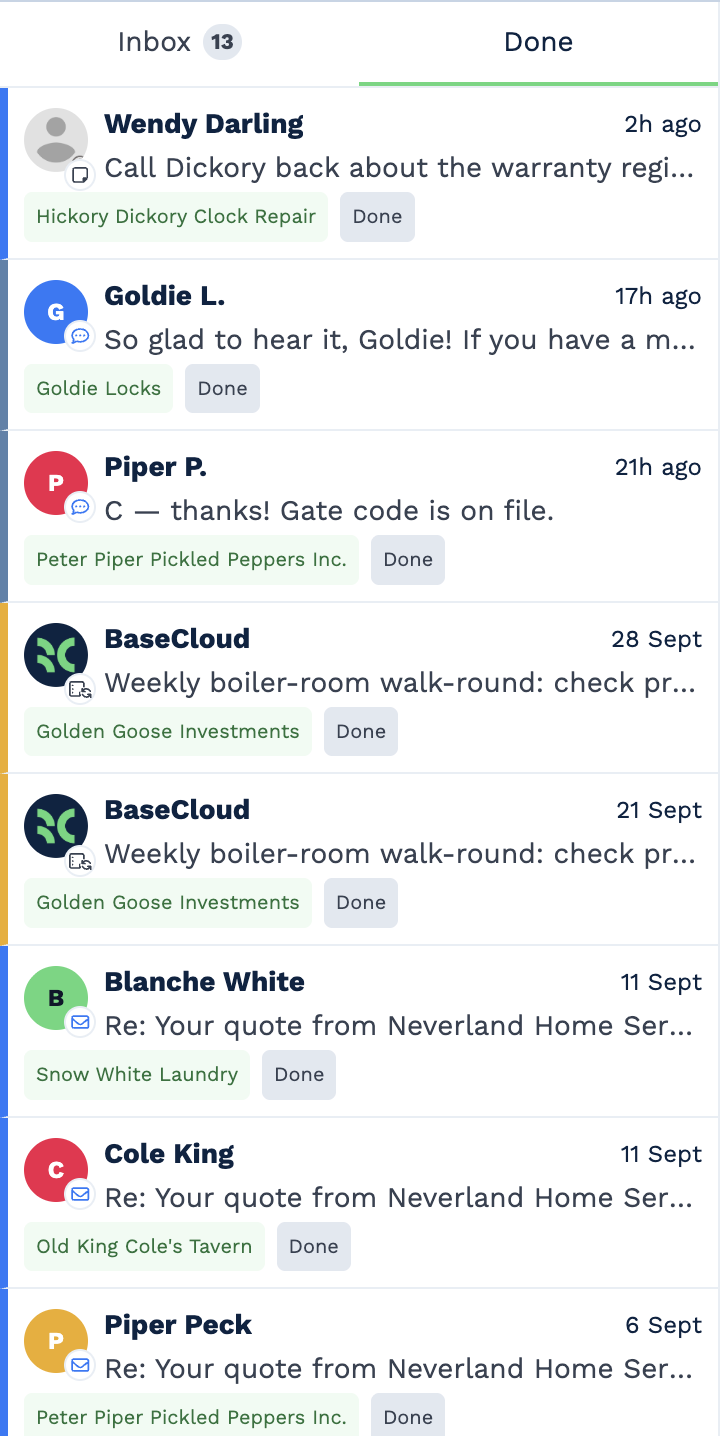
BaseCloud remembers which tab you had open.
Filter the Inbox
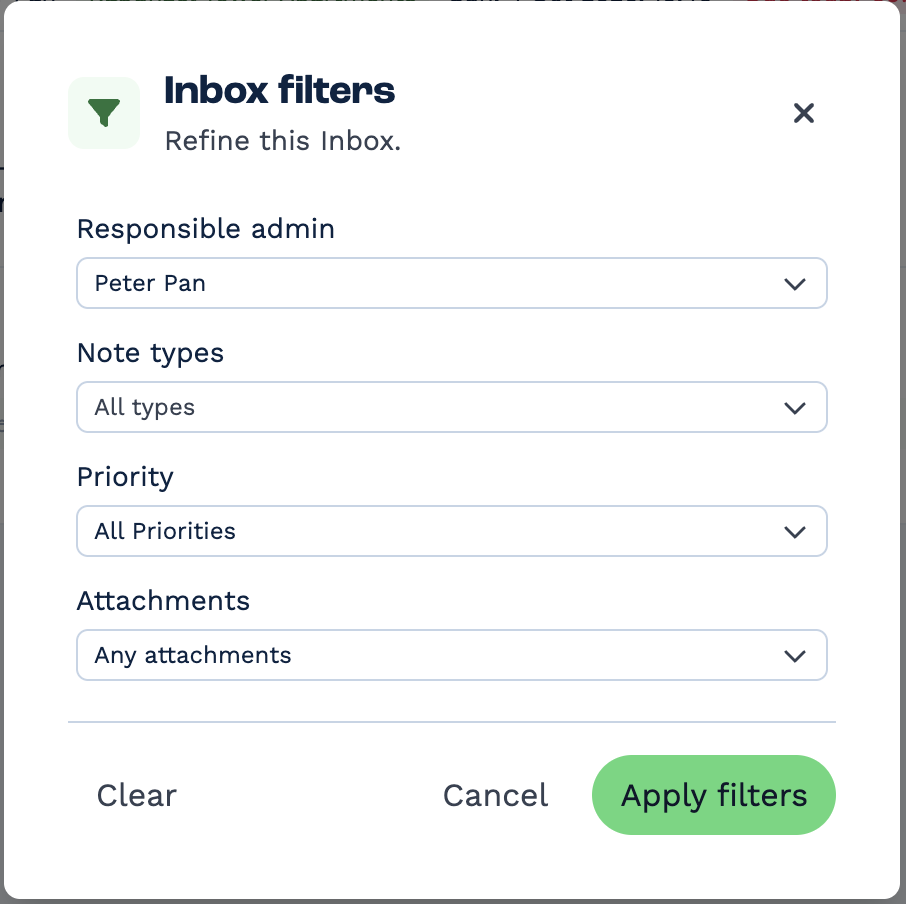
Click the Inbox filters button (the funnel) above the list.
- Responsible admin — whose Inbox you're looking at. It starts as you; pick a colleague to see theirs.
- Note types — Note, Repeat, Email, Text, Form, WhatsApp or Call.
- Priority — High, Medium or Low.
- Attachments — only items that have attachments.
Click Apply filters. Your filters show as chips above the list, such as Types: Note, Email. Click a chip to change it, or its × to remove it. Clear in the filters window goes back to just your own Inbox.
The Admin: Peter Pan chip with a lock is always there — the Inbox always shows somebody's work, and it starts as yours. When you look at a colleague's Inbox, their sensitive notes stay hidden unless you wrote them or are assigned to them.
Search
Type at least three characters in Search (min 3 characters). Search looks through all your notes, not just the Inbox, and the Inbox and Done tabs are paused while you search. Click the ? next to the box for tips:
- Part of a word works —
pricfinds pricing. "exact phrase"matches words in that order.+wordmust be there;-wordmust not be.word~allows for typos.
Shortcuts
- ↑ and ↓ move up and down the list.
- Shift-click selects a range of groups; Ctrl-click (Cmd-click on a Mac) adds or removes one.
- Right-click a group for a quick menu — for example, Mark all 4 done.
Feed view
The button next to Inbox view at the top right switches to Feed view: one long stream of your overdue notes, newest at the bottom, with more filters (date range, sort, and grouping by client). The Inbox opens again the next time you load the page.
On your phone
The list fills the screen; tap a group to open it and use the back arrow to return. Swipe a row right to mark it done, or left to delete it. Press and hold to start selecting several.