Your profile
Who can do this
Everyone can change their own profile. Changing someone else's needs Manage Users.
Click your name in the top right, then Settings, and pick yourself in the Users list.
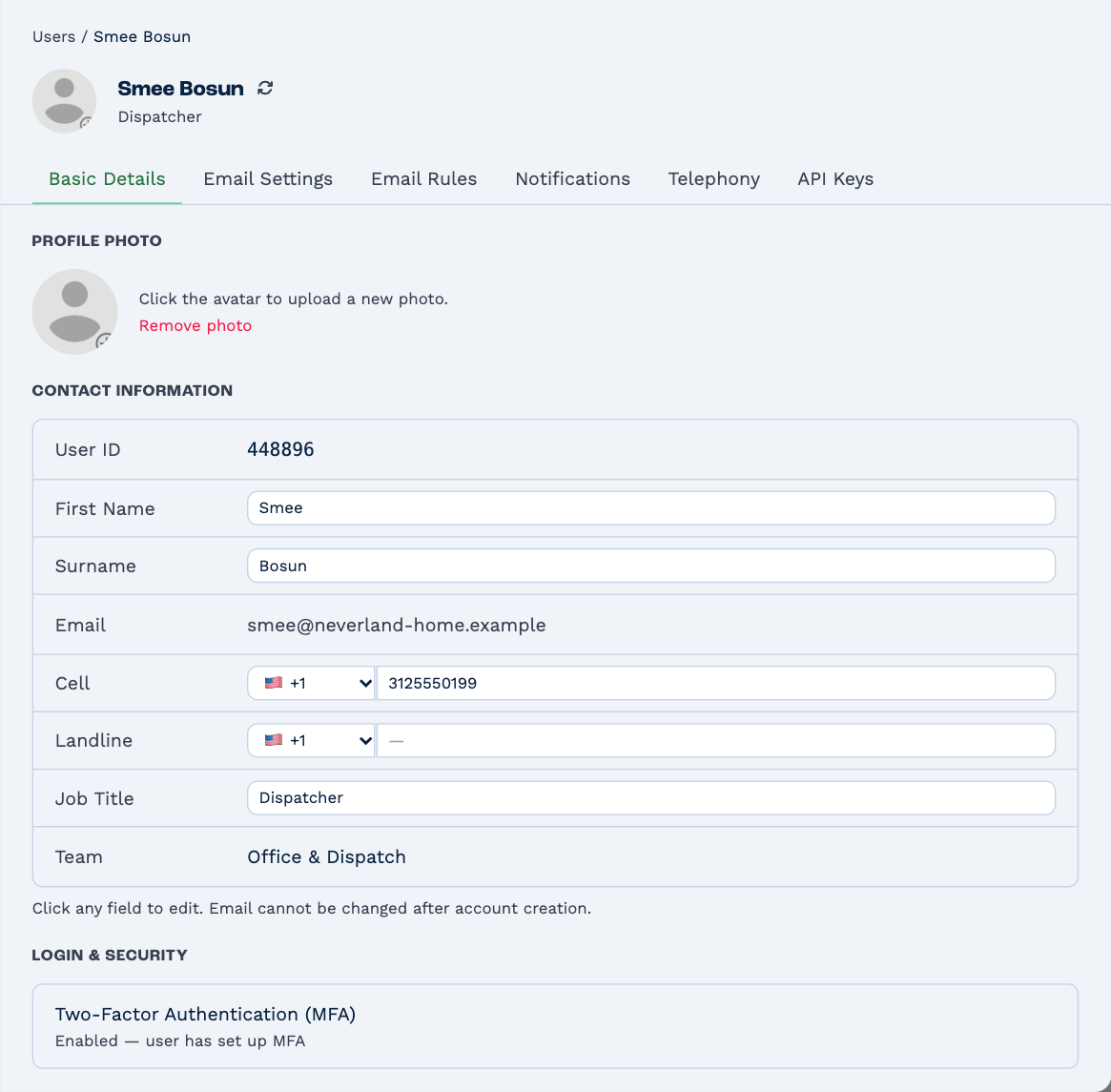
Basic Details
Click a field, change it, and click away — it saves on its own.
- Profile photo — click the picture to upload a new one, or Remove photo.
- First Name, Surname and Job Title — how your name and title appear to colleagues, and in emails that use your details.
- Cell and Landline — pick the country, then type the number.
- Email — the address you sign in with. It can't be changed once your user exists.
- Team — the team you're working in.
Under Login & Security, Two-Factor Authentication (MFA) shows whether your authenticator app is set up.
The other tabs
| Tab | What's there |
|---|---|
| Email Settings | The addresses you send email from, each with its own name, signature and reply-to address, and linking your Microsoft or Google mailbox. |
| Email Rules | Rules that sort the email you receive — for example, matching a sender to a client — and what counts as sensitive. |
| Notifications | Which notifications you get, and where. |
| Telephony | Your settings for making and taking calls. |
| API Keys | Credentials for connecting other tools to BaseCloud. They act as you, with your rights. |