Note actions
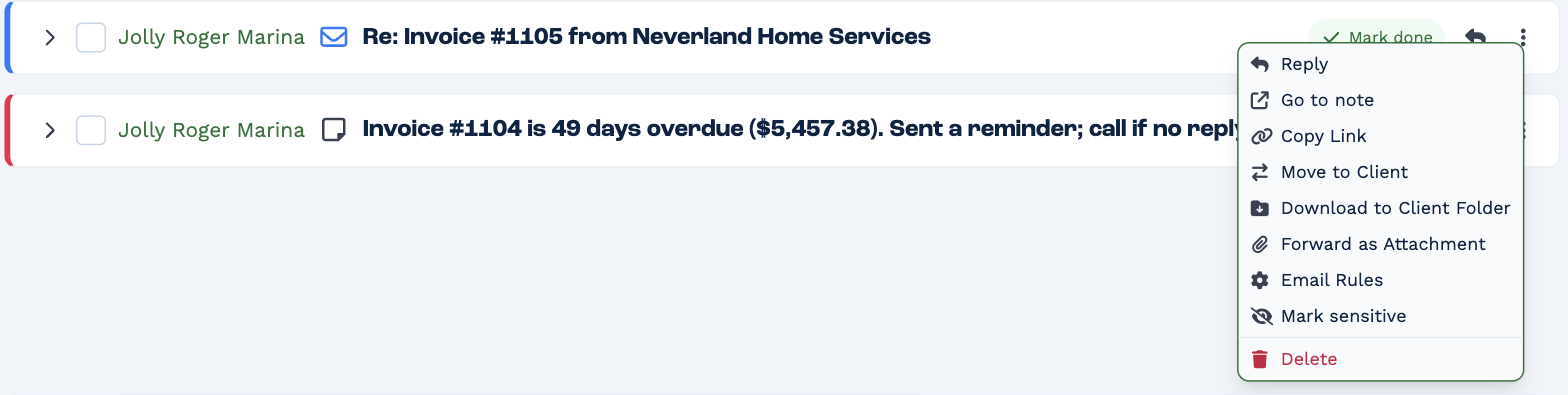
Click ⋮ More actions on a note or email in the Inbox or a client's history. What you see depends on the kind of item.
| Action | What it does |
|---|---|
| Reply | Opens the client's conversation, ready to reply. |
| Go to note | Opens the client with the note highlighted in their history. |
| Copy Link | Copies a link to the note, to send to a colleague. |
| Download Recording | Saves a call's recording (calls that were recorded). |
| Move to Client | Moves an email or call that landed on the wrong client. See below. |
| Download to Client Folder | Saves an email as a file in the client's Files. |
| Forward as Attachment | Starts a new email with this email attached. |
| Email Rules | Opens your email rules with the sender filled in, so their next email is filed automatically. |
| Mark sensitive / Remove sensitive | See Sensitive notes. |
| Delete | See below. |
Move an email or call to another client
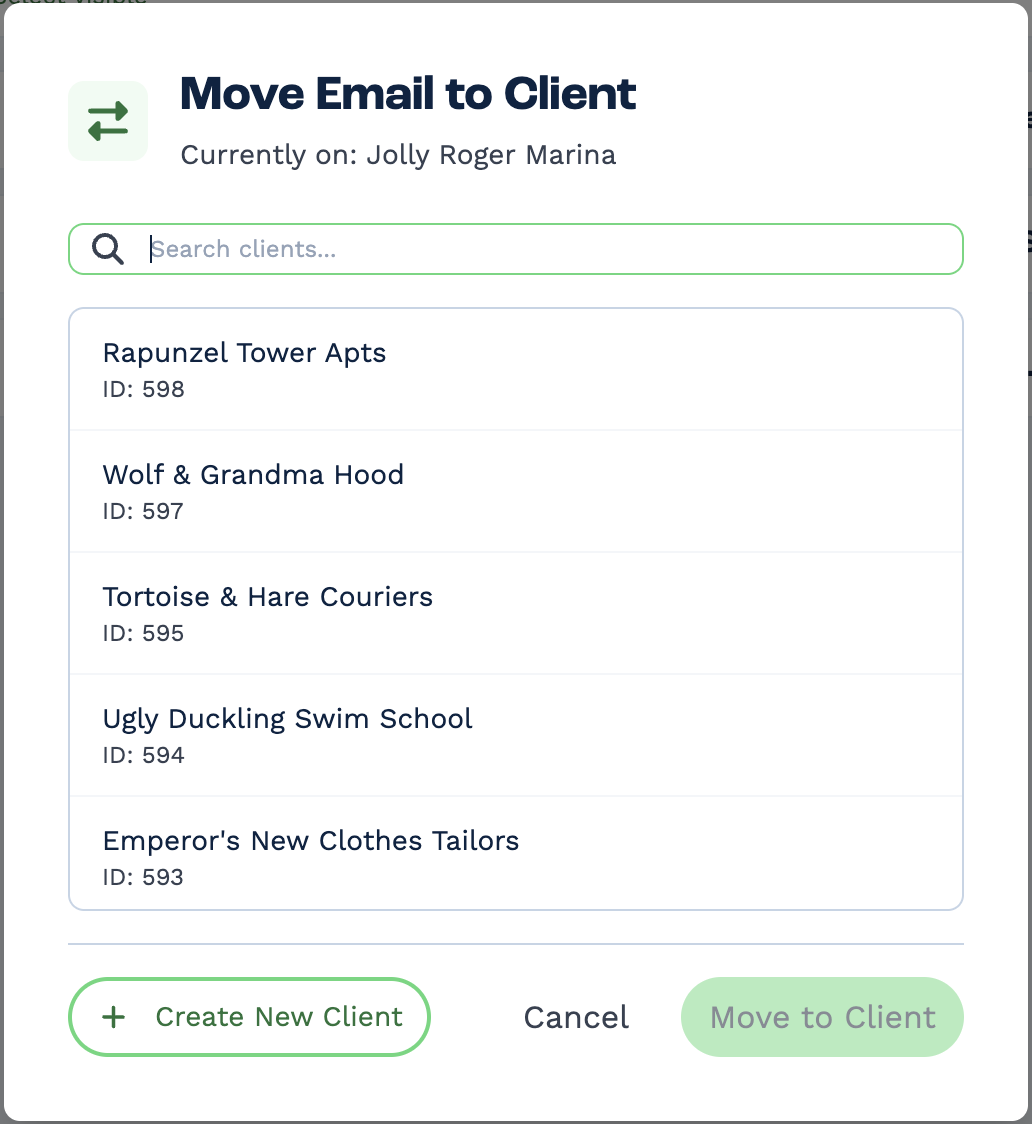
- Click ⋮ More actions → Move to Client.
- Search for and select the right client — or click Create New Client.
- Click Move to Client.
If the sender is already a contact of the old client, BaseCloud asks how to link them from now on:
- Move contact to the new client — their future emails go there.
- Link contact to both clients — they belong to both.
- Keep contacts separate — change nothing about the contact.
Delete a note
Click ⋮ More actions → Delete, then Confirm Delete?. A message offers Undo for five seconds.
You can delete:
- notes you wrote
- emails that came in
- calls that weren't linked to a client
You can't delete emails you sent, or other people's notes.
Restore a deleted note
Deleted notes stay on the Done tab, crossed out and marked Deleted. Open one and click Re-open to bring it back.