Send for signature
Who can do this
Anyone with Files Access who can see the client. The document must be a PDF in the client's files.
You can ask a client to sign a PDF — a quote acceptance, a service agreement, a warranty — without printing anything. They sign on their phone or computer, and the signed copy comes back to the client's files with a record of who signed and when.
On the client's Files tab, click the ⋮ on the PDF and choose Send for Signature. To send several PDFs as one pack, select them all first and right-click.
1. Choose who signs
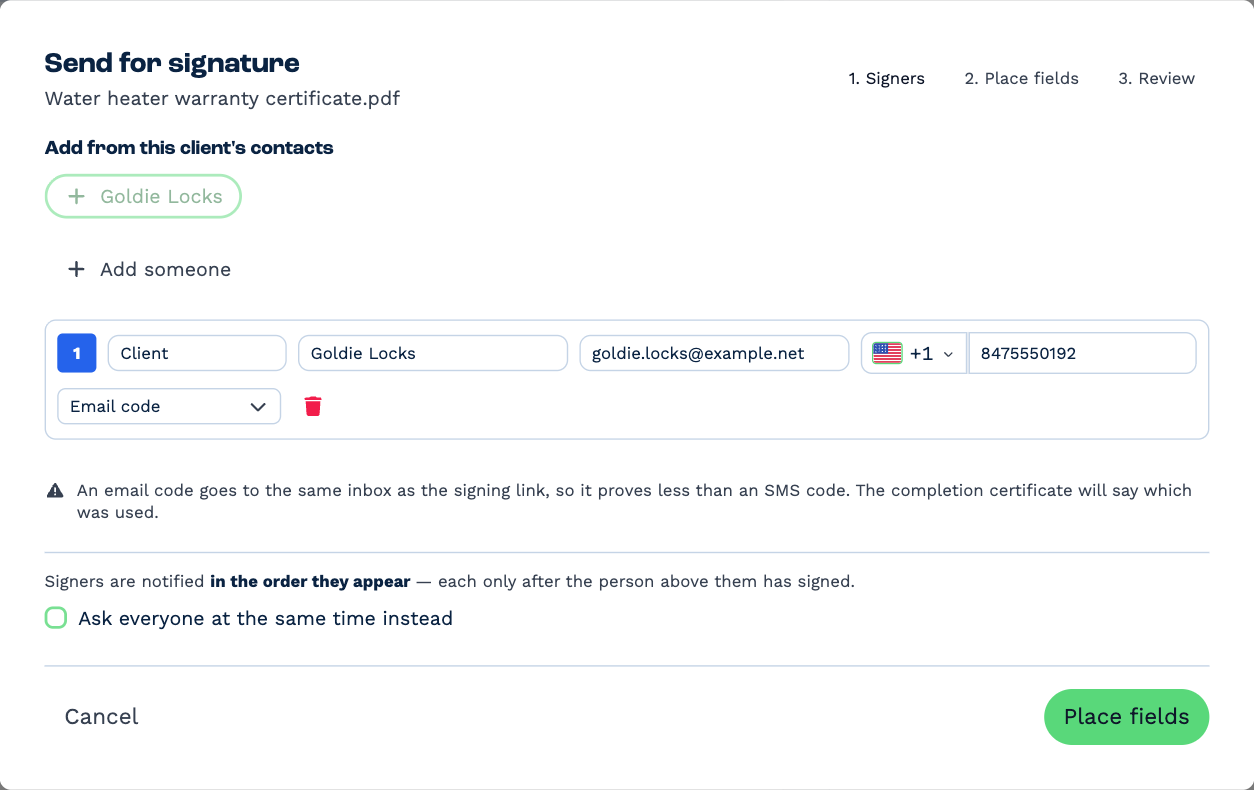
- Click a contact under Add from this client's contacts, or Add someone for anybody else.
- Check each signer's Role, Full name, Email address and Cell number.
- Choose how each signer proves it's them when they open the document:
- SMS code — a code texted to their phone. The stronger proof, because it goes somewhere other than the email with the link.
- Email code — a code sent to the same email address. Use it when you don't have a number BaseCloud can text; BaseCloud tells you when it can't text one.
The order they sign in
Signers are asked in the order they appear: each one is emailed only once the person above them has signed. Tick Ask everyone at the same time instead to email them all at once.
To sign it yourself as well — to countersign for your company — add yourself with Add someone, using your own email address. BaseCloud emails you a link and a code when it's your turn.
Click Place fields.
2. Place the fields
Show each signer where to sign.
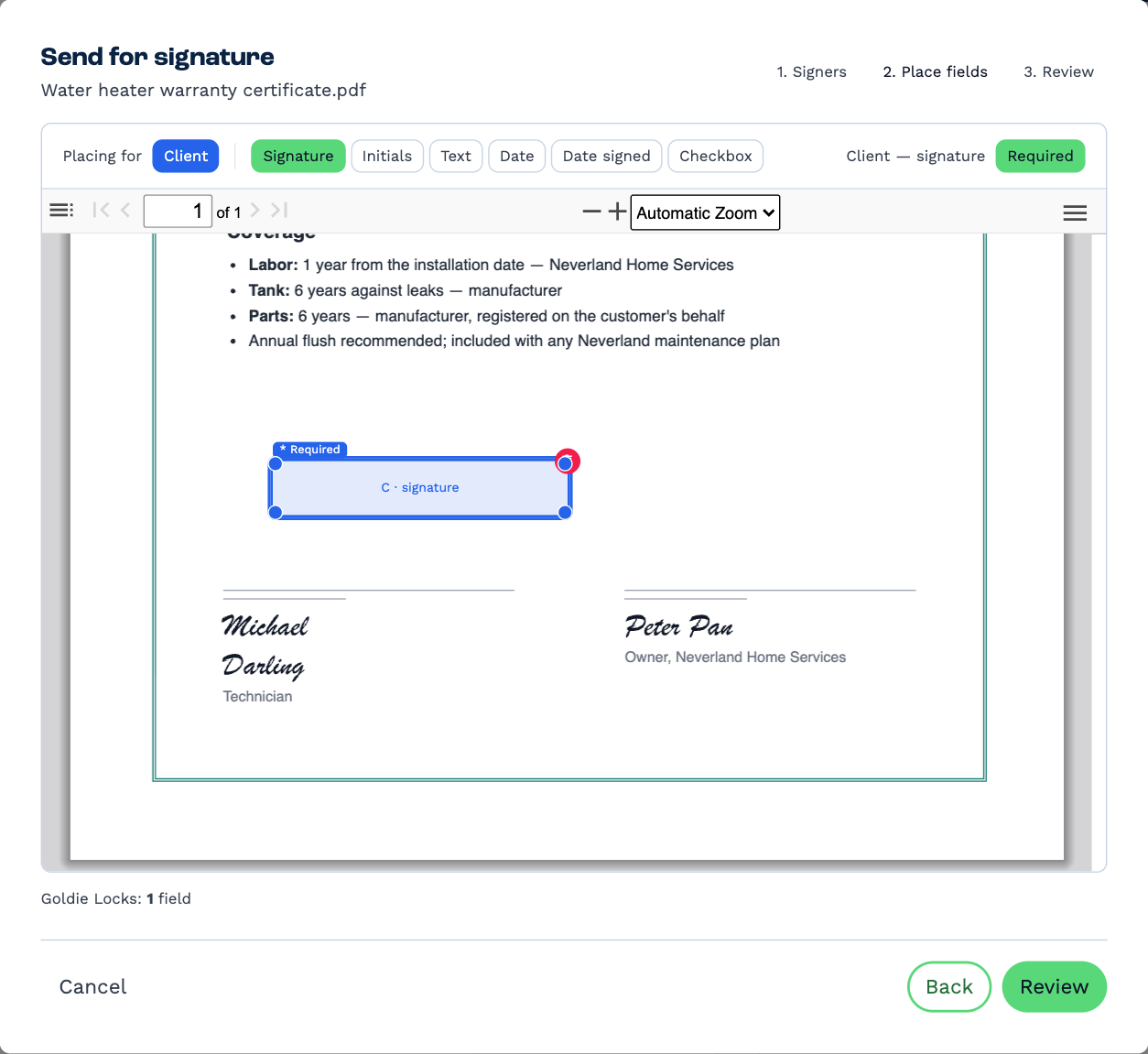
- Under Placing for, pick the signer.
- Pick the kind of field, then click the page where it goes. Drag it to move it, or drag a corner to resize it.
| Field | The signer |
|---|---|
| Signature | Signs — drawn or typed |
| Initials | Adds their initials |
| Text | Types something, such as a job title |
| Date | Picks a date — a start date, say |
| Date signed | Does nothing: BaseCloud fills in the moment they signed |
| Checkbox | Ticks a box |
A field is Required unless you switch that off. The count under the document shows how many fields each signer has; everyone needs at least one.
Click Review.
3. Review and send
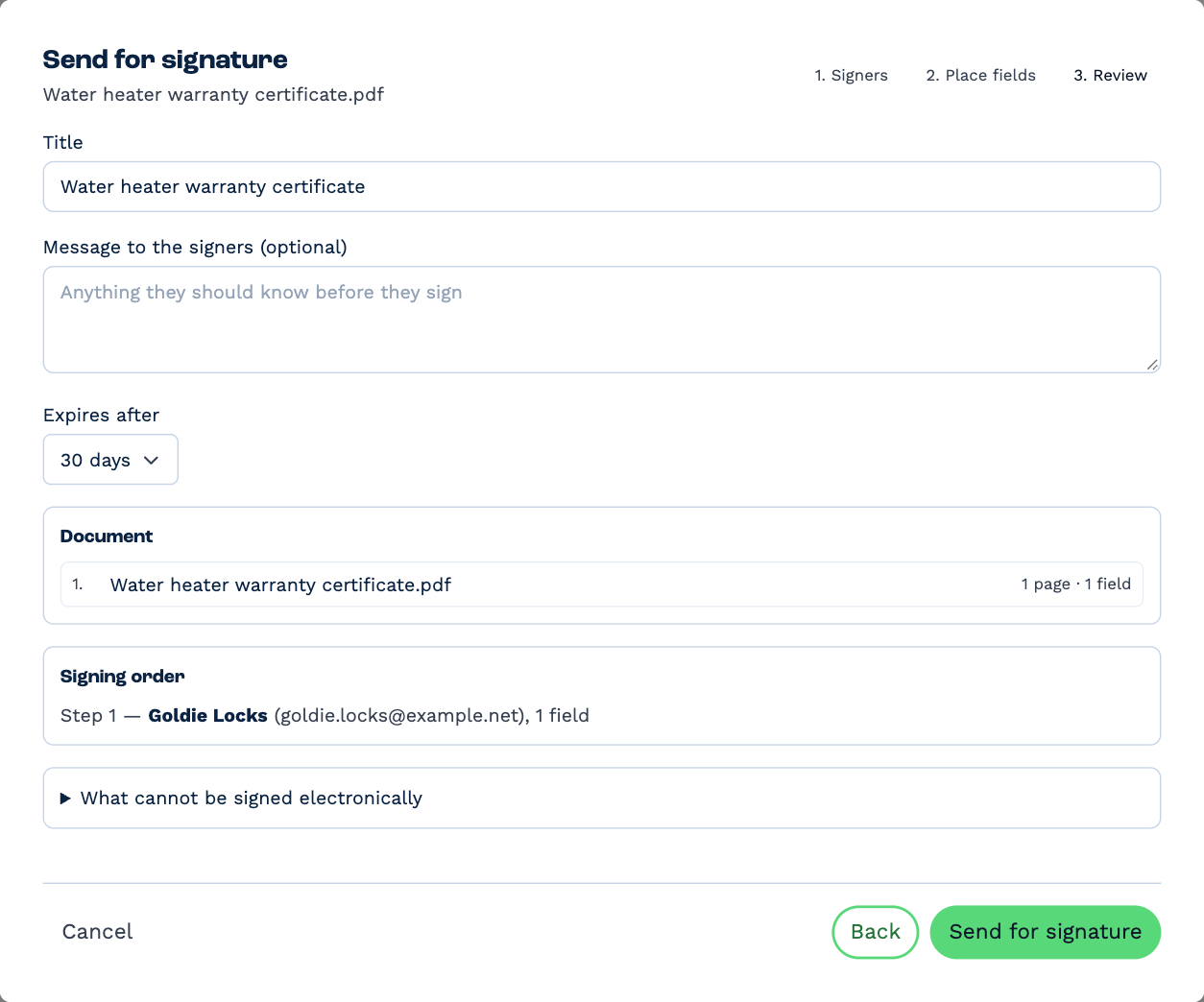
- Title — what the signers see the document called.
- Message to the signers — anything they should know first.
- Expires after — 7, 14, 30 or 90 days. After that the link stops working.
Click Send for signature. The first signer is emailed straight away.
What can't be signed electronically
Some documents must still be signed on paper — wills, family-law and court documents, and certain legal notices among them. The Review step lists them under What cannot be signed electronically. If yours is one, send it on paper.
What the signer does
Each signer gets an email with a link. They:
-
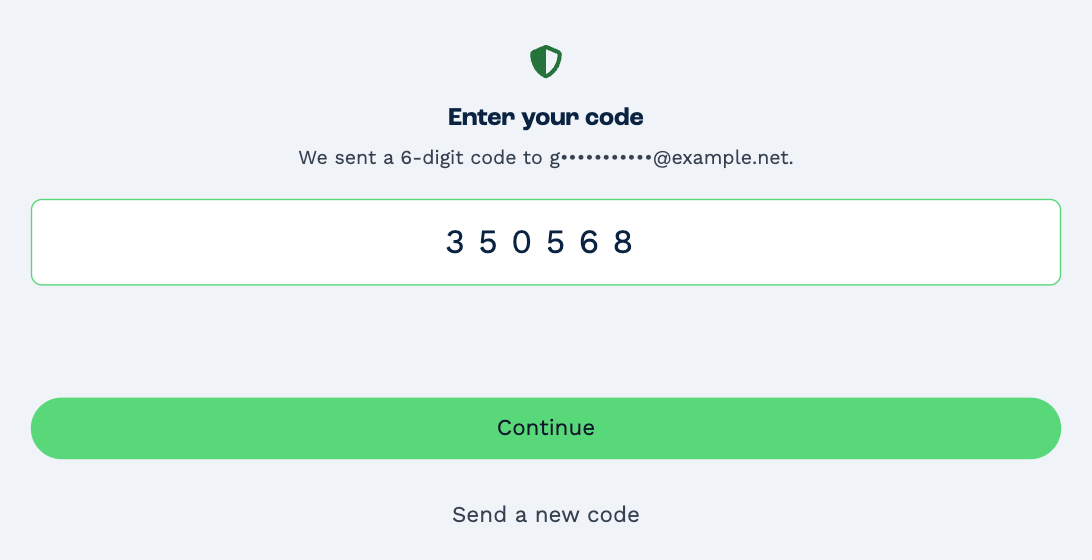
open the link and enter the code sent to their phone or email;
-
agree to sign electronically;
-
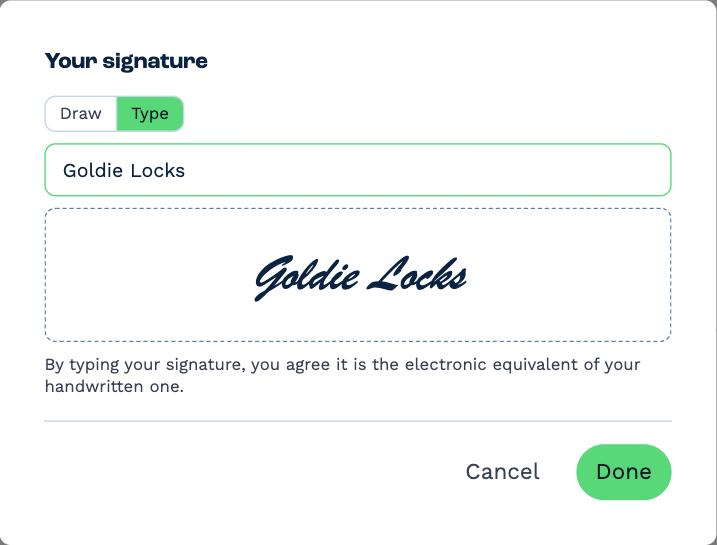
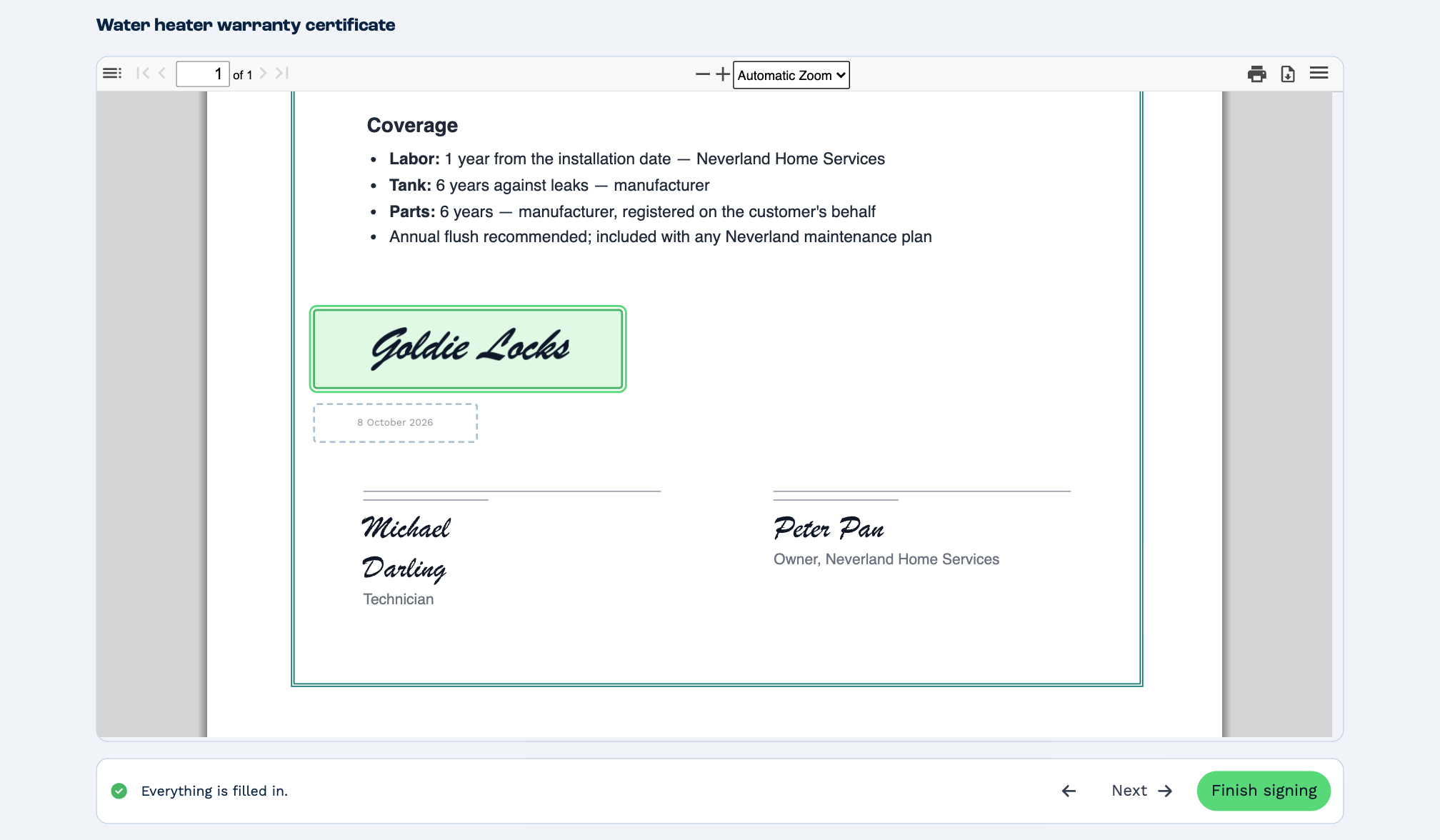
read the document and click each box that's waiting for them. A signature can be drawn or typed;
-
click Finish signing once everything is filled in — or decline, with a reason.
They don't need a BaseCloud login. If anyone declines, the request ends there and nobody else is asked.
When everyone has signed, see Track signatures.