Connect your mailbox
Who can do this
You, for your own addresses, or anyone with Manage Users. Either way, you'll need to sign in to the mailbox itself.
Until a mailbox is connected, BaseCloud sends your email for you. That works, but it doesn't show in any Sent folder, and replies sent straight to your address don't come back into BaseCloud. Connecting the mailbox changes both.
Connect it
- Open Settings → Users → your name → Email Settings, and choose the address under Currently viewing.
- Under Mailbox, click Link Microsoft Email or Link Gmail.
- Sign in as that address and allow BaseCloud access.
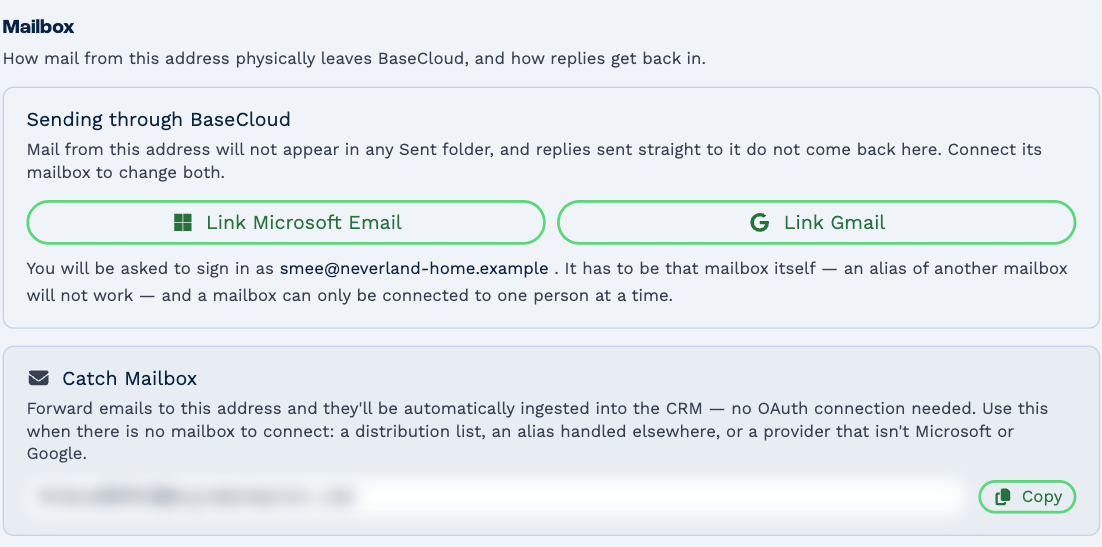
You have to sign in as that mailbox itself. Signing in as another mailbox that the address is only an alias of won't work. A mailbox can only be connected to one person at a time.
Once it's connected
The section reads Connected and working. From then on:
- email you send from the address goes out through your mailbox and appears in its Sent folder
- email arriving in the mailbox comes into BaseCloud
- your calendar always follows your primary address
Email History Lookback sets how far back — from 1 day to 10 years — BaseCloud reads the mailbox's email when it fetches it.
Disconnect Account stops it. Email from the address then goes out through BaseCloud again, which needs its domain verified.
A team's mailbox
A team's shared address can be connected the same way, under Settings → Teams → the team → Email Settings. Every member of the team can then send from it, and the email it receives belongs to the team. A team mailbox has no calendar.
If something goes wrong
- Connection Issue — BaseCloud can no longer reach the mailbox; the reason is shown. Click Reconnect and sign in again. Until then, email from the address goes out through BaseCloud and nothing in the mailbox comes in.
- Not finished connecting — the sign-in was started but not completed. Connect it again.
Catch Mailbox
When there's no mailbox to connect — a distribution list, an alias handled elsewhere, or a provider other than Microsoft or Google — use the Catch Mailbox address instead. Email forwarded to it comes into BaseCloud. Click Copy and set up forwarding to it with your email provider.
Treat the Catch Mailbox address like a password: anyone who has it can put email into your BaseCloud.