App connections
Who can do this
Anyone in the account.
An app connection is BaseCloud's permission to work with one of your other apps: to add a row to a Google Sheet, raise an invoice in Xero, take a card payment through Stripe. You connect an app once here, and then choose that connection wherever it's needed — in a workflow task, or on a quote and invoice layout.
Open Settings → App Connections.
Connect an app
- Click Add Connection.
-
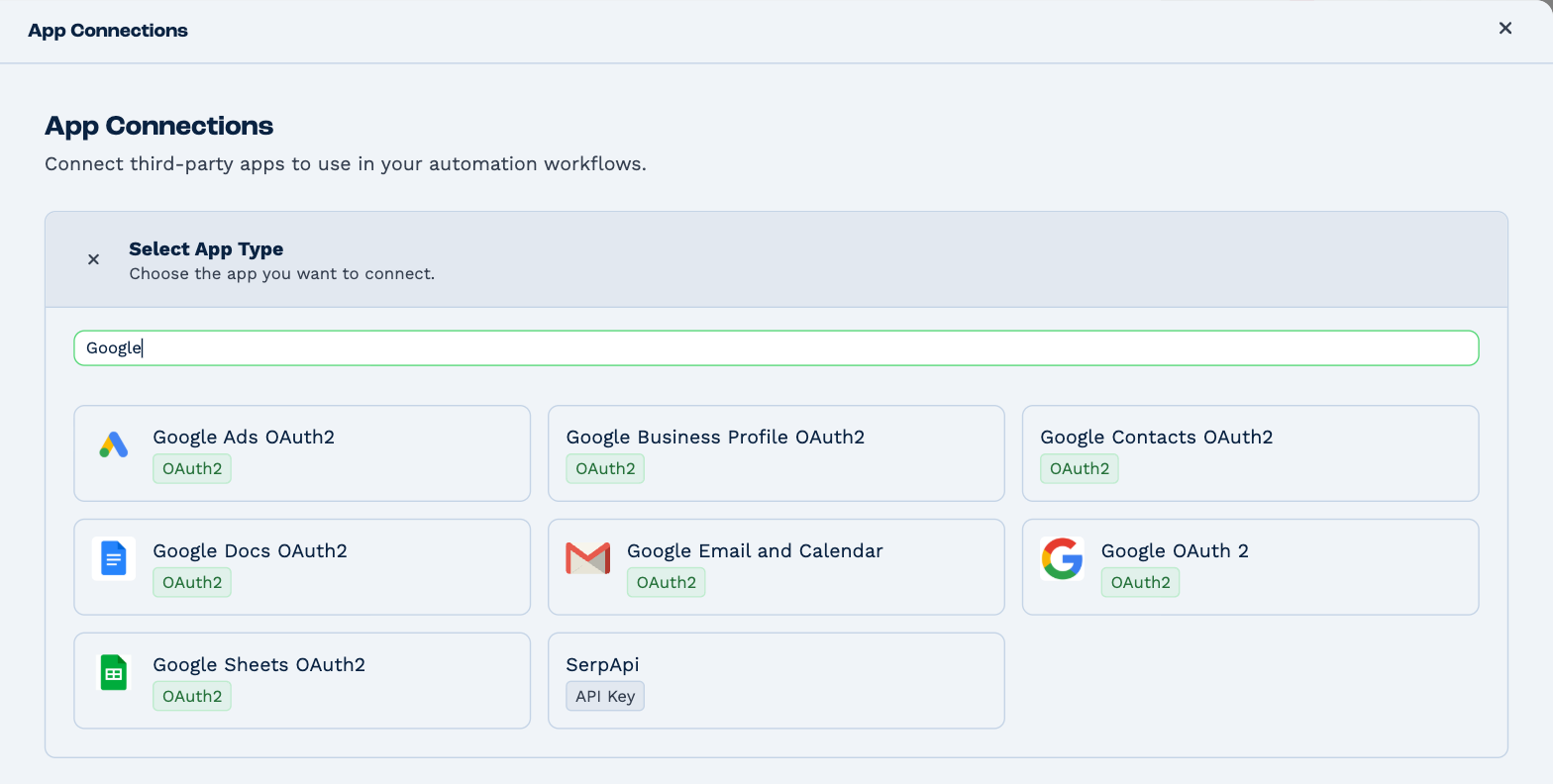
Find the app — type in the search box to narrow the list — and click it.
-
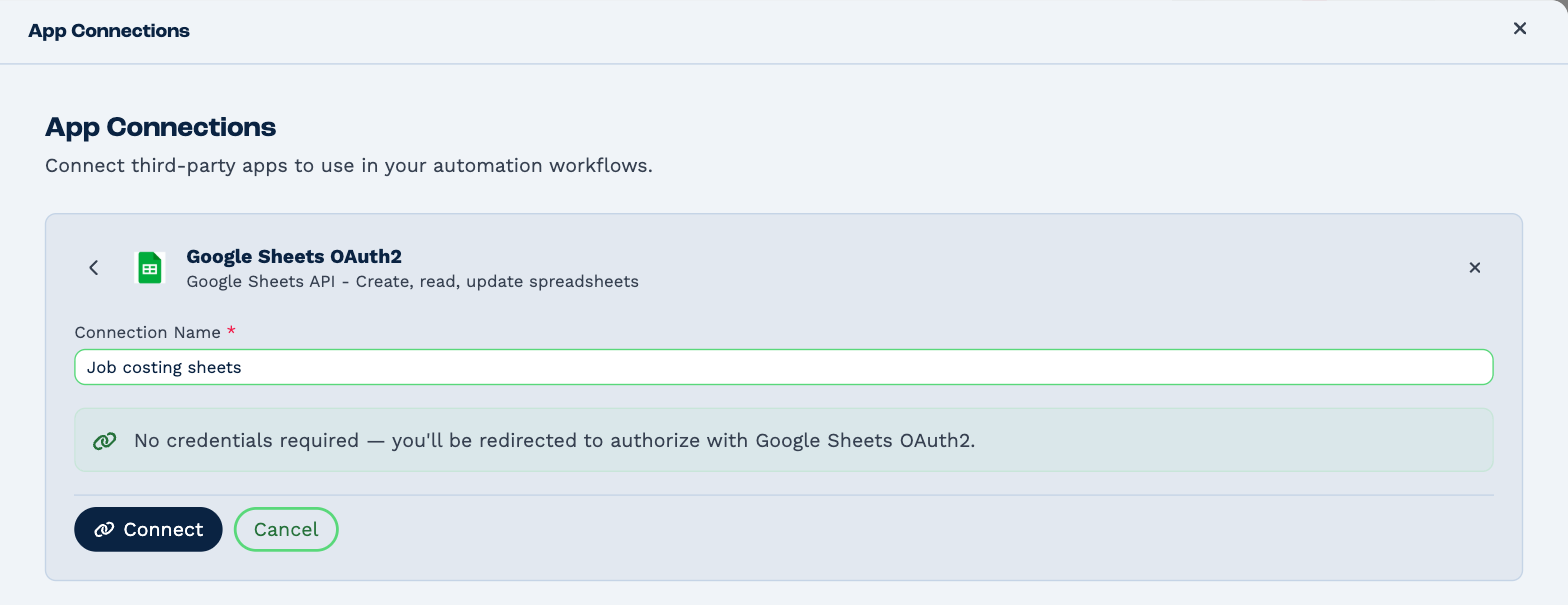
Give the connection a Connection Name you'll recognise later — Job costing sheets, Main Stripe account. You can connect the same app more than once, so the name is how you tell them apart.
-
Finish, depending on what the app's badge said:
Badge What happens OAuth2 Click Connect. The app's own sign-in page opens in a new window: sign in there, and allow BaseCloud. The window closes by itself and the connection shows Authorised. API Key Paste in the key — and anything else the form asks for — from the other app's settings, and click Save Connection.
If nothing opens
The sign-in page opens as a pop-up. If your browser blocks it, allow pop-ups for BaseCloud and click Connect again.
Each app's own page — under Workflow tasks — says exactly what it needs.
Your connections
Each connection in the list shows its name, the app, and whether it's Authorised.
It also shows how many tasks use it. Click the number to see which workflows, and click one to open it. A payment connection shows the quote and invoice layouts that charge through it, too.
Only workflows that are switched on are counted — a connection that shows no tasks may still be used by one that's paused.
Reconnect
A connection marked Not Authorised has lost its permission — the password changed on the other side, say, or the sign-in was never finished. Workflow tasks that use it won't run until it's put right.
Click the Reconnect icon on its row, and sign in to the app again.
Rename or change a connection
Click the Edit icon, change the Connection Name or its details, and click Save Changes.
If you change something the app's permission depends on, BaseCloud warns you that the connection will need reconnecting before it works again.
Delete a connection
Click the Delete icon, then Delete.
Check what uses it first
Deleting a connection doesn't change the workflows or layouts that use it — they're left pointing at something that's gone, and stop working. Look at the row's tasks before you delete, and point each one at another connection.
A mailbox connected for a user or a team isn't deleted here. Disconnect it under that person's or team's Email Settings — see Connect your mailbox.