Timer Trigger
Overview
The Timer Trigger allows you to run workflows automatically at specific times or intervals. This is perfect for recurring tasks like daily reports, weekly reminders, monthly invoices, or any time-based automation.
When to use this trigger:
- Generate and send daily/weekly/monthly reports
- Process end-of-day transactions
- Send recurring reminders or follow-ups
- Sync data between systems at regular intervals
- Clean up old records periodically
- Check for updates or changes on a schedule
Quick Start
Builder fields
The Field column is the label as it appears in the task builder; Key is the name the value is stored under and referenced by.
| Field | Key | Type | Default | Notes |
|---|---|---|---|---|
| Frequency | frequency_interval |
number | 1 |
|
| Unit | frequency_unit |
select | minutes |
Options: Minutes · Hours · Days · Weeks · Months · Years |
| Time of Day | time |
select | 00 |
- Create a new workflow
- Add a Timer Trigger as the first task
- Set Frequency (how many) and Unit (Minutes, Hours, Days, Weeks, Months or Years)
- Set Time of Day — this is UTC
- Save and enable the workflow
- Check Last Triggered after the first interval to confirm it fired
Schedule Types

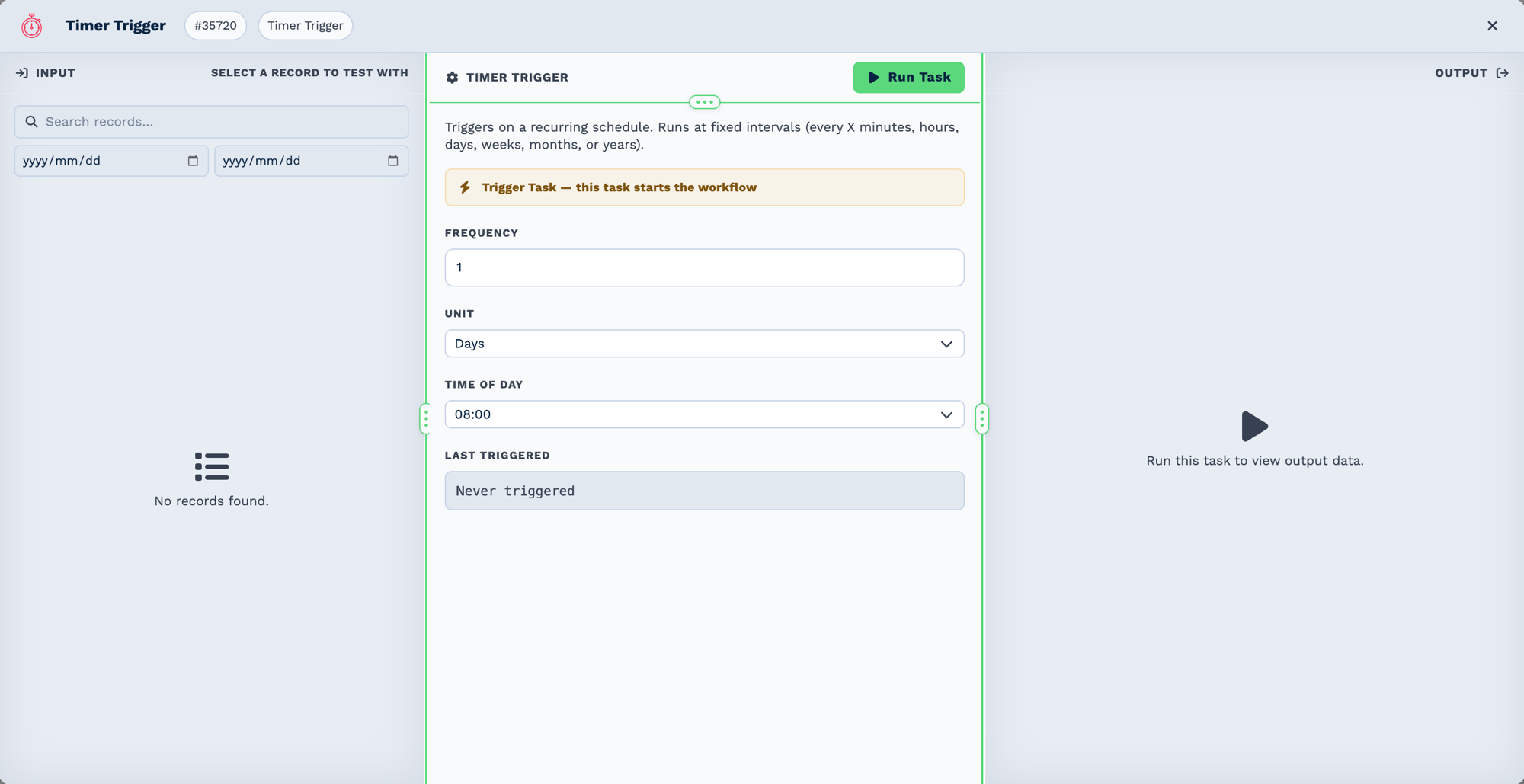
There is no list of schedule "types" to pick from. You set Frequency (a number) and Unit, and the two combine into a repeating interval. Time of Day fixes when it fires.
| Frequency | Unit | Fires |
|---|---|---|
5 |
Minutes | every five minutes |
1 |
Hours | hourly |
1 |
Days | daily, at the Time of Day you set |
2 |
Weeks | every fortnight |
1 |
Months | monthly |
1 |
Years | annually |
Last Triggered is the quickest check that a schedule is really running: a workflow that looks right but reads Never triggered has never fired.
There is no day picker
You cannot say "every Monday" or "on the 1st of the month". The interval runs from when the trigger was first enabled. To act only on particular days, fire daily and branch with an If Statement on the day taken from a Date Formatter.
Times are UTC
Time of Day is UTC, and so is the date_created the trigger outputs. There is no timezone
selector on the task, and no daylight-saving adjustment — an interval is a fixed number of
minutes, hours, days, weeks, months or years.
If a message needs to show a local time, convert it with a Date Formatter task rather than expecting the trigger to do it.
The account's Business Timezone under Settings → General affects how times are displayed elsewhere in the CRM. It does not change when this trigger fires.
Outputs
| Field | Type | Example | Notes |
|---|---|---|---|
date_created |
string | 2026-09-07 06:00:04 |
When the trigger fired, UTC, YYYY-MM-DD HH:MM:SS. |
schedule |
string | Daily at 06:00 UTC |
A readable description of the configured schedule, built from the frequency settings. |
run |
boolean | true |
Always true. |
run_text |
string | Timer trigger executed successfully. |
Times are UTC
date_created and the time in schedule are both UTC. Convert with a
Date Formatter task if you need local time in a message.
The trigger carries no other data — it fires on a clock, not on a record. Anything the workflow needs must be fetched by the tasks after it.
Real-World Examples
Send a daily reminder
Sync a sheet every hour
Schedule  (hourly)
  └─ Google Sheets   get_rows
      └─ Loop        over {{task_44001.JSON.rows}}, action: array
          └─ Webhook Out   push each row onward
Check in with clients monthly
Schedule  (monthly)
  └─ Google Sheets       get_rows — the account list
      └─ Loop            over the rows
          └─ Email       send the check-in
The trigger carries no data of its own
It fires on a clock, so anything the workflow needs has to be fetched by the tasks after it.
date_created and the time inside schedule are UTC.
Testing Your Schedule
Test Run Feature
You can test your scheduled workflow without waiting for the scheduled time:
- Open your workflow
- Click the "Run Test" button in the Schedule trigger task
- The workflow will execute immediately with the current date/time values
- Check the execution history to verify it worked correctly
Checking Execution History
After your workflow runs (scheduled or test), you can view the execution history:
- Go to your workflow
- Click "Execution History"
- View all past runs with timestamps and status
- Click any execution to see detailed logs
Best Practices
✅ Do's
- Use appropriate intervals: Don't schedule workflows more frequently than needed
- Consider timezones: Always set the correct timezone for your use case
- Test before enabling: Use "Run Test" to verify your workflow works correctly
- Monitor execution history: Regularly check that your scheduled workflows are running successfully
- Use meaningful names: Name your workflows clearly (e.g., "Daily Sales Report - 8 AM")
- Add error handling: Include If tasks to handle failures gracefully
- Describe the schedule in the workflow name, so the interval is obvious from the workflow list
❌ Don'ts
- Don't over-schedule: Running workflows every minute when hourly is sufficient wastes resources
- Don't ignore failures: Set up error notifications so you know when scheduled tasks fail
- Don't forget daylight saving: Use timezone-aware scheduling instead of UTC offsets
- Don't schedule overlapping workflows: If a workflow takes 10 minutes, don't schedule it every 5 minutes
- Don't hardcode dates: Use the schedule trigger's output fields instead of hardcoded values
Troubleshooting
Workflow Not Running at Scheduled Time
Possible Causes:
- Workflow is disabled
- Schedule configuration is incorrect
- Timezone setting is wrong
- System maintenance window
Solutions:
- Check the workflow toggle is ON (enabled)
- Verify your schedule configuration matches your intention
- Double-check your timezone selection
- Review execution history for error messages
Workflow Running at Wrong Time
Cause: Timezone misconfiguration
Solution: Edit your Schedule trigger and select the correct timezone
Workflow Runs Multiple Times
Cause: Multiple enabled Schedule triggers in the same workflow
Solution: Each workflow should have only ONE Schedule trigger. If you need multiple schedules, create separate workflows.
Advanced Patterns
Conditional Scheduling
You can add logic after a Schedule trigger to run different workflows based on the date:
1. Schedule Trigger - Daily at 9:00 AM
2. Code Task - Check if it's the first day of the month
3. If Task - Is first day?
   - Yes: Run monthly processing
   - No: Run daily processing
Sequential Scheduled Workflows
If you need workflows to run in sequence:
1. Schedule Trigger - Daily at 8:00 AM
2. [Your workflow logic]
3. Delay Task - Wait 30 minutes
4. Webhook Out - Trigger another workflow's webhook
Error Recovery
Add error handling to scheduled workflows:
1. Schedule Trigger - Hourly
2. Try your main logic
3. If Task - Check for errors
   - Has errors: Send alert email
   - No errors: Continue normally
Frequently Asked Questions
Can I have multiple Schedule triggers in one workflow?
No, each workflow should have only one trigger (Schedule, Webhook, Email, etc.). If you need multiple schedules, create separate workflows.
What happens if a scheduled workflow is still running when the next schedule hits?
The system queues the next execution and will run it after the current one completes. However, if you have many overlapping executions, consider increasing your schedule interval.
Can I schedule a workflow to run at different times on different days?
Set Unit to Weeks. There is no day-of-week picker: the trigger repeats on that interval from when it was first enabled. To act only on certain days, fire daily and branch with an If Statement on the day name from a Date Formatter.
How do I schedule a workflow for business days only (Monday-Friday)?
There is no weekday selector. Fire daily and use an If Statement on the day from a Date Formatter to skip weekends. 0 9 * * 1-5 (for 9 AM on weekdays).
Can I schedule a workflow to run every X days (not weekly)?
Not directly with the built-in schedule types. You can use a daily schedule and add a Code task to check if it should run (e.g., check if day number modulo X equals 0).
What's the difference between UTC and my local timezone?
UTC is a universal time standard. If you select your local timezone (e.g., "Africa/Johannesburg"), your workflow will run at the time shown on your local clock, accounting for daylight saving time. This is usually what you want.
Can I temporarily disable a scheduled workflow?
Yes, toggle the workflow OFF at the top of the workflow editor. The schedule trigger will stop running until you enable it again.
How far in advance can I see upcoming scheduled runs?
Currently, the system doesn't show future scheduled runs. However, you can calculate them based on your schedule configuration.
Can I schedule a workflow to run at the end of each month?
There is no last-day option. Set Unit to Months, then guard the run with an If Statement that checks tomorrow's date is the first of the next month, using a Date Formatter.
Next Steps:
- Webhook In Trigger - Trigger workflows from external systems
- Website Form - Trigger from website forms
- Inbound Email - Trigger from incoming emails